
Finalise a booking
Finalise a booking
Section titled “Finalise a booking”Finalise a booking’s charge. Finalisation writes the usage charge, any shortfall, any event fees, and any custom charge to the ledger, then marks the booking completed — except for a maintenance booking, which closes the same way but posts no charge at all. See finalisation rules for the full breakdown by booking type.
Before you start
Section titled “Before you start”- You must be an admin (treasurer counts as admin).
- Finalisation is irreversible in the UI. To change a finalised booking, correct it via an adjustment rather than trying to “unfinalise” it.
- Once finalised, the booking disappears from the unfinalised-bookings queue.
- You must be online. Finalisation writes to the financial ledger and cannot be queued; see Offline behaviour below.
- The single-booking flow on this page bypasses the look-back continuity check the bulk path uses. The admin has already decided to finalise. Use this when bulk left a row in the queue (a Junction conflict or Awaiting previous log badge), or when you want to override a shortfall.
- The booking must have a member on it. A booking whose owner has deleted their account cannot be finalised: the charge has nobody to go to, and it would be priced at the syndicate’s base rate rather than that member’s. The finalisation panel says so in place of the usual figures. Assign the booking to a member and finalise it then. Flights cannot be logged against such a booking either, for the same reason.
- Open the booking detail screen.
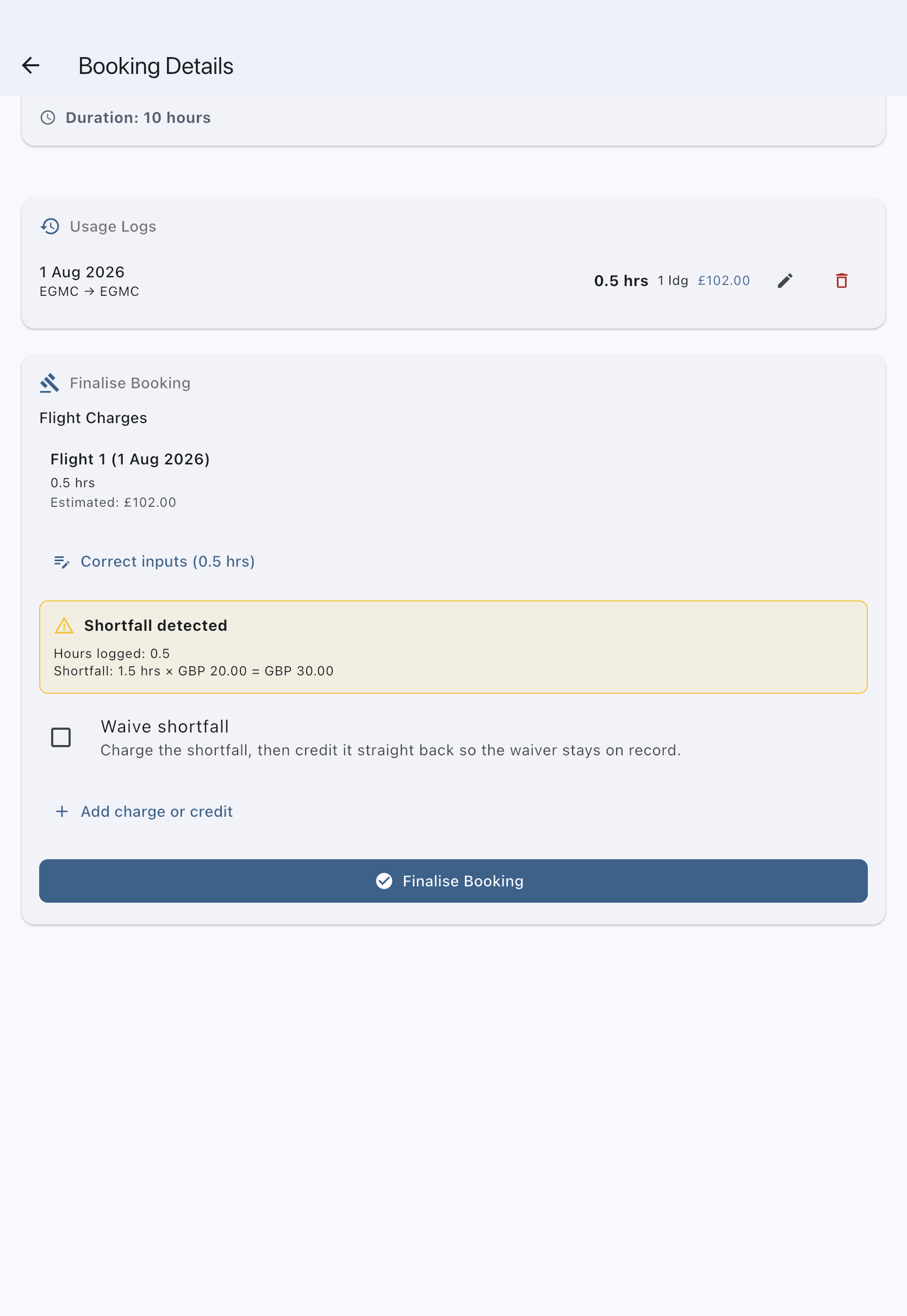
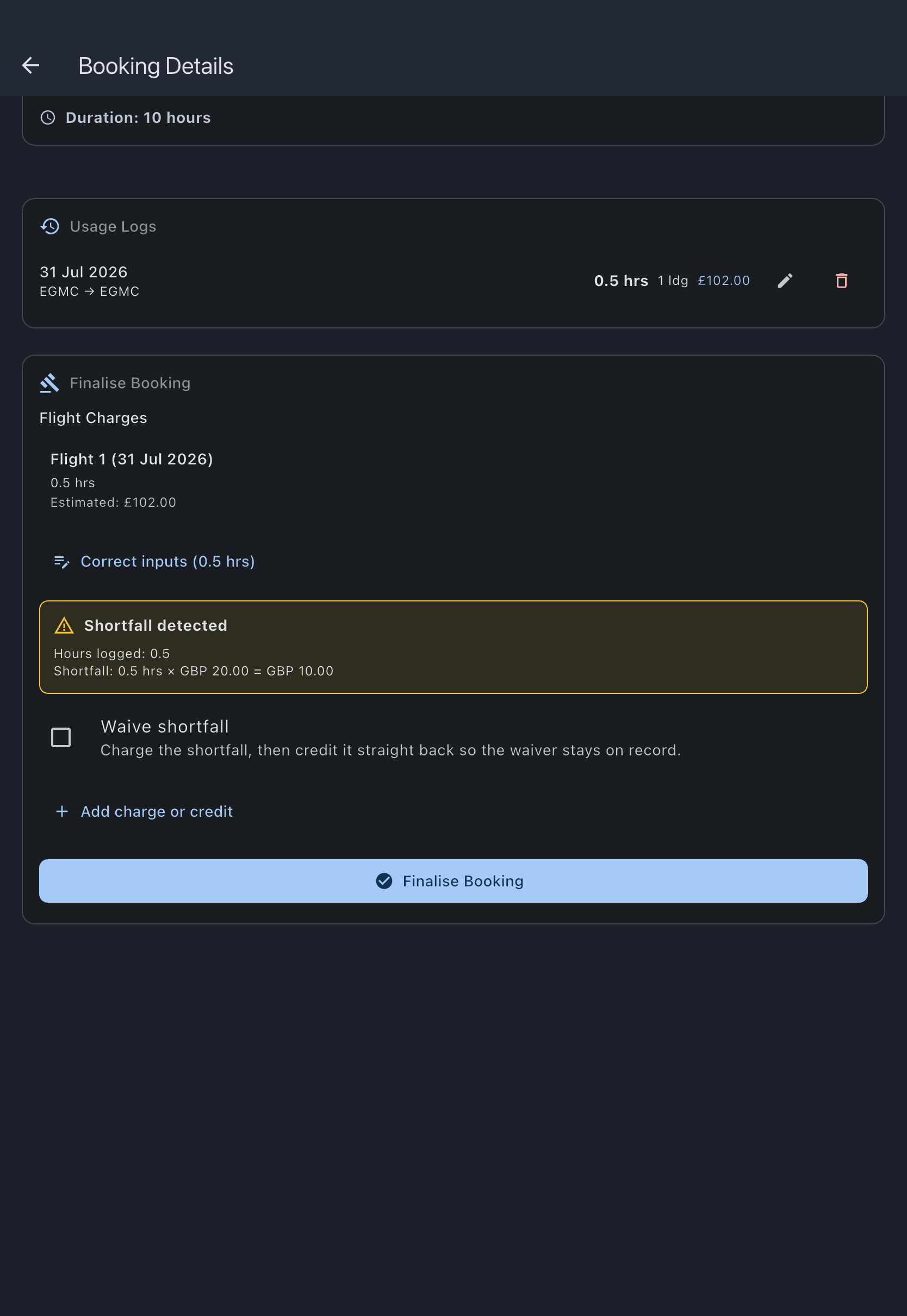
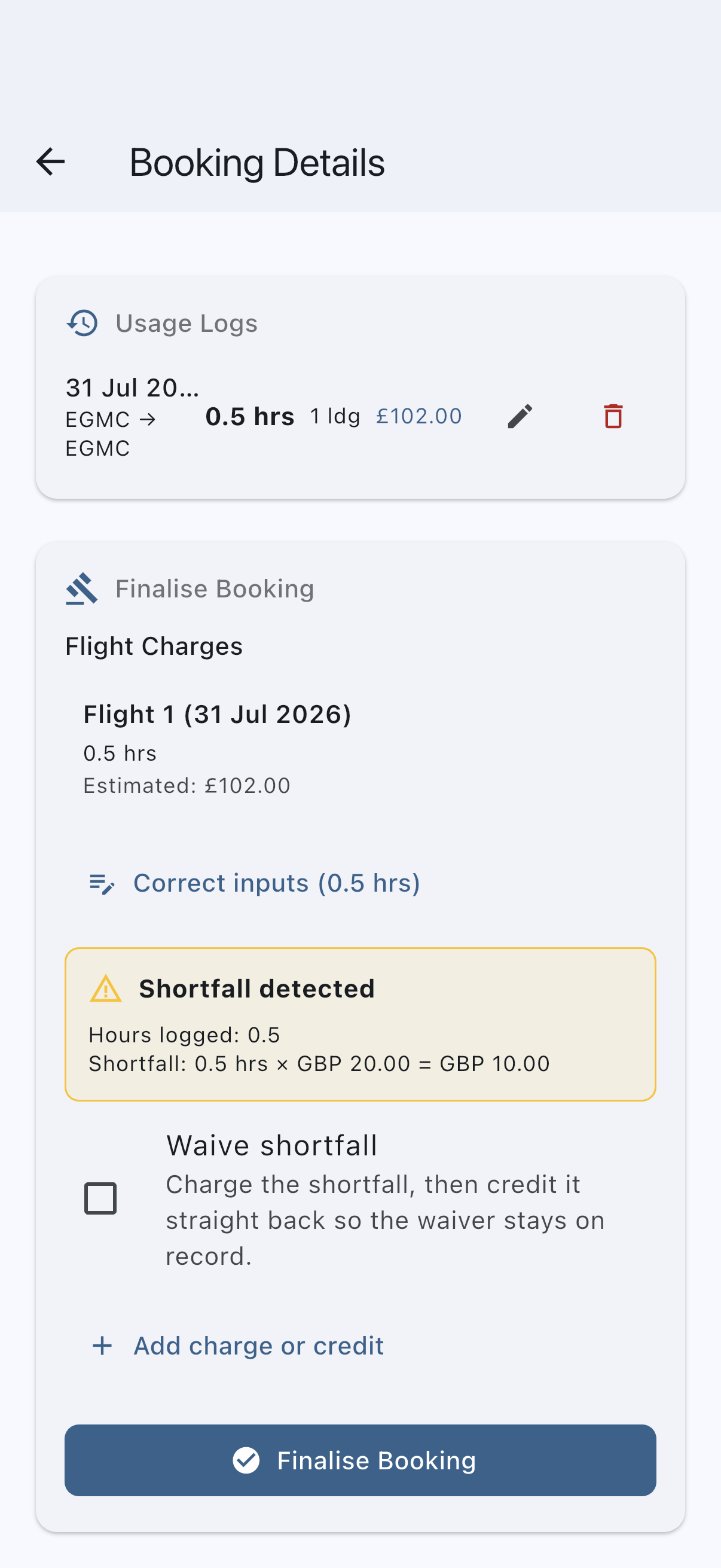
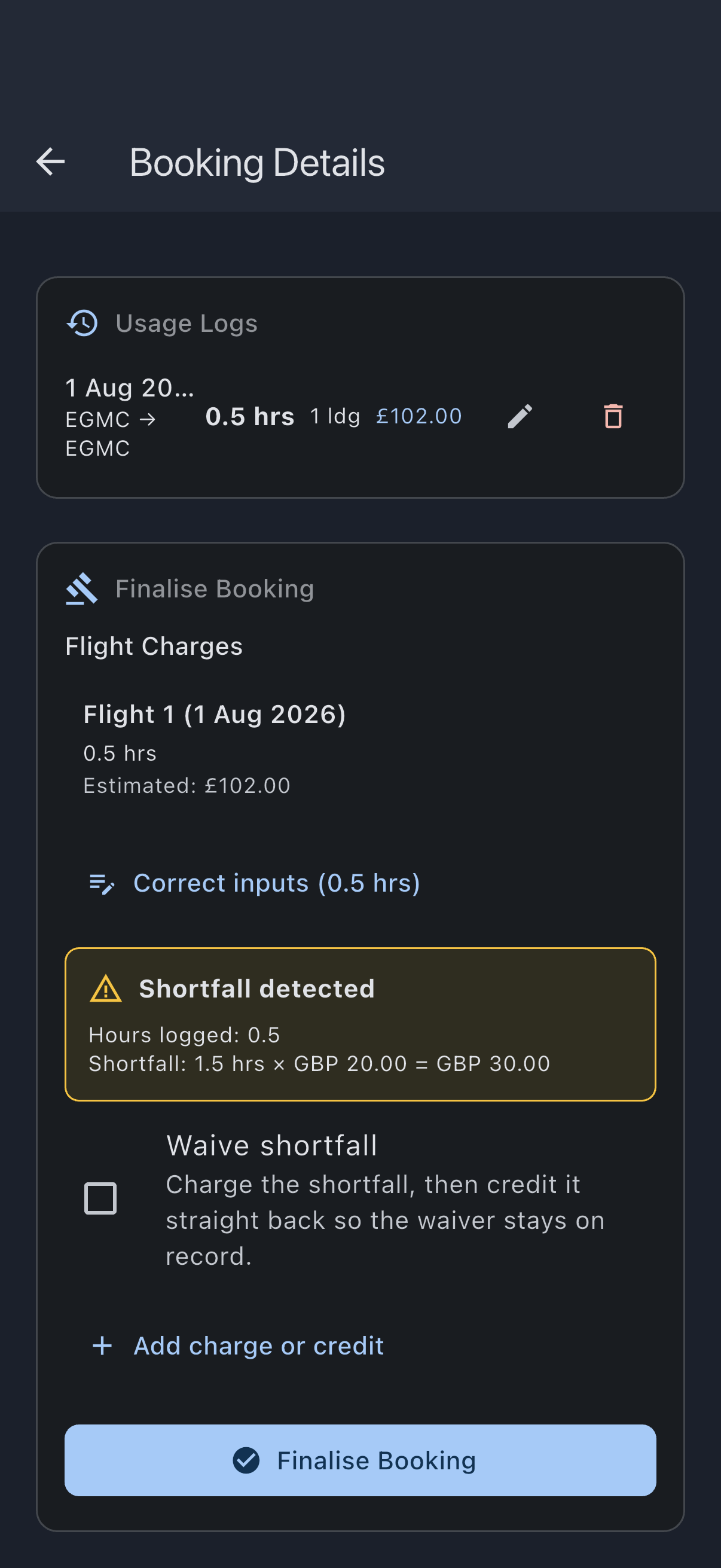
- Scroll to the Finalise Booking section.
- Review the per-flight charge breakdown. If a captured input is wrong, correct it now (see Correct the captured inputs before finalising below).
- Review the shortfall preview. Syndik8 computes the shortfall from the minimum-usage rule and the logged usage, and shows the breakdown: Shortfall: X hrs × £rate = £total. The figure is computed server-side and shown read-only.
- To waive the shortfall entirely, tick the Waive shortfall checkbox. The shortfall is still charged and then credited straight back, so the waiver stays on the audit record.
- To add an ad-hoc charge or credit unrelated to shortfall, tap Add charge or credit, select Charge or Credit, enter the amount, and enter a Custom charge description (the description is required when an amount is entered).
- Tap Finalise Booking.
- Confirm in the dialog. The dialog restates the amounts: Finalise this booking with a shortfall charge of £X? (or with a custom charge if one was entered).
You see Booking finalised successfully. The ledger now carries the usage charge, shortfall, any event charges, and any custom charge — except for a maintenance booking, which carries none of these; only its status changes. The booking shows This booking has been finalised.
Correct the captured inputs before finalising
Section titled “Correct the captured inputs before finalising”If a meter reading, time, landing count, or other captured input is wrong, correct it before you finalise rather than finalising and posting an adjustment afterwards. While the booking is still confirmed, the values are not yet locked, so your corrected figures become the canonical record and the recomputed charge is billed directly.
- In the Finalise Booking section, find the per-flight breakdown.
- Tap Correct inputs (X hrs) under the flight you need to change.
- Enter a Reason for correction when prompted, for example Pilot misread the tacho. The reason is required and is kept on the audit trail.
- Tap Continue. The usage-capture screen opens with the captured values pre-filled.
- Edit the inputs (meter readings, times, landings, event counts) and save.
On return, the breakdown and shortfall preview recompute from your corrected values. The figures you approve here are the figures the server bills when you finalise; your approved values supersede whatever was originally captured.
If a member edits the same log while you have the card open, an advisory banner appears: Usage data changed since you opened this. Refresh to adopt it, or finalise to keep your values. Refresh to pull in their change, or finalise to keep the values you approved.
Once finalised, the log is locked
Section titled “Once finalised, the log is locked”When you finalise, the usage log is committed and locked to ordinary editing; the in-line “Correct inputs” affordance is gone. From that point a mistake is fixed through the separate, admin-only post-finalisation process: Correct this booking fixes the captured reading (the original is preserved in the audit trail), recomputes the charge, and posts a single adjustment for the difference, leaving the original transactions intact. See correct a finalised booking.
So the rule of thumb is: correct inputs while confirmed; use Correct this booking once finalised.
The most recent flight on an asset
Section titled “The most recent flight on an asset”The most recent flight on an asset finalises like any other. The look-back check compares its start reading to the flight before it, so either it is the first flight on the asset (nothing to disagree with) or its start already matched its predecessor’s end: either way it clears with a Junction confirmed badge and the bulk path’s “Finalise All” includes it. There is no separate Trailing flight badge and nothing waits on a future flight; see finalise multiple bookings at once.
If that flight’s end reading later turns out to have been wrong (the next pilot’s start tacho, once they fly and log, disagrees with what was recorded as the end), use correct a finalised booking to post an adjustment for the difference. Do not try to “unfinalise”; finalisations are forward-only.
Offline behaviour
Section titled “Offline behaviour”The Finalise Booking button watches connectivity. When the device is offline, the button disables and shows Settlements need a connection. Try again when you’re online in a snackbar if you tap it. The button re-enables automatically when the connection returns; you do not need to refresh the screen.
This is deliberate. Finalisation writes to the ledger via a server-side RPC that atomically posts the per-log charges, the shortfall transaction, any event fees, and any custom charge before flipping the booking to completed. Queueing that offline would risk double-posts or partial writes: money conflicts that an “eventually consistent” model cannot resolve safely. So the action waits for a connection rather than accepting a tap that might never reach the server.
If it goes wrong
Section titled “If it goes wrong”- “Please provide a description for the charge or credit”: the Custom charge description is required when a custom amount is entered.
- The “Correct inputs” prompt won’t continue. A reason for the correction is required; enter one before tapping Continue.
- “Failed to finalise”: connectivity dropped mid-call (or the RPC errored). No partial finalisation is written; retry when you have signal again.
- The Finalise Booking section is not shown. The section only appears on past confirmed bookings. Already-finalised bookings (status: completed) or future/pending bookings do not show it. If the device is offline the button inside the section disables; see Offline behaviour above.
See also
Section titled “See also”- Finalisation rules: what finalisation does, the snapshot rule, and how each path handles a junction
- Transaction types: the ledger entries finalisation writes
- Unfinalised bookings queue: the admin view of bookings awaiting finalisation
- Finalise multiple bookings at once: bulk version with look-back classifications
- Enable auto-finalisation: eager pay-as-you-go alternative for syndicates with reliable logs
- Correct a finalised booking: recovery when a booking has already been finalised and a captured value later turns out to have been wrong