
Create a booking
Book an asset for a time range on the syndicate calendar.
Before you start
Section titled “Before you start”- You must be an admin or member of the syndicate. Viewers cannot create bookings.
- The asset must be airworthy. A grounding squawk blocks new confirmed bookings until the squawk is resolved or deferred.
- If your syndicate requires booking approval, your booking starts as
pendingand an admin must approve it before it reserves the slot. See Booking policy.
- Go to the Calendar tab in the syndicate.
- Pick the view you want to book in: Month, Week, or Day. On week and day views you can see the exact hours.
- Open the booking dialog. The gesture depends on the view:
- Month view: long-press a day for a default-length booking, or drag across multiple days for a multi-day booking.
- Week or day view on web: click and drag across the time range.
- Week or day view on mobile: long-press then drag across the time range.
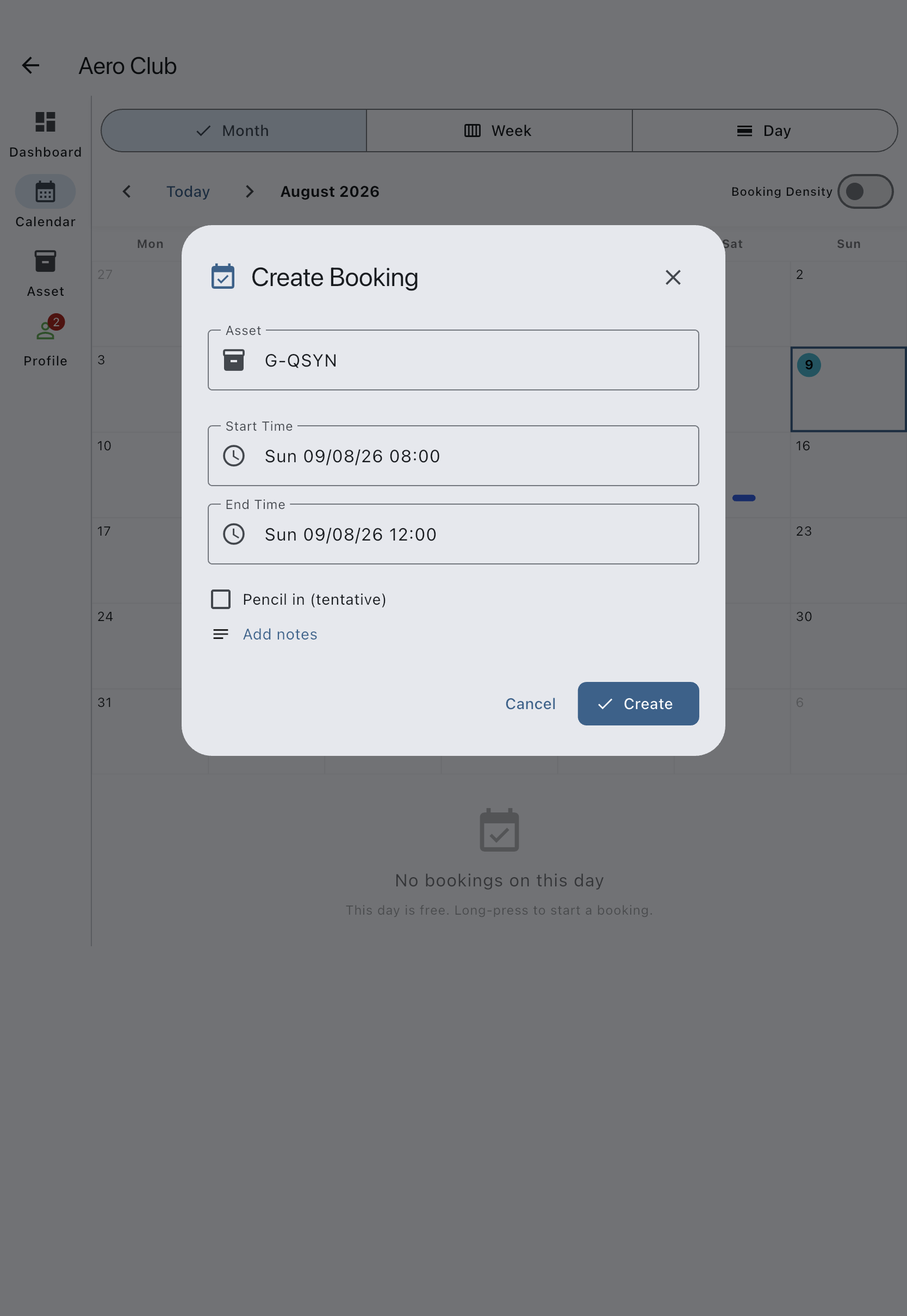
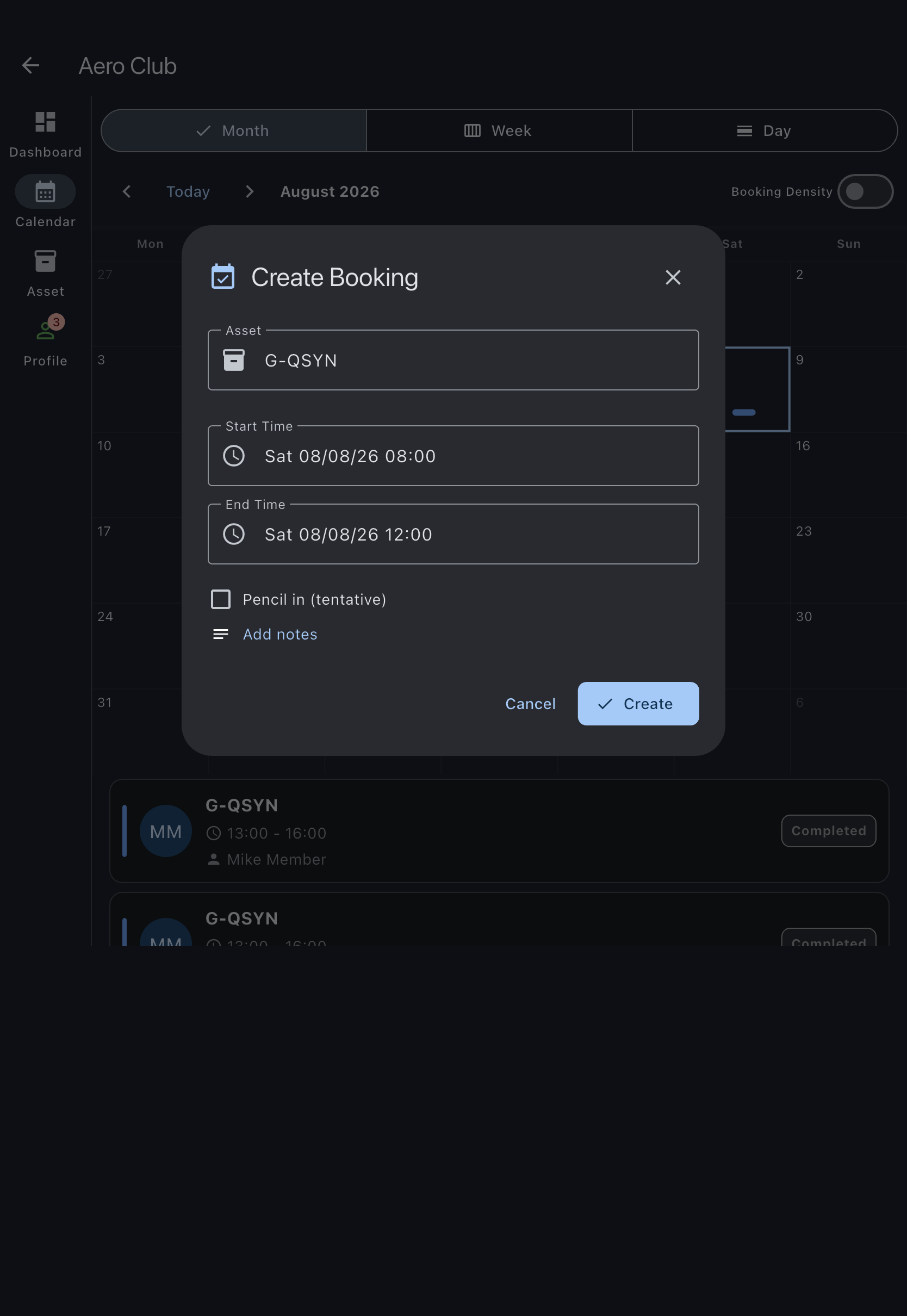
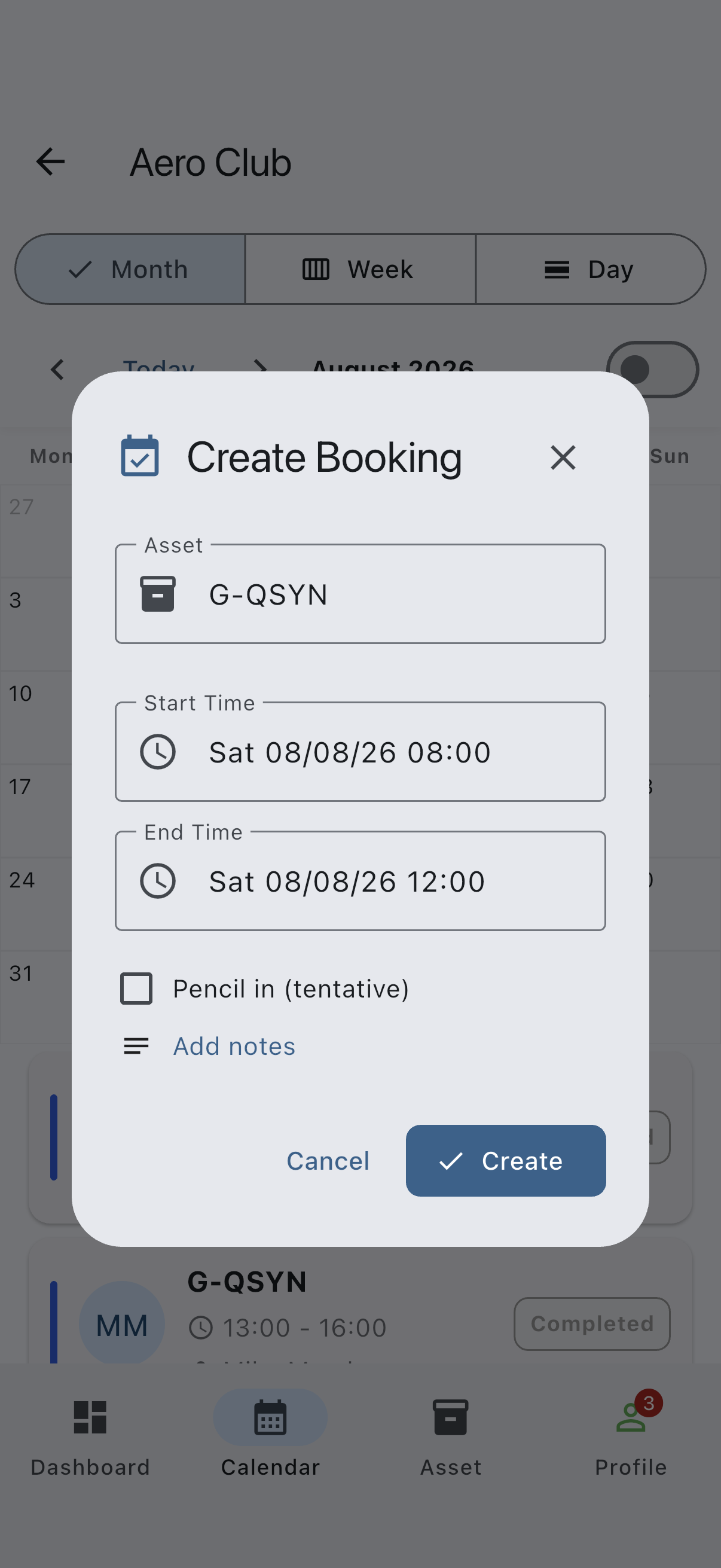
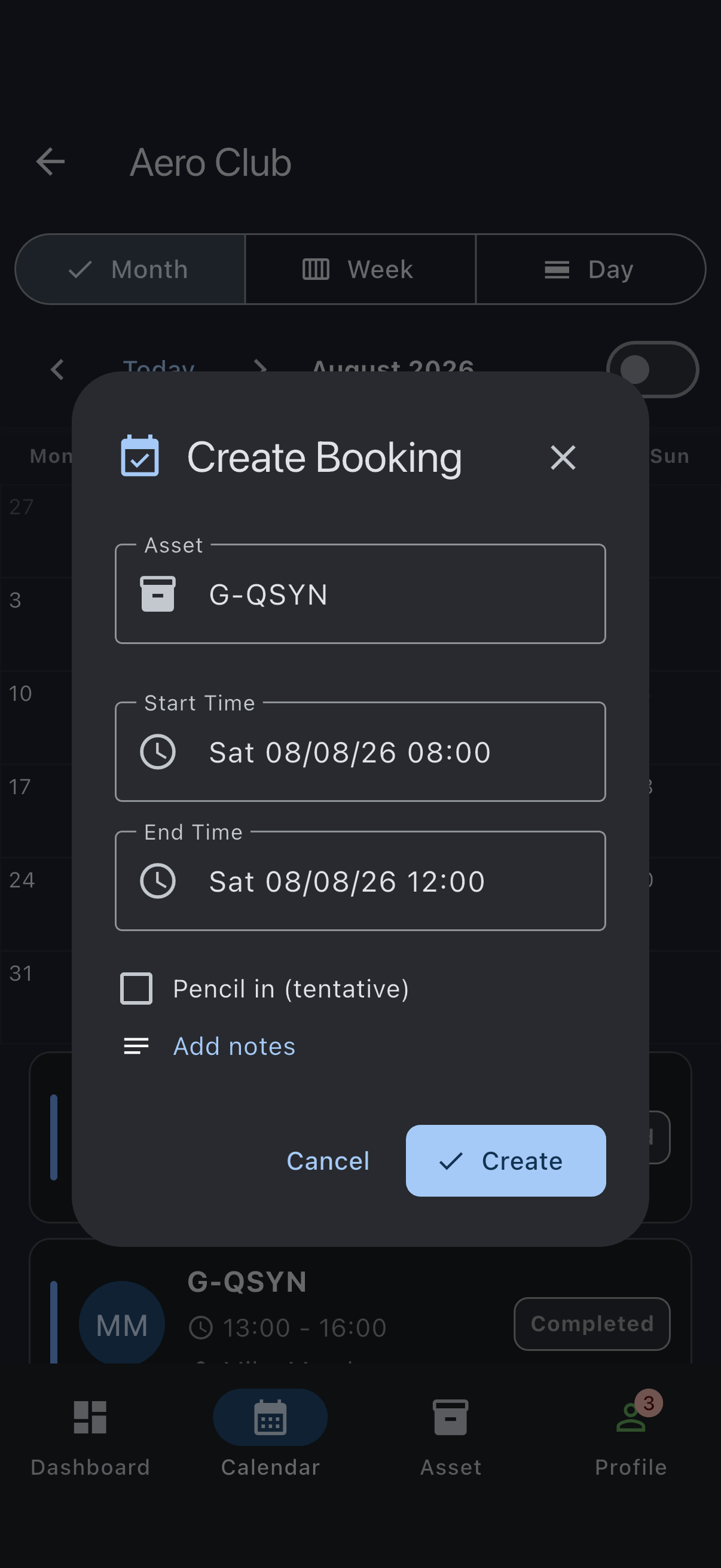
- Check the Asset. Opened from the calendar it is a read-only label rather than a picker: in Month and Week view it follows the Filter by aircraft control above the grid, and in Day view it is the aircraft whose row you dragged on. To book a different one, close the dialog, change the filter or use the other row, and start again.
- Adjust Start Time and End Time if you need to. The dialog pre-fills from your drag.
- If you want, tap Add notes and type anything the rest of the syndicate should know.
- Leave Pencil in (tentative) unticked for a normal booking. Tick it to pencil in a non-binding hold instead; see Pencil in a tentative booking.
- Tap Create.
You’ll see a confirmation snackbar and the booking appears on the calendar. The snackbar reads Booking created successfully. If you are offline, it adds Will sync when you’re back online on a second line; the booking is real on your device straight away, and the app pushes it to the server when your connection returns.
If the booking cannot go ahead, the dialog stays open and tells you why in red just above the Create button. Where Syndik8 can tell in advance — a start time that has passed, or a window shorter than your syndicate’s minimum — the reason appears as soon as you set those times and Create is greyed out until you fix them.
The status depends on your syndicate’s booking policy:
- Approval off, or you are an admin: status is
confirmed. - Approval on, you are a regular member: status is
pendinguntil an admin approves. Other members can still book the same slot while your booking is pending.
Book on behalf of another member
Section titled “Book on behalf of another member”Admins can create a booking owned by someone else in the syndicate, which is useful when a member phones in a slot or you are managing the calendar on their behalf.
In the create-booking dialog there is a Book on behalf of picker. It defaults to Myself, so your own bookings are unchanged. To book for someone else:
- Open the booking dialog as you normally would and check the Asset, Start Time, and End Time.
- Open the Book on behalf of picker and choose the member you are booking for.
- Tap Create. The booking is owned by the member you picked, not by you.
Notes:
- The picker only appears for admins. A regular member does not see it and can only book for themselves.
- It only lists members who can hold a booking: admins and members. Viewers are not offered, because a viewer cannot hold a booking.
- The picker is shown for personal bookings only, not for maintenance bookings or events.
- The server also checks that the chosen member is allowed to hold a booking, so a booking cannot be created for a viewer even if the request is made directly.
Maintenance check
Section titled “Maintenance check”Before the dialog confirms a booking on a personal asset, Syndik8 evaluates the asset’s open maintenance items against the synced meter reading and recent usage logs and shows a warning if the booking would push the asset past a service threshold. The check runs locally (typical evaluation time is around 10 ms, with no network round-trip), so it works the same whether you are online or offline:
- Green (no warning shown). The booking does not bring any maintenance item close to due.
- Amber. A maintenance item will likely come due during or shortly after this booking. The dialog shows the item name and how close. You can still proceed.
- Red. A maintenance item is overdue, or will go overdue during this booking. The card is titled Booking exceeds a maintenance limit and names the item and the estimated usage. A regular member cannot create the booking and is asked to contact an admin. An admin sees an acknowledgement tickbox and can override and create the booking anyway.
If it goes wrong
Section titled “If it goes wrong”- “Please select an asset”. The dialog opened without an asset resolved. From the calendar the Asset field is read-only, so close the dialog, set the Filter by aircraft control on the calendar, and start again. An Asset dropdown appears only when the dialog is opened away from the calendar, such as the Book now shortcut on a syndicate with several aircraft; there you can just pick one.
- “End time must be after start time”. Create stays greyed out, with the reason above it, until the end is later than the start.
- “That time has already passed. Choose a start time from now onwards.” The start time you have chosen is behind you, and a booking cannot be made for time that has gone. Long-pressing a day in Month view pre-fills that day’s first free slot starting at 08:00, so on a day that is already under way — or a day in the past — the pre-filled window can be one you cannot book. Move Start Time forward.
- “Bookings must run for at least N minutes.” The window is shorter than your syndicate’s minimum booking duration. Move the end time later, or ask an admin to change the minimum on the Booking Policy screen.
- “Asset is grounded”. A grounding squawk is open on the asset. An admin must resolve or defer it first. See Squawk severity.
- “Couldn’t check airworthiness”. The dialog could not load the asset’s squawks and maintenance items, usually because the connection dropped mid-check. You can still submit, but if the asset turns out to be grounded the booking is refused when it reaches the server. Reopen the dialog once you are back online to get a real answer.
- Conflict warning with an existing booking. A confirmed booking already covers part of your slot. Pick a different time or ask the author to move theirs.