
Reject a member's booking
Reject a member’s pending booking and tell them why.
Before you start
Section titled “Before you start”- You must be an admin of the syndicate.
- Only bookings in the
pendingstate can be rejected. Confirmed bookings cannot be rejected; you’d cancel them instead (see Cancel a booking). - A rejection reason is required. The reject button stays disabled until you enter one.
- Open the Admin tab and tap Pending (or tap the approvals badge at the top of the syndicate screen). On the Pending screen, tap the Bookings row, then Review to open the Pending Approvals list.
- Tap a booking card to expand it, then tap Reject.
- In the dialog (“Provide a reason for rejecting this booking:”), type a reason. Short is fine; the member will see it. Example: Asset under maintenance.
- Tap Reject to confirm.
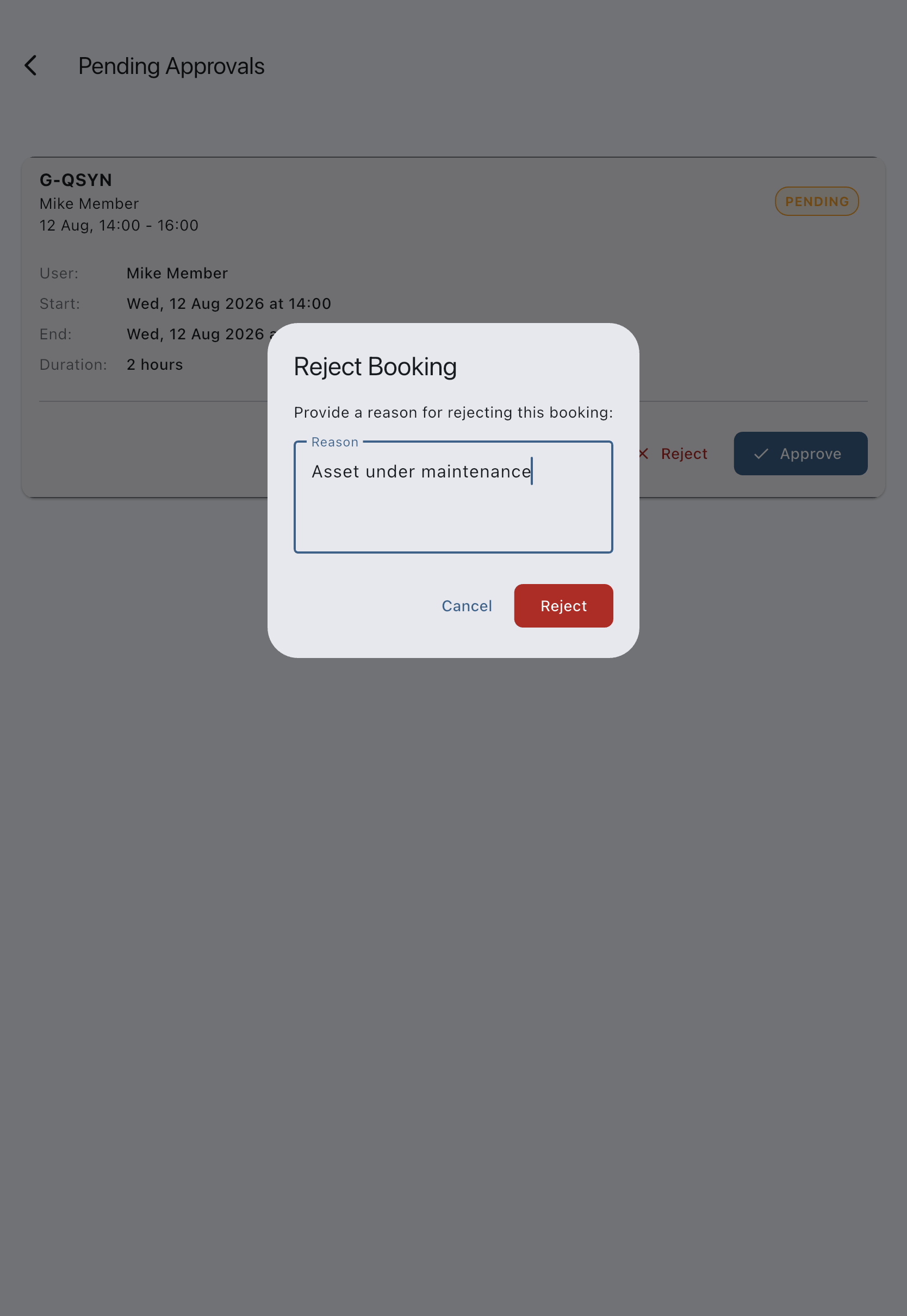
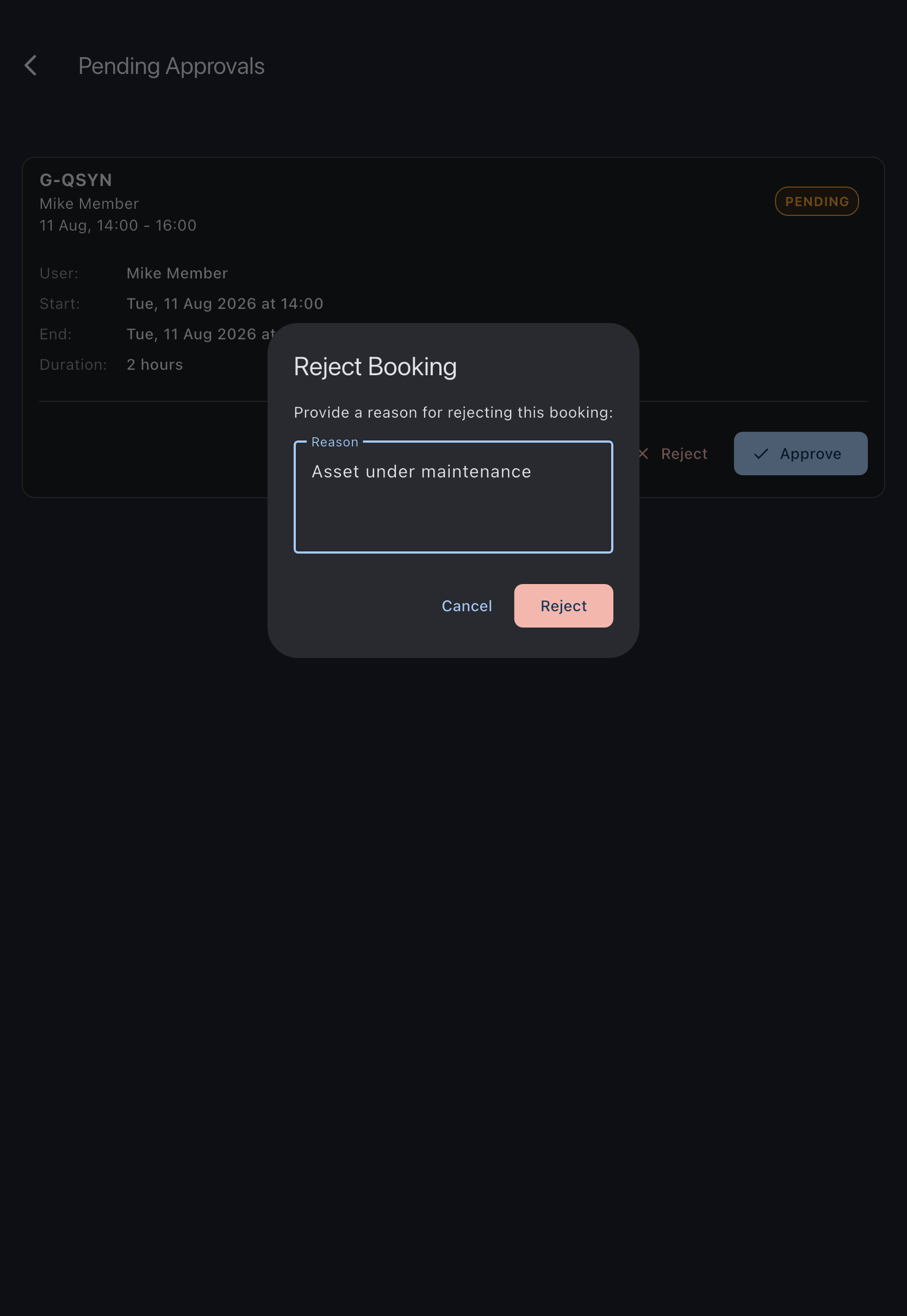
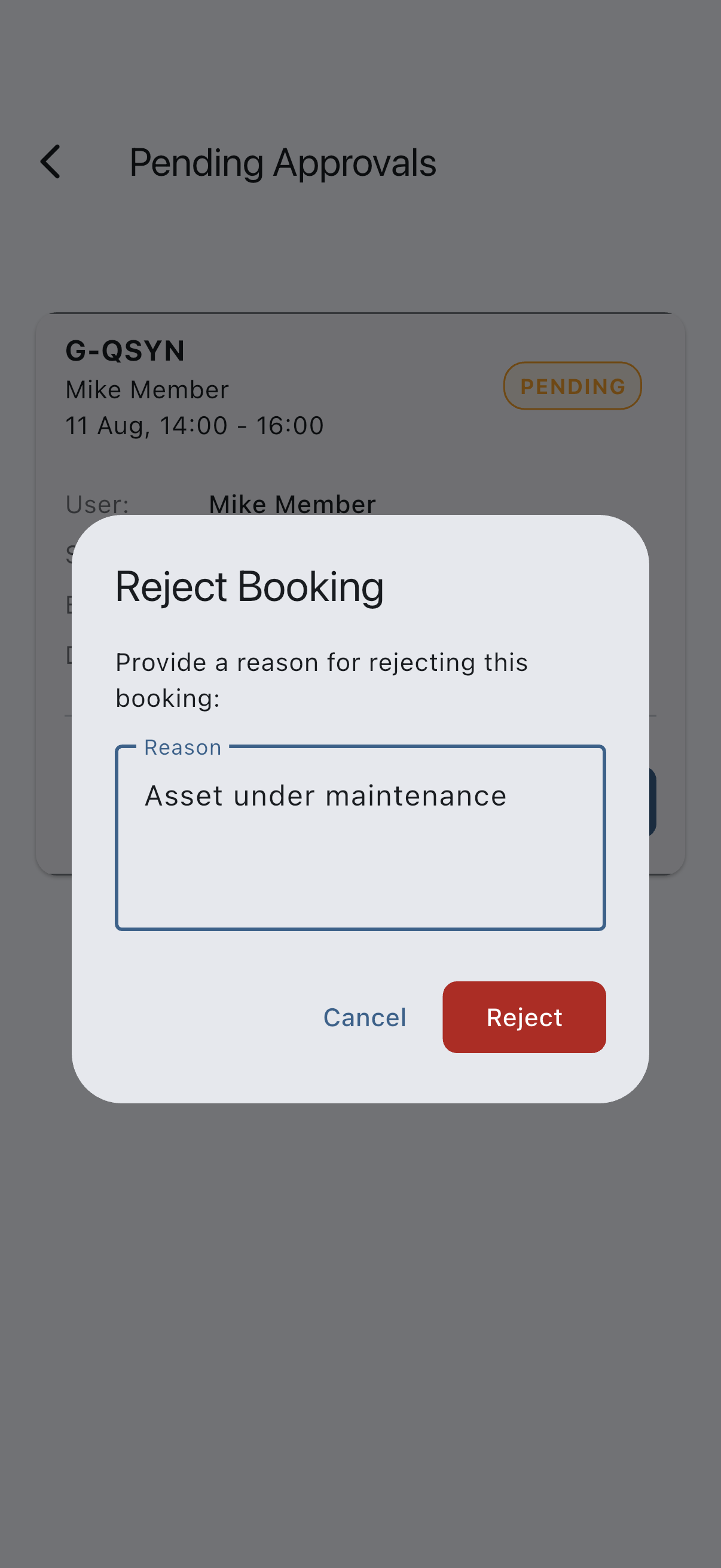
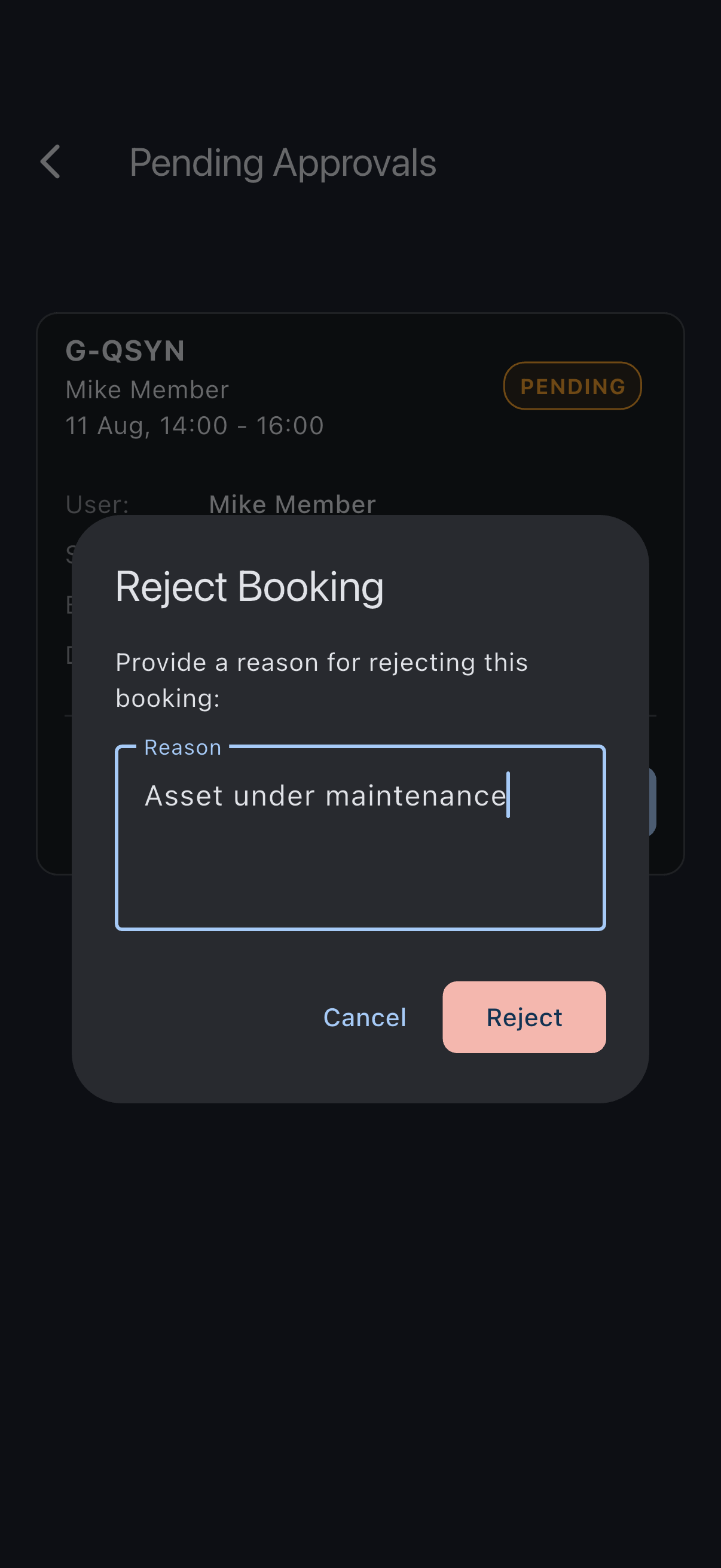
You’ll see a Booking rejected snackbar. The booking’s status moves from pending to rejected. If you are offline, the rejection and its reason are queued and reach the member when your device next syncs.
Rejection versus cancellation
Section titled “Rejection versus cancellation”- Rejected is what an admin does to a member’s pending booking. The member sees the reason.
- Cancelled is what the booking’s author does, including admins cancelling their own. Members initiating a cancel see the generic cancel flow, not the reject-with-reason flow.
The distinction matters because a member looking at a rejected booking in their Rejected tab can see it was declined by an admin, with the reason, rather than it having silently gone away.
If it goes wrong
Section titled “If it goes wrong”- The Reject button is disabled: you haven’t typed a reason yet. Type at least a few characters.
- “Only pending bookings can be rejected”: the booking has moved on since the list loaded. The list updates on its own as bookings change.
- The Reject button isn’t there: you are not an admin in this syndicate.