
Drag to book on the calendar
Create a booking by selecting the time range directly on the calendar grid.
Before you start
Section titled “Before you start”- You must be a member or admin. Viewers cannot book.
- You need to be on the syndicate Calendar tab, in Month, Week, or Day view.
- On a syndicate with more than one aircraft, set the Filter by aircraft control above the grid before you drag. In Month and Week view that filter decides which aircraft you book, and the dialog shows it as a read-only label you cannot change. Day view is different: it gives each aircraft its own row, so you drag on the row you want.
Steps on the web
Section titled “Steps on the web”- Open the Calendar tab.
- Switch to Week or Day view for an hourly grid, or stay on Month for a day-level grid.
- Click and drag from the start time to the end time and release. The grid highlights the range as you drag.
- When you release, the create-booking dialog opens pre-filled with your dragged range.
- Adjust the times if you need to and tap Create. The rest of the flow is the same as Create a booking.
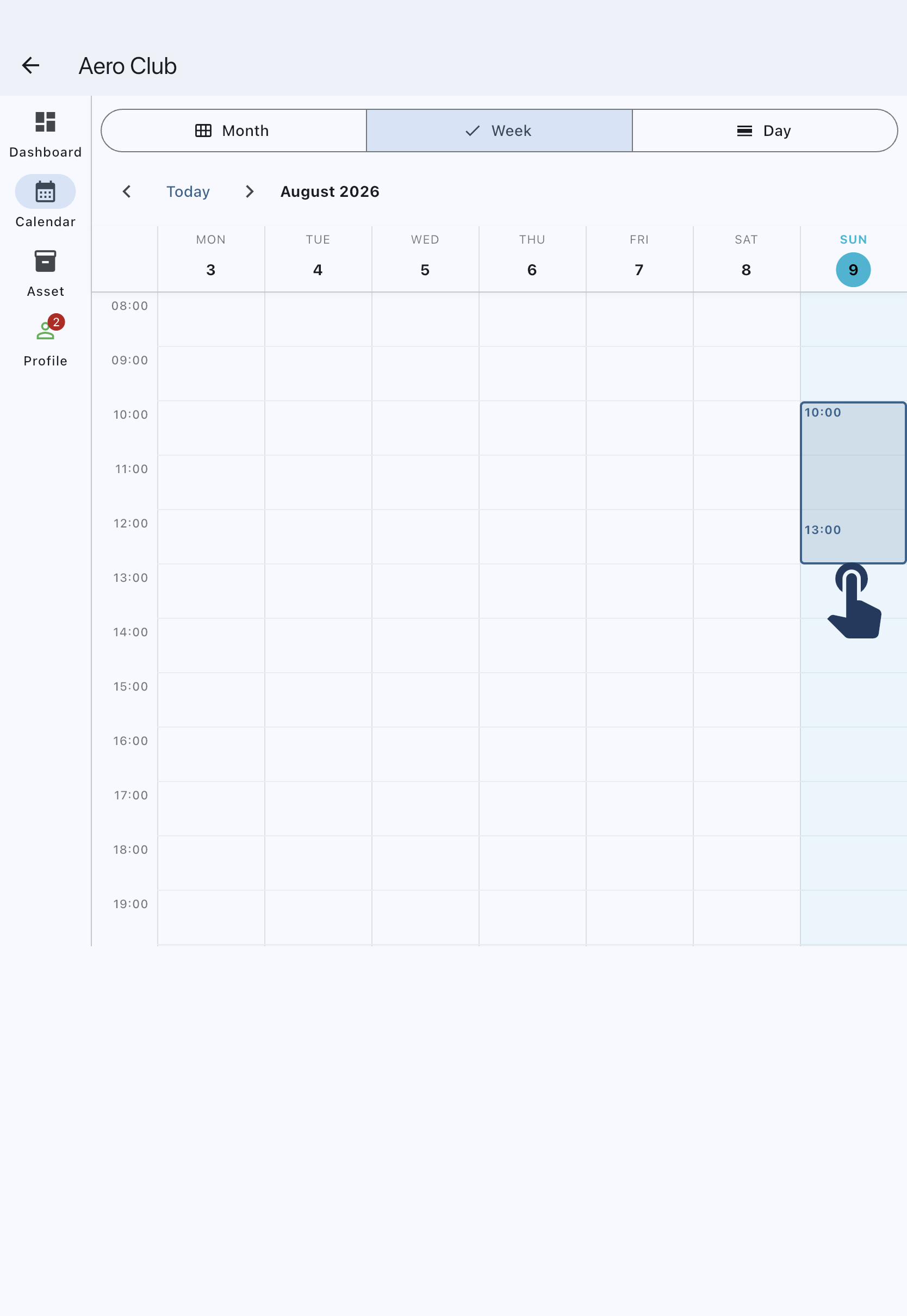
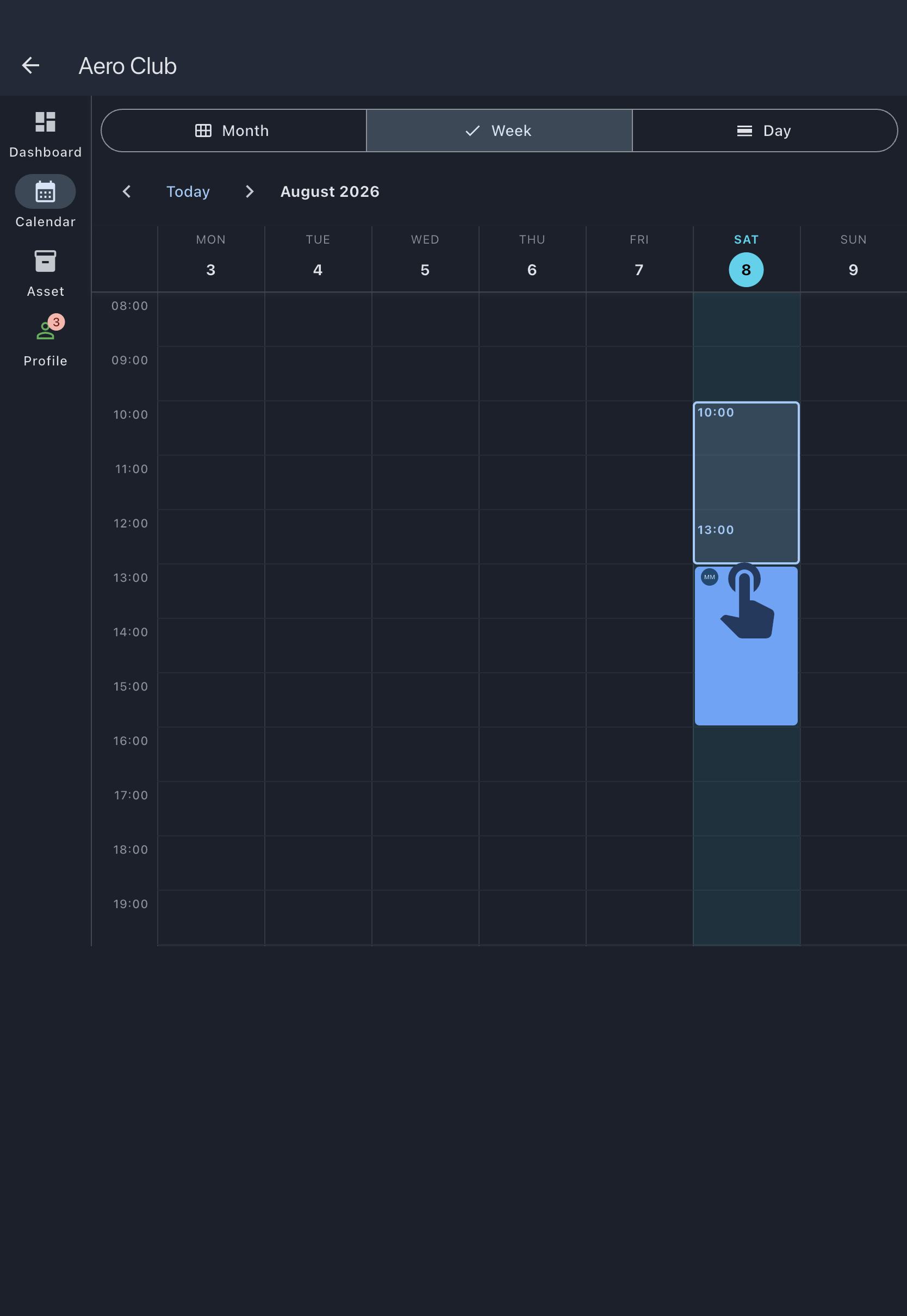
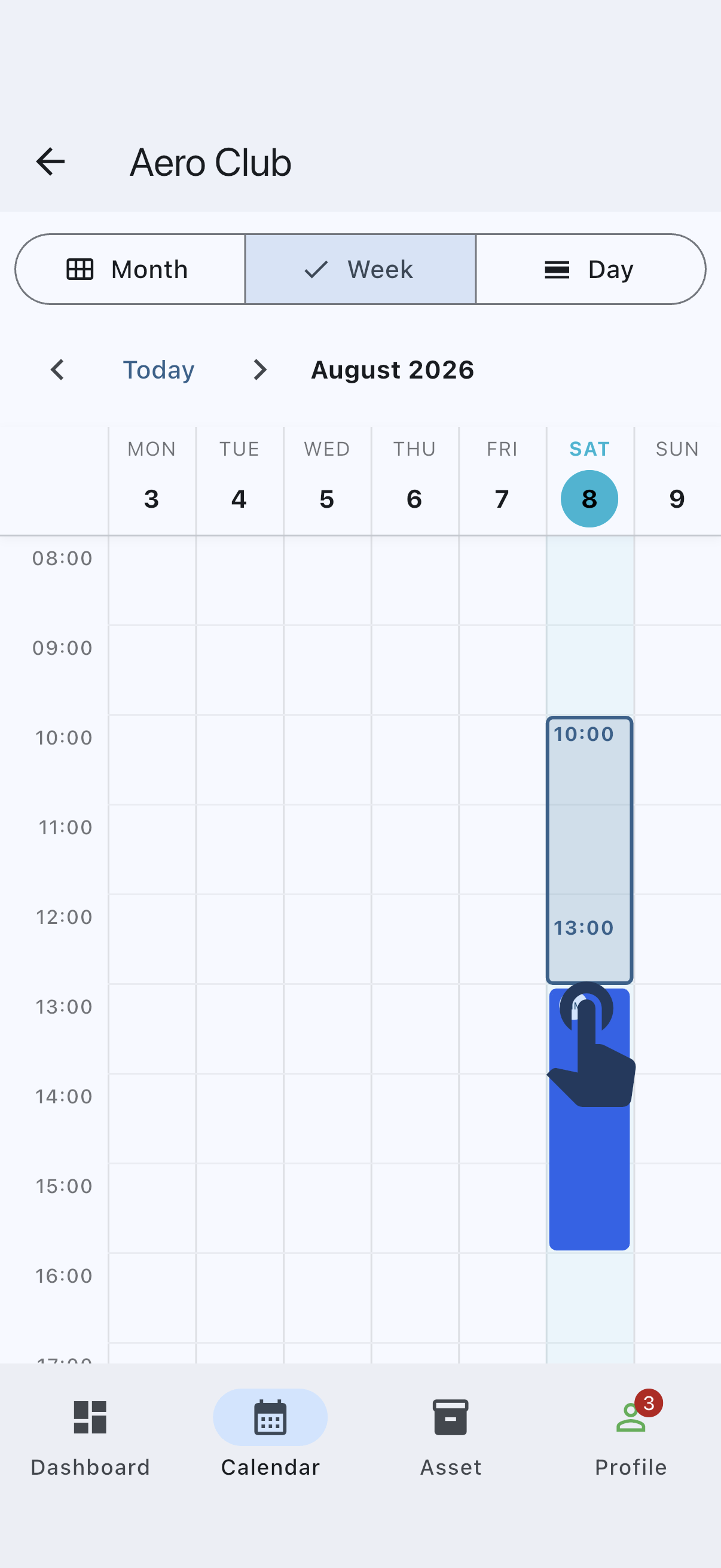
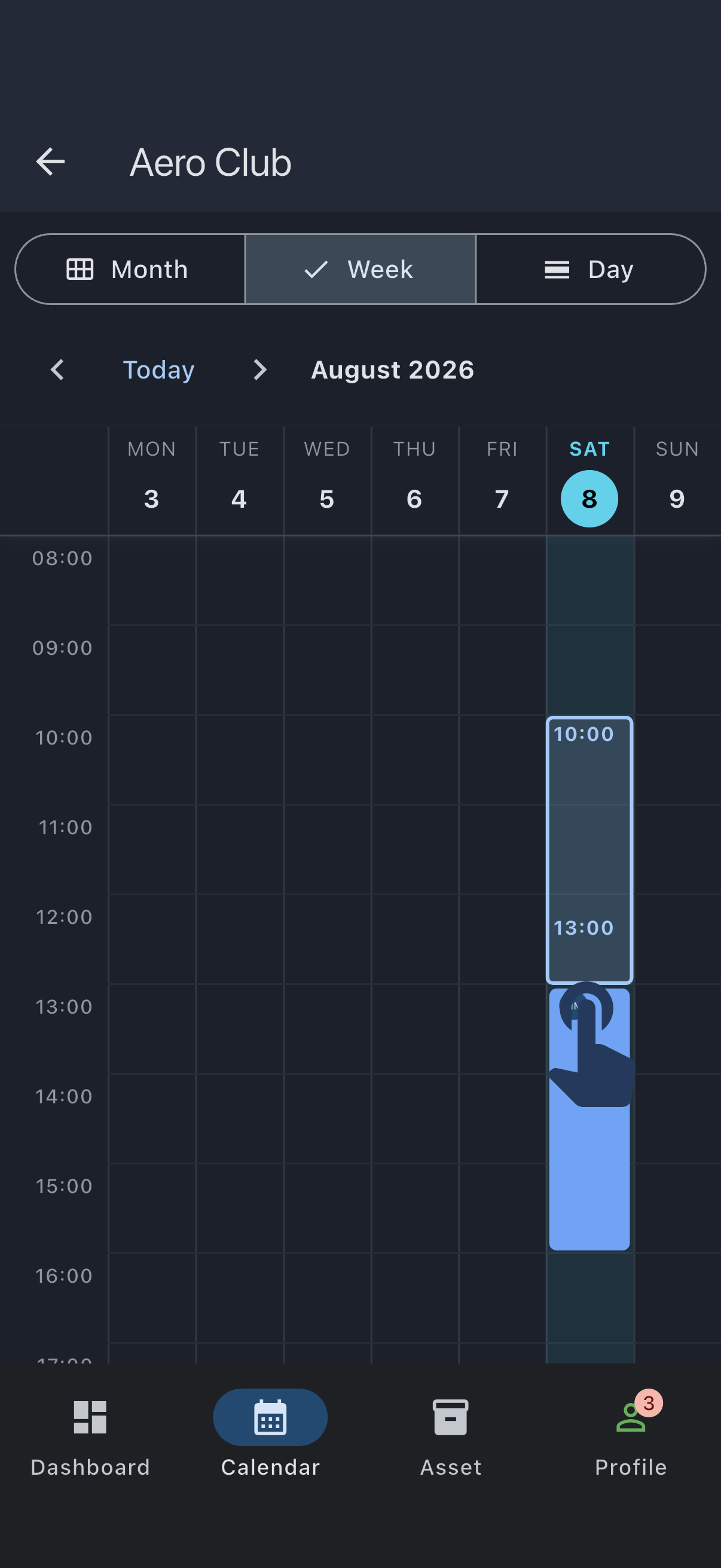
The image is from a single-aircraft syndicate, so there is no Filter by aircraft control above the grid: Syndik8 hides it when there is nothing to choose between. If your syndicate has two or more aircraft it sits above the grid, and the point in Before you start about setting it first applies.
Steps on iOS and Android
Section titled “Steps on iOS and Android”- Open the Calendar tab.
- Switch to Week or Day view.
- Long-press on the start time until the grid marks it, then (without lifting your finger) drag to the end time and release.
- When you release, the create-booking dialog opens pre-filled with your dragged range.
- Adjust the times and tap Create.
On Month view, mobile and web are the same:
- Long-press a single day for a default-length booking.
- Drag across multiple days for a multi-day booking.
If it goes wrong
Section titled “If it goes wrong”- You see “This time conflicts with an existing booking”: you dragged across a time the asset is already booked. Release on a free slot instead.
- The dialog shows the wrong aircraft, or shows “Unknown”: opened from the calendar, the Asset field is a read-only label, so there is no dropdown to correct it with. Close the dialog, set the Filter by aircraft control (Month and Week view) or drag on the right aircraft’s row (Day view), then drag again.
- Nothing happens on a long press: on mobile, keep holding for about half a second before starting to drag. A quick tap doesn’t trigger the gesture.