
Log a flight
Record a usage session against a booking: a flight for an aircraft.
Before you start
Section titled “Before you start”- It must be your own booking, or a maintenance booking. On a maintenance booking any member of the syndicate can log usage (the ferry pilot, the admin who watched the ground run). Being an admin does not on its own unlock the action: an admin looking at another member’s personal booking gets no Log Usage button at all.
- The booking must be
confirmed. You can log usage during or after the booked time. Past completed bookings cannot have new logs added. - The syndicate must not be closed or in read-only mode; usage capture is one of the writes read-only blocks.
- A booking can have more than one log (e.g. three flights in a week-long booking). Add one log per flight.
Log a flight from the booking
Section titled “Log a flight from the booking”- Open the booking. From the calendar, tap the booking. From the Bookings tab, pick it from the list.
- Tap Log Usage at the bottom of the booking detail screen. (For an aircraft the screen that opens is titled Log Flight.)
- Fill in the fields. Exactly which fields appear depends on which measures the asset captures and its configuration. Full field reference: Usage log fields.
- Tap Log Usage at the bottom of the form to save.
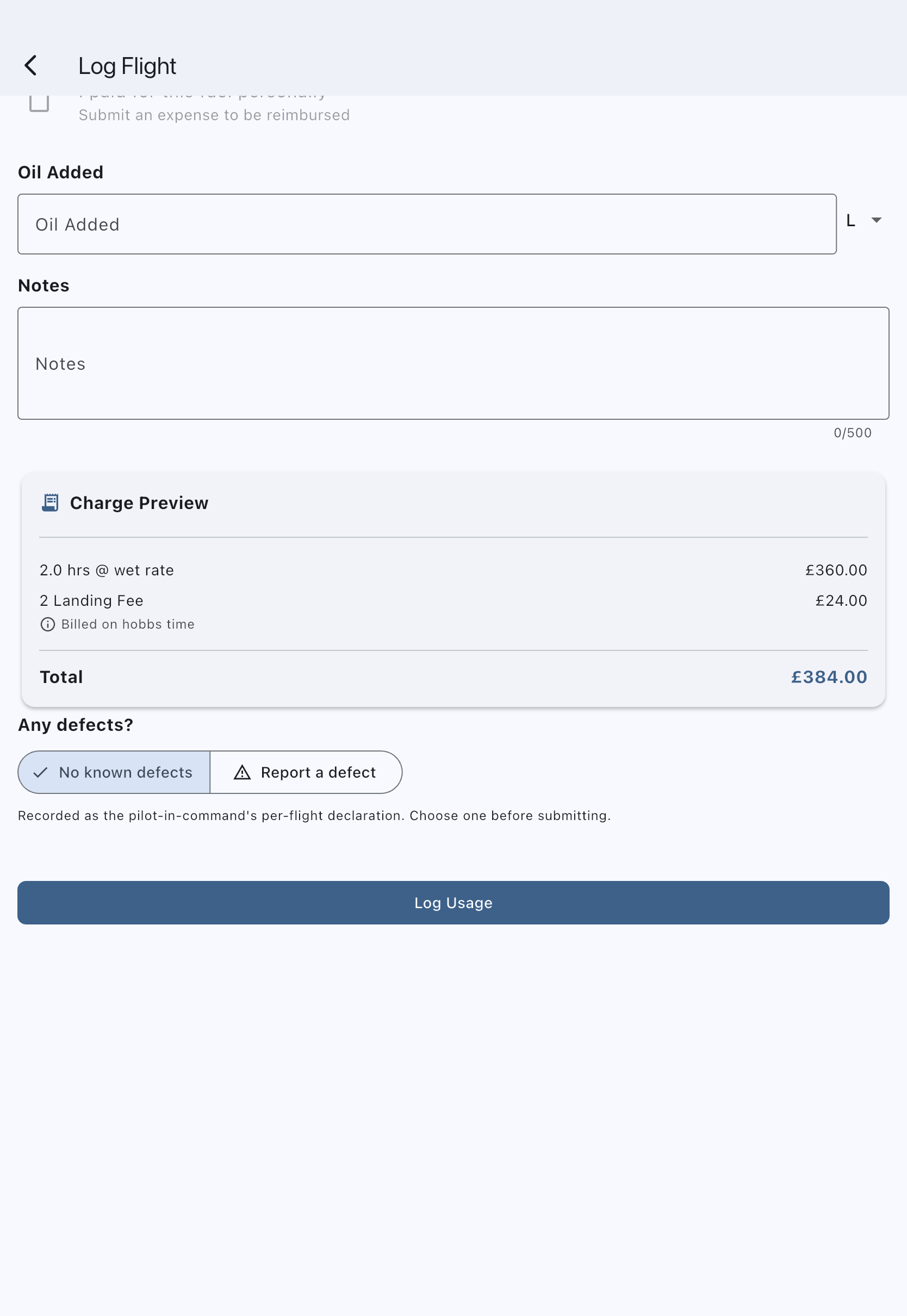
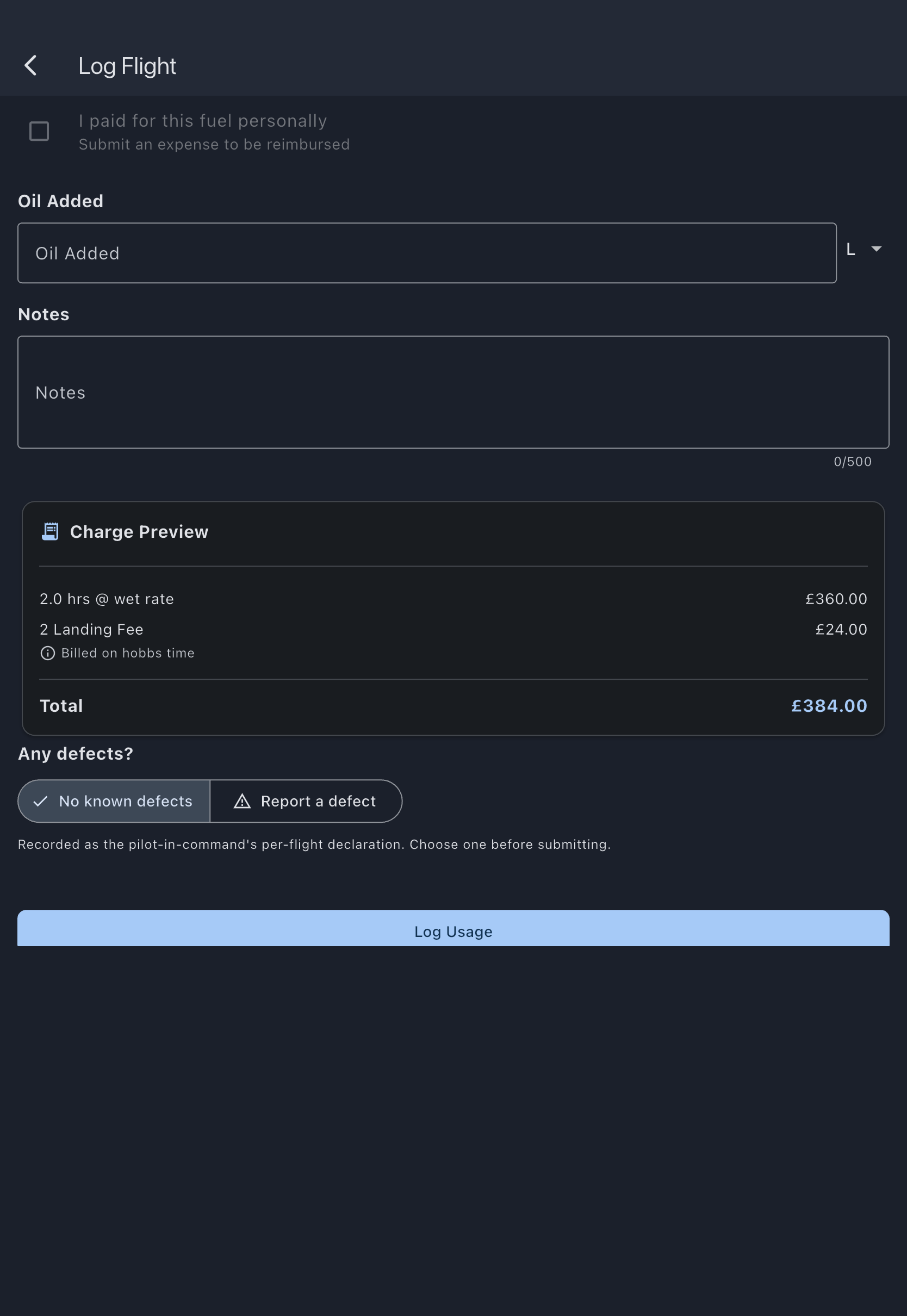
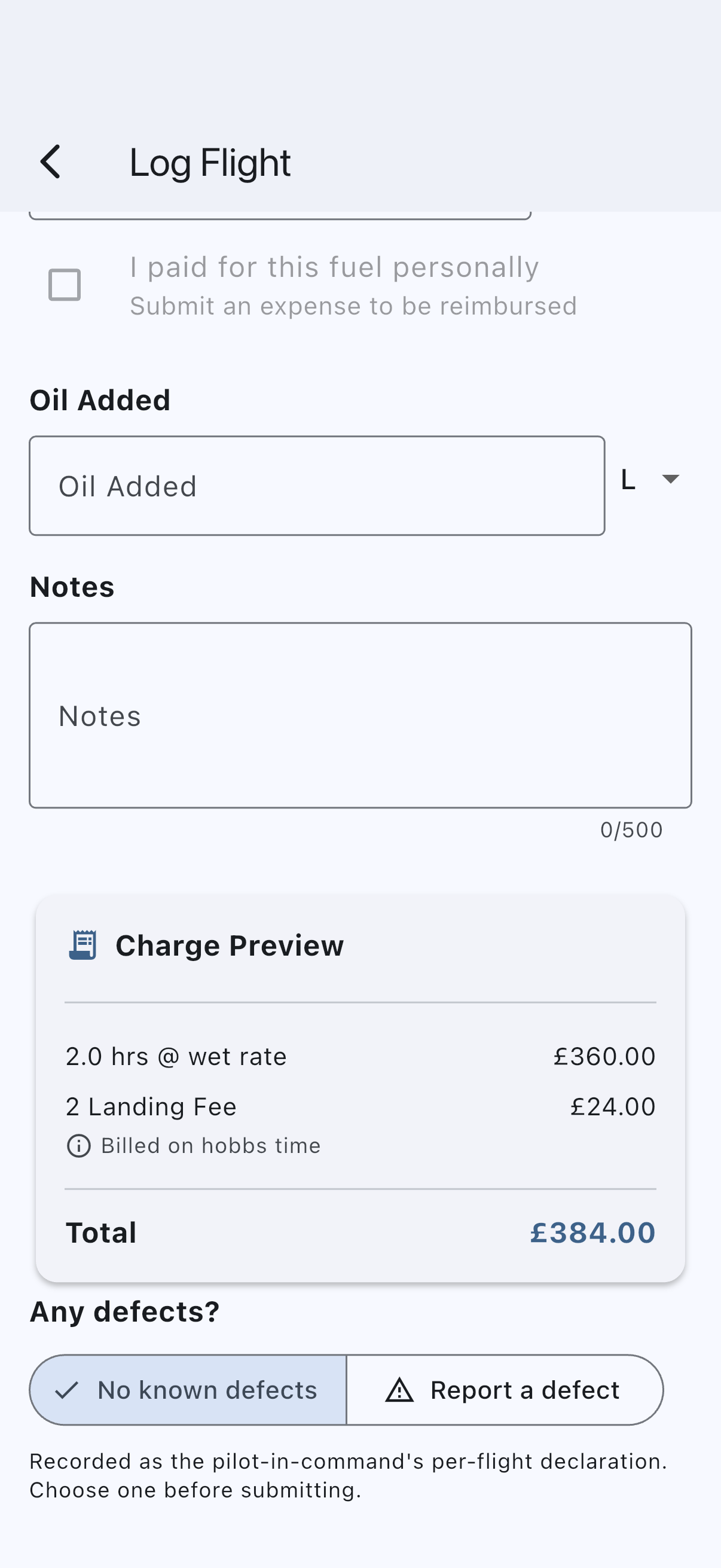
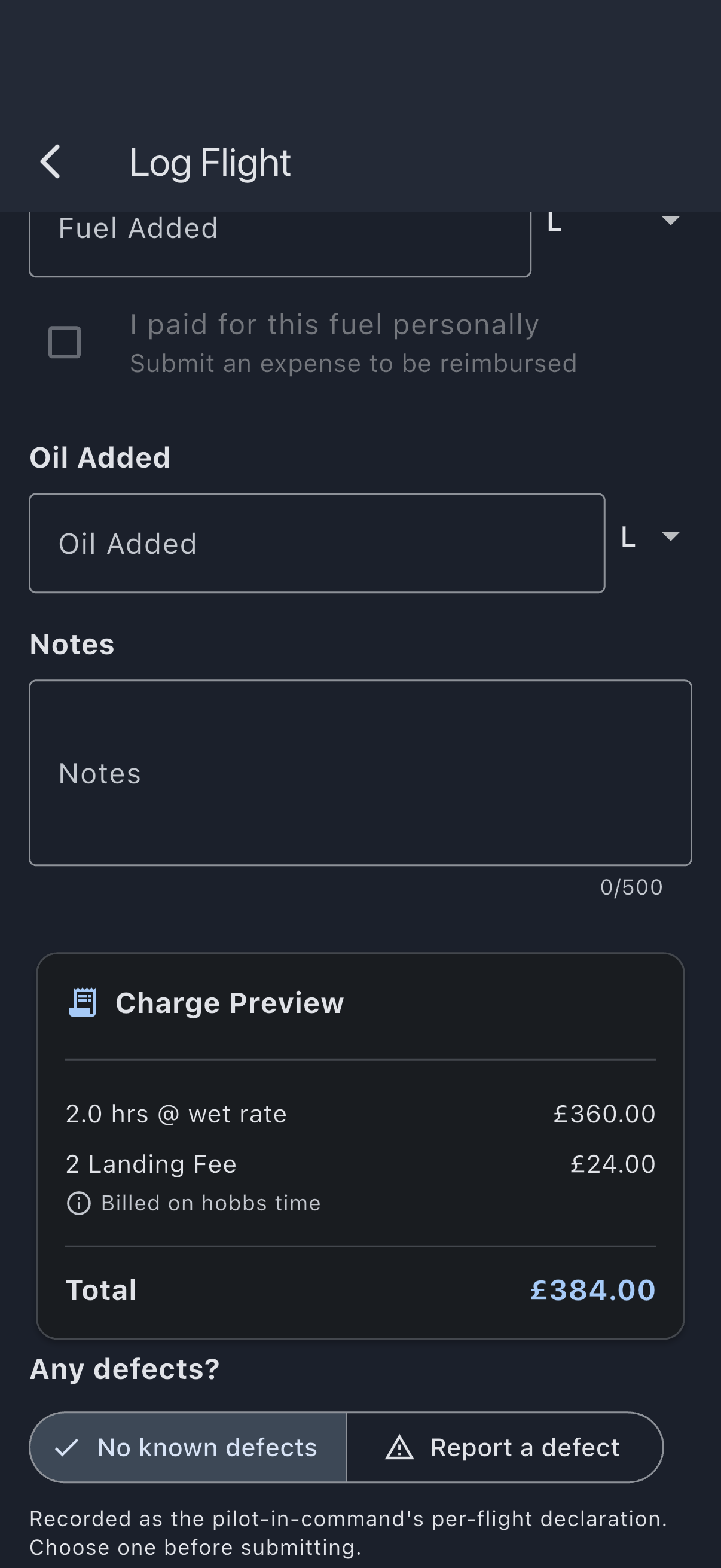
You’ll see a “Usage logged successfully” snackbar and the log appears in the booking’s usage-logs section.
Key fields for a typical flight
Section titled “Key fields for a typical flight”- Date: defaults to today. Back-date if the flight happened earlier within the booking.
- <Meter> Start and <Meter> End: the asset’s meter reading at the start and end of the flight. The label reflects your syndicate’s meter: “Hobbs Start”, “Tacho Start”, and so on. End must be above Start — equal is refused, because two identical readings describe no flight. Both arrive pre-filled: Start from the aircraft’s current reading, and End with the Start reading less its last digit (1234.5 gives 1234), so you type the last digit or two rather than the whole number. Tapping into End keeps what is there and puts the cursor after the last digit. The pre-fill sits just below the Start on purpose: the form will not save with it untouched, so type the real end reading. See Previous-tacho pre-fill.
- The hours read-out under End: shows what your two readings come to, updating as you type. This is the number you can check — you know how long you were out, so if the read-out says 1.5 and you flew 1.8, the End reading is wrong. The minus and plus either side of it move the End reading by 0.1 a tap, which is the quickest way to close that gap; on a freshly opened form, plus starts the End at a tenth above the Start. Minus stops at zero. A dash instead of a figure means the hours cannot be worked out yet: a reading is blank, half-typed, or the End is below the Start — which is where the pre-fill leaves it until you type.
- Off Blocks and On Blocks: when clock-time capture is configured. These field labels are configurable (set by your syndicate’s clock-time label). The defaults are “Brakes off” and “Brakes on”.
- Takeoff and Landing: for aircraft, the wheels-up and wheels-down times. Airborne time is the measured takeoff-to-landing span; if your syndicate bills on airborne time, recording both is what produces a non-zero charge. With your syndicate’s taxi time set, entering Off Blocks fills Takeoff (and the reverse), and entering Landing fills On Blocks (and the reverse), so you only enter two of the four times; any value you set by hand is left untouched. Taxi only prefills these times; it never changes the charge.
- Departure and Arrival: ICAO codes, free text, and required for a flight. Event fees (landing and touch-and-go) apply only when the arrival matches the asset’s home airfield; a different airfield, or no home airfield set, means no event fees for that log. A blank arrival is not accepted for a flight and is never treated as “home”.
- Landings and Touch & Gos: counts. Both default to 0.
- Pilot in Command and Pre-flight By: member pickers with free-text fallback. Both start filled with your own name — your display name, or your first and last name if you have not set one. What you leave in these boxes is kept in the aircraft’s technical log permanently, so the app will not stand your email address in for a name: if you have set no name at all they start empty, and the flight records your account until someone types a name in. For the same reason the member list offers people by name only, so a member who has set none is not suggested; type theirs by hand.
- Fuel Added and Oil Added: amounts, in the units configured on the asset.
- I paid for this fuel personally: a checkbox under the fuel field. Tick it when you paid for the fuel uplift yourself and want to claim it back. On save, the form hands off to the expense submission flow with the fuel quantity and unit pre-filled; you add the receipt and total there. The checkbox stays disabled when the fuel field is empty or zero (nothing to claim).
- Notes: free text for anything noteworthy.
Confirm any defects before you submit
Section titled “Confirm any defects before you submit”For an aircraft flight that left the ground, the form asks one question you must answer before it will save: Any defects? Choose one of:
- No known defects: your declaration, as pilot-in-command, that the aircraft had no known defects for this flight.
- Report a defect: opens the squawk form straight after you save, so you can record what you found.
This is a per-flight declaration tied to the flight you are logging, not a running status on the aircraft. The helper text under the control reads “Recorded as the pilot-in-command’s per-flight declaration. Choose one before submitting.” Submit without choosing and the form blocks with “Confirm whether the aircraft has any known defects before submitting.”
The question is shown only for aircraft, and only when the flight actually took off. A ground run with No takeoff ticked, a non-aircraft asset, or a maintenance log doesn’t ask it. Once saved, the declaration is fixed: editing other fields on the log later never changes it or asks again. Why this is a pilot’s call and not the app’s: Pilot-in-command responsibility.
Auto-fill from flight data
Section titled “Auto-fill from flight data”If the aircraft has ADS-B transponder data recorded for its registration, Syndik8 can fetch the flight records for your booking window and pre-fill departure, arrival, and block times for you.
The Auto-fill from flight data button appears on the Log Flight form when:
- Your syndicate records block time. The lookup returns gate-to-gate times and a route and nothing else, so on a syndicate that records only the engine meter there is nothing for it to fill in.
- The booking’s start time has already passed (ADS-B data isn’t available for flights that haven’t happened yet).
- The aircraft has a registration number configured on its asset record.
To use it:
- Open the Log Flight form for a past booking.
- Tap Auto-fill from flight data. The app fetches flight records for the booking window.
- A picker sheet appears listing the flights recorded for that registration. Each entry shows the route, off-blocks and on-blocks times, and the block duration.
- Tap the flight that matches your log. Departure, arrival, off-blocks, and on-blocks are filled in immediately.
If the booking window contained more than one flight (a day of circuits, or a booking that covered two legs) all flights are listed and you pick the one you want to log. The picker always shows, even when there is only one flight, so you can confirm before committing.
Already logged: a flight that overlaps (within 5 minutes) with a usage log you’ve already saved for this booking shows an “Already logged” chip. You can still select it if you need to; a confirmation prompt appears first to make sure it isn’t a duplicate.
If no flights are found: a “No flights found in this booking window” message appears. This can happen if the aircraft flew without ADS-B coverage, the data hasn’t arrived yet, or the registration on the asset record doesn’t match what is held in the recorded flight data. Fill in the fields manually.
If the fetch fails: a “Couldn’t fetch flight data” message appears with a Retry button. Tapping Retry re-attempts the lookup without closing the form.
After auto-fill, all pre-filled fields remain editable. The meter readings, landings, and notes are not touched; fill those in as normal.
Auto-fill meter readings with a photo
Section titled “Auto-fill meter readings with a photo”Both the Start and End meter fields have a camera button next to them.
- Tap the camera icon.
- Take a photo of the Hobbs or tacho meter.
- On-device OCR reads the number and fills the field.
- Check the filled number against the real meter. If it’s wrong, type over it; the field stays editable.
For the cleanest read, when you photograph the meter:
- Fill the frame and shoot square-on: hold the camera straight in front so the digits sit on one horizontal line.
- Avoid glare on the glass: a reflection can wash out a digit or be misread as a mark between the drums.
- Keep every digit clear: don’t let the needle, a finger, or a shadow fall across the numbers.
- Hold steady and let it focus: a sharp, well-framed shot reads best.
- Frame one meter at a time: just the Hobbs or tacho counter, not the whole panel.
- Wait for a settled reading: if a drum is mid-roll between two numbers, let it settle or type the value in.
The End-meter photo is saved to the log as evidence. The Start-meter photo is held in memory to help you confirm your reading, but it isn’t saved. On web desktop the camera button produces no reading; use it on mobile.
Full detail: Hobbs and tacho photos.
Use Quick Capture on a flying day
Section titled “Use Quick Capture on a flying day”If you’re about to fly and want a two-step workflow (capture the start readings on the ramp now, finish the log after you land), use I’m flying now instead.
- On the booking detail screen, tap I’m flying now (shown on your own confirmed booking while it is still upcoming).
- The ramp Start step captures the start-meter reading (pre-filled from the asset’s current engine reading as a soft placeholder), the off-blocks time, and the departure airfield. Each step shows only what your syndicate records: on a syndicate that captures the engine meter alone there is no off-blocks field, and no time is stamped for you. Take an optional start-meter photo, then tap Start Flight.
- When you land, pick the flight up from the End Flight card. It sits on the syndicate’s Dashboard and on your Home screen for as long as a capture is open — not on the booking, which still only offers I’m flying now. The end step captures the end meter, end photo, on-blocks time, arrival airfield, and landings. The end meter arrives pre-filled with your start reading less its last digit, the same as on the Log Flight form, so you type the tail; it will not accept the pre-fill untouched, or a reading equal to the start. Tap End Flight there to open the full Log Flight form, pre-filled with your captured data, for a final review before saving.
Quick Capture is a convenience wrapper around the normal log-flight flow, not a separate log.
What happens after you save
Section titled “What happens after you save”- The log is recorded against the booking.
- The Log Usage button remains; you can add further logs to the same booking (e.g. a second flight on the same trip).
- The booking is now eligible for finalisation (see Finalisation rules).
- Auto-finalise (if enabled at syndicate level) may finalise the booking automatically; otherwise an admin finalises it later.
The estimated charge
Section titled “The estimated charge”Once the readings that drive your syndicate’s billing are complete, the form shows an estimated charge for the flight. The estimate is calculated on the server with the same machinery an admin’s finalisation uses (your rate, event fees, the lot), so it only appears when you are online. Logging offline shows a note that the cost will be available once you’re back online; the estimate is filled in when the log syncs. Syndik8 never computes charges on the device.
The figure is indicative, not final. An admin can still waive a shortfall when they finalise, correct a mis-read meter before finalising, or add a separate charge or credit afterwards (damage, goodwill), any of which changes what is actually billed. Until the booking is finalised, the estimate sits as a pending amount on your member balance, itemised per flight, and also shows against the log on the booking detail screen.
Finalisation happens per booking, not per flight: a multi-day booking’s shortfall can only be worked out once all its flights are in. See Why finalisation is a separate step.
If it goes wrong
Section titled “If it goes wrong”- “Start value is required” / “End value is required”: the start or end meter field is empty.
- “End value must be greater than the start value”: the End reading is below the Start — a typo, a misread photo, or a Start you have just corrected upwards past an End you had already entered. Re-check the meter.
- “End value is the same as the start value: the meter has not moved”: the two readings are identical, which describes no flight. Type the real end reading.
- “Enter a valid number”: the meter field must be numeric.
- “Enter the departure airfield” / “Enter the arrival airfield”: a flight needs both. They are required for any aircraft flight that took off (a ground run with No takeoff ticked is exempt). The arrival also decides whether home-airfield event fees apply, so a blank arrival is never accepted as “away”.
- “Confirm whether the aircraft has any known defects before submitting”: you tried to save an aircraft flight without answering the Any defects? question. Pick “No known defects” or “Report a defect”.
- The Log Usage button is missing: the booking isn’t
confirmed; or the booked time hasn’t started yet; or it is someone else’s personal booking (admins get no Log Usage on another member’s booking either, only on their own and on maintenance bookings); or the syndicate is closed or in read-only mode. - OCR filled the wrong number: type over it. OCR is best-effort, and the drum boundary on some Hobbs meters reads as a slash.
- Auto-fill button is missing: your syndicate doesn’t record block time (the lookup has nothing else to offer); or the booking’s start time hasn’t passed yet; or the aircraft doesn’t have a registration number set. Ask an admin to add the registration on the asset’s settings screen, or to record block time on the Usage capture screen.
- Auto-fill found the wrong flights: the registration on the asset record may not match what is in the recorded flight data. Check the asset’s registration and update it if needed, then retry.