
Admin tab: overview
What it is
Section titled “What it is”The Admin tab is the admin-only landing page inside a syndicate. It is mounted as a tab on the syndicate detail screen, alongside Dashboard, Calendar, and Assets, and replaces what used to be a separate “Settings hub” screen.
The tab opens onto a single scrollable page with the admin destinations grouped into four labelled sections: Actions, Members & governance, Money, and Syndicate. Actions holds the things an admin does, starting with Pending, the one place for everything waiting on an admin: squawks, bookings, bookings that need attention, expenses, and finalisation. Money holds the settings that decide how money works. Everything routes outwards to a sub-screen.
Editing the syndicate’s name and description, and closing the syndicate, live on a dedicated Edit syndicate screen. Reach it from the pencil icon next to the syndicate name at the top of the syndicate detail screen, or from the Edit syndicate tile in the Syndicate section of this tab. Identity and destruction sit on their own screen so they are not touched during day-to-day admin work.
Who can use it
Section titled “Who can use it”- Admin: the Admin tab appears in the tab strip and the user can open it.
- Members and viewers: the Admin tab is not rendered. Members reach the Members list (the most frequently shared admin destination) via the My Syndicate card on the Dashboard. Every sub-screen also enforces the role check on the server so a hand-crafted route cannot bypass the UI.
Where to find it
Section titled “Where to find it”In the app:
- Open the syndicate.
- Tap Admin in the syndicate’s tab strip. For admins it sits after Calendar and Assets and before Profile, so it is the second-from-right tab (the Profile tab is appended after it).
The bare /syndicates/:syndicateId/settings route from the retired hub now redirects to the syndicate detail screen, which lands admins on the Admin tab. Sub-paths such as /syndicates/:syndicateId/settings/booking-policy still resolve directly for deep links and external callbacks. The retired settings and Payments menu addresses (/settings and /admin/payments) open the syndicate on whichever tab was last used, not necessarily Admin, and the old combined-payments and Direct Debit register addresses open Bill members, so links in earlier emails and notifications still land somewhere real.
For Edit syndicate, use the pencil icon next to the syndicate name at the top of the syndicate detail screen, or the Edit syndicate tile in the Syndicate section of the Admin tab. Route: /syndicates/:syndicateId/edit.
What’s on it
Section titled “What’s on it”The tab is organised as four grouped sections. There is no separate Payments menu: its screens are rows on this page.
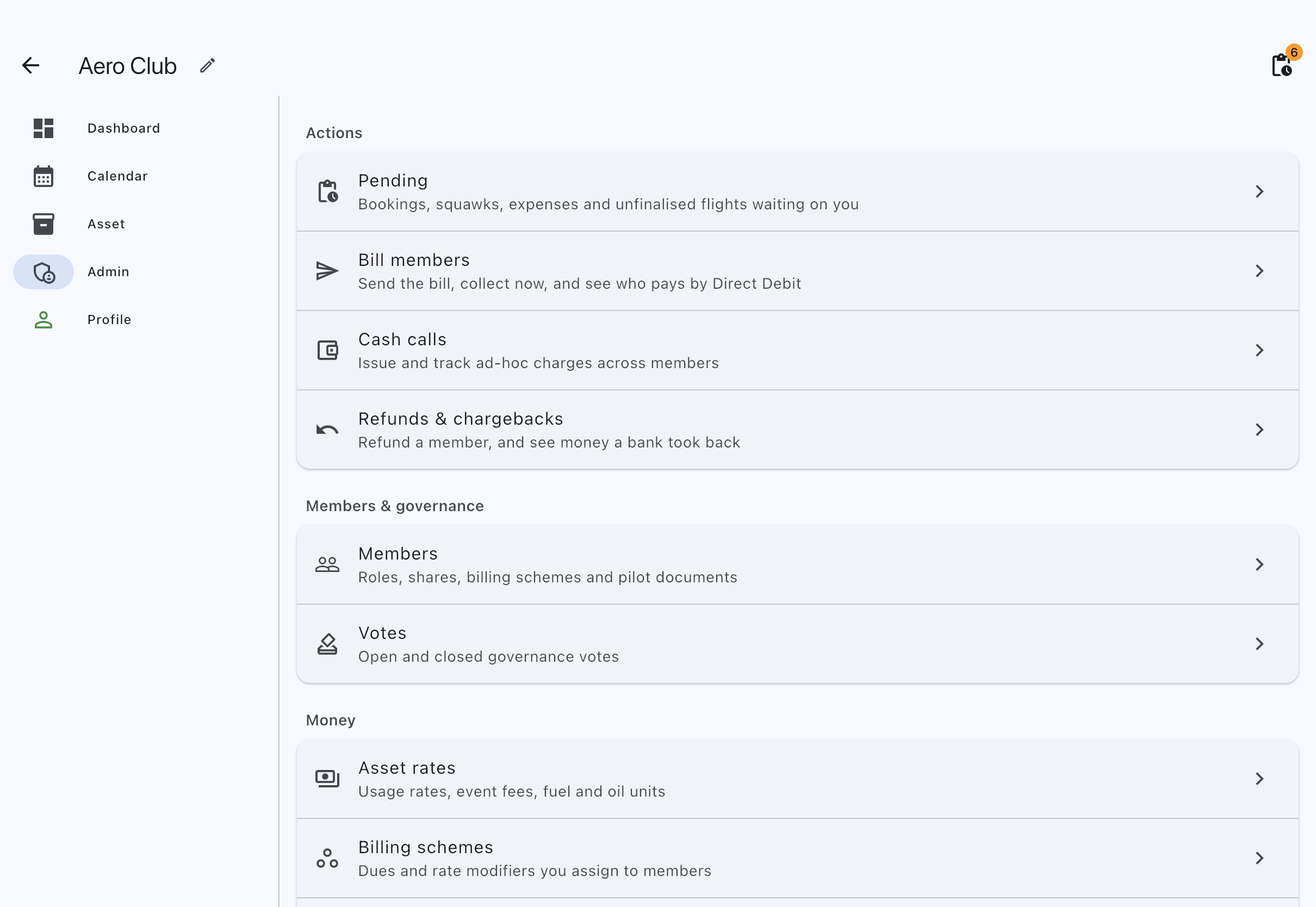
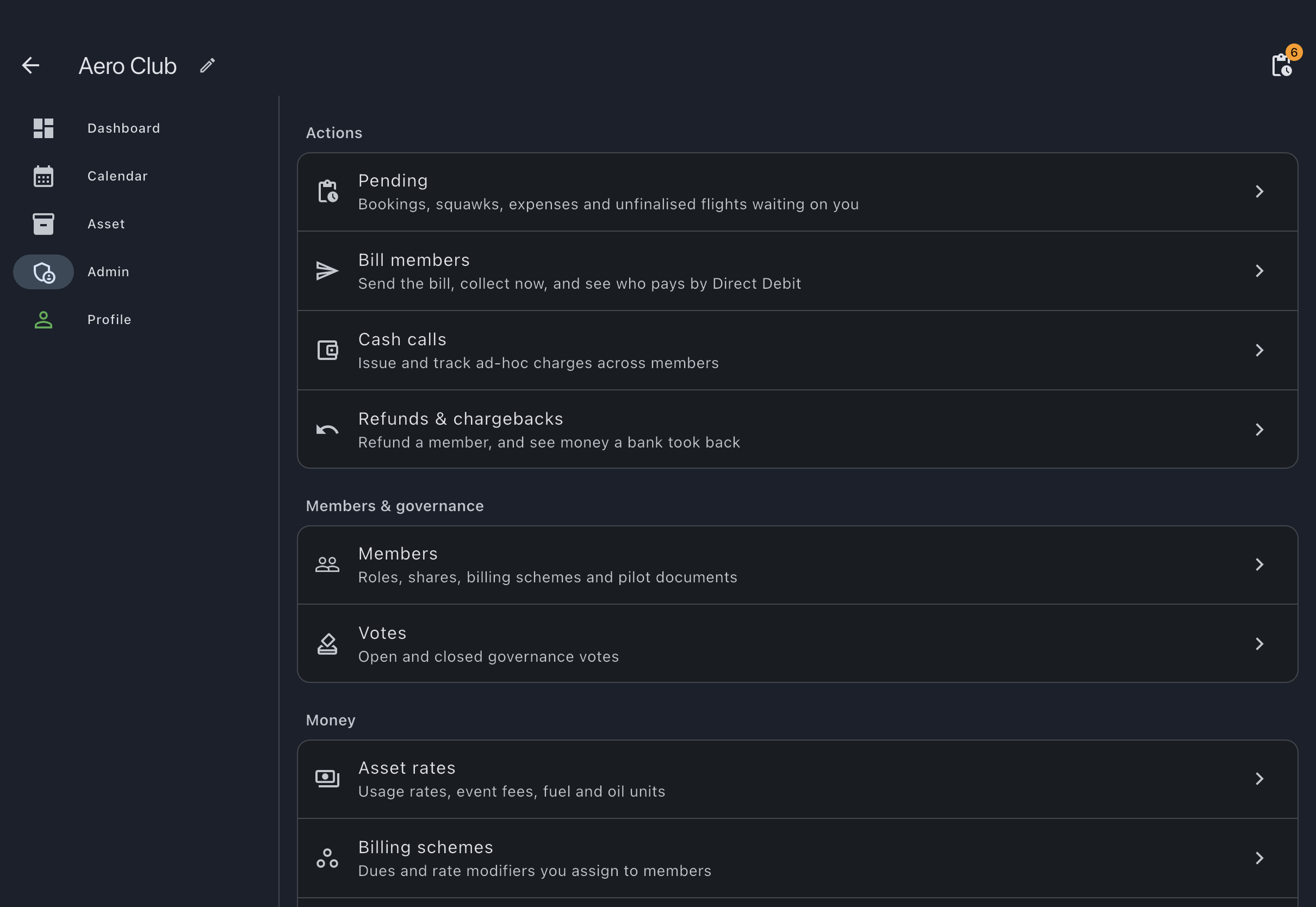
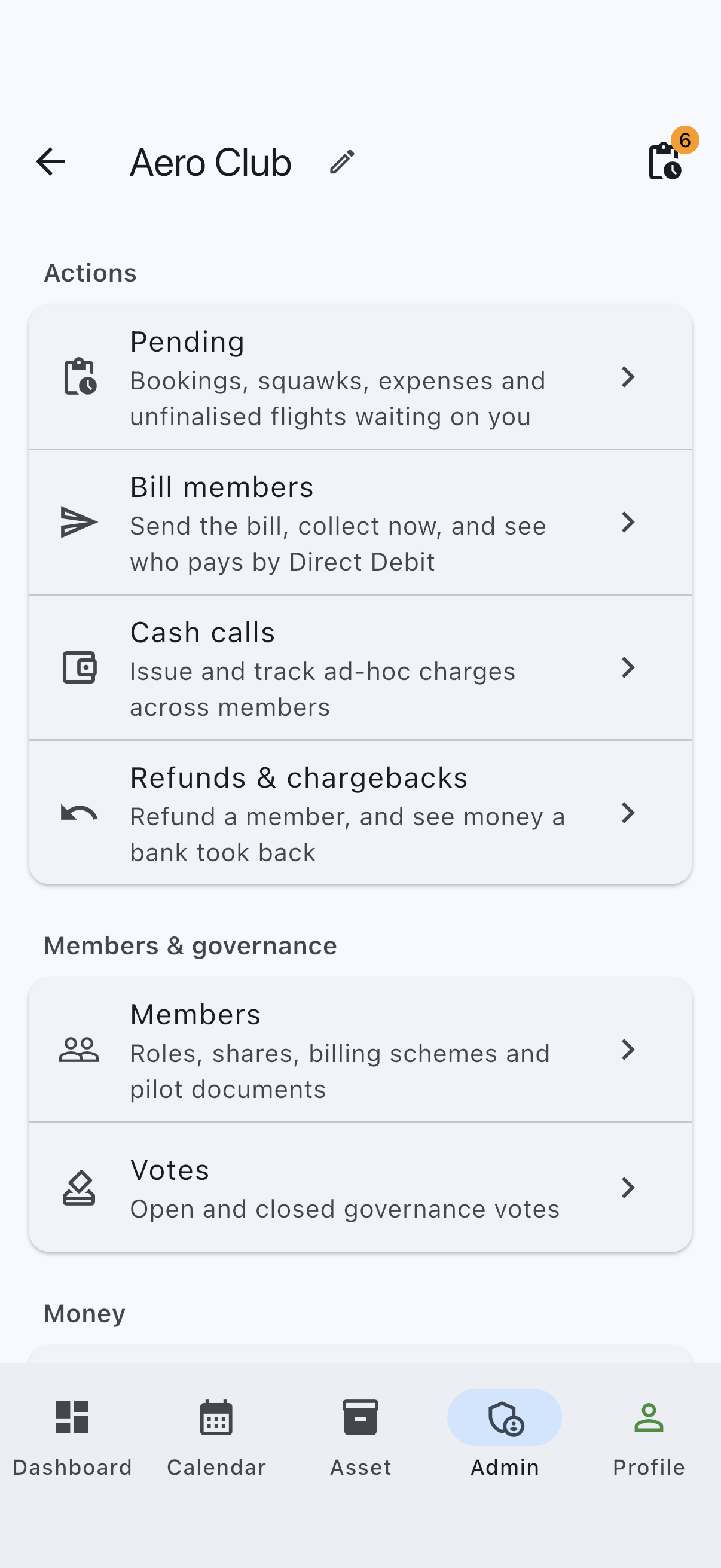
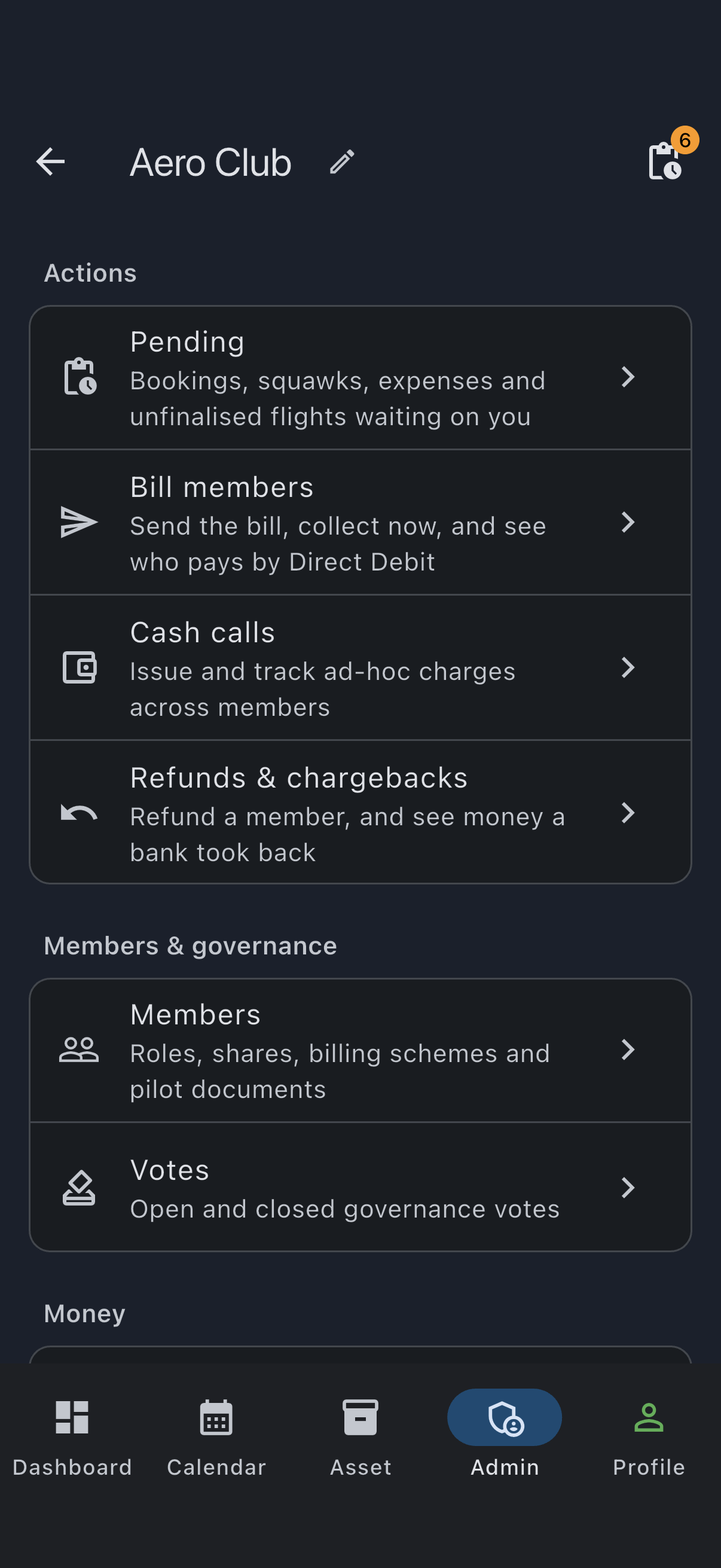
Actions
Section titled “Actions”| Row | What it covers | Route |
|---|---|---|
| Pending | Everything waiting on an admin, in one page: squawks to confirm, bookings to approve, bookings that need attention after a late flight, expenses to approve, and bookings to finalise. See Admin Pending page. | /syndicates/:syndicateId/admin/pending |
| Bill members | Send the bill, collect by Direct Debit now, and see who pays by Direct Debit. A Needs attention chip shows when your payment account can take payments but Direct Debit is not active on it yet. Bill members then shows a warning, with an Open Payment account button, because nobody can be collected from until it is. See Send the bill. | /syndicates/:syndicateId/settings/bill-members |
| Cash calls | Issue and track ad-hoc charges across members. | (internal: see Cash calls) |
| Refunds & chargebacks | Refund a member, and see money a bank took back. A chip counts items waiting for you. See Reversals. | /syndicates/:syndicateId/admin/reversals |
The Pending row itself shows no count. The count lives in the syndicate screen’s top bar instead (not on the Admin tab icon): one admin-only pending-actions icon, the same icon as this row, whose badge carries one combined count of everything waiting on you. The badge is hidden when nothing is. The icon opens the same Pending page.
Members & governance
Section titled “Members & governance”| Row | What it covers | Reference page |
|---|---|---|
| Members | Roles, shares, billing schemes, and pilot documents for each member. | (internal: see Members list) |
| Votes | Open and closed governance votes. | (internal: see Votes list) |
| Row | What it covers | Reference page |
|---|---|---|
| Asset rates | Usage rates, event fees, fuel and oil units. Single- and multi-asset behaviour differ. | Billing and rates |
| Billing schemes | Dues and rate modifiers you assign to members. | Billing schemes |
| Member billing | Who finalises bookings, when charges become due, how many working days Direct Debit waits, and VAT. | Member billing |
| Payment account | Provider connection, verification and currency. Set once. The Companies House check lives inside the payment-account setup wizard, not here. | Payment account |
Syndicate
Section titled “Syndicate”| Row | What it covers | Reference page |
|---|---|---|
| Booking policy | Approval rules, duration limits, and squawk confirmation. | Booking policy |
| Usage capture | Which measures each flight records, the billed measure, taxi minutes, and meter labels. | Usage capture |
| Privacy & visibility | Show member names, usage log visibility, share usage photos. | Privacy and visibility |
| Edit syndicate | Name, description, close syndicate. Also reached from the pencil icon next to the syndicate name. | Edit syndicate |
| Archived aircraft | Opens the syndicate’s archived-assets list, where archived aircraft can be reviewed or restored. | Archive an asset |
| Import data | CSV import wizard for bookings from Goboko or a generic CSV. | Goboko CSV format · Generic CSV format |
| Subscription | The syndicate’s paid-or-free tier, asset limit, payment state. | Subscription pricing |
Behaviour rules
Section titled “Behaviour rules”- Admin-only tab. Members and viewers do not see the Admin tab in the tab strip. Every sub-screen also enforces the role check on the server, not just in the app.
- Navigation never leaves the syndicate context. Every destination routes under
/syndicates/:syndicateId/...so the breadcrumb always tells the user which syndicate they are configuring. - The pending count is live. The count on the pending-actions icon updates in real time as members submit things and other admins deal with them.
- Single-asset vs multi-asset matters on Asset rates only. See Default and per-asset settings for the cascade. The other destinations show the same fields regardless of asset count.
- Edit syndicate has its own screen. The Admin tab is for operational configuration, and the syndicate’s identity (name, description) and its closure sit on a separate Edit syndicate screen so they are not accidentally changed during routine admin work. That screen is reached both from the pencil icon next to the syndicate name and from the Edit syndicate tile in the Syndicate section.
- Tab position can be the user’s default landing tab. If an admin sets Admin as their preferred landing tab under user preferences, opening a syndicate goes straight here instead of the Dashboard.