
Add an asset
Add an aircraft to a syndicate.
Before you start
Section titled “Before you start”- Only admins can add aircraft.
- On the free plan a syndicate is capped at one aircraft. If you already have one, adding a second prompts you to upgrade. On web the upgrade dialog opens a checkout in a new tab; on mobile an upgrade email is sent automatically. See Free-tier limits.
- On a paid syndicate there is no cap, but each aircraft after the first adds £12 a month to the subscription, so Syndik8 checks what it costs and asks before it does it. See Adding an aircraft costs money on a paid syndicate below.
- Only Aircraft can be added, which is why the screen is titled Add Aircraft.
- Open the syndicate and switch to the Assets tab.
- Tap the Add Aircraft floating action button (bottom right), or, if the syndicate has no assets yet, the Add Aircraft button on the empty state.
- Enter a Name (up to 100 characters). A registration-based name is typical, for example
G-QABC. - Optionally enter a Registration Number (up to 50 characters). Most UK aircraft use the format
G-QABC; the field uppercases automatically. - Optionally enter a Description (up to 500 characters): a brief note for co-members.
- Enter the Hours on the meter now: what the aircraft’s meter reads today. That becomes its starting point, and all later usage is added to it. Leave it at
0if you do not have the reading yet — the aircraft shows as Not recorded until you enter one, which you can do any time from Edit Asset. - If the syndicate already has another aircraft, optionally enter the Home Airfield as an ICAO code, for example
EGMC(uppercased automatically). For a first aircraft this field is not shown here; set the home airfield on the Asset rates screen instead. (A syndicate created through the setup wizard is asked for it on the wizard’s aircraft step, and the wizard stores it as the same syndicate-wide value.) - Tap Add Aircraft.
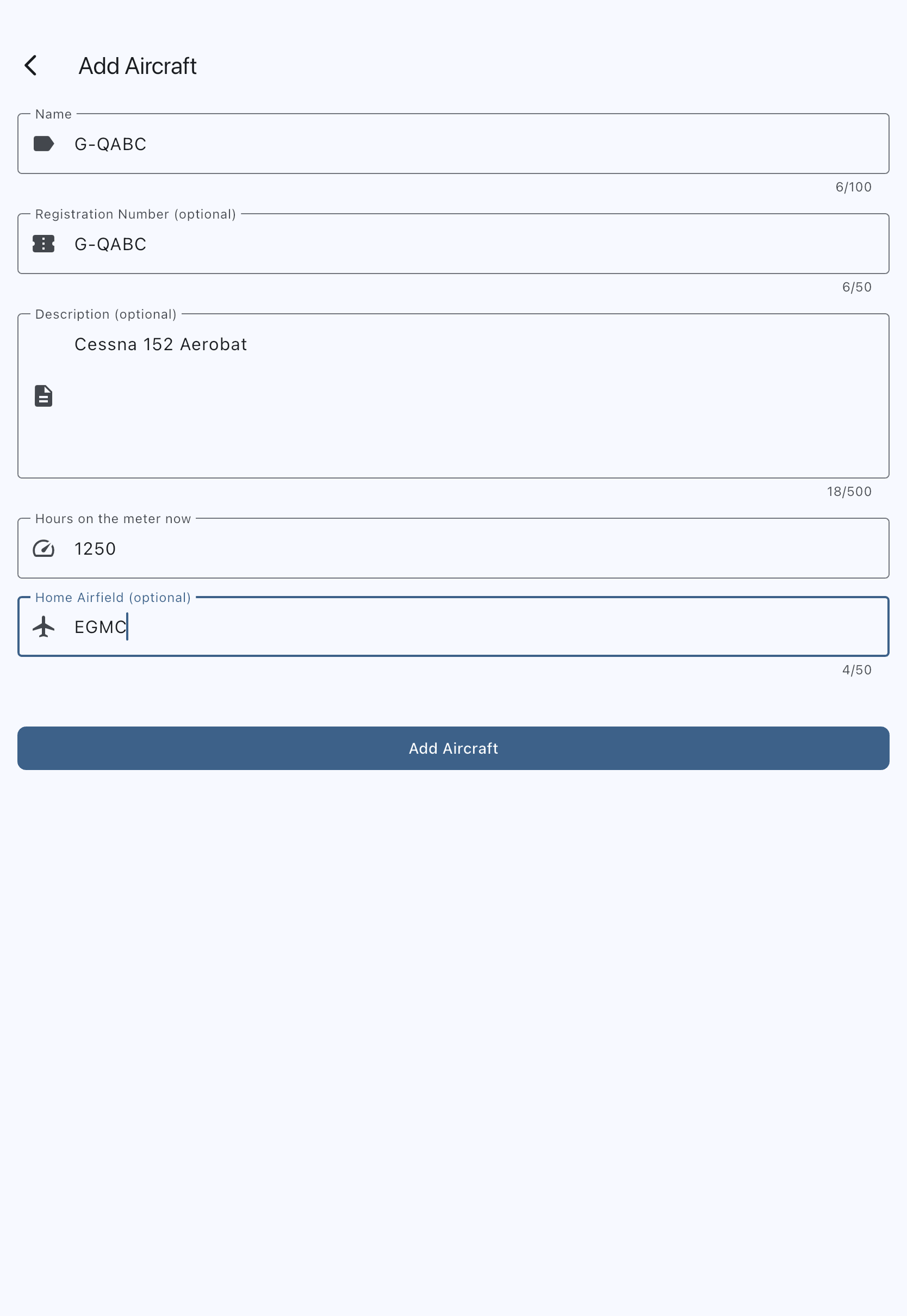
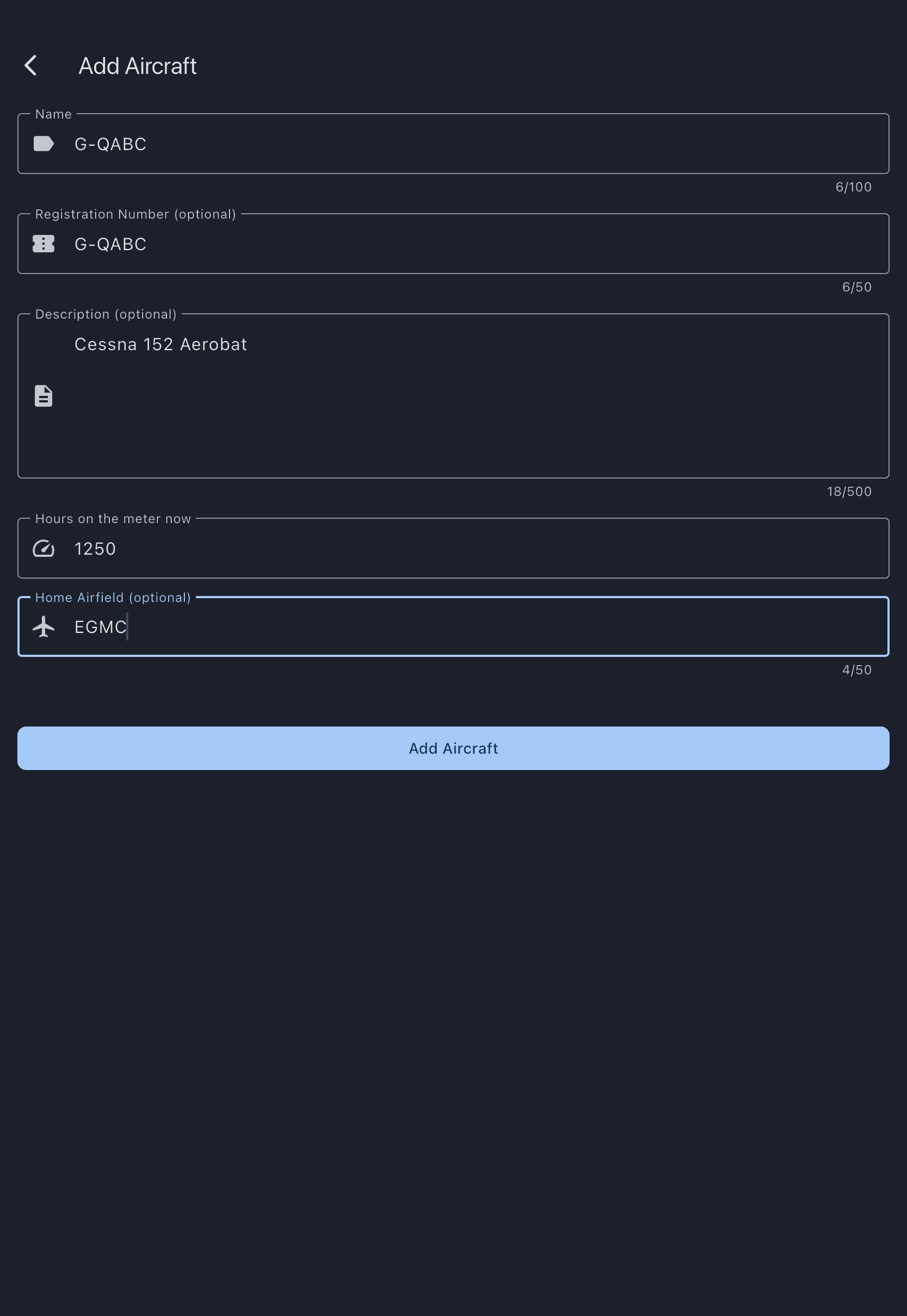
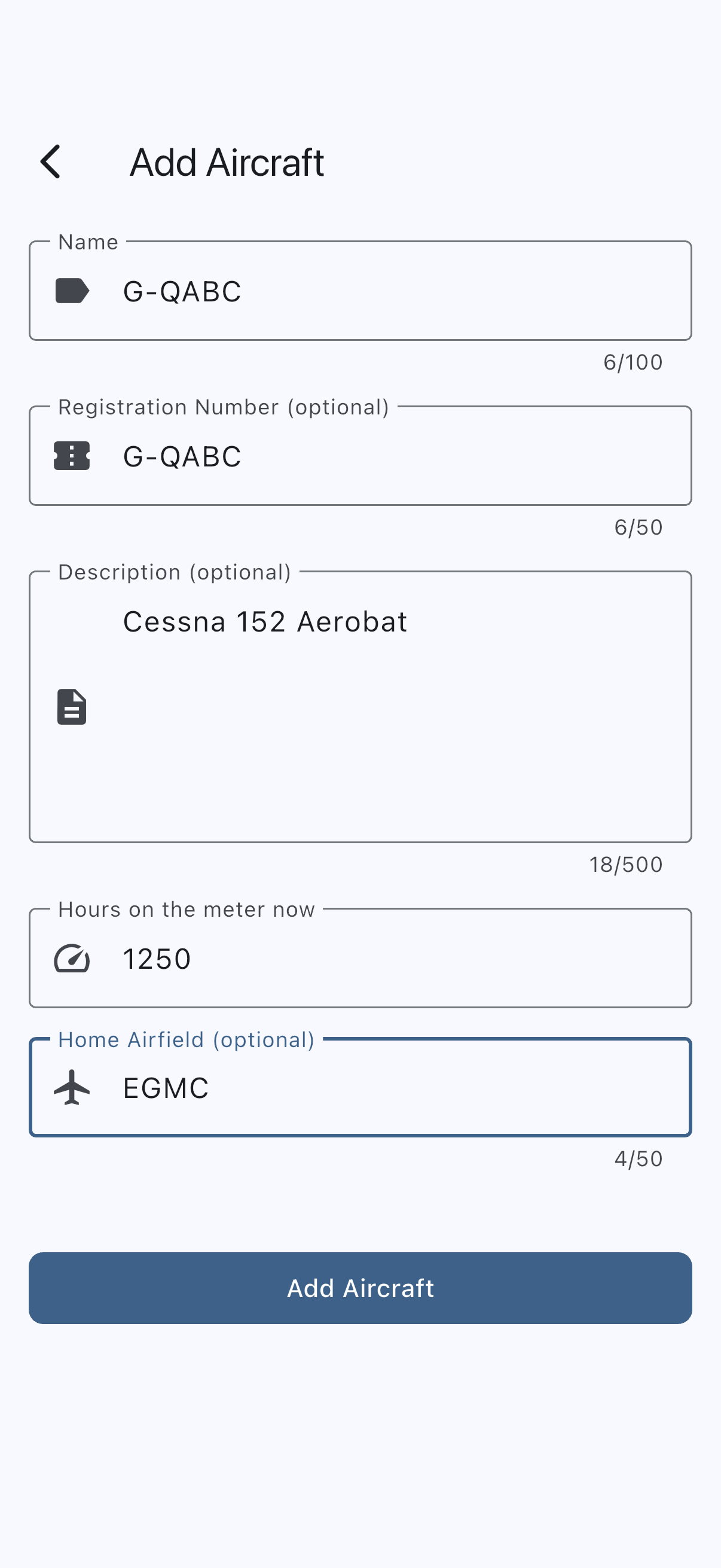
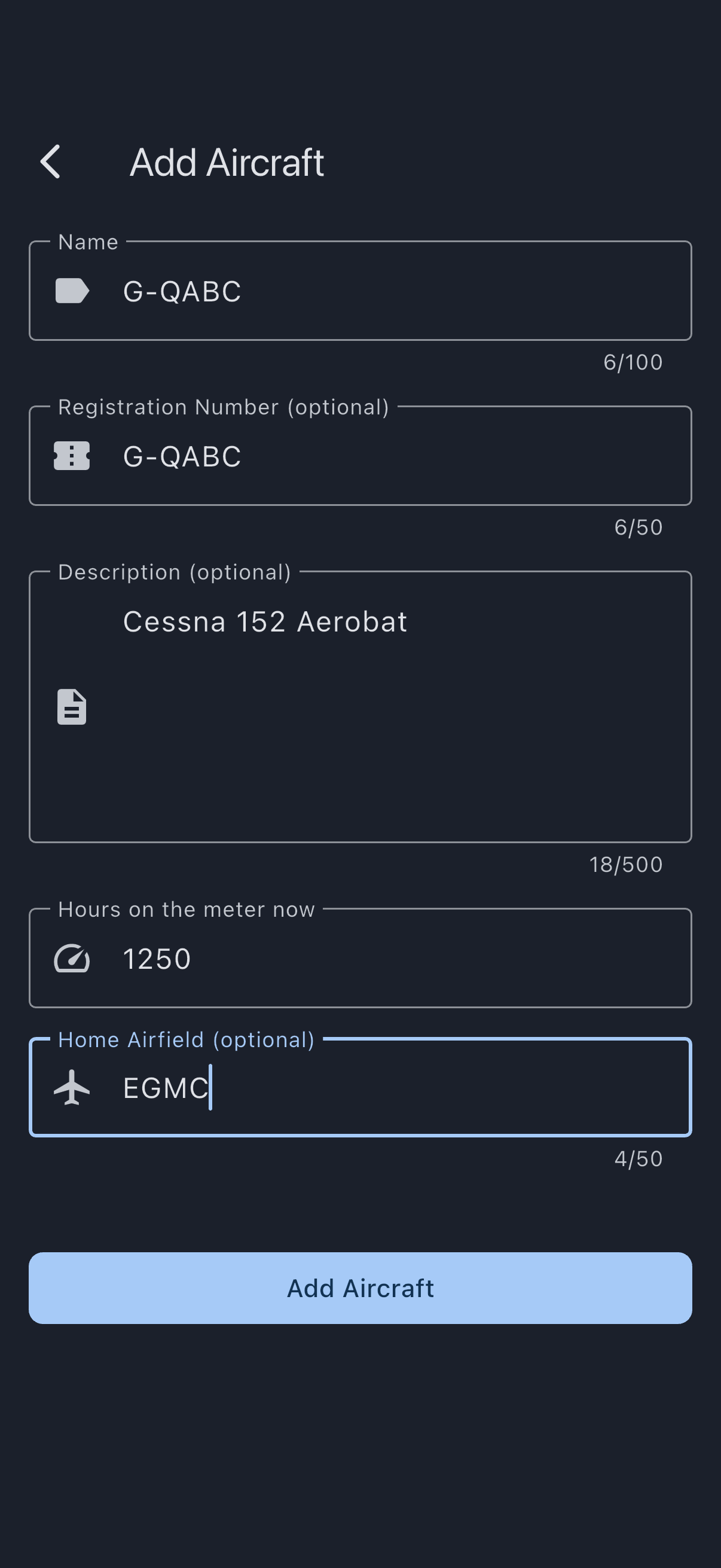
You land on the asset detail screen and a snackbar confirms Asset created successfully.
Adding an aircraft costs money on a paid syndicate
Section titled “Adding an aircraft costs money on a paid syndicate”The subscription is priced per aircraft, graduated: £20 a month for the first, then £12 for each one after it. Those are ex-VAT figures, so an extra aircraft is £14.40 a month once 20% VAT is added. The fleet you already have does not re-price, so a second aircraft costs £12 a month and so does a fifth.
Because it changes what the syndicate pays, adding one is never silent — and you are asked as the form opens, before you have typed anything. That is deliberate: there is no point filling in a name, a registration and an opening hours reading for a change you would rather not pay for, or one this device cannot complete at all.
On the web, a confirmation opens over the form. It names no figure to begin with, because at that moment nothing has been checked:
- This may increase your subscription says that adding an aircraft may raise what the syndicate pays every month, and that Syndik8 will check online what it costs before anything changes. Cancel here and nothing is added and nothing changes. Proceed asks the payment provider.
- Checking what this costs… is the wait while the provider answers. Cancel is still offered, so a check that never comes back cannot strand you.
What the provider says decides the third and last step, which is one of three endings.
- What this costs is the usual one. It tells you how many aircraft you have, what the next one is charged at per month before VAT, and that the change appears on your next invoice with nothing charged now. The rate is the one the payment provider says your syndicate actually pays, so a founding syndicate is quoted its discounted rate rather than the list price. Below that is your next invoice total: the whole of one invoice, VAT and the part-month included, which is deliberately not the same number as the monthly rate above it. Agree and continue goes ahead; Cancel does not.
- No extra charge means the provider has said this aircraft is covered by what the syndicate is already billed for. There is nothing to agree to, so the only button is OK, and the form is yours as normal.
- What this costs, with no invoice total, means the provider could not be reached. The monthly rate falls back to the published rate, which is correct for every syndicate without a discount, and the invoice line says the exact amount could not be worked out. You can still agree.
Once you are through, the form is yours to fill in and submit as normal, and you are not asked a second time when you tap Add Aircraft. Cancel at any step takes you back out of the form, with nothing added. The confirmation cannot be dismissed by clicking beside it or pressing Escape: every way out is a button, because a stray dismissal would be indistinguishable from a refusal.
This is not the upgrade prompt. A free syndicate that has hit its one-aircraft cap sees that prompt instead, and never sees this confirmation.
Nothing is charged at that moment. The difference is prorated and appears on your next monthly invoice, so there is no card authentication to sit through. Removing an aircraft later lowers the bill without asking.
On iOS and Android
Section titled “On iOS and Android”On a phone or tablet, an aircraft that costs money gets you an explanation instead of the form. There is nothing to fill in and nothing to agree to, because there is no way for the app to take the payment.
That is a deliberate shape rather than a dialog you can dismiss. A dialog over the form would leave you typing into fields that were never going to submit.
The form is only withheld when the aircraft actually costs something. The same online check runs here: while it is in progress the screen says it is checking and names no figure, and if the payment provider answers that the aircraft is covered by what the syndicate already pays, the form is handed straight back and you add it on your phone like any other. Nothing is withheld for a change nobody is charging for.
- On iOS, the screen says only that changes to your subscription cannot be made in the app. It names nowhere to go, because App Store rules do not allow a free companion app to point you at somewhere else to buy. Syndik8 emails you the way onward instead, quietly and without saying so on screen. If your phone is offline when this happens the email is held and sent as soon as the connection returns, so it is not lost.
- On Android, the screen offers a link to the Syndik8 website instead. No email is sent, because the link is the instruction. The link opens the app on the web, and you go to the syndicate’s subscription from there.
The reason is the one that puts upgrading on the web too: store rules forbid completing a purchase of digital services in the app. The two platforms differ because their store rules do — Google permits naming the website, Apple does not.
What to do next
Section titled “What to do next”- Upload a photo: see Upload an asset photo.
- Set up rates on Asset rates: see Asset rates.
- If you have more than one asset, per-asset billing screens become available. The same settings that live on the syndicate as defaults gain a Default prefix, and each asset gets its own billing screen. See Default and per-asset settings.
If it goes wrong
Section titled “If it goes wrong”- The upgrade prompt appears when you tap Add Aircraft. You’ve hit the one-aircraft free-plan limit, so the form opens but submitting is blocked. On web, tap Upgrade Now; on mobile, check your inbox for the upgrade email. See Upgrade prompt.
- A cost prompt appears as soon as you open the form on a paid syndicate. That is expected: the aircraft may add £12 a month, and you are asked before you type rather than after. Tap Proceed to have the cost checked, then accept it to go ahead, or cancel and nothing changes.
- It says “Checking what this costs…” and stays there. The payment provider has not answered yet. Give it a moment; if it never answers you get the monthly rate without an invoice total, and you can still agree. Cancel is available throughout, so you are never stuck on this step.
- It says “No extra charge”. The payment provider has confirmed this aircraft is covered by what the syndicate is already billed for, usually because the count on your device is ahead of the quantity actually being billed. Tap OK and add the aircraft as normal. Nothing has been agreed to and nothing changes on your invoice.
- “We couldn’t work out the exact amount for this billing period.” The monthly rate above it is still correct; only the next-invoice total could not be fetched, usually because the device is offline or the payment provider did not answer in time. You can still agree, and the invoice is unaffected. Cancel and try again later if you would rather see the figure first.
- There is no form, only an explanation. You are on iOS or Android and this aircraft costs money, which cannot be paid for in the app. Add the aircraft from a web browser instead. If the screen still says it is checking, wait: an aircraft that turns out to cost nothing gets the form back. See On iOS and Android above.
- “Please enter a valid positive number” under Hours on the meter now. You entered a non-numeric or negative value. Enter a whole or decimal number, e.g.
1250or1250.3. - “Name must be between 1 and 100 characters”. Adjust the name length.
See also
Section titled “See also”- Upload an asset photo
- Archive an asset
- Asset rates
- Pricing: what an extra aircraft costs