
Ground an aircraft
Ground an aircraft
Section titled “Ground an aircraft”You’ve discovered something on the aircraft that means it shouldn’t fly (an oil leak, a cracked exhaust, an avionics failure surfaced at shutdown) and you need to stop pilots booking or flying it while you deal with it. This how-to walks through using a maintenance booking to take the aircraft out of the diary, what members see when their bookings are caught, and how bookings restore when the aircraft is back.
If the issue was spotted by a pilot on shutdown, the normal route is a grounding squawk: see Report a squawk. This how-to is for the case where you, as an admin, are deciding to ground the aircraft. You’re the one initiating it, not reacting to a pilot’s report.
Before you start
Section titled “Before you start”- You must be an admin of the syndicate. Members cannot create maintenance bookings.
- You need the window; a best guess is fine. You can shorten or extend it later without having to ring round anyone.
- A reason in plain English, one or two sentences. It goes to every affected member.
- Open the calendar: Syndicate → Calendar (or the Calendar tab on the syndicate detail screen).
- Pick the window: click-and-drag on web, long-press-and-drag on mobile. Start at “now” if you’re grounding the aircraft effective immediately. If you’re not sure when it’ll be back, err on the side of a longer window; shortening it later restores any member bookings that fall outside the new end.
- In the Create Booking dialog, tap Official, then select Maintenance from the sub-selector that appears. (Some entry points pre-select it.)
- Type a short Maintenance description: what the work is. This is the internal label that appears on the calendar slot.
- Tap Schedule Maintenance.
- If the window overlaps any confirmed member bookings, the dialog does not submit yet. It replaces the form with a Bookings Will Be Suspended view listing the affected members and their slots. This is a second screen inside the same dialog, not a card added to the form, so you will not see it until you have tried to submit. It also shows a note confirming that the override will be attributed to you by name and logged.
- Enter the Reason for maintenance. Syndik8 will not let you past this view without one: it is the exact line members will see in their suspension notice, so keep it plain. For example: “Oil leak investigation”, “Avionics fault, waiting on parts”, “Annual out of phase”. Members read it; make it make sense.
- Tap Schedule Maintenance again to confirm. Go back returns you to the form with nothing sent.
Only personal bookings are counted here. An overlapping official or maintenance booking does not raise this view, and a window that overlaps nobody submits straight away.
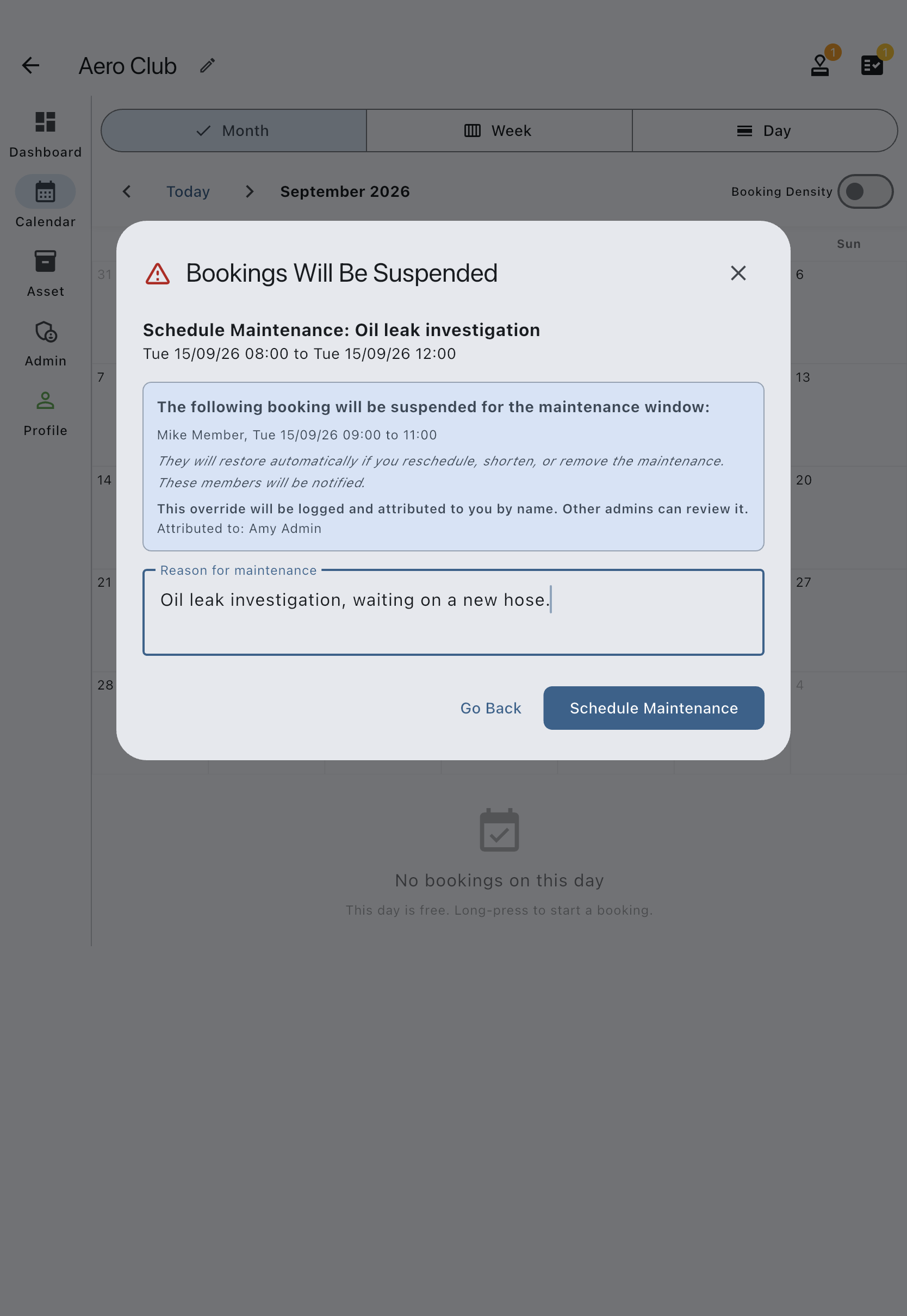
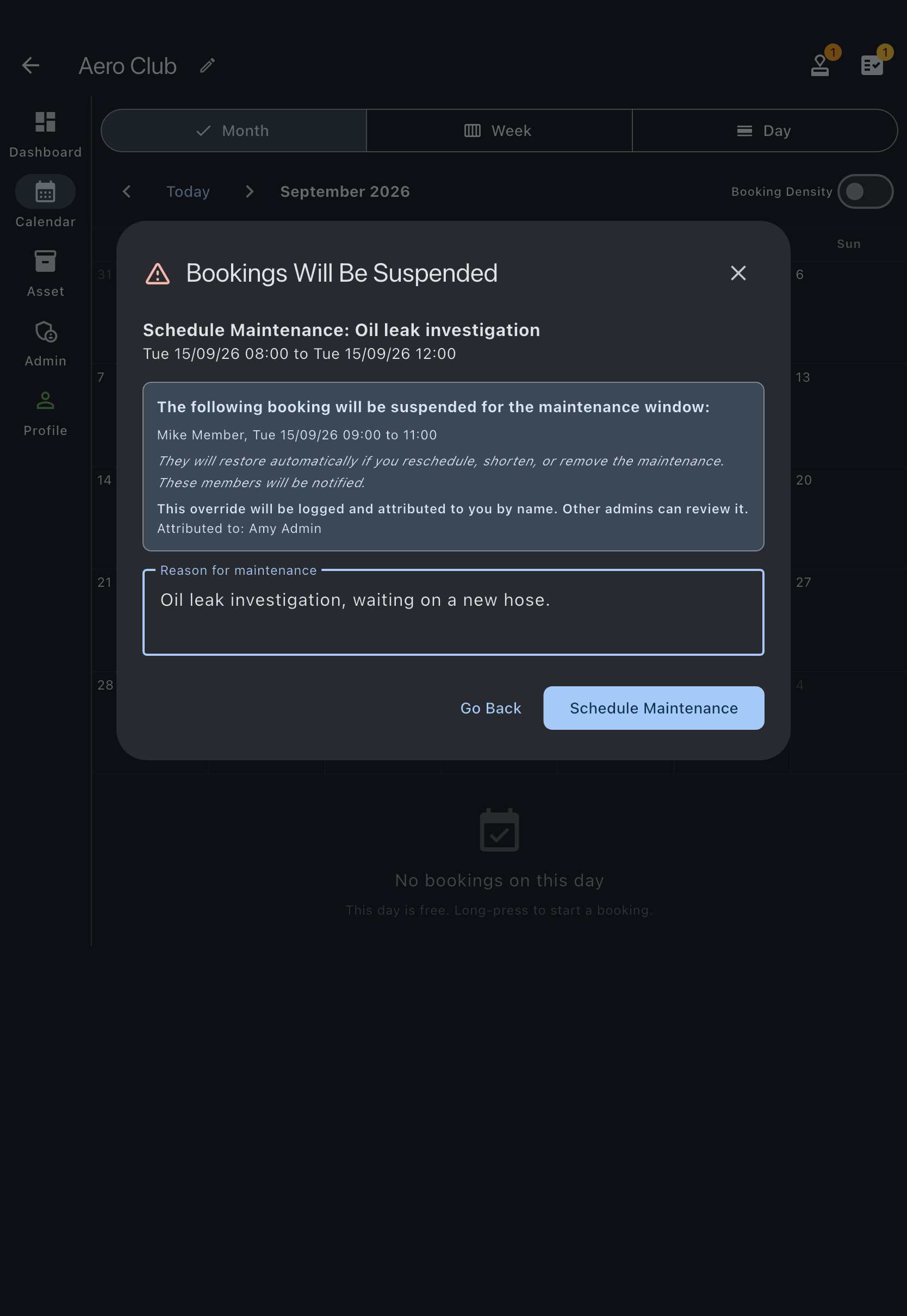
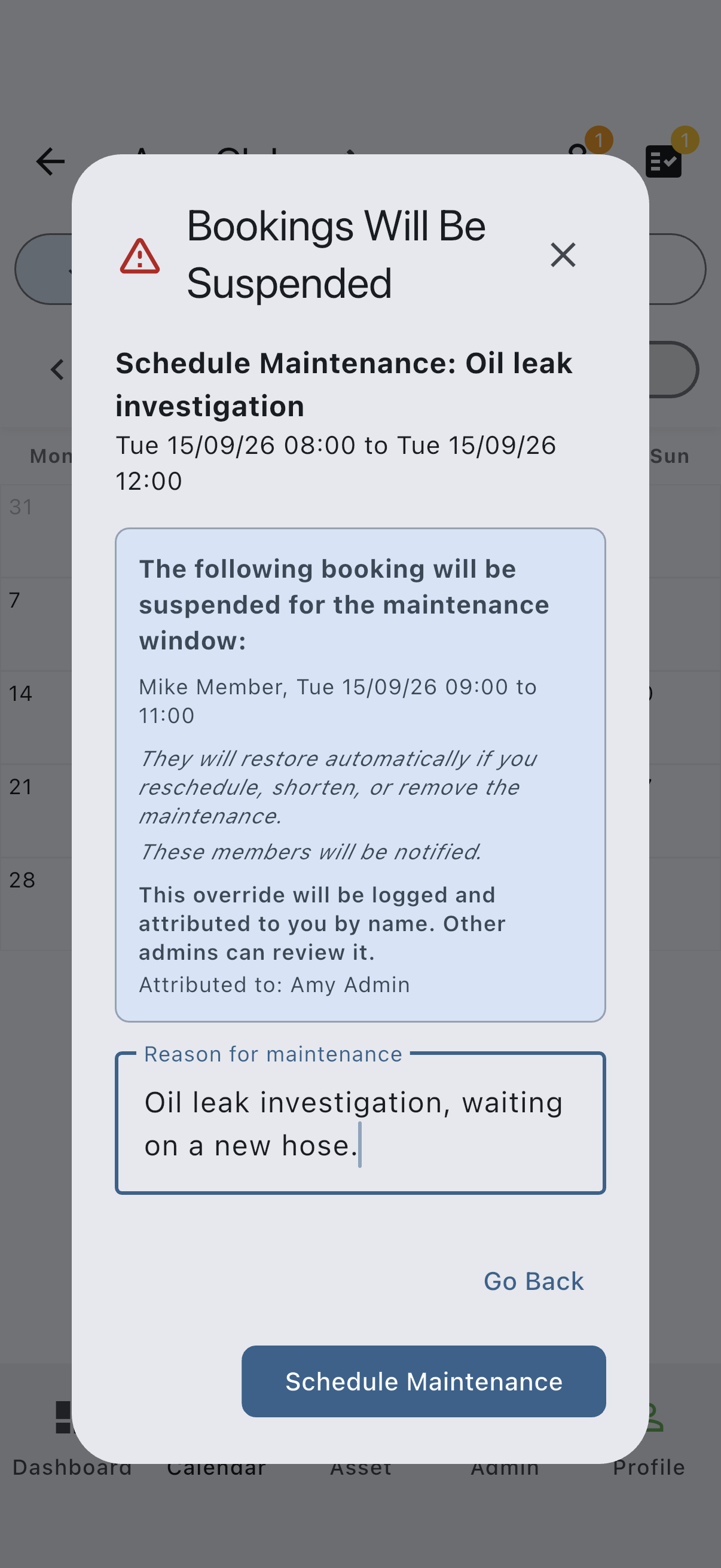
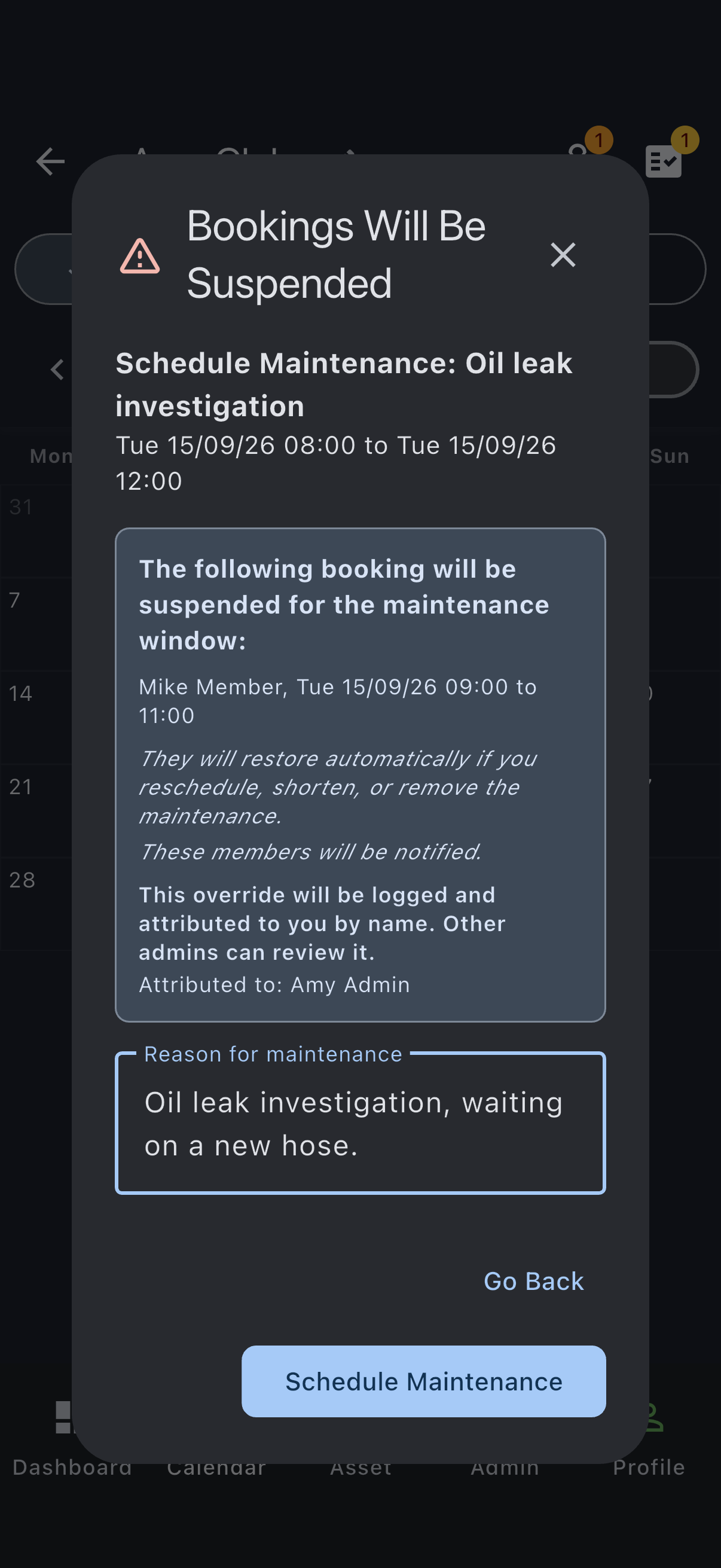
You’ll see a success snackbar. The maintenance appears on the calendar as a confirmed maintenance booking. Any member bookings that overlapped it change to a suspended status.
What members see
Section titled “What members see”Every member whose booking was caught receives a Booking Suspended for Maintenance notification, in-app and by email if they’ve enabled email for that notification type. The notification includes:
- The asset name.
- The reason you typed, verbatim.
- A line explaining that the booking will restore automatically if the maintenance is cancelled, shortened, or moved.
The suspended booking stays on the calendar in a muted style. It isn’t deleted. The member can view it in their Bookings list under the suspended filter and can cancel it themselves if they’ve already made other arrangements.
What happens to money
Section titled “What happens to money”Nothing, automatically. A booking only becomes a charge when it is finalised, and finalisation only happens once the pilot has flown and logged usage. A suspended booking has no usage logged against it, so no charge has been raised and there’s nothing to refund. If the aircraft stays grounded past the original start time and the booking never restores, it lapses to cancelled, still with no charge raised.
If a member had already paid for a future booking in some out-of-band way (a prepaid block, for example), that’s a conversation outside Syndik8. The app doesn’t collect money in advance of flights, so there’s nothing on the ledger to unwind.
Restoring bookings
Section titled “Restoring bookings”You don’t have to restore anything by hand. Suspended bookings come back automatically when the cause is removed:
- Delete the maintenance booking: every member booking that was suspended because of it restores to
confirmed, unless another cause is still in place (a second maintenance window, or an open grounding squawk). - Set the maintenance to cancelled, completed, or rejected: same behaviour as deleting.
- Shorten the window: bookings that now fall outside the shortened window restore. Bookings still inside it stay suspended.
- Move the window: bookings outside the new window restore. Bookings now caught by the new position suspend.
Each affected member receives a Booking Restored notification when their booking restores.
If the start time passes while a booking is still suspended (the aircraft is still grounded on the day of the flight), the booking lapses to cancelled a short time after start. The member keeps the audit trail but can’t re-use the slot; they need to make a fresh booking when the aircraft is back.
Limits and edge cases
Section titled “Limits and edge cases”- In-progress bookings are protected. If you try to schedule maintenance that would overlap a booking where the flight is already under way (
start time ≤ now < end time), the dialog refuses with “Another booking is currently in progress during this window. Choose a later start time.” Wait for the pilot to land, ask them to end the booking early, or start the maintenance window after their end time. - Two maintenance windows can’t overlap. The app prevents you from scheduling a second maintenance booking on top of an existing one on the same asset. Edit the existing window instead.
- Pending and tentative bookings aren’t caught by the suspend mechanism. They stay on the calendar but can’t be approved or promoted to confirmed while the maintenance overlaps them. Once the maintenance is cleared, a pending booking can be approved normally.
- Grounding squawk on top. If a grounding squawk is open and maintenance is scheduled on the same window, a member booking stays suspended until both causes clear. Resolving one doesn’t restore bookings still caught by the other.
If it goes wrong
Section titled “If it goes wrong”- “Only admins can schedule maintenance bookings”: you’re signed in as a member, or as an admin of the wrong syndicate. Switch accounts, or ask an existing admin to make you an admin of this syndicate.
- “Please give a reason: members will see it in their suspension notice.”: the reason field is mandatory whenever the dialog shows a Bookings Will Be Suspended card. Fill it in with what you’d want to read if you were one of the affected members.
- “Another booking is currently in progress during this window”: see Limits and edge cases above.
- Member tells me their booking didn’t restore when I cancelled the maintenance: check two things: whether an open grounding squawk is still in place (open the asset and tap Squawks under the Activity section), and whether a second maintenance window overlaps the same slot. Either will hold the booking suspended; clear the remaining cause and it restores.
See also
Section titled “See also”- Booking statuses: what
suspendedmeans and the paths in and out - Notification types: the notifications emitted by suspension and restoration
- Schedule maintenance over member bookings: the same mechanism framed around scheduled maintenance work rather than an urgent grounding
- Report a squawk: the alternative when a pilot discovers the issue
- Defer a grounding squawk: if a squawk is already open and you want to fly on under a time-bounded deferral