
Cache an asset's documents offline
Switch a specific asset’s documents on to your device so you can open them with no signal.
Before you start
Section titled “Before you start”- This only works in a syndicate with more than one asset. In a single-asset syndicate every document is cached automatically and the section shows an Available offline badge instead of a toggle. The same applies to syndicate-level documents in any syndicate.
- This feature is iOS and Android only. On the web there is no offline cache.
- The first sync needs a connection. Once cached, the files open offline forever after.
- Open the syndicate and tap Documents on the dashboard.
- Scroll to the asset whose documents you want to carry offline.
- On that asset’s section header, to the right of the asset’s name, is a switch. It carries no visible label. If you are an admin it sits immediately to the left of the + button; otherwise it is the last control on the row. Turn it on. (Hover it with a pointer, or read the row with a screen reader, and it announces itself as “Cache on this device”.)
- The app downloads the asset’s documents in the background.
- Watch the marks at the right-hand end of each document row in that section. Each one changes from an outline of a cloud (Not saved on this device) to a tick in a circle (Saved on this device) as that file lands. You do not need to reload the screen.
- Once every row shows the tick, open any of them later with no signal and they’ll render instantly.
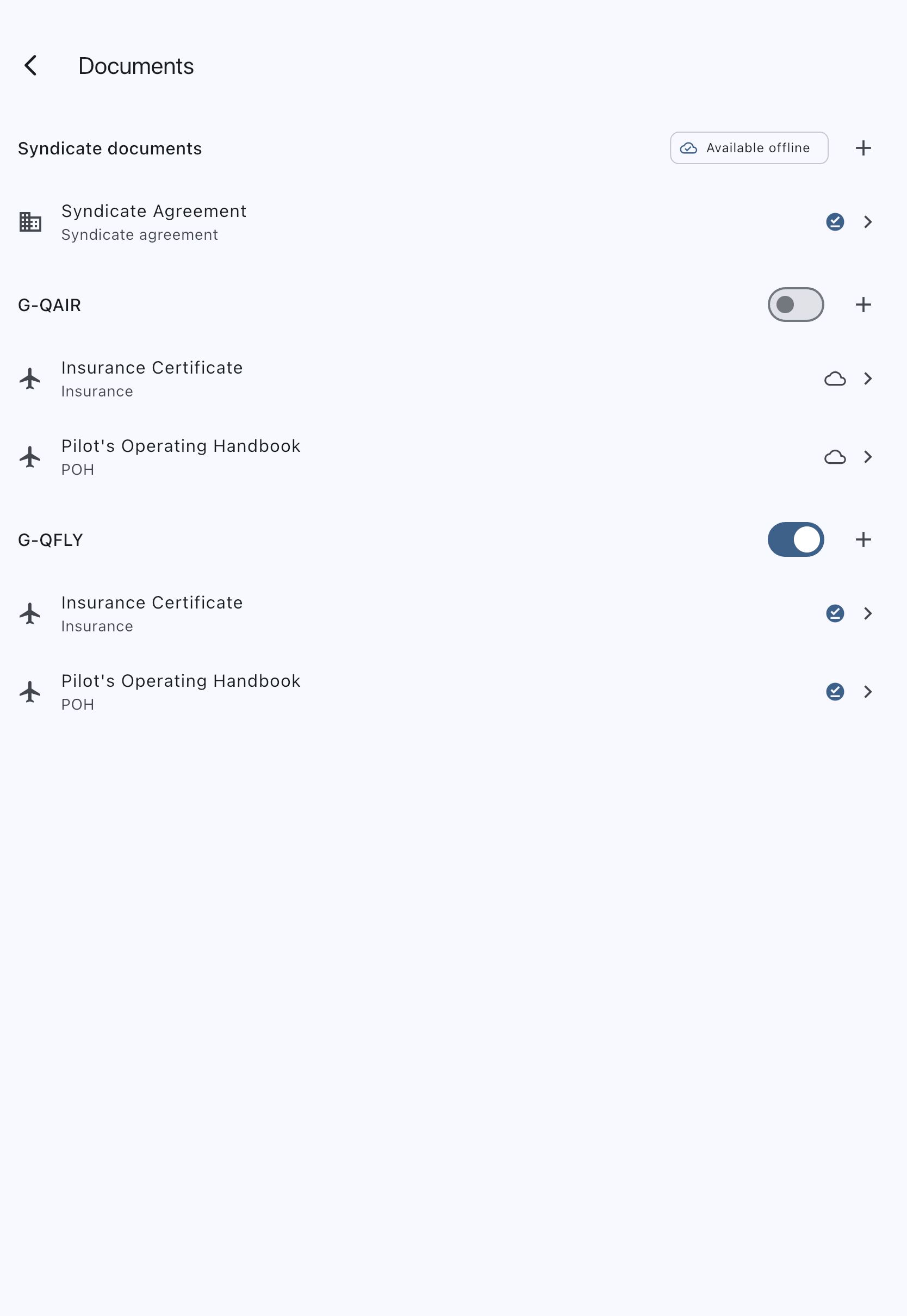
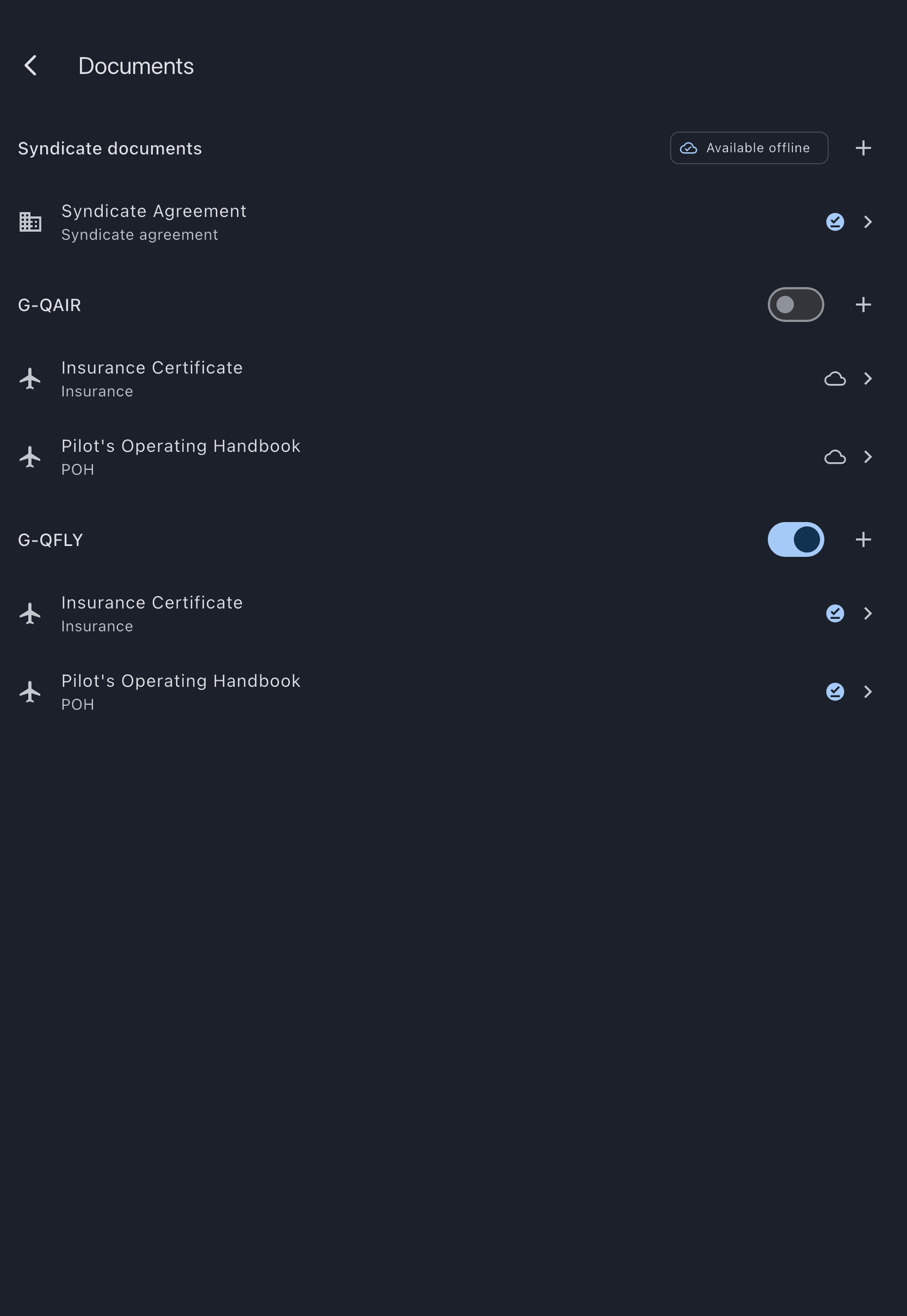
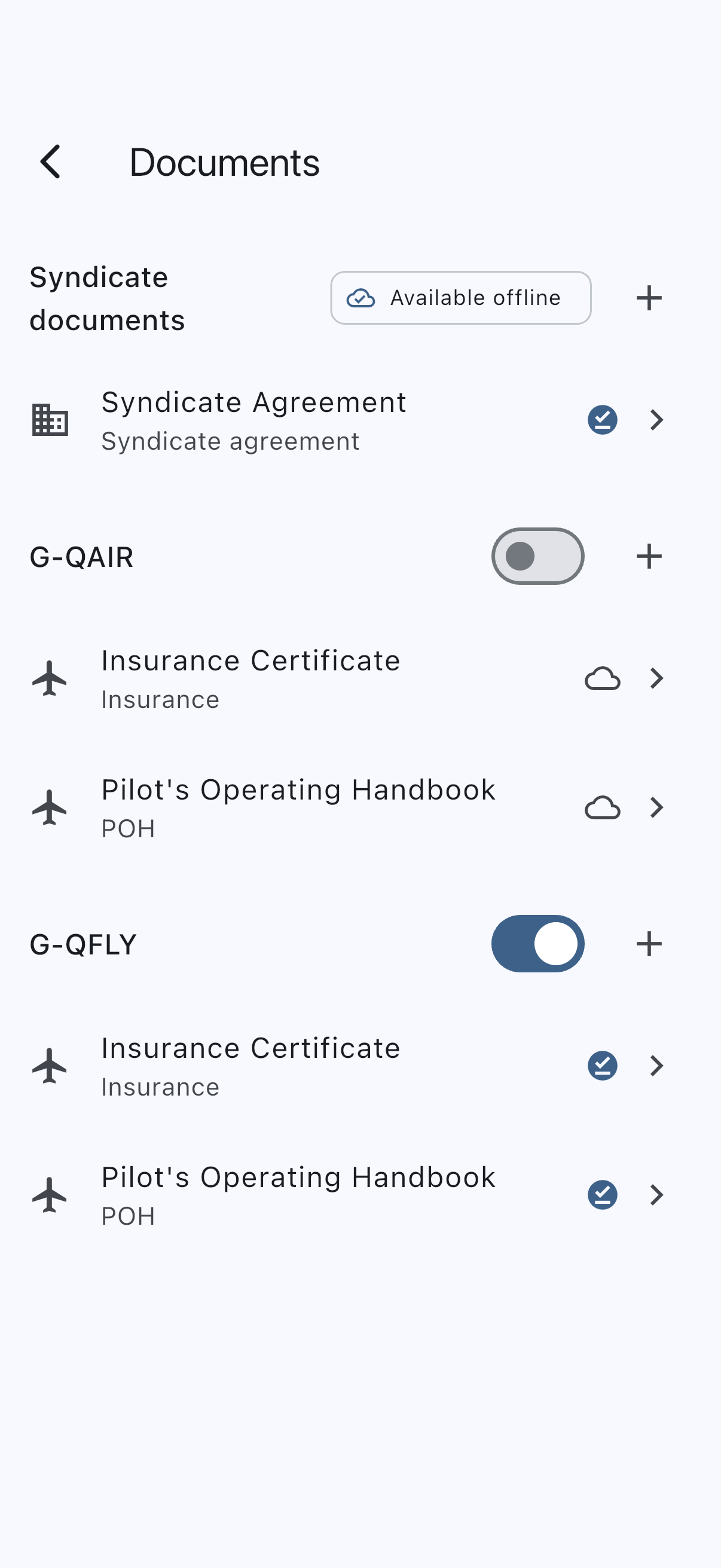
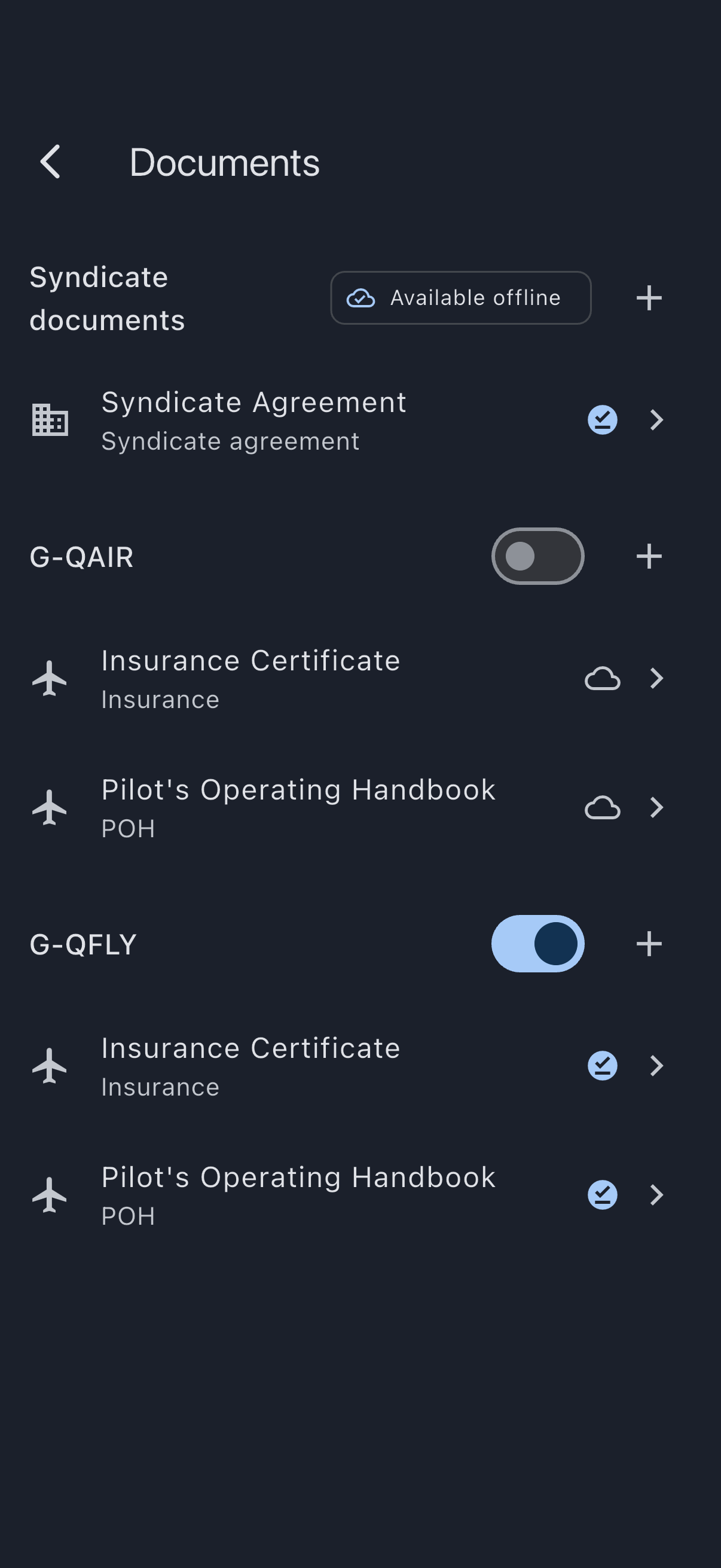
The image is from a syndicate with two aircraft, so it shows both states of the switch at once: the aircraft that has been opted in, and the one that has not. It also shows the contrast the first bullet above describes, since the syndicate section at the top carries the badge rather than a switch.
Checking it worked
Section titled “Checking it worked”The row marks are the check. Go back to the section at any time and look down the column of marks:
- Every row a tick. The whole section is on your phone.
- Some rows still a cloud. Those files have not downloaded. Stay in range and leave the app in the foreground for a moment.
- A question mark. Syndik8 could not read the device’s cache, so it does not know. That is not the same as the file being absent, and it normally clears within a moment.
A section header showing Available offline while a row inside it still shows a cloud is not a bug. The header states the rule for the section; the mark states whether that one file has arrived. Trust the mark, because it is the one that answers “can I show this document with no signal”.
Reversing the choice
Section titled “Reversing the choice”Turn that same switch off again. The cached files for that asset are deleted immediately. The documents stay in the library; you just won’t be able to open them without a connection until you toggle the switch back on.
A few practical notes
Section titled “A few practical notes”- First booking prompts you. The first time you book a particular asset in a multi-asset syndicate, Syndik8 asks whether you’d like to cache that asset’s documents offline. Tapping Cache offline sets the same preference as the toggle above. Tapping Not now skips it, and you can always enable it manually later.
- Cache fits the syndicate, not a budget. Syndik8 caches every document in an opted-in section. If the cache is big enough to bother you, opt fewer asset sections in.
- Two members, two caches. Your offline preference is per member, stored against your account. It follows you if you sign in on a different device, and another member of the same syndicate can have a different mix opted in.
- Replacing a document refreshes the cache. When an admin replaces an ARC with the renewed one, your cache pulls down the new file at the next sync and discards the old one.
- Signing out does not clear the cache. That is deliberate: the copies exist for the times you have no signal, and wiping them on sign-out would take them away at exactly the wrong moment. If you want them gone, choose the option to also clear this device’s data when you sign out.