
Create a syndicate
Start a new syndicate. You become its first admin.
Before you start
Section titled “Before you start”- Every user can have one free-tier syndicate they created at a time. If you already have a free syndicate, you must upgrade that one to paid before creating another. See Free-tier limits.
- Once any syndicate you created is on a paid plan, the cap lifts: you can create as many further syndicates as you like, and each new one starts on the free tier.
- Only syndicates you created count. Belonging to somebody else’s free syndicate does not use up your allowance, and neither does one of yours that has been closed.
- A new syndicate’s default billing is a single scheme called Standard Member, created automatically. You configure rates later on the Asset rates screen.
If this is your very first syndicate
Section titled “If this is your very first syndicate”Brand-new accounts don’t go straight to the Create Syndicate screen. When you have no syndicates yet, Syndik8 starts the guided setup wizard, which walks you through creating the group, adding an aircraft, setting rates, and inviting your first member in a few steps. An invitation already waiting for your email is shown first, and the wizard follows only once you’ve decided on each one; see Join a syndicate as a member. Follow it from the dedicated tutorial: Set up your first syndicate. The steps below cover the plain Create Syndicate screen, which you reach once you already have at least one syndicate.
These steps assume you already belong to a syndicate and want to start another.
- From the home screen, scroll to the Create Another Group card and tap it. You land on the Create Syndicate screen.
- Enter a Name. It must be between 3 and 50 characters. This is visible to every member and in invite emails. The hint shows an example registration-based name such as
G-QABC Syndicate. - Fill in Description (optional) (up to 500 characters). This is a brief note shown to co-members. It can be left blank.
- Tap Create Syndicate.
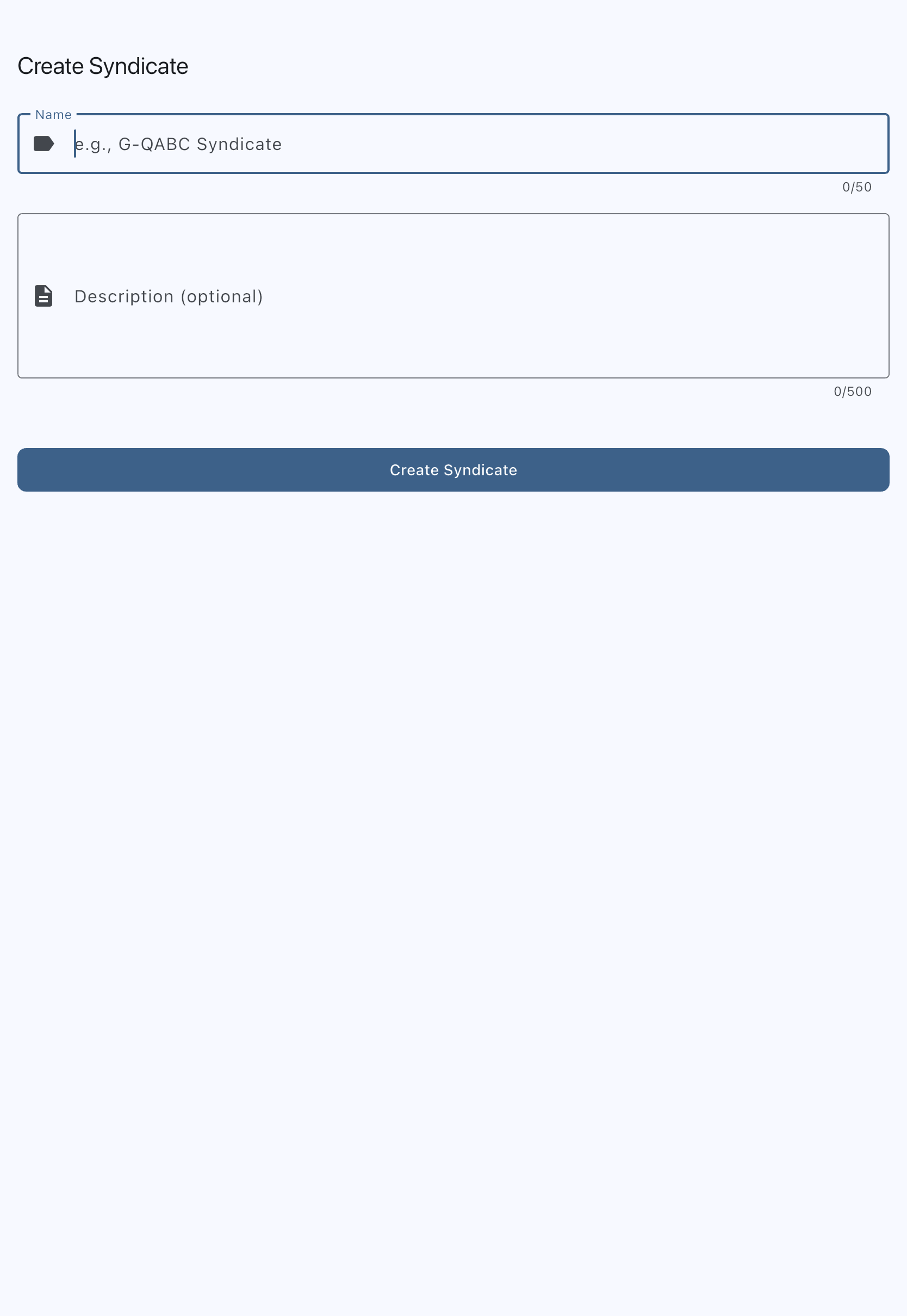
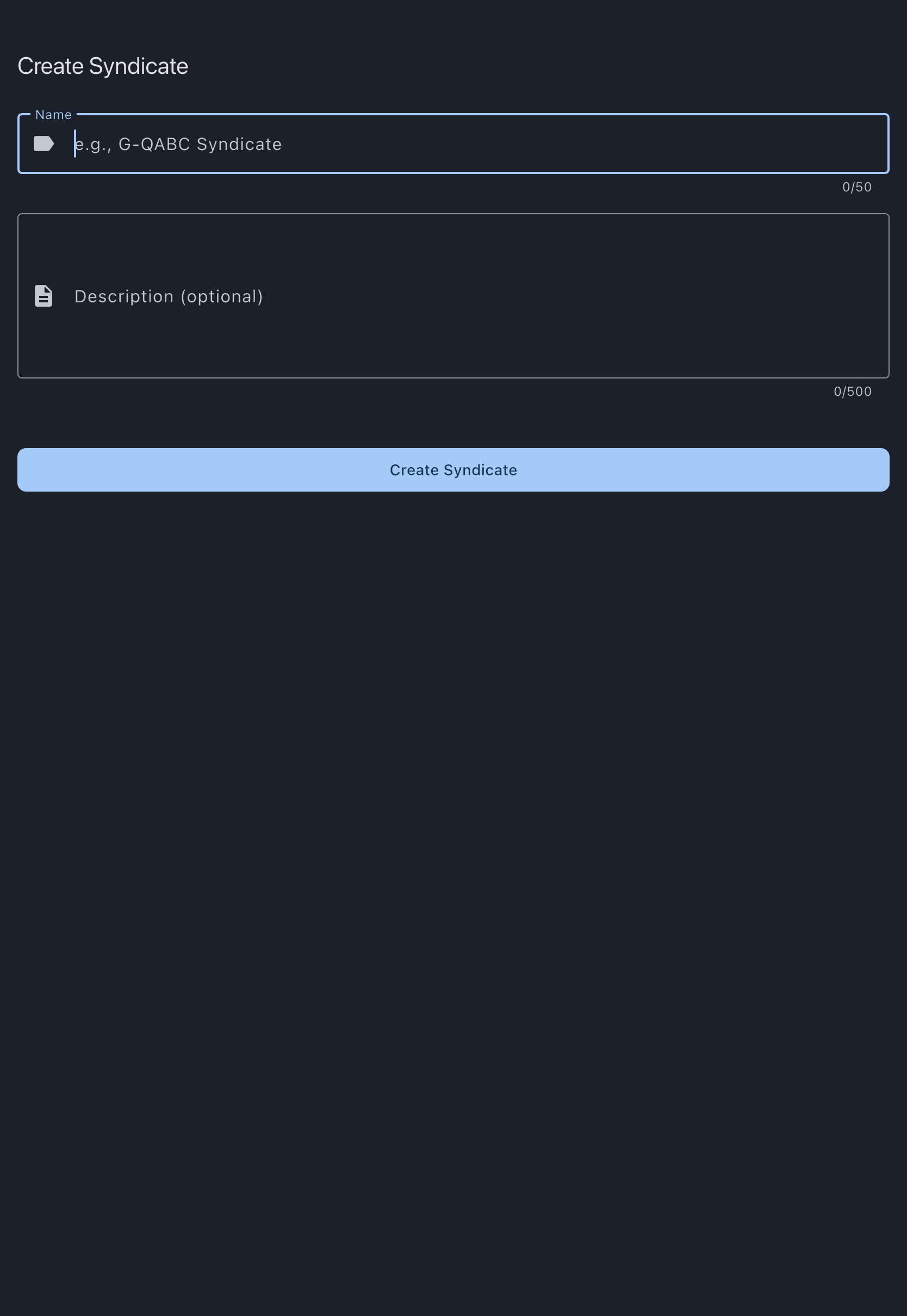
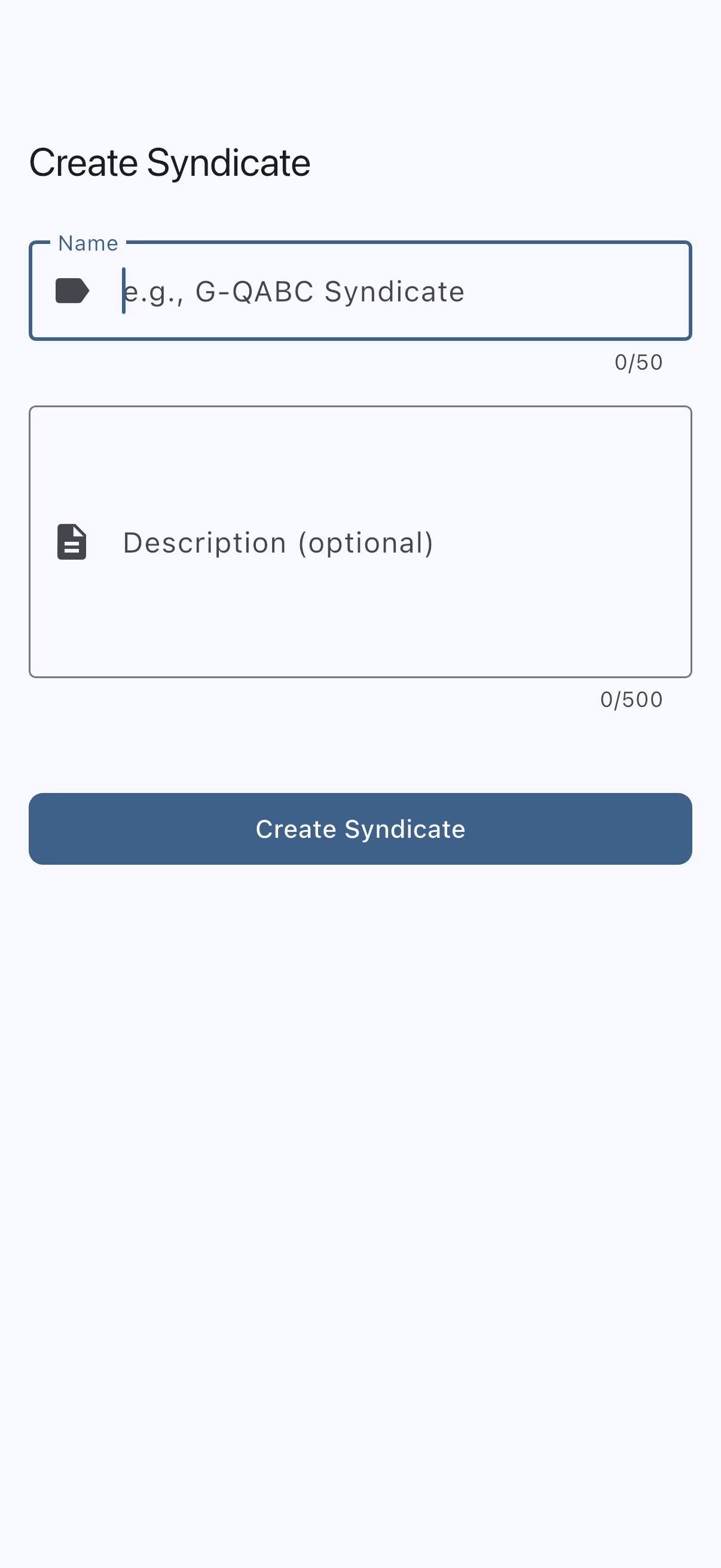
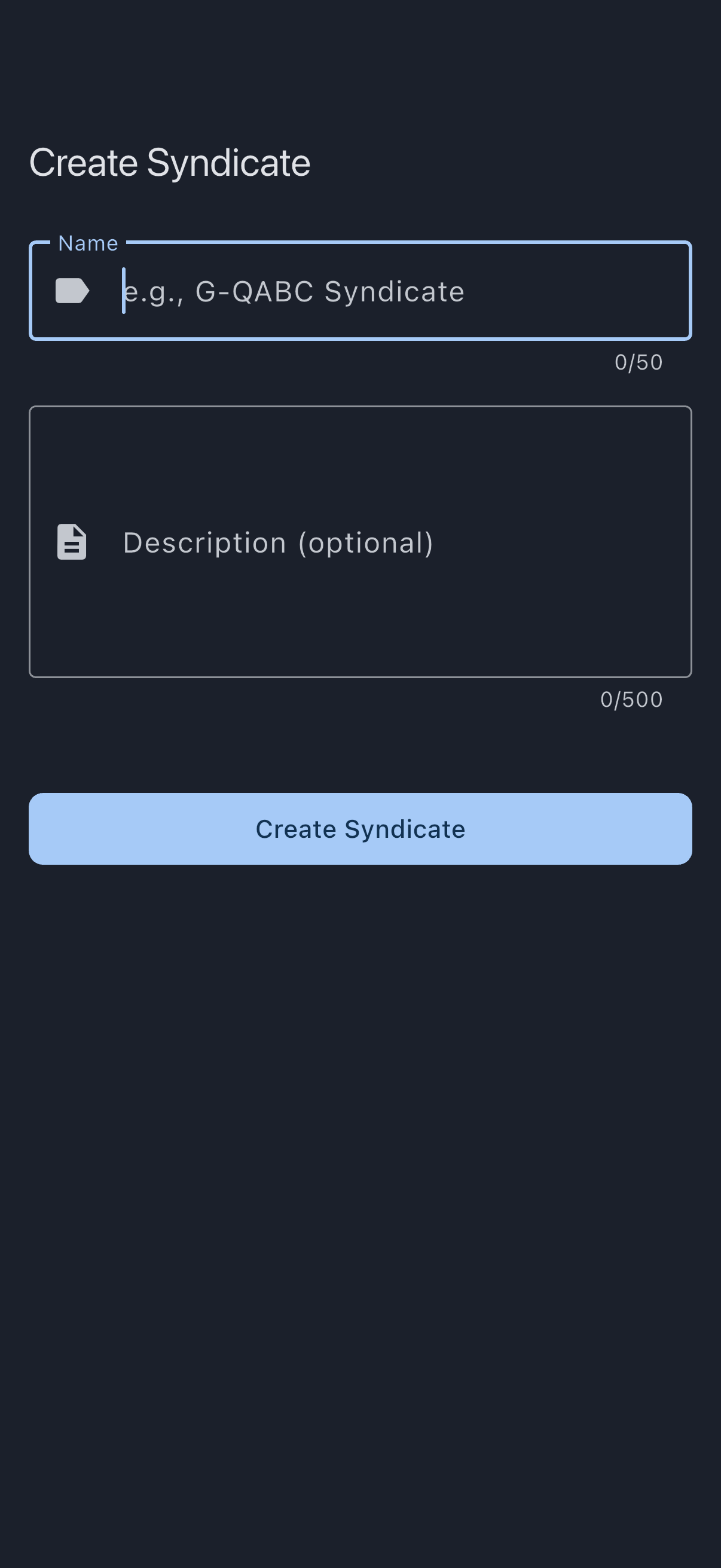
You’re taken to the new syndicate’s detail screen and shown the snackbar Syndicate created successfully. You are listed as an admin. A default Standard Member billing scheme has been added for you automatically.
What to do next
Section titled “What to do next”- Add your first asset. See Add an asset.
- Invite co-members. See Invite members.
- Configure billing rates when you’re ready. See Asset rates.
If it goes wrong
Section titled “If it goes wrong”- “You already have a free syndicate. Upgrade your existing syndicate or start a paid plan.” You have reached the one-free-syndicate-per-user limit. Either upgrade an existing syndicate to paid, or close one you no longer need. See Free-tier limits.
- “We couldn’t check your current plan, so nothing has been created. Please try again in a moment.” Your syndicates and their plans had not reached this device yet, so Syndik8 could not tell whether you are entitled to another one and did not guess. It clears itself as soon as your data arrives: wait a moment and tap Create Syndicate again. If it persists, check your connection.
- “Name must be at least 3 characters” / “Name must be 50 characters or less”. Validation: adjust the name.