
Confirm a tentative booking
Upgrade a tentative (pencilled-in) booking to confirmed so it blocks the time slot for other members.
Before you start
Section titled “Before you start”- You must be the booking’s author. An admin cannot confirm someone else’s pencilled-in booking; they can cancel it instead.
- The slot must still be free. If someone else has taken the same time with a confirmed booking since you pencilled yours in, confirmation will fail.
- If your syndicate requires booking approval and you are a regular member, confirming sends the booking to the pending queue for an admin to approve. It does not become
confirmedimmediately.
- Open the tentative booking. You can tap it on the calendar (it appears with a diagonal-hatched pattern) or find it in the Bookings tab.
- On the booking detail screen, tap Confirm Booking.
- In the confirmation dialog (“Upgrade this tentative booking to confirmed? This will block the time slot for other members.”), tap Confirm Booking.
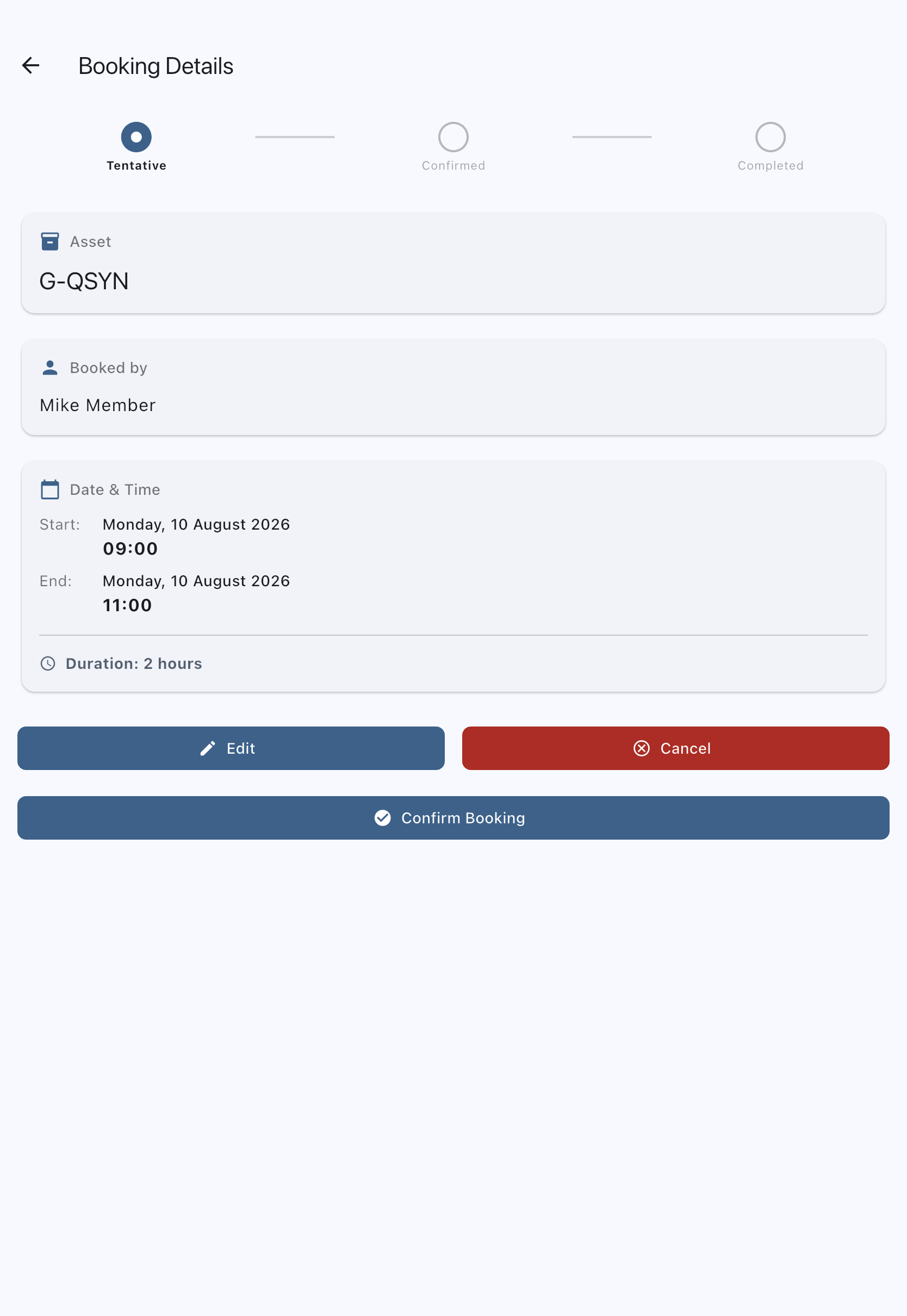
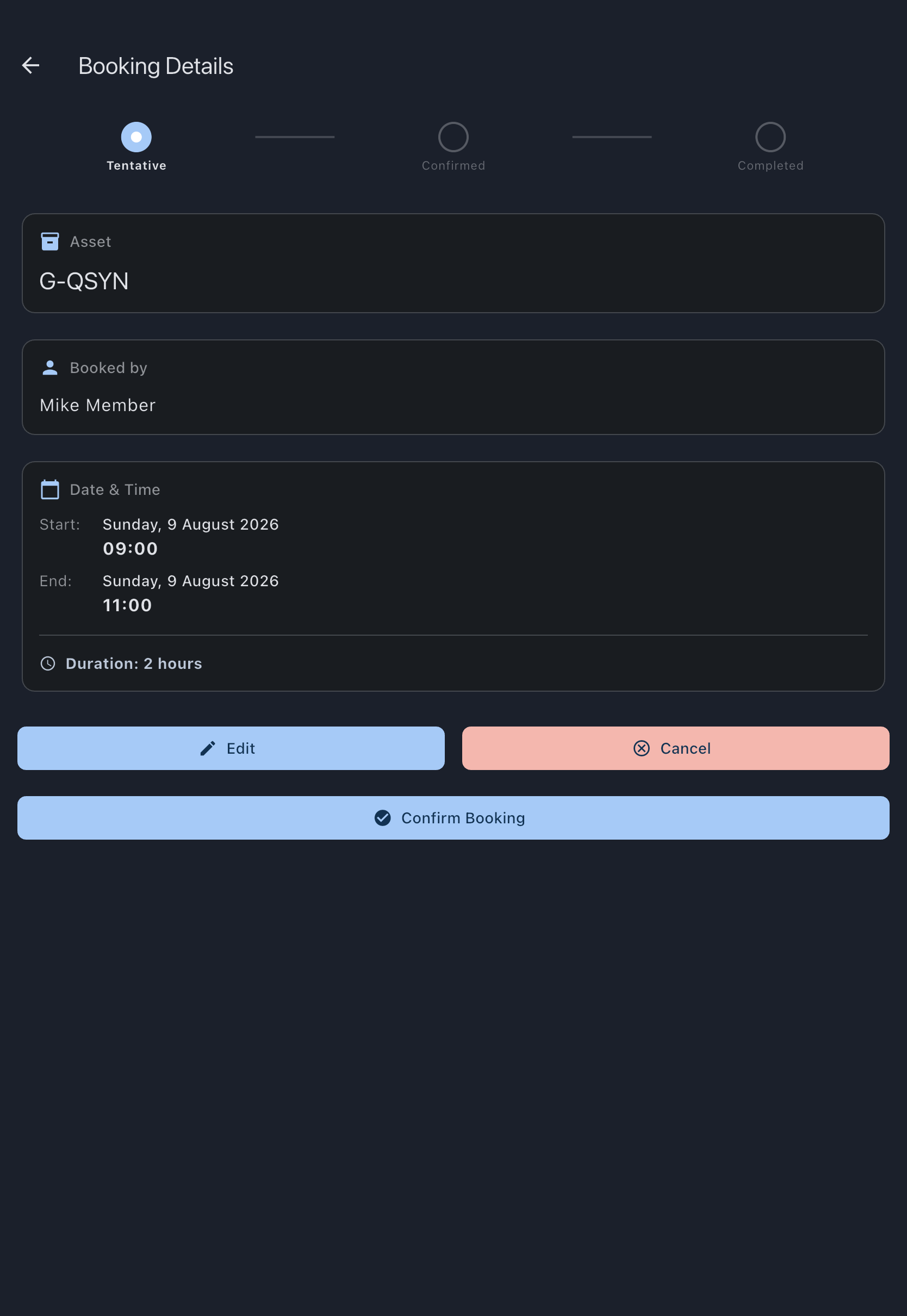
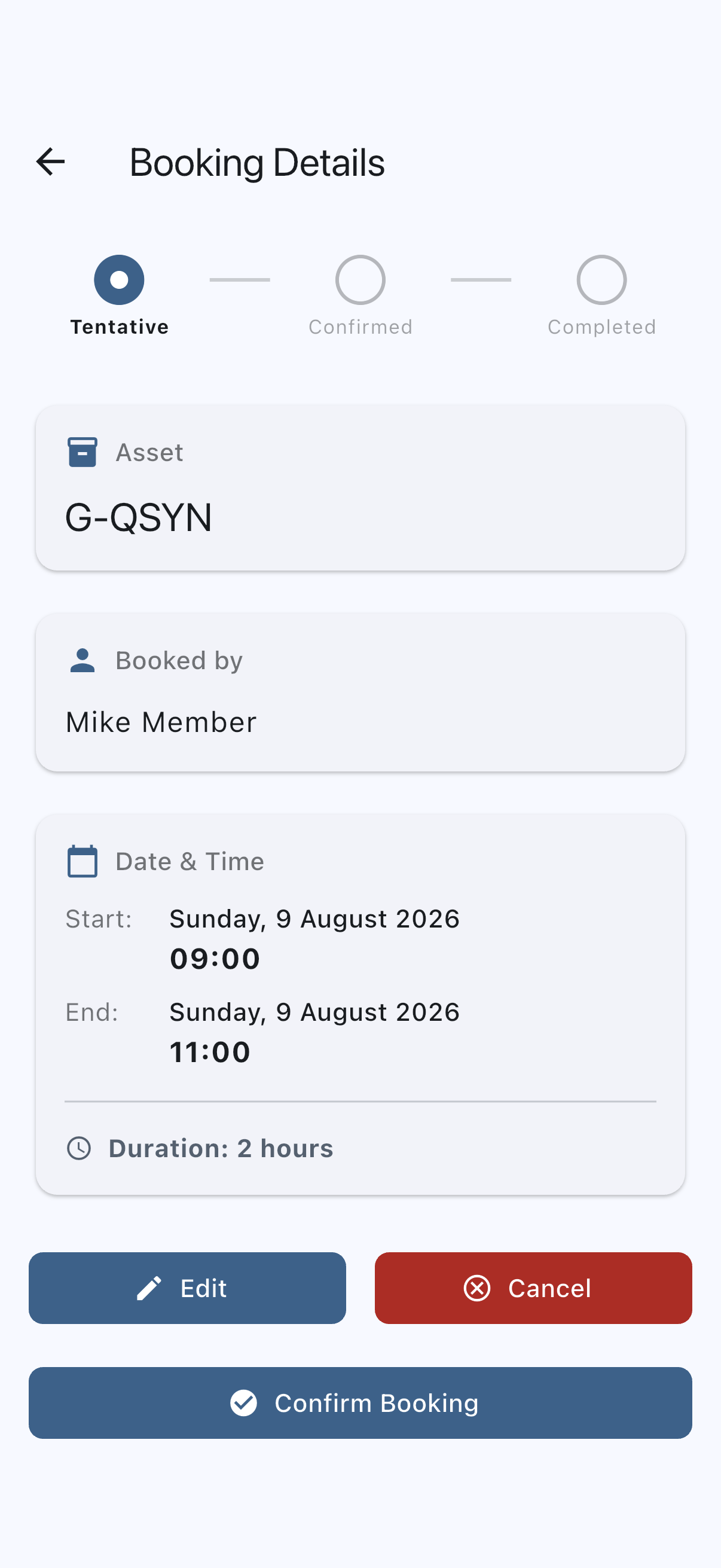
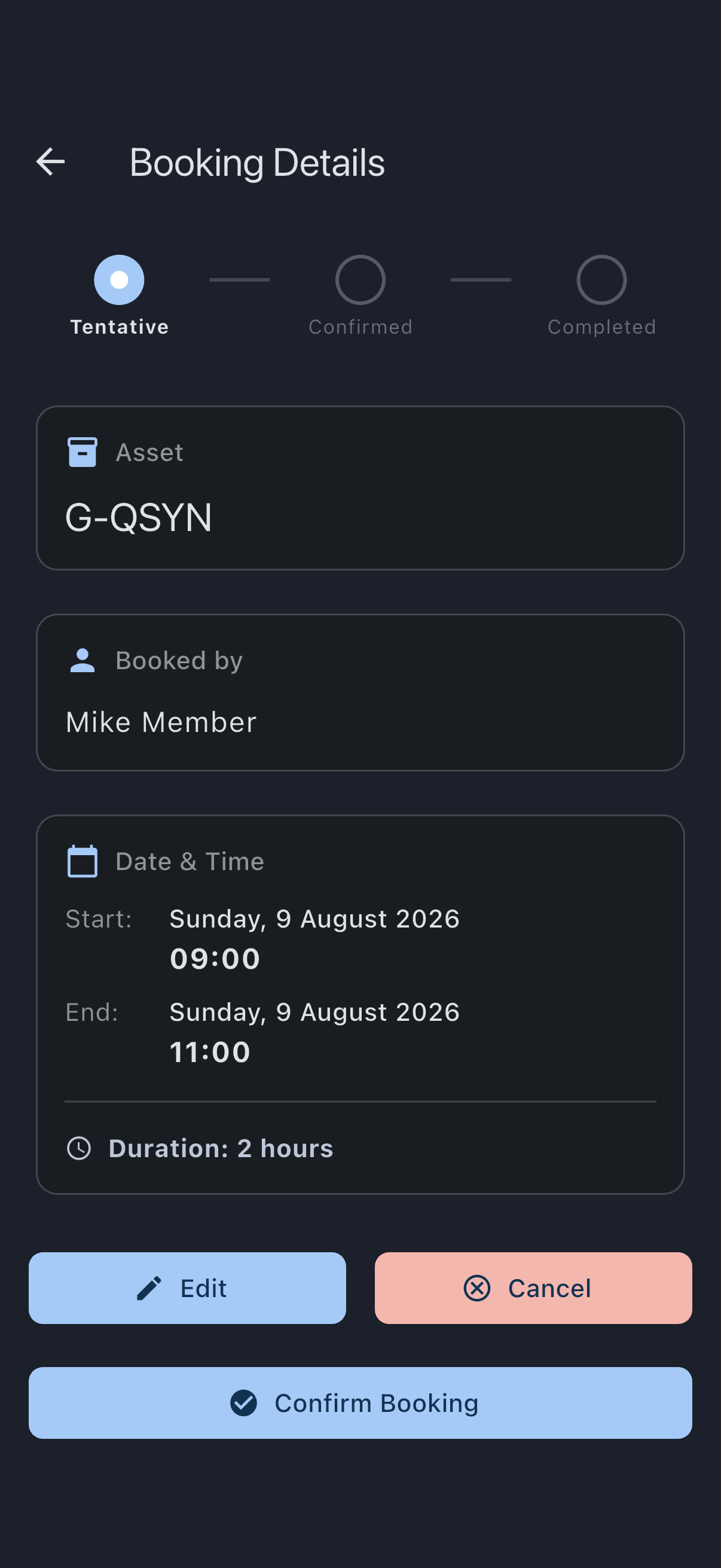
You’ll see a Booking confirmed snackbar. The booking’s status changes in place; no new booking is created. If you are offline, the snackbar adds Will sync when you’re back online; the change appears on the calendar straight away and the server hears about it when the app next syncs.
What happens to the status
Section titled “What happens to the status”- Approval off, or you are an admin: status moves from
tentativetoconfirmed. The slot is now reserved. - Approval on, you are a regular member: status moves from
tentativetopending. An admin must approve before it reserves the slot.
If it goes wrong
Section titled “If it goes wrong”- “This time slot is already booked”: a confirmed booking now covers part of your tentative slot. Cancel the tentative and book a different time.
- “Booking is no longer tentative and cannot be confirmed”: the booking is not tentative any more. Only
tentativebookings offer the Confirm Booking button. - The Confirm Booking button isn’t there: the booking isn’t tentative, or you are not its author. Only the author can confirm a tentative booking; an admin can cancel it instead.