
Use the Email Digest
By default Syndik8 sends every email notification immediately, one per event. The Email Digest groups all optional emails into a single batched email (daily, weekly, or monthly) at a fixed time. Always-on notifications (Direct Debit notices, payment-account changes, syndicate deadlines, billing-accuracy alerts, and a platform fee change for admins) ignore the digest and continue to fire immediately.
Turn the digest on
Section titled “Turn the digest on”- Open Profile → Notification Preferences.
- The Email Digest card sits at the top of the screen, collapsed and off by default.
- Tap the on/off switch on the right of the card. The card auto-expands and the cadence defaults to Daily digest.
- Tap Weekly digest or Monthly digest to change the cadence. Each radio carries its own send time in your account timezone as a subtitle, so the wording differs per option; see the table below. There is no Immediate radio, because immediate delivery is simply the digest switched off.
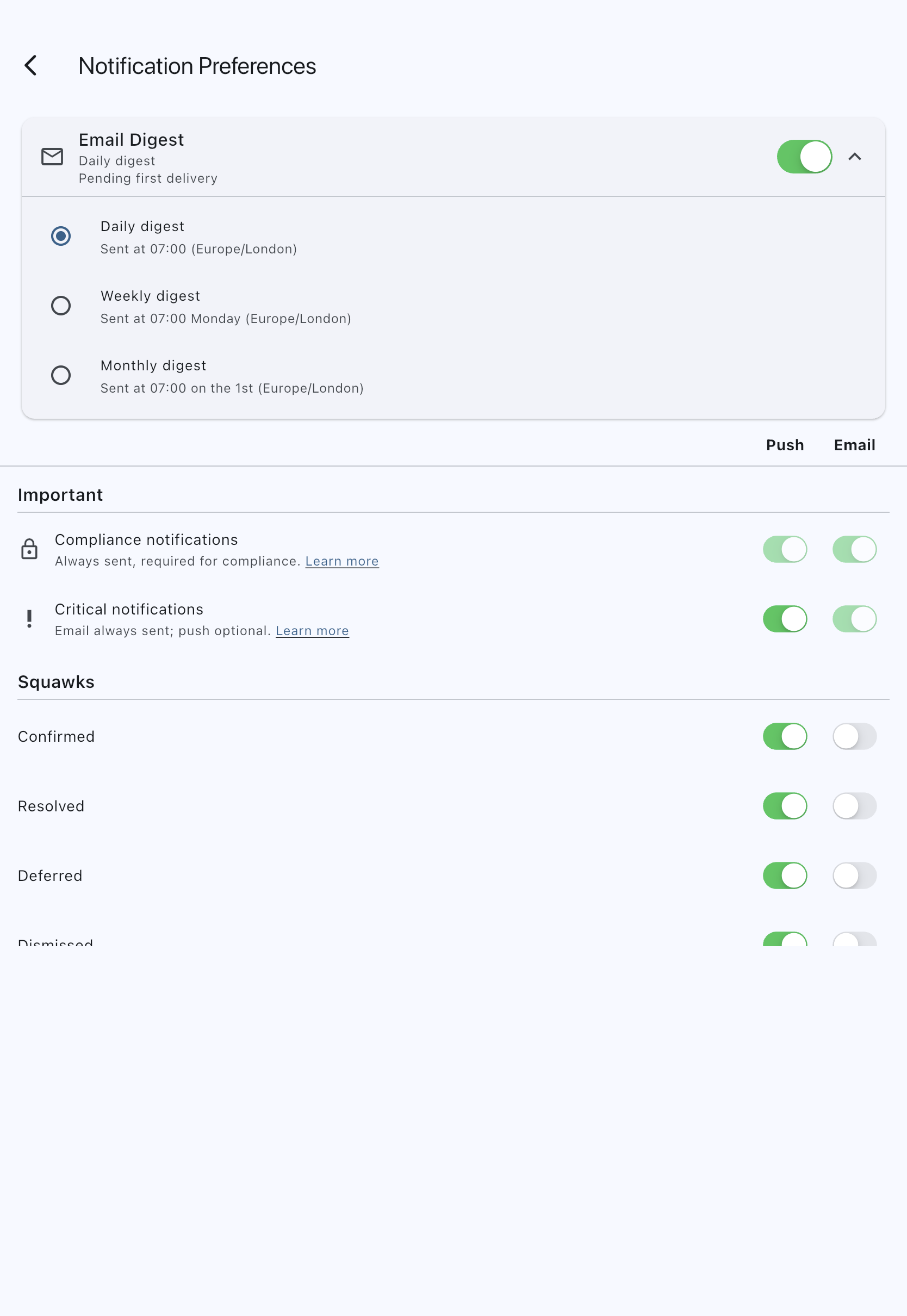
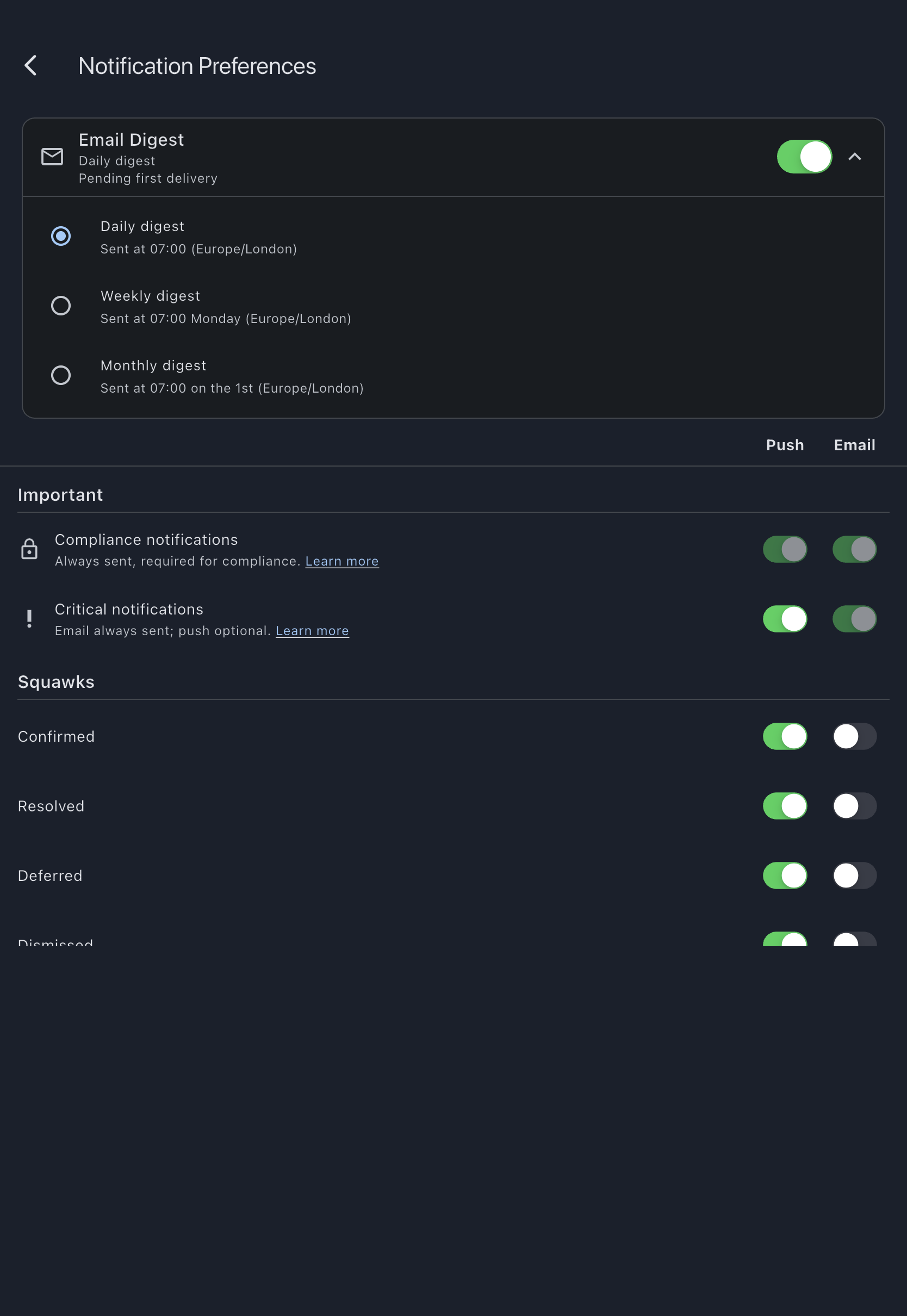
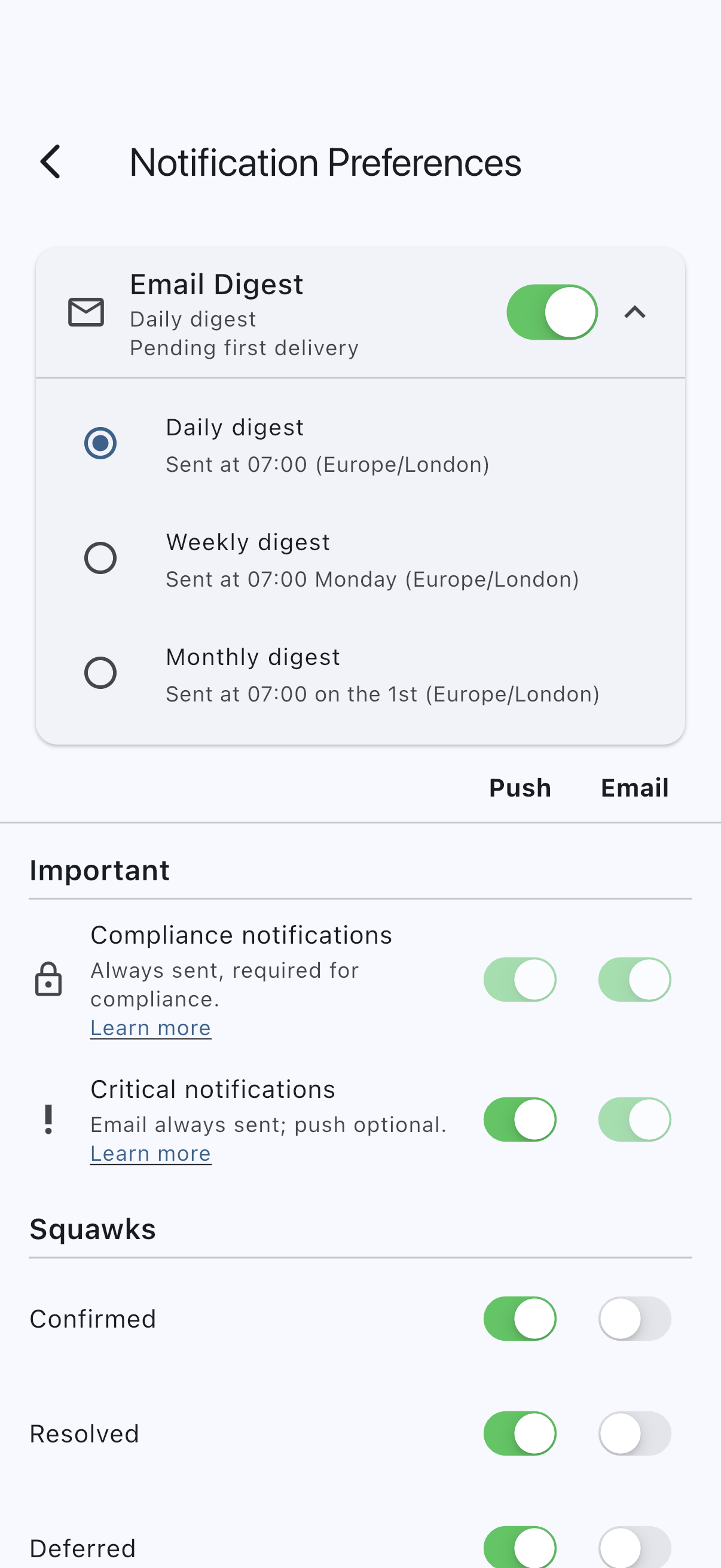
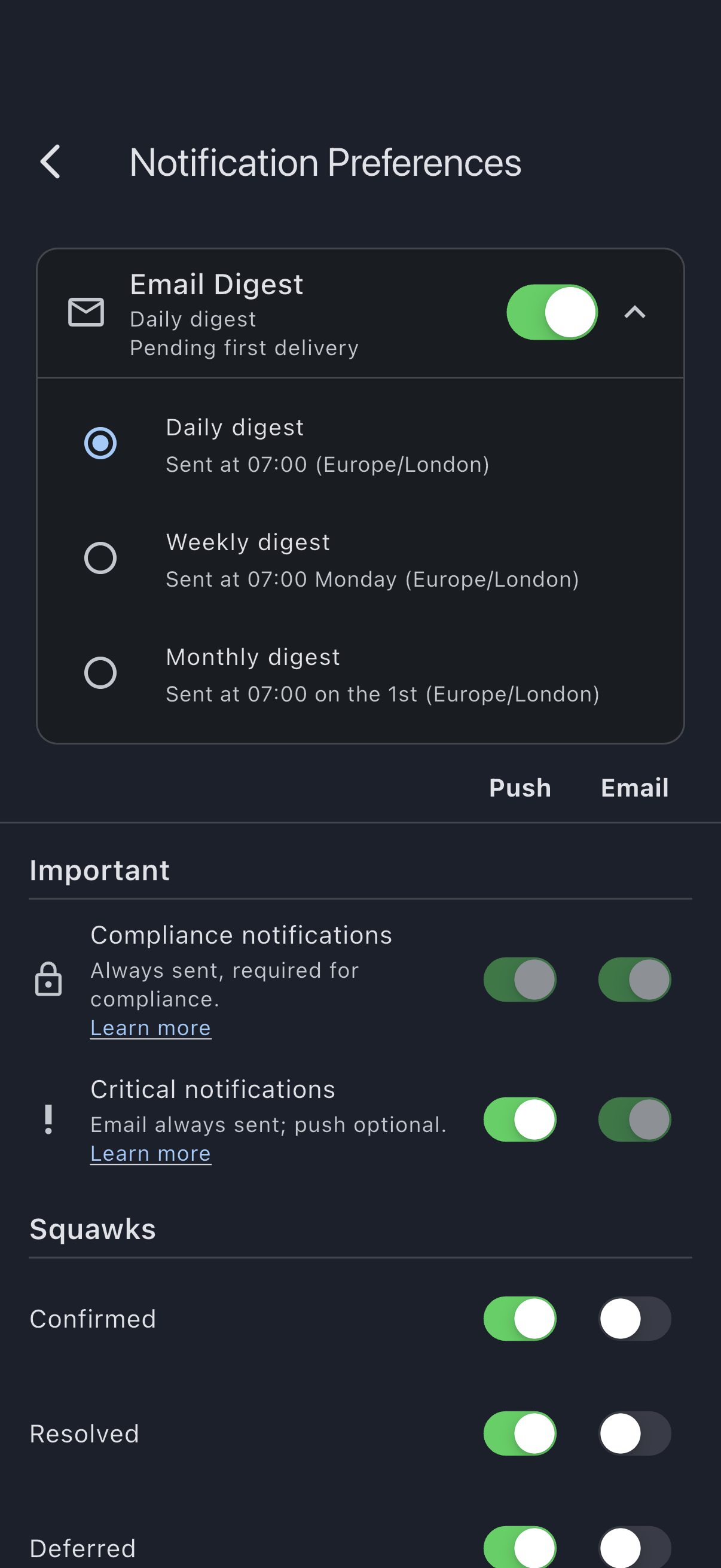
That’s it: your next eligible email arrives in the next scheduled digest run instead of immediately.
Cadence reference
Section titled “Cadence reference”| Radio label | Subtitle on the radio | When it sends |
|---|---|---|
| Daily digest | Sent at 07:00 (Europe/London) | 07:00 every day, in your account timezone |
| Weekly digest | Sent at 07:00 Monday (Europe/London) | 07:00 Monday, in your account timezone |
| Monthly digest | Sent at 07:00 on the 1st (Europe/London) | 07:00 on the 1st of each month, in your account timezone |
The timezone in brackets is your own; Europe/London is only an example. The time shows on your own clock, so on a 12-hour clock the subtitle reads Sent at 7 AM (Europe/London). Each scheduled local date has one digest, including in timezones with half-hour or quarter-hour offsets.
If you change timezones in your account profile, the next digest run uses the new timezone; no extra action needed.
What goes into a digest
Section titled “What goes into a digest”Every silenceable notification type for which you have email enabled, except the always-on tier:
- Optional types (for example Booking approved, Squawk reported, Maintenance scheduled, Expense approved) go into the digest if their Email toggle is on for you.
- Always-on types (see delivery channels: always-on tiers) never go into the digest. They arrive as separate immediate emails.
The digest groups notifications by syndicate. If you belong to more than one syndicate, your digest has a section per syndicate.
Collapse the card
Section titled “Collapse the card”After turning the digest on, you can tap the Email Digest card row to collapse the body. The current cadence appears as a subtitle in the header (Daily digest, Weekly digest or Monthly digest) so you can see it at a glance. The card always opens collapsed on every visit to the screen, regardless of on/off state; tap the row to see or change the cadence.
Below the cadence, the header carries a second line telling you whether the digest has actually run:
- Pending first delivery until your very first digest goes out. Expect to see it from turning the digest on until the next 07:00 run comes round. Changing cadence does not send you back to this state.
- Last delivered {time ago} once one has gone out, so you can confirm the pipeline is running rather than just trusting the setting.
Both lines only appear while the digest is on.
Turn the digest off
Section titled “Turn the digest off”Tap the on/off switch on the right of the card. Cadence resets; all emails go back to immediate delivery from the next notification onwards. Any items that were pending for the next digest run simply never get emailed as a batch; they are not sent immediately either, and they stay visible in the in-app notification centre.
Switch back to immediate from a digest email
Section titled “Switch back to immediate from a digest email”Every digest email carries a one-click Switch back to immediate emails link in the footer. Tapping it opens a confirmation page; tap Switch to immediate and your email cadence flips back to immediate delivery without you having to open the app. If you tapped the link by mistake, No, leave my settings unchanged backs out and leaves your cadence alone.
This link only changes your digest cadence; it does not unsubscribe you from any notifications.
How a digest run decides what to include
Section titled “How a digest run decides what to include”Each digest run selects eligible unread notifications still waiting for email, oldest first:
- Older pending items remain eligible. There is no fixed look-back cutoff, including for your first digest. Items left out of an earlier digest can appear in a later one.
- Already-read notifications are excluded when the digest is prepared. Reading an item after its email has been prepared does not remove it from that email.
- Large digests are capped. An email shows at most 50 items, with a “+N more” link back to the notification centre. Only the listed items are marked as sent; the rest stay eligible for a later scheduled digest while unread.
- Temporary failures retry automatically. Recovery retries the same prepared email and selected items, without waiting for your next daily, weekly or monthly slot. Newly arrived notifications wait for a later digest rather than changing the email being retried.
If it goes wrong
Section titled “If it goes wrong”- A digest run failed. Temporary delivery failures retry automatically. If recovery stops, pending items are kept for a later eligible run. You can still read them in the notification centre while email delivery is delayed.
- A notification doesn’t appear in the digest. Check that the type’s Email toggle is on in the per-type list, that the type is silenceable (always-on types don’t go into digests, they arrive immediately as their own emails), and that you haven’t already read it in-app before the run fired.
- You’re on a digest but still getting immediate emails for some types. That’s by design; always-on emails (Direct Debit notices, payment-account state, syndicate deadlines, balance-due reminders, refunds, reversals and corrections to a payment or a booking charge, billing-accuracy alerts, account-deletion notices, and, for admins, a platform fee change or a syndicate at risk) ignore the digest setting.
- You can’t see the on/off switch. The Email Digest card requires the digest mode to load. If the load failed, the screen shows a retry button instead of the preference list. Tap retry; check your connection.
See also
Section titled “See also”- Choose what you get notified about: the full preferences screen
- Delivery channels: how digest mode interacts with the always-on tiers
- Unsubscribe from a notification type: silence one type without affecting the digest cadence