
Pay your balance
Pay your balance
Section titled “Pay your balance”Pay your outstanding charges to your syndicate by card. You can also choose Apple Pay or Google Pay when offered by the payment sheet on your device.
Before you start
Section titled “Before you start”Your syndicate must have its payment account connected, and card payments must be switched on for it. When that is in place and you have charges outstanding, the Pay buttons appear on your My Balance screen. If you do not see them, ask an admin whether the syndicate payment account is connected.
The money goes straight to your syndicate’s own account. Syndik8 does not hold it.
You can pay a charge as soon as it appears on your balance. You don’t have to wait for the syndicate’s monthly bill. Once a charge falls due, a member on Direct Debit has it collected automatically, and a member without Direct Debit gets a “Balance now due” notice and a reminder each week until it is paid.
Pay your charges
Section titled “Pay your charges”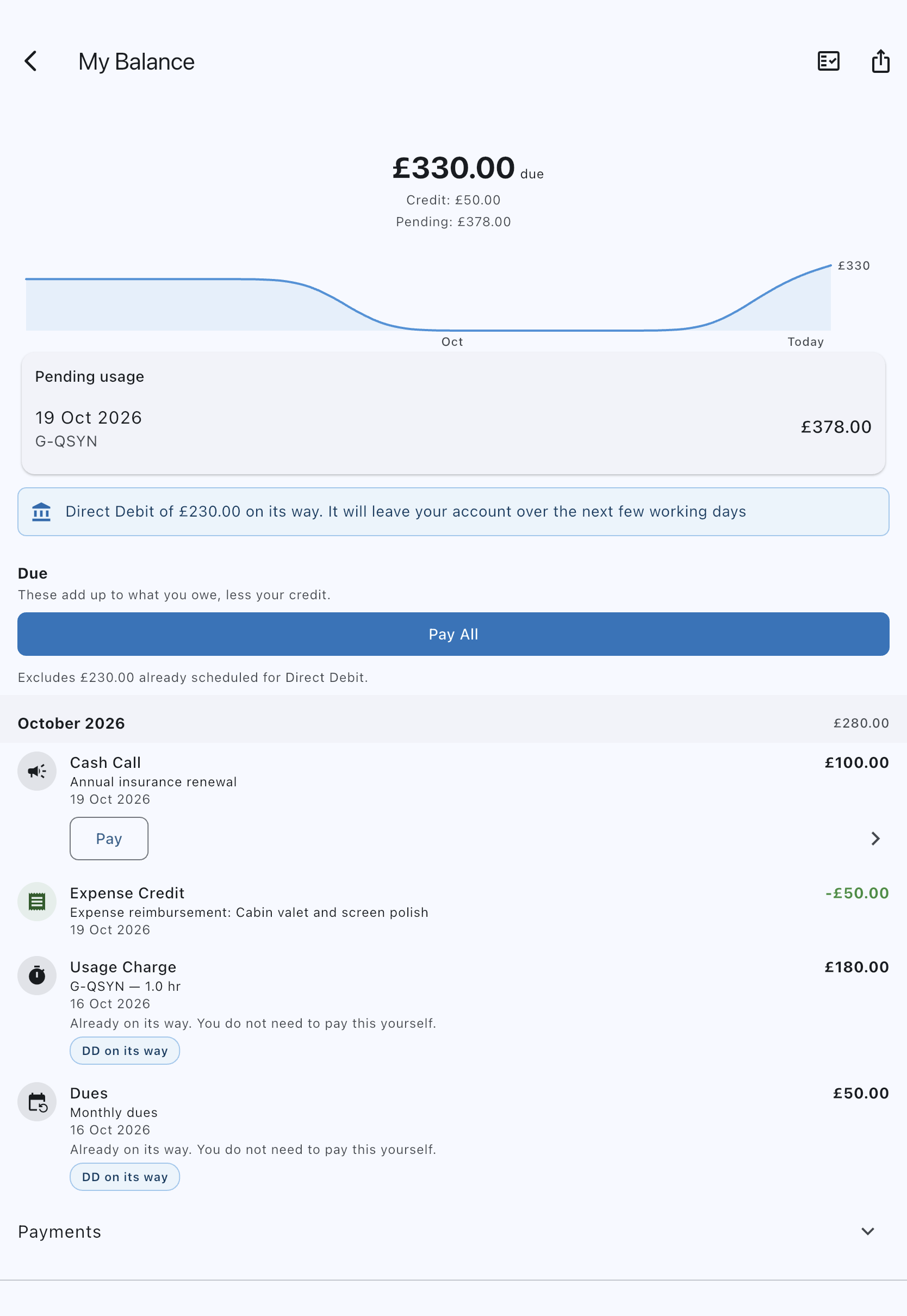
- Open the My Balance screen for your syndicate.
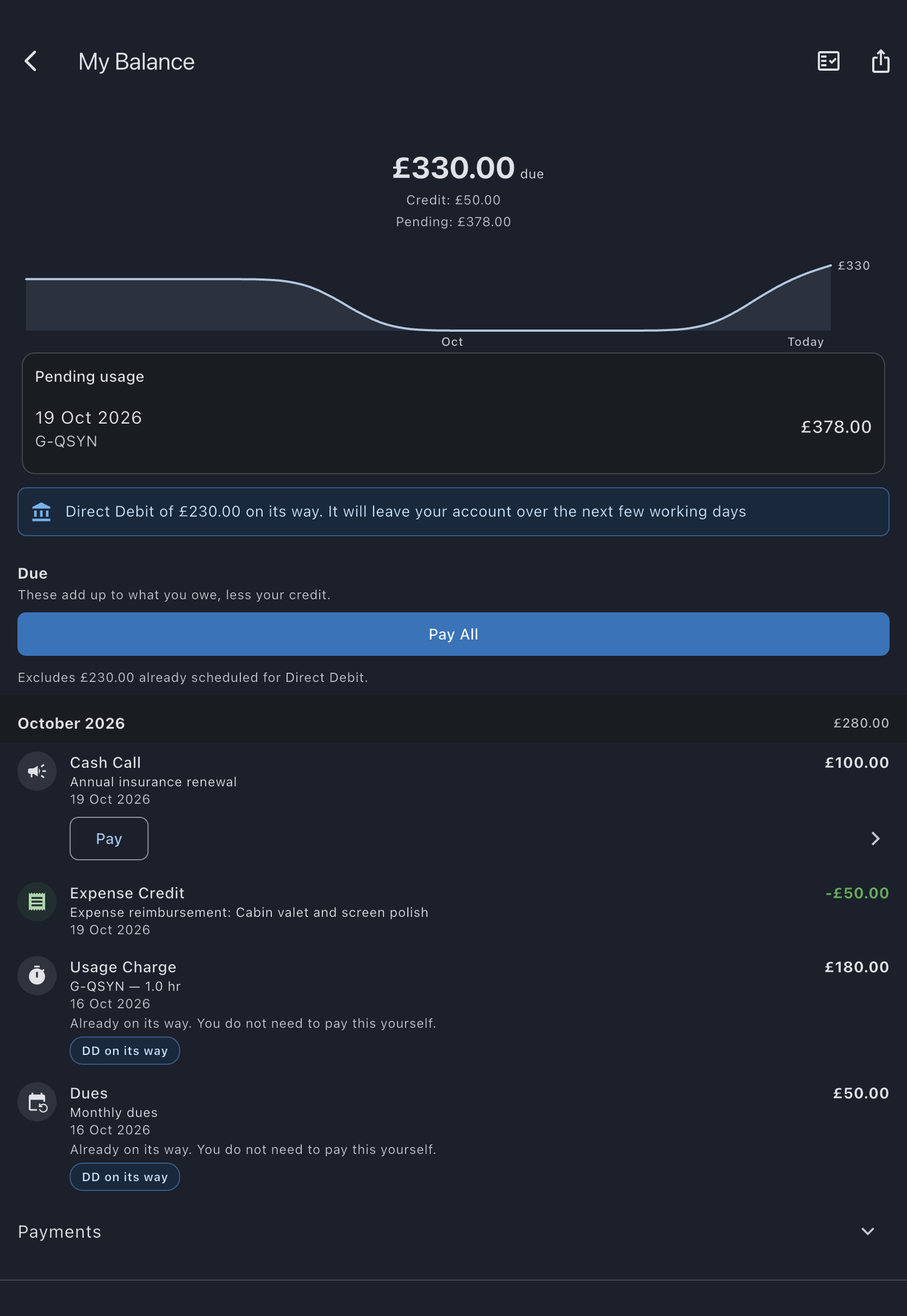
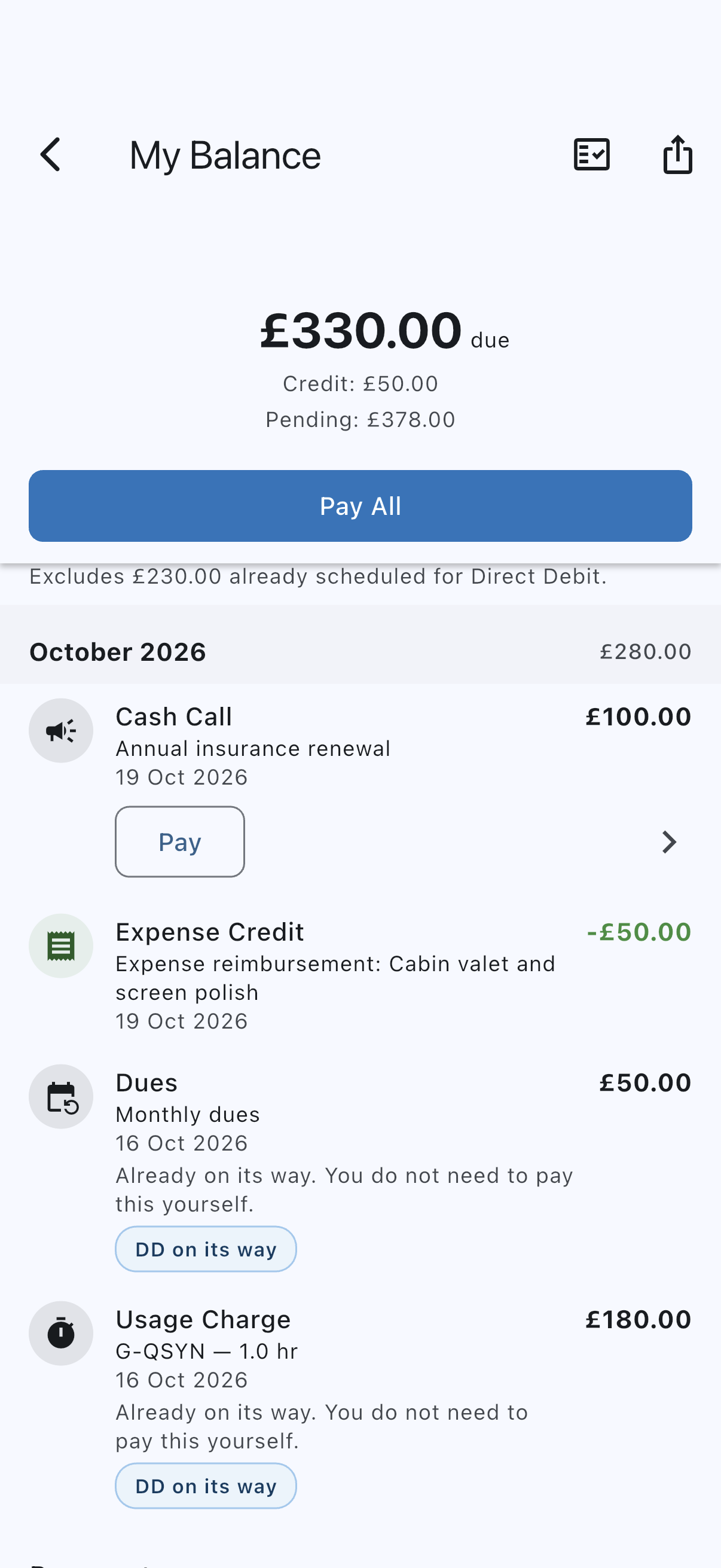
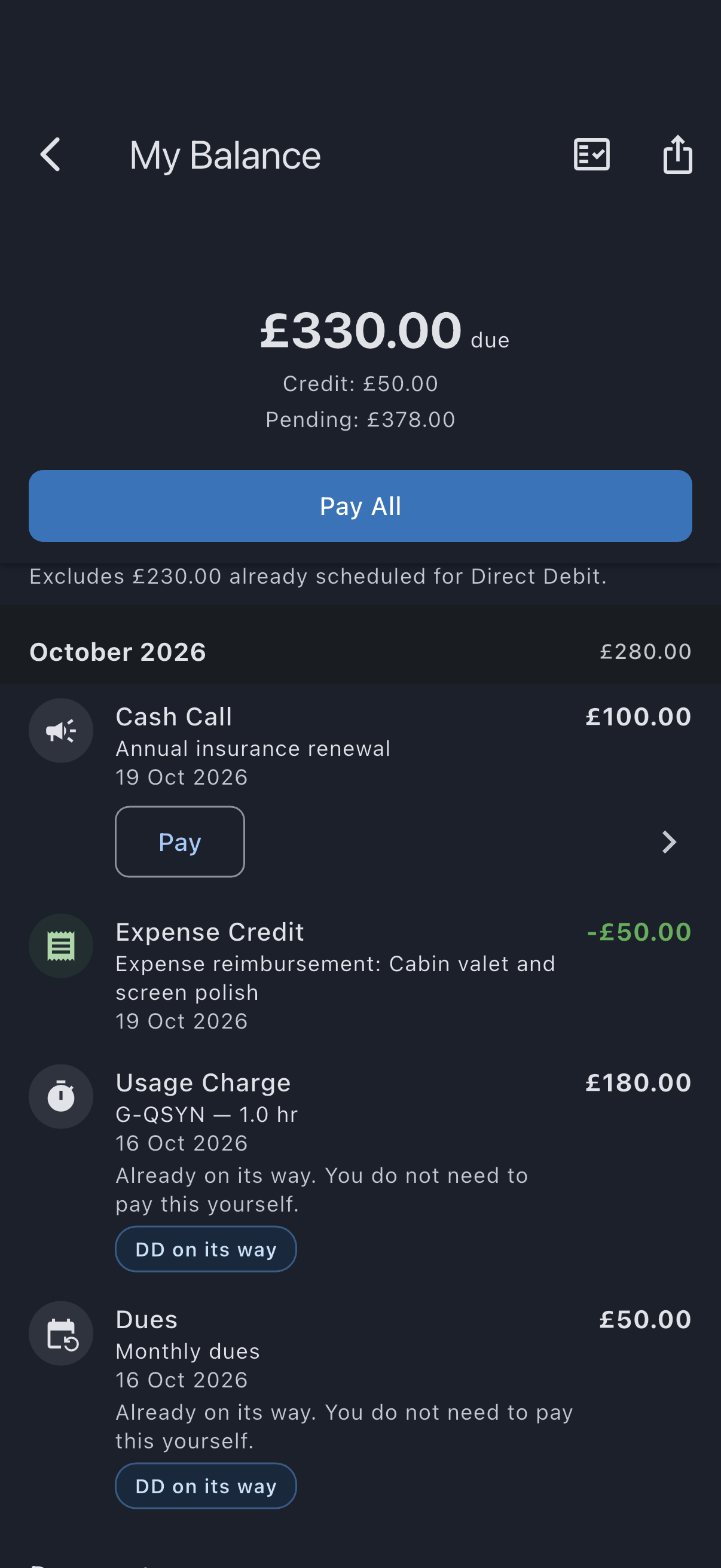
- Find the Due section. It lists everything you still owe, and any credit you hold, newest first. The figure at the top is what is due; any credit you can use is named on its own line under it rather than taken off.
- Tap Pay next to a single row, or Pay All to settle everything payable at once. The Pay All button shows the total amount to be charged, unless you hold credit you can use: then it reads just Pay All, and the amount depends on whether you use your credit. If you hold credit you can use, you are asked first whether to use it; see If you have credit below.
- Stripe opens the payment sheet. Enter your card details, or choose Apple Pay on iPhone or Google Pay on Android when offered and authorise the payment on your phone. Follow the instructions there, then come back to the app. On the web, Stripe’s page opens in the same browser tab and brings you back to Syndik8 when you finish or cancel; available wallets depend on your browser and wallet setup.
- When the payment succeeds, the row moves to the Settled part of the list and your balance updates.
- To check a payment afterwards, expand Payments on the same balance screen and look for it. Each entry shows what happened to it in a few words — Collected, Waived, Paid with credit, On its way, Not finished, Not collected, Never requested, Not completed, Cancelled, Returned to you or Undone — and anything that did not simply succeed carries a sentence saying whether any money moved. Once the payment provider has reported it, the line under the date also says how you paid, for example Visa ending 4242, Apple Pay · Mastercard ending 0005 or Direct Debit ending 1234. A payment recorded by an admin as paid externally reads Paid outside Syndik8. Undone is the one to read carefully: it means the record of a payment was reversed on the books, but no money has come back to you. The Due section shows what is owed now. A payment your syndicate has refunded only part of, or refunded without reopening what you owed, stays Collected — it did clear the charges it was for. Money coming back to you shows on your balance and, for a bank refund, takes several working days to arrive.
If you have an active Direct Debit mandate and owe charges that no collection has been submitted for yet, a note above the Due section says your Direct Debit will collect them and that you do not need to pay them yourself. Pay and Pay All are still there if you would rather pay by card, but then the debit is not needed. Once a collection is submitted, the note gives way to the Direct Debit on its way banner.
If you already have a Direct Debit mandate, some rows will carry a DD on its way pill instead of a Pay button, and say that the collection is already scheduled. There is nothing to pay by card on those; Pay All covers the rows that still have a Pay button, and a line under it names the amount it is leaving out, which is why its total can be lower than the balance above. A row carrying an Awaiting your bank pill is left out for a different reason — see below.
If your card is refused and you then pay with another card in the same sheet, that payment settles the charges as usual. If you cancel or the payment fails, the row stays in the Due section and you can try again — with one exception. A charge on a payment your bank has taken back and is still looking into cannot be paid again until your bank decides, and its row says so rather than offering a Pay button. See If a row says it is awaiting your bank below.
On iPhone and Android, closing or dismissing the payment sheet asks Stripe to cancel the payment attempt. Leaving the balance screen while checkout is still loading also cancels the attempt once its details return, without opening the payment sheet. Once cancellation is confirmed, ordinary charges remain outstanding and can be paid again or recorded by an admin as paid outside Syndik8. An early cash-call share goes back to waiting for its due date instead, as described below. If the payment has already completed or is processing, Syndik8 tells you instead of releasing those charges. If cancellation cannot be confirmed, it tells you that too; Syndik8 does not assume the charges are available to pay another way until the outcome is known.
The same is true if a payment simply does not finish — you close the online payment page part-way, the app is interrupted, or the connection drops before cancellation can be confirmed. The row keeps a Not finished badge and its Pay button, and the banner at the top says the payment was not confirmed (an online payment if you started it on the payment page, a card payment if it was made by card). Tap Pay again: within a short window Syndik8 picks up the same payment where you left off, and after that it replaces it with a fresh one. Before it replaces anything it asks your card provider what became of the original, so if that one did go through you are told rather than charged twice. This is worth knowing because the badge sits on a row that still says you owe the money — that is correct, and paying it is what settles it.
If you leave an unfinished card payment in the app alone, it is cancelled for you a few hours later, or a day later if it was waiting for you to approve it in your bank’s app. It then shows in Payments as Not completed, no money moved, and the row keeps its Pay button.
If you have credit
Section titled “If you have credit”Credit, money the syndicate owes you, is used only when you choose it. If you hold credit you can use, tapping Pay or Pay All first asks Use your £X credit towards this?
- If your credit covers what you are paying, choose Use £Y credit to pay from your credit with nothing taken by card, or Pay £Y, keep credit to pay in full the usual way.
- If your credit is less, the prompt shows the sum, for example Charges £120.00 − credit £50.00 = £70.00. Choose Use credit, pay £70.00 to use all your credit and pay the rest by card in one payment, or Pay £120.00, keep credit to pay in full.
- If using your credit would leave less than £0.30 to pay by card, the prompt is titled Pay in full? and offers only Pay £Y, which keeps your credit.
Cancel goes back with nothing charged. A Direct Debit uses your credit automatically, so if you pay that way you do not need to do anything. See Using your credit.
Pay a cash call early
Section titled “Pay a cash call early”A cash call has a due date, and until that date arrives your share is not on your ledger: it is not in the figure at the top, it is not in the Due list, and Pay All does not collect it. It sits in a Cash calls not due yet card above the ledger, showing what it is for, when it falls due, and your share, with a Not due yet total under the balance figure.
If you would rather settle it now, tap Pay on its row in that card. You need a connection. Your share is posted to your balance at that moment and paid in the same step, so your balance ends where it started and the row leaves the card. If you do not finish the payment (you close the card sheet, or leave the payment page), your share goes back into the card until its due date, and the charge that paying early put on your balance is cancelled. If one is left on your balance unpaid anyway, it is listed in a Cash calls on your balance early card: tap Not now to put it back until its due date. A share is never added a second time on the due date. Do nothing and your share is posted to your balance on its due date, with the ordinary Pay button — and if you have a Direct Debit mandate, it is collected with everything else from then on.
A flight appears as one row — its route and date, and one total — rather than as a usage charge plus a row per landing fee. Paying it settles the whole flight. A chevron at the bottom right of the row means there is more to show: tap the row to expand the individual charges behind the total and any additional payment details.
Taking the card is Stripe’s job, not ours, so we do not walk you through that part here and Syndik8 never sees your card number. If a payment gives you trouble, Stripe’s own guidance for payers is the place to look.
If a row says it is awaiting your bank
Section titled “If a row says it is awaiting your bank”If you asked your bank to take back a Direct Debit collection or a card payment, the charges that payment covered are owed again — but nothing can take that money while your bank is still deciding. Those rows carry an Awaiting your bank pill in place of their Pay button, and say that you still owe the charge and that it cannot be paid again until your bank decides.
There is nothing to retry and nothing to fix. A banner under the balance figure names the held total and says why. Pay All leaves those charges out, so its total is lower than the balance above it, and the line under it names the held amount too; if everything you owe is held this way there is no Pay All to caption and the banner carries it alone. Every other row on the screen is paid exactly as usual.
Syndik8 cannot tell you when your bank will decide, and does not guess. When it does decide, one of two things happens on its own: your bank finds against you, the money is gone, and the charge becomes payable like any other — collected with your next Direct Debit if you have a mandate; or your bank finds in your favour, the money comes back, and the charge settles itself against the original payment again.
If you would rather settle it directly in the meantime — by bank transfer, say — ask an admin to record the payment against it. That route stays open while the hold stands.
Pay by Direct Debit instead
Section titled “Pay by Direct Debit instead”Paying by card is a one-off for the charges you select. If you would rather have your balance collected automatically, set up a Direct Debit once. After your mandate is active, your syndicate usually collects what you owe on its schedule and you receive an advance notice before each collection, so you do not need to pay each charge by hand. Two cases are not collected: after a permanent refusal for a payment limit or payment method, collection is paused until an admin resumes it, and a due balance above the known Direct Debit limit or in an unsupported currency is not collected. Your balance then says so instead of saying your Direct Debit will collect, and you should contact an admin to arrange settlement. See Payment limits and collection pauses.
When the payment amount or method is refused
Section titled “When the payment amount or method is refused”Charges keep their full value even when they cannot be paid online. On the current GBP native card path, payments of £1,000,000 or more are refused before Stripe is contacted. Pay All explains the total it cannot take and names any oversized charge; use the individual Pay actions for other eligible whole charges. Nothing is silently omitted from a payment. On the same path, a payment below £0.30 is refused with “This amount is below the payment method minimum. Contact an admin to arrange settlement.”
Arrange settlement outside the app with an admin for a charge that exceeds the limit. The admin can record the external payment against the whole charge. Syndik8 does not split a charge into instalments or truncate it. Other currencies, methods and connected accounts can have different or tighter limits. A method or currency refusal asks you to contact an admin; it does not promise another online route will accept it.
If a provider reply is lost, the charge stays held while the original payment is checked. Do not make a second external payment until an admin has confirmed the outcome.
See also
Section titled “See also”- Your balance screen
- Payment history: the Payments section on your balance screen
- Direct Debit
- Reversals: what happens when money goes back