
Upload an asset document
Add a document that belongs to one specific asset: ARC, insurance, CofA, radio licence, POH, or anything else for a single aircraft.
Before you start
Section titled “Before you start”- Only admins can upload. Members see the library but not the upload button.
- Have the file on your device. PDFs, JPEGs, PNGs, and WebP files up to 20 MB are accepted.
- The asset must already exist in the syndicate. Add it first if not: open the Assets tab and create it there.
- Open the syndicate and tap Documents on the dashboard.
- Find the section for the asset you want to attach the document to.
- Tap + on that section’s header. The upload screen opens with the asset pre-selected as the owner.
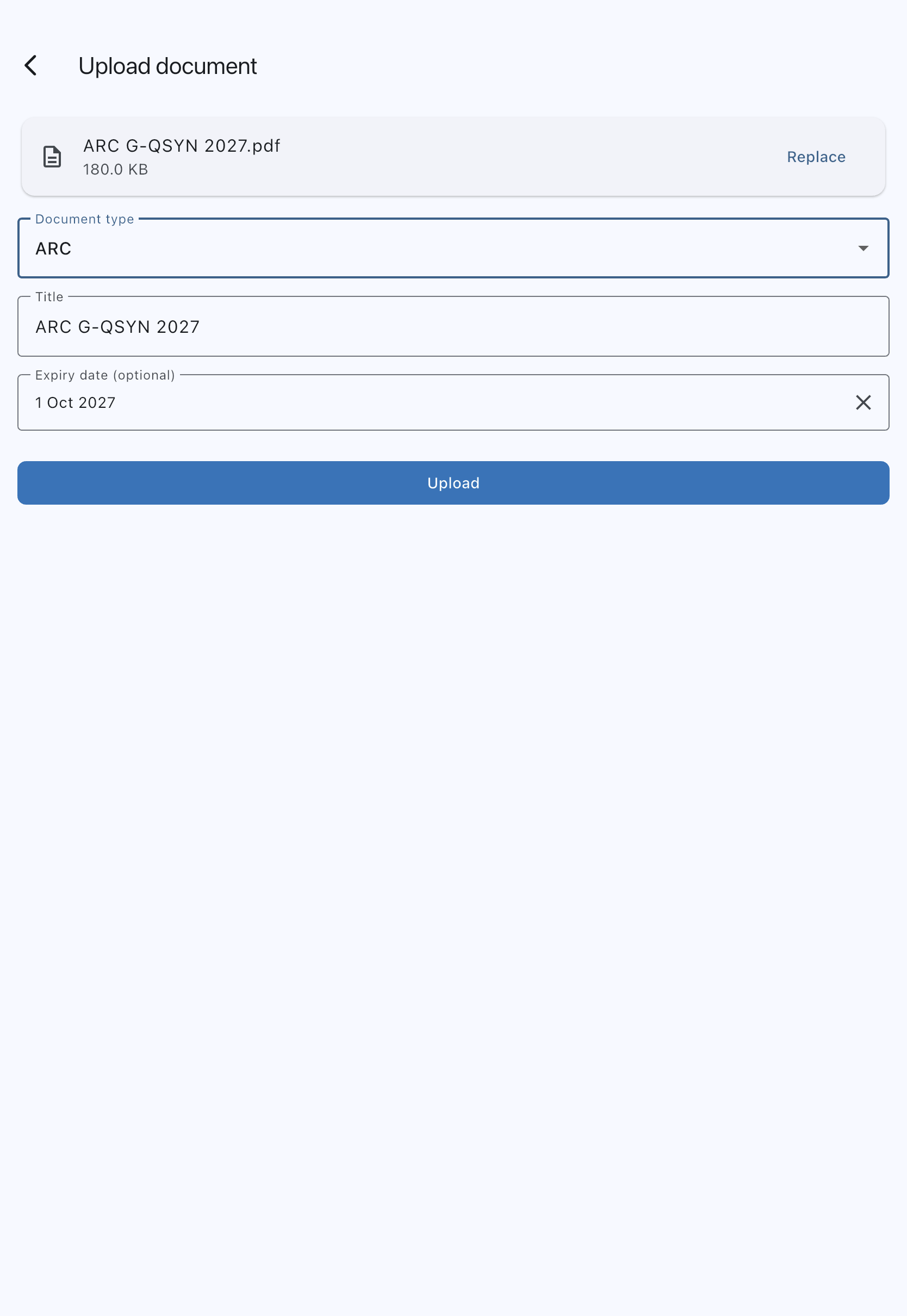
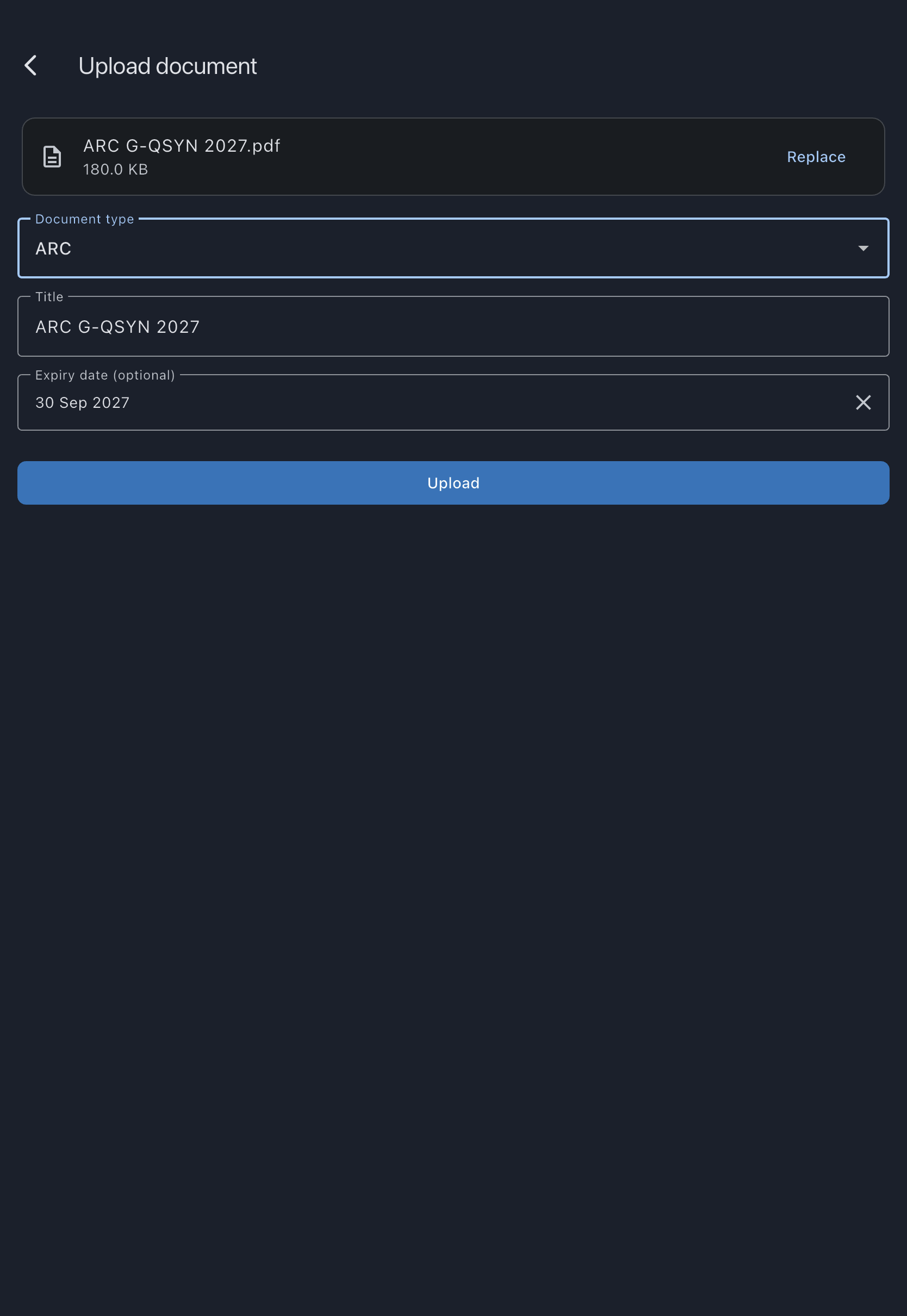
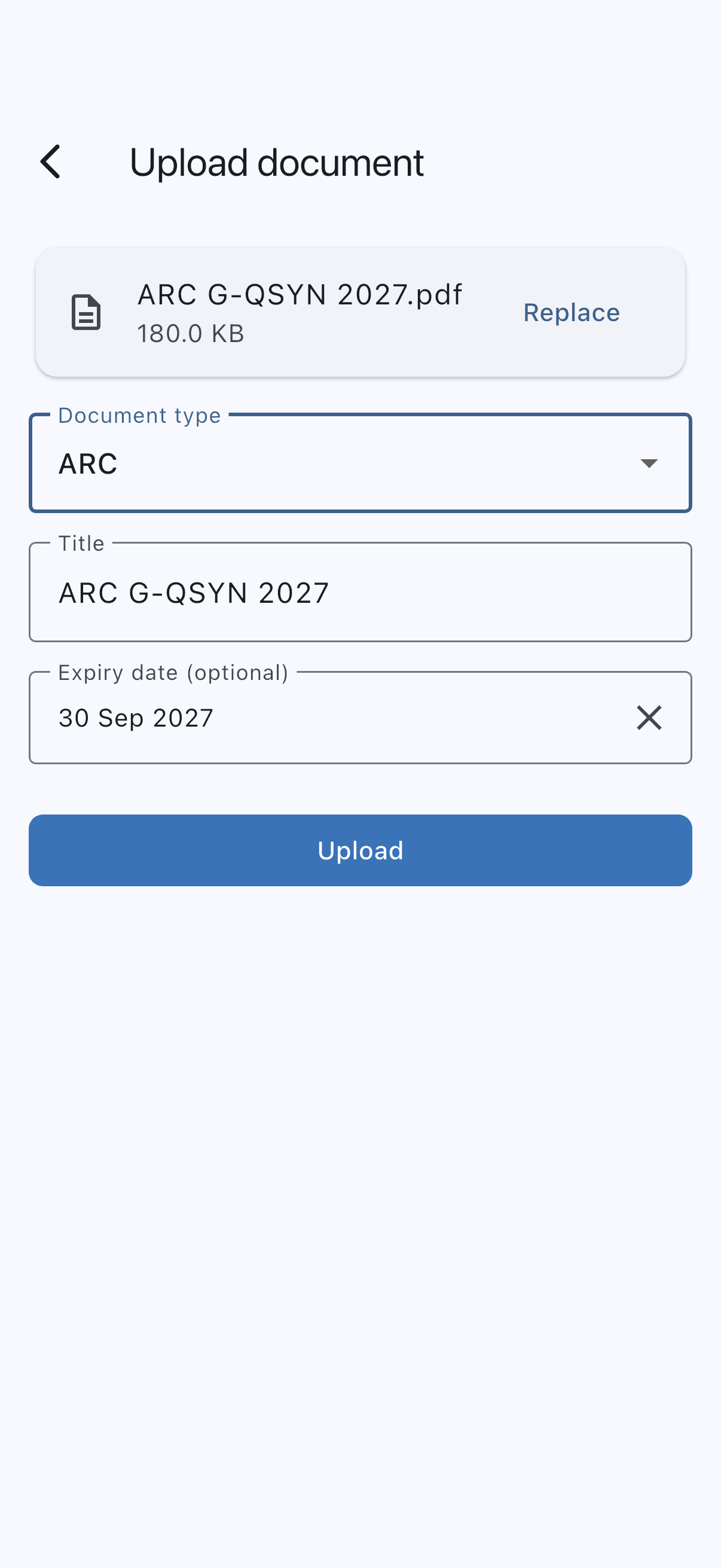
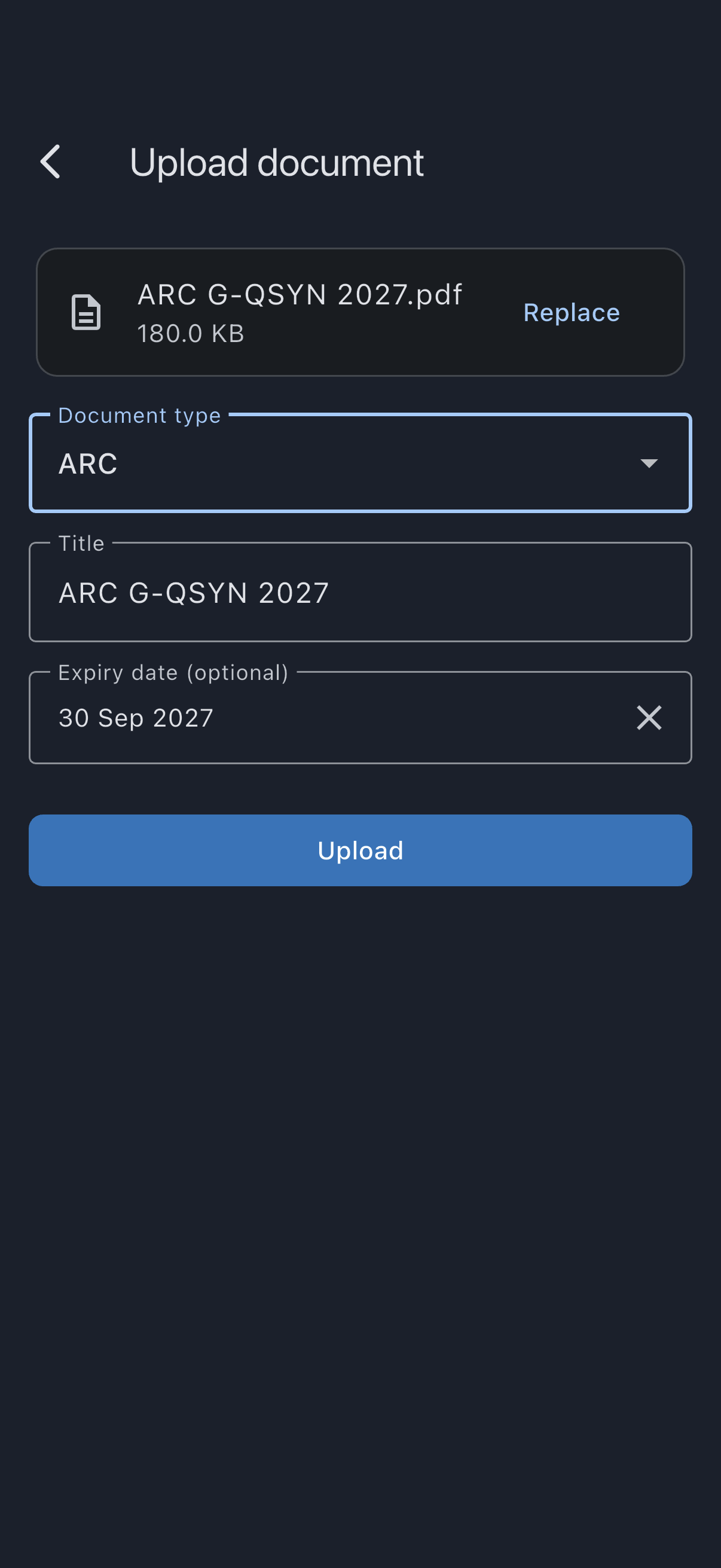
- Tap Choose file and pick the document. On iOS and Android the OS picker opens; on web a file dialog opens. (Add a photo sits below it if you’d rather photograph the document than pick a file.) Once you’ve chosen, both buttons are replaced by a card showing the file name and size, with a Replace button if you picked the wrong one. If the file is too big or not a format Syndik8 accepts, you’re told straight away and the file isn’t added; see What can go wrong.
- Choose a Type from the dropdown. Only asset-level types are offered: ARC, insurance, CofA, CofR, radio licence, Noise certificate, Mode S check, ELT registration, Weight and balance, POH, hangar lease, or Other (asset).
- The Title is filled in for you from the file name, minus its extension. Edit it if you want something clearer (for example, “ARC renewed Mar 2026 G-QSYN”). A photographed document is left blank for you to fill in, since the camera’s file name would tell nobody anything. Titles can contain up to 80 characters; shorten a longer file-name suggestion before uploading.
- (Optional) Set an Expiry date if the document expires. Reminders fire 30, 7, and 1 day before expiry; see Document expiry alerts.
- Tap Upload.
You will see a “Document uploaded.” confirmation and be returned to the library. The new document appears in the section you uploaded it to.
What can go wrong
Section titled “What can go wrong”- “This file is over 20 MB. Save a smaller copy and try again.”: shown as soon as you choose the file, before you fill in anything else. PDFs from scanners are often inflated; re-export at a lower DPI or split into multiple documents, then choose the smaller file.
- “Syndik8 accepts PDF, JPEG, PNG or WebP files.”: shown as soon as you choose the file, when it is some other format. Take a photo of the document with Add a photo, or print it to PDF, and choose that instead.
- “Upload failed. Please try again.”: the file was fine but the upload didn’t go through, usually because there’s no connection. The form keeps your selections; tap Upload again when you’re back online.