
Remove a member
Remove a member from a syndicate.
Before you start
Section titled “Before you start”- Only admins can remove members.
- Removal is permanent from the perspective of app access. Their past bookings, usage logs, expenses and balance history stay with the syndicate as part of its audit trail, but the person being removed loses access immediately.
- Future bookings the removed member made are cancelled automatically. Any of their bookings on the syndicate’s calendar with a start time in the future are set to Cancelled with the reason “Member left the syndicate”. Past bookings and their usage history stay on the syndicate as audit trail.
- Their shares go to zero. Removing a member means they no longer hold a stake, so they stop counting towards the syndicate’s share total, towards a cash call, and towards a vote. The members who stay each hold a larger fraction of what is left. The shares are not passed to anybody automatically: if the stake has been sold to a particular member, put the shares onto that member yourself.
- Their Direct Debit mandate for this syndicate is cancelled at the payment provider as part of the removal. If they rejoin later they will need to set it up again. The cancellation happens only after every check below has passed, so a removal the server refuses does not cost them a mandate on the way.
- Nobody can put a new future booking in their name afterwards. You can still finalise and tidy up bookings they already had, and still record a flight that has already happened, but they cannot be booked onto the aircraft from here on.
- A member with an outstanding balance cannot be removed until the balance is settled. This is enforced on the server. Sort the balance first; either have them pay, or record a payment yourself. Their member screen shows what they owe now, with anything still waiting for a due date on a Not due yet line underneath it, so you can see both halves before you try.
- A member cannot be removed while a Direct Debit collection of theirs is still clearing. This is enforced on the server: removing them mid-collection would leave the collection with nobody named on it. Let the collection finish, which usually takes a few working days, then try again.
- A member cannot be removed while a card payment of theirs is unfinished either — one they started and neither completed nor abandoned. The reason is the same, but the wait is not: no bank is collecting it, so there is no clearing period. An unfinished attempt is cancelled automatically within a day of being started, and the removal works after that.
- A member with an unresolved booking cannot be removed until it is sorted. That means a past flight that has not yet been finalised into the accounts, a booking that is in progress right now with usage already logged against it, or a future booking that already has usage logged against it. Finalise the flight, or resolve the booking, first. This is enforced on the server. The in-progress case matters because a flight that is still in the air would otherwise be left on a membership you had just ended, with its charges landing on nobody.
- The last admin cannot be removed. A syndicate must always keep at least one active admin; the server refuses the removal. Promote another member to admin first.
- Removing the syndicate’s payment representative is no longer blocked. When you remove an admin from a syndicate that has a payment account, the confirmation adds a reminder: if that member is or was the payment representative, make sure that role has been handed to someone else in Stripe. It is a prompt, not a block, and the removal still goes ahead.
- Open the syndicate, go to the Admin tab, and tap Members under the Members & governance heading.
- Tap the member you want to remove. Their member screen opens, titled with their name.
- Scroll to the Actions heading near the bottom and tap Remove member (red).
- On the confirmation dialog Remove Member, read the message: “Are you sure you want to remove {name} from the syndicate? This action cannot be undone.” If the member is an admin and the syndicate has a payment account, the dialog also reminds you to make sure the Stripe payment representative role has been handed over. It is a reminder only and does not stop the removal.
- Tap Remove (red) to confirm, or Cancel to back out.
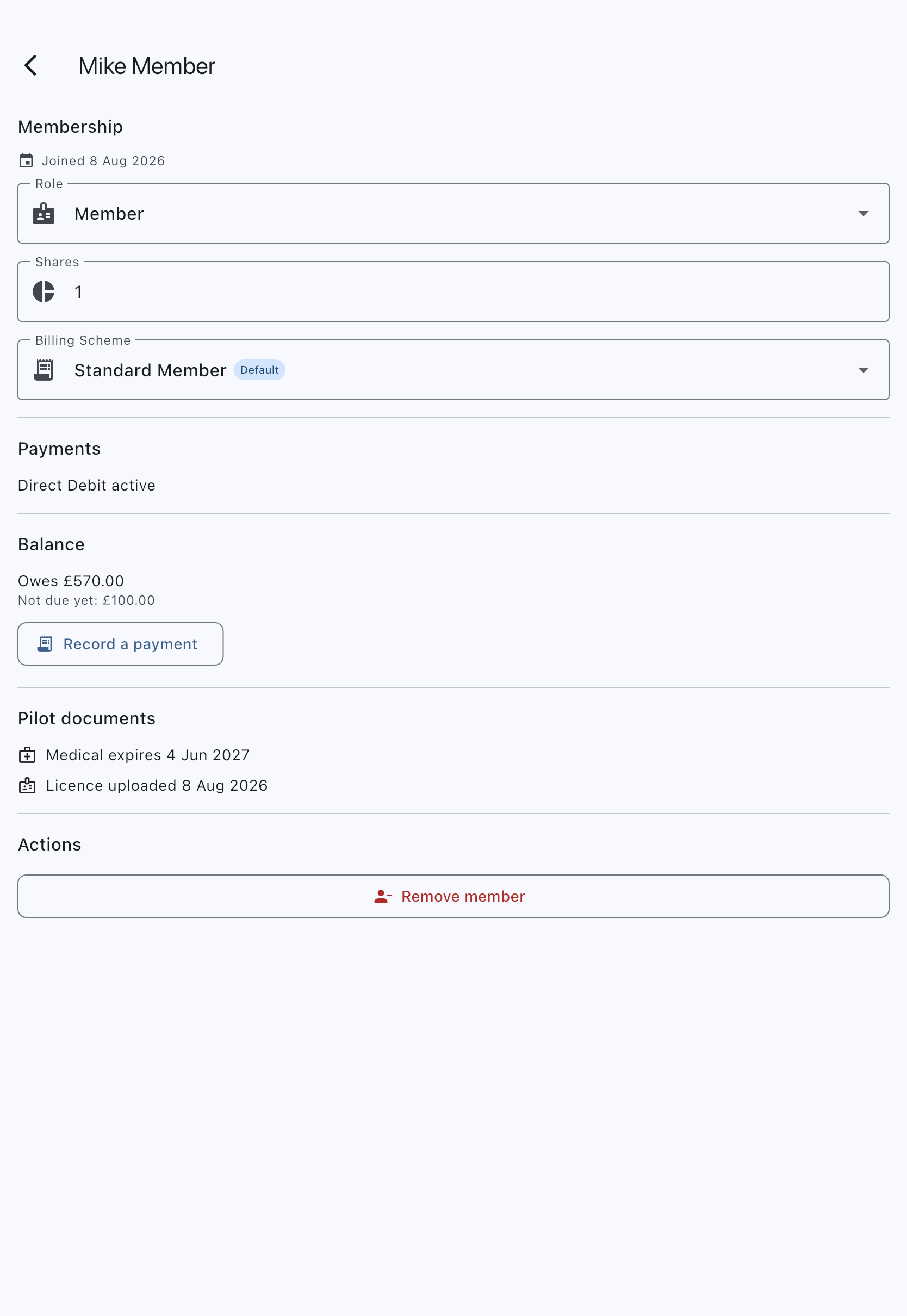
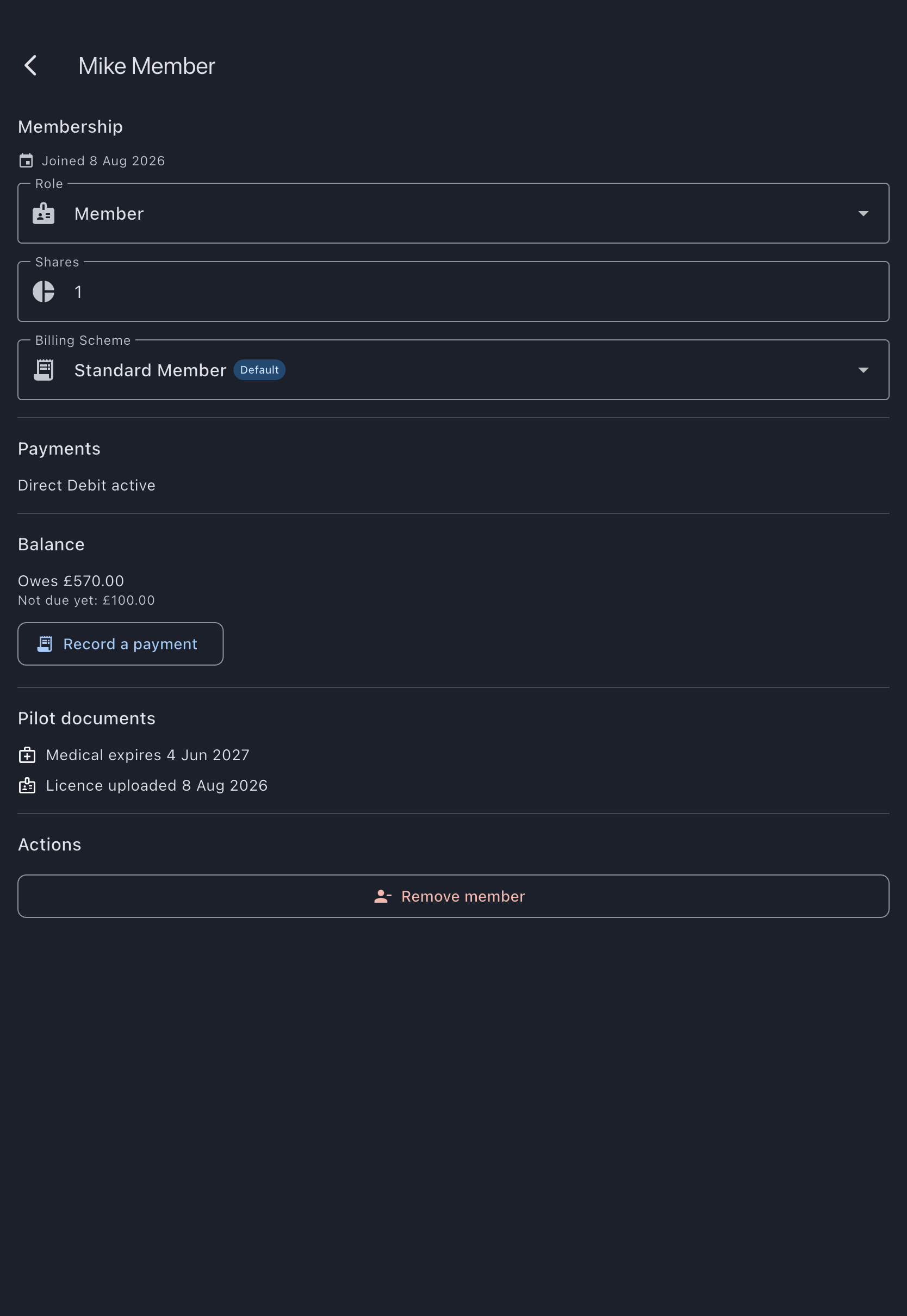
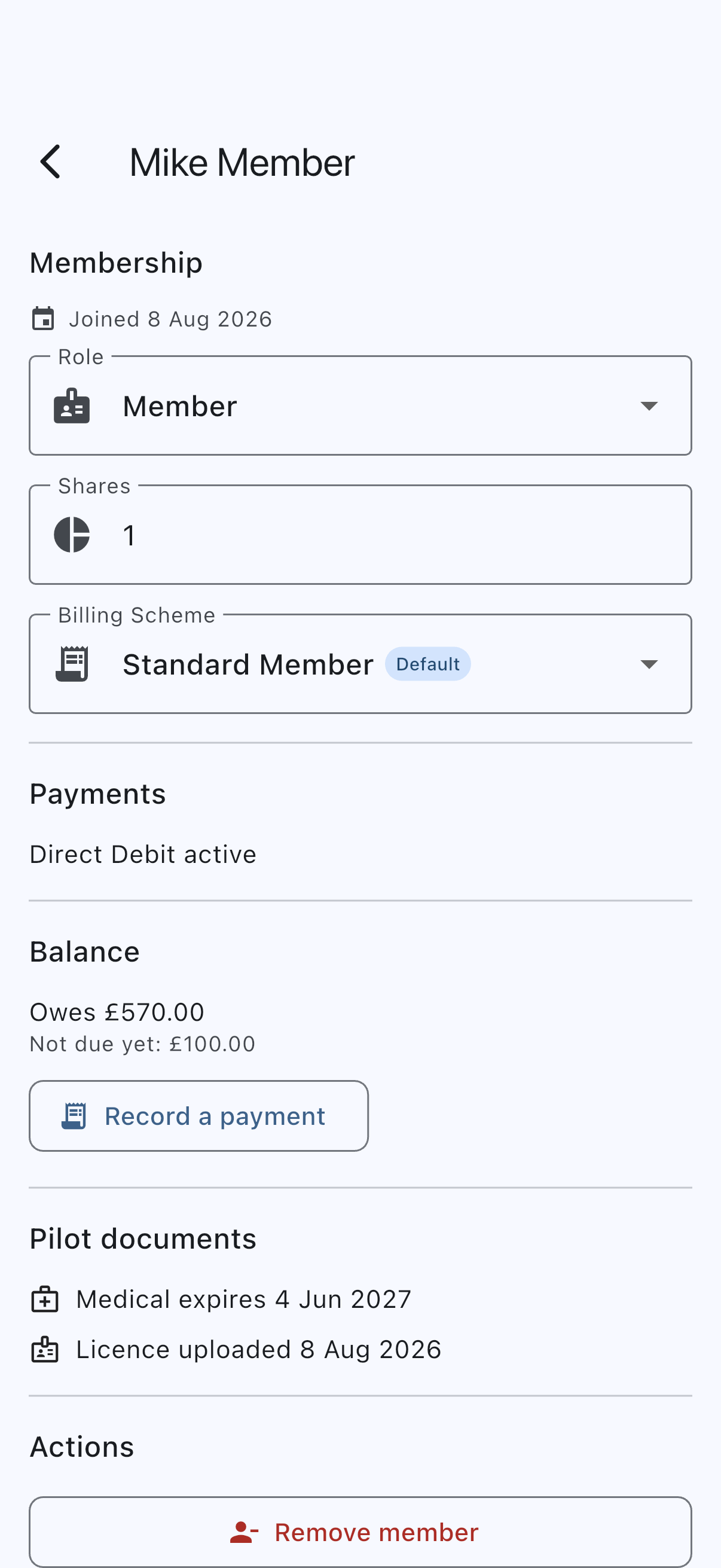
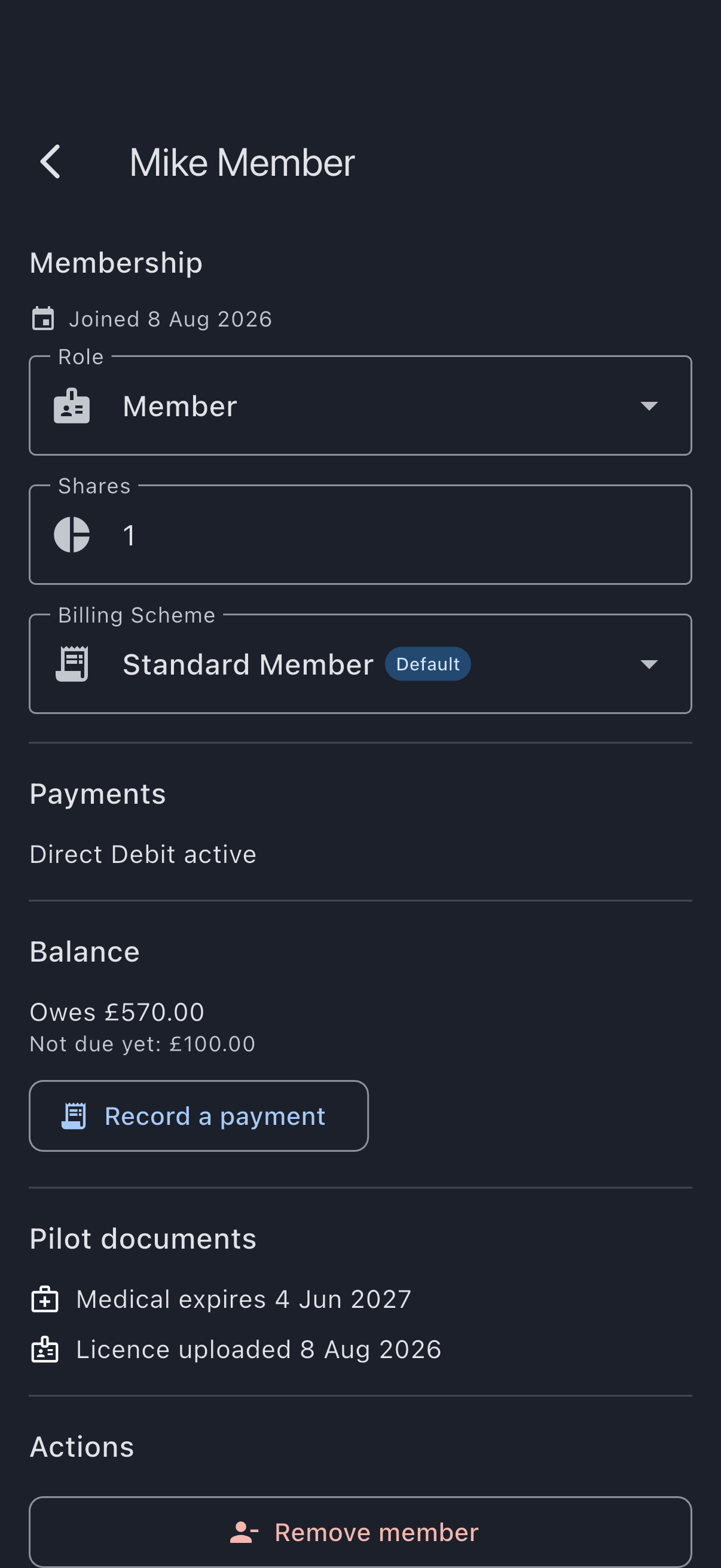
On success, the snackbar confirms {Name} has been removed, and you are returned to the members list. The member is no longer in it.
The Actions heading is not rendered at all when you open your own row, so an admin never sees a Remove member action against themselves. Remove yourself by leaving the syndicate instead; see Leave a syndicate.
If it goes wrong
Section titled “If it goes wrong”-
You open a member who has already left. Their page says they are no longer a member of this syndicate and offers a way back, and notes that their bookings, charges and documents stay in the syndicate’s records. It used to show the single word Member under a heading also reading Member, which gave no clue whether a removal had worked, failed, or the screen had broken.
-
“Outstanding Balance” dialog appears. The member has money owing to the syndicate. The dialog names the figure rather than leaving you to go and find it: how much is due now, and how much is a cash call that is not due until a stated date. Where the money is split across both, both halves are named with the date, so settling one and being refused a second time by the other cannot happen. Settle what is owed; ask the member to pay, or record the payment yourself. Only then can you remove them.
The check counts every unpaid charge the member holds, including a cash call whose due date has not arrived — which their own balance screen deliberately leaves out of its figure. So a member can be shown as settled and still be blocked here. That is deliberate rather than a gap: the money leaves with them either way. If that is what has happened, they can pay the cash call early from the Cash calls not due yet card on their balance screen, or you can cancel the call if it should not stand. Waiting does not clear it: when the due date arrives the amount simply moves from the “not due until” half of the dialog to the “due now” half, and the removal stays blocked until it is settled.
If the app cannot read the due date in time, usually because the connection dropped, the dialog names only what is due now, or falls back to the plain “This member has an outstanding balance” wording when nothing is due yet. The removal is refused either way.
-
“Couldn’t check this member’s balance” appears. The app could not read the member’s balance, usually because the device is offline or the connection dropped. Nothing was removed. This is not the same as the member having a clear balance, so the removal is held back rather than allowed through on an unchecked figure. Reconnect and try again.
-
“A payment of this member’s is still being collected” appears. This one is a message after you have confirmed the removal, not a dialog before it. One of the member’s Direct Debit collections has not finished clearing at the payment provider, and removing them mid-collection would leave it with nobody named on it. Nothing was removed. Wait for the collection to finish, which usually takes a few working days, then try again. If the message instead names an unfinished card payment, there is no bank to wait for: it is cancelled automatically within a day of being started.
A refusal after you confirm no longer costs the member their Direct Debit mandate. Every check now runs before anything at the payment provider is touched, so a removal that was always going to be refused refuses without cancelling anything. The one case where a mandate can still be lost to a refusal is a genuine race — something changing in the moment between the check and the removal — and the member can simply set the mandate up again.
-
“Cannot Remove” dialog appears. The member is the only admin of the syndicate. Promote another member to admin first, then remove them.
-
A booking-related error appears. The member has a past flight awaiting finalisation, a booking in progress with usage already logged against it, or a future booking with usage logged against it. Finalise the flight, or resolve the booking, first, then remove them. The message names which of the three it is.
-
You removed the wrong person. You’ll need to invite them back; see Invite members. Their booking history is preserved; their membership row is re-created as a new join.