
Finalise your first month
This tutorial walks you through finalising a syndicate’s first month: the end-of-month flow the treasurer (or whichever admin wears that hat) runs once the flying stops. By the end, every booking from the month will be finalised, each member will have an updated balance, and you’ll have glanced at the Asset Utilisation dashboard for a quick read of who flew how much. Plan on about twenty minutes for a small, tidy syndicate; longer if the logs need chasing up first.
Before you start, three things should be true:
- You’re an admin. Treasurer counts as admin.
- Every flight from the month has a usage log attached to its booking. A booking with no log still appears in the queue and will still finalise, but as zero usage (the full shortfall if you’ve set a minimum, otherwise nothing). Only the member who booked can log that flight, not you, so chase up any missing logs before finalising rather than relying on the app to stop you.
- The syndicate’s usage rate and any shortfall rate are set on the Asset rates screen. If they’re not, nothing below will produce sensible numbers.
If you’re new to why finalisation is its own step (distinct from logging usage), read Why finalisation is a separate step first. It’s short, and it saves the occasional “wait, why didn’t that get charged automatically?” a month in.
Step 1: Open the unfinalised-bookings queue
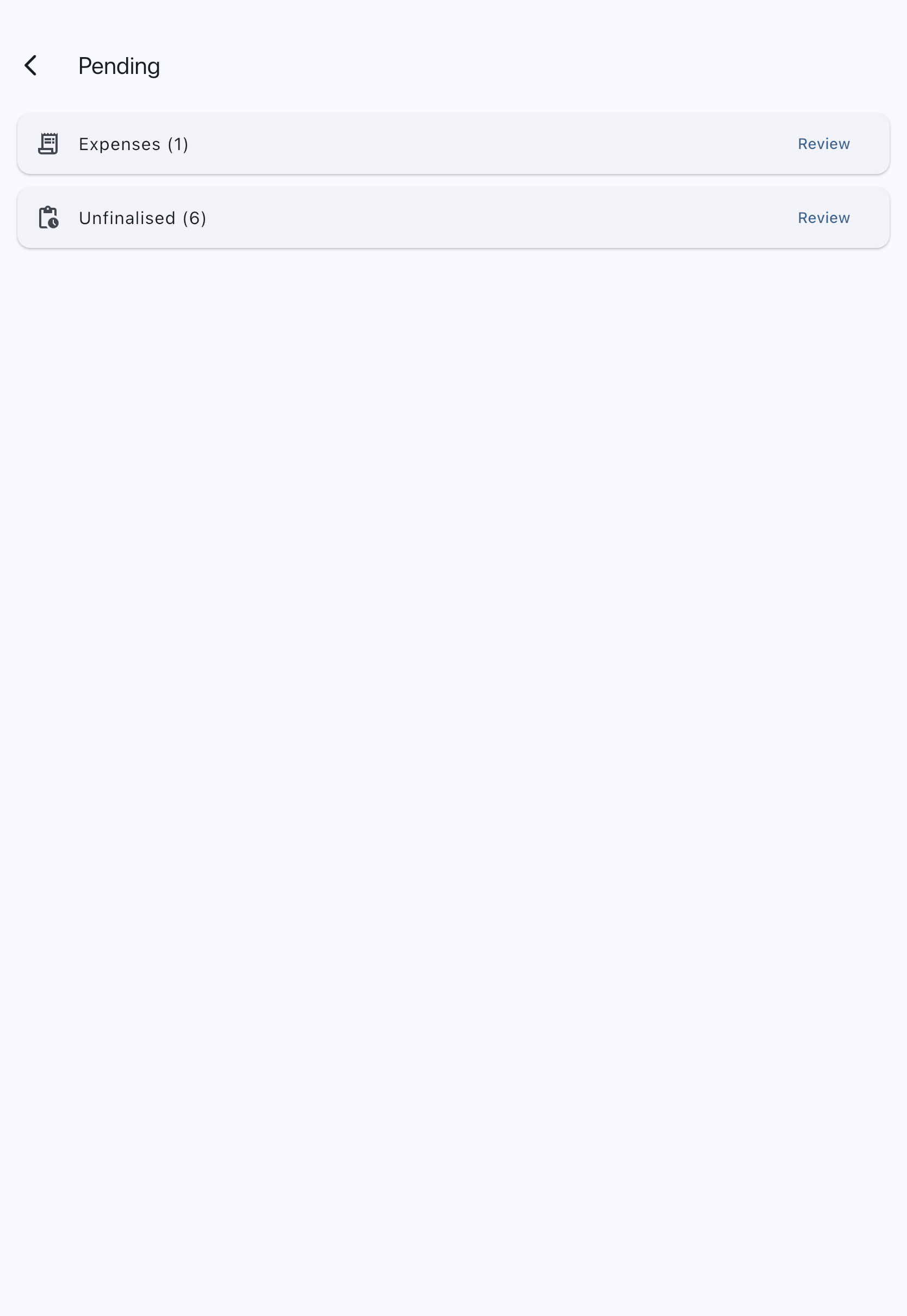
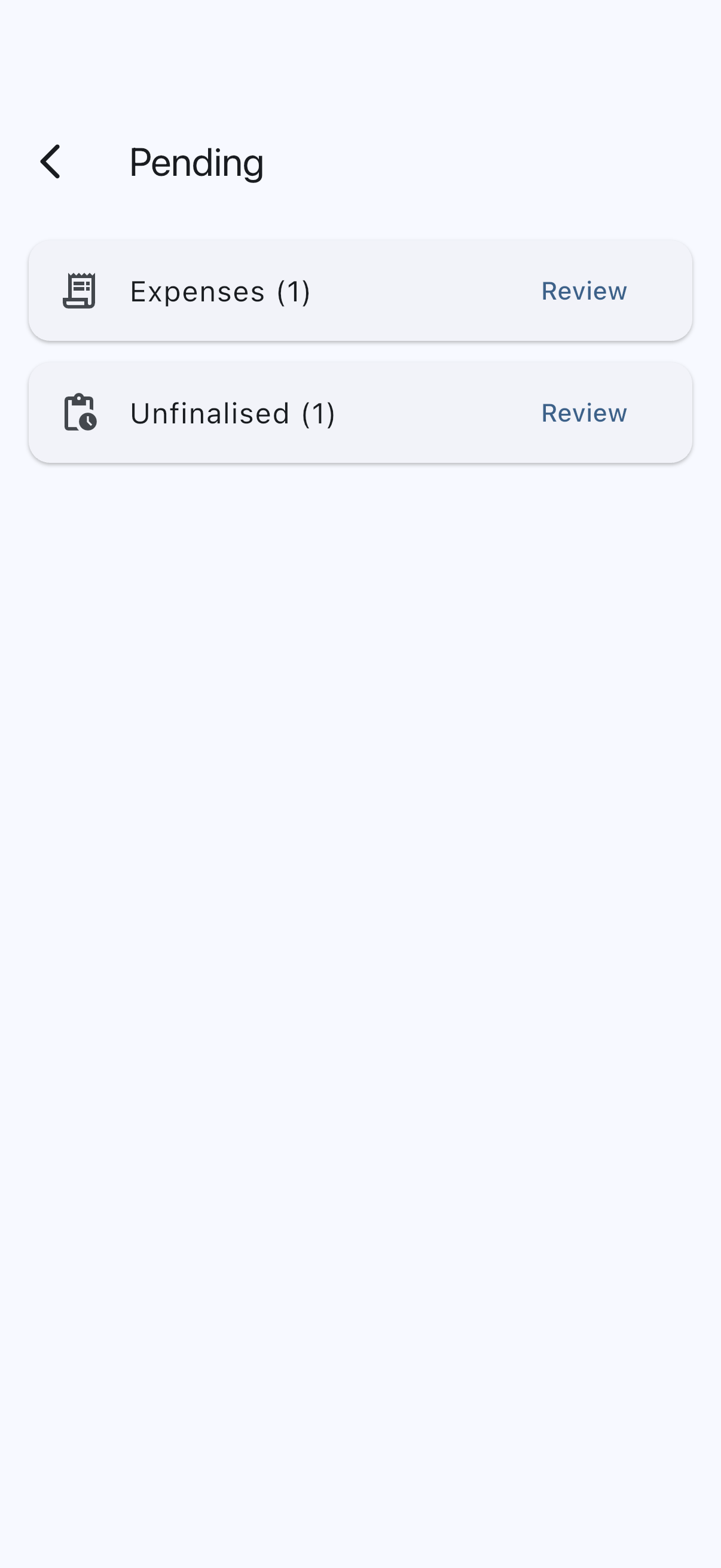
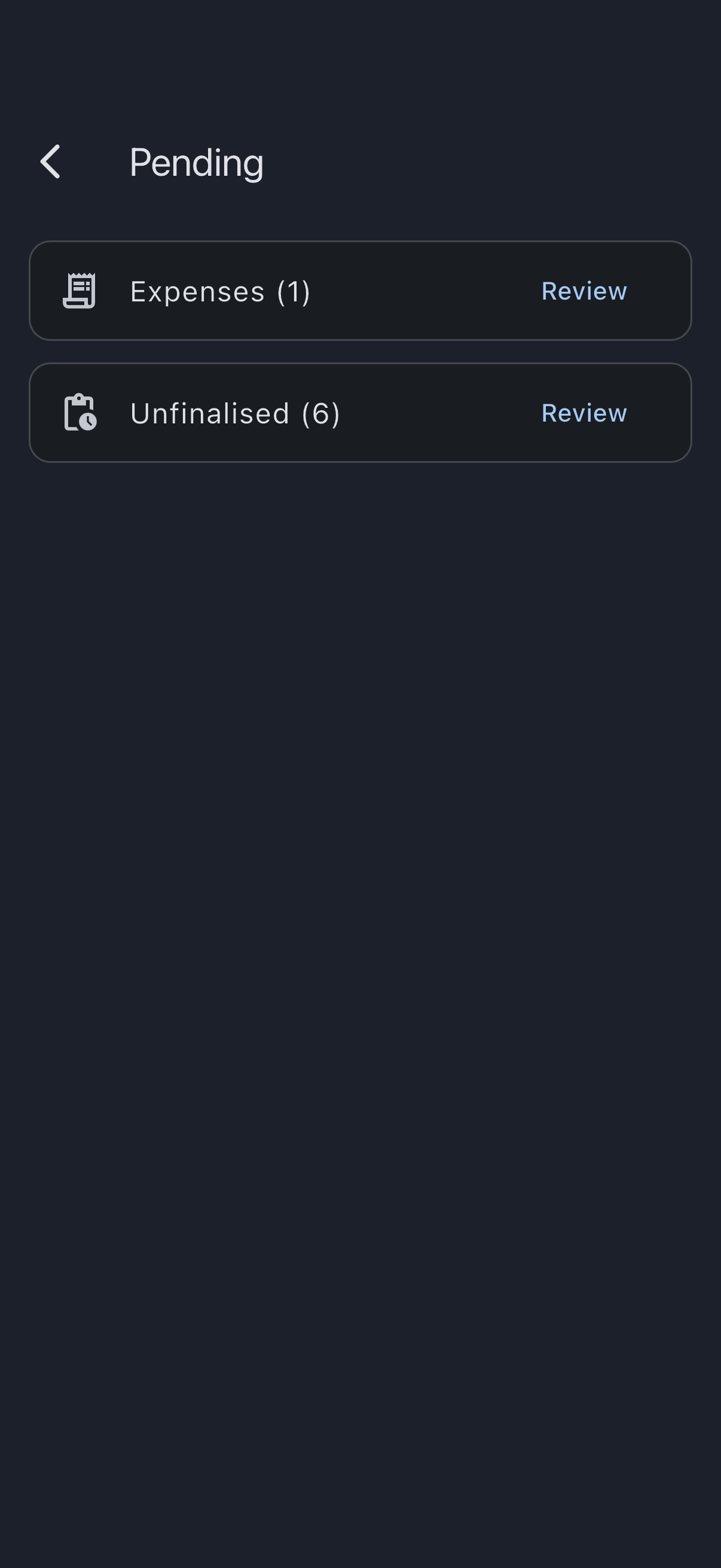
Section titled “Step 1: Open the unfinalised-bookings queue”Open the syndicate and go to the Admin tab, then tap Pending. The Pending screen shows each queue that has items waiting; look for the Unfinalised row and tap Review.

The Unfinalised Bookings screen opens with a Summary at the top (Sessions, Hours, Landings, T&Gs, and With shortfall chips), followed by a list of every past booking awaiting finalisation.
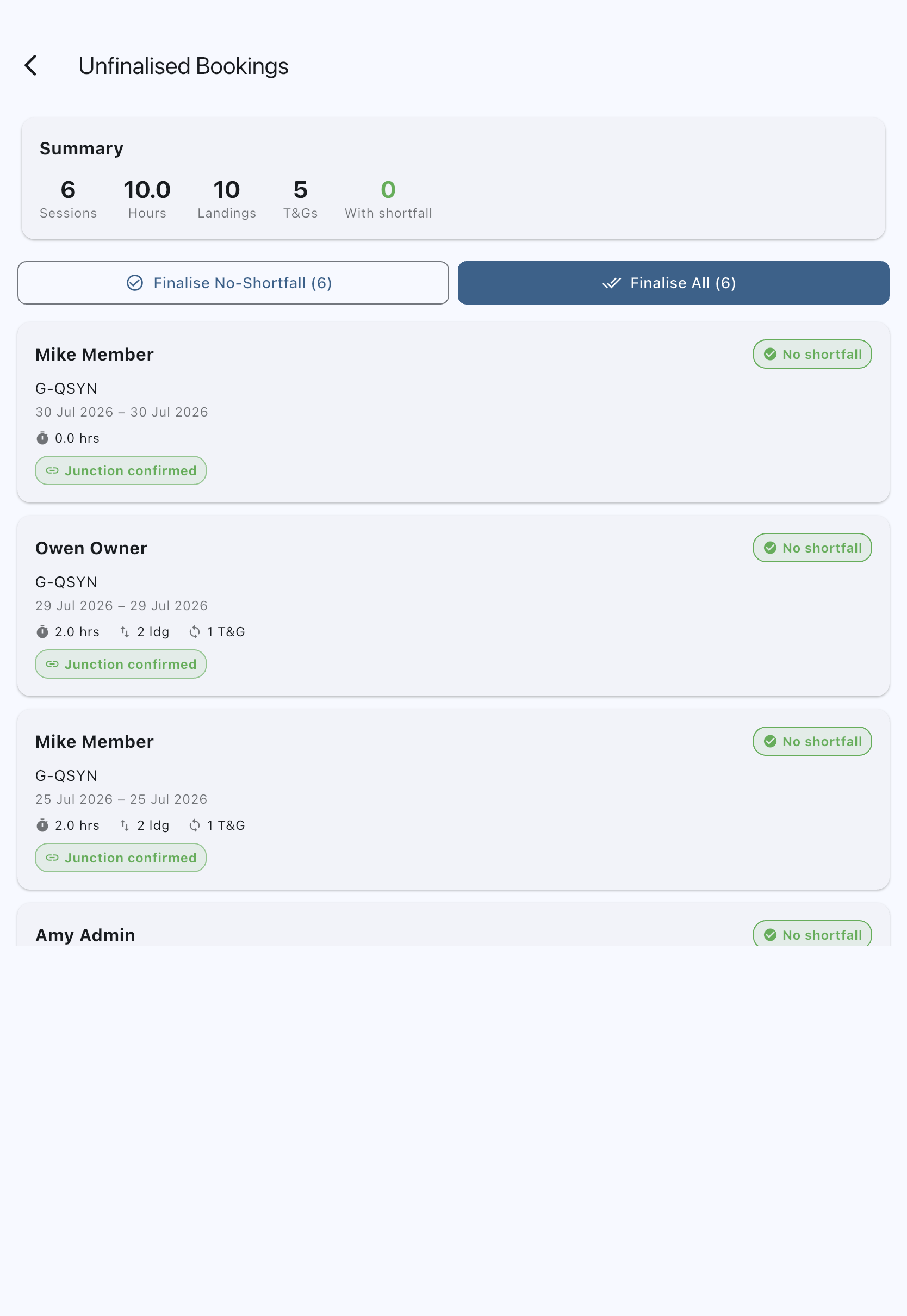
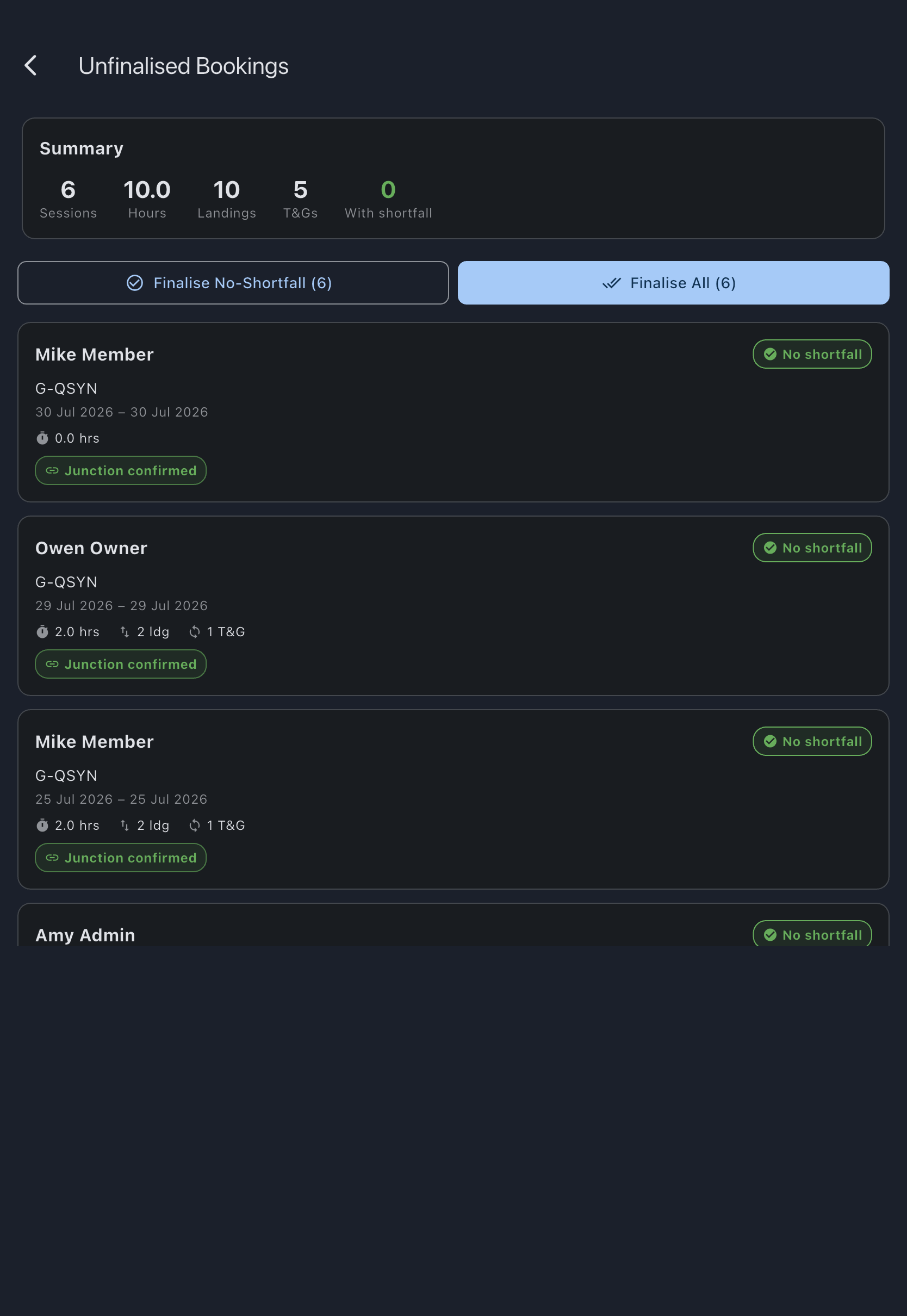
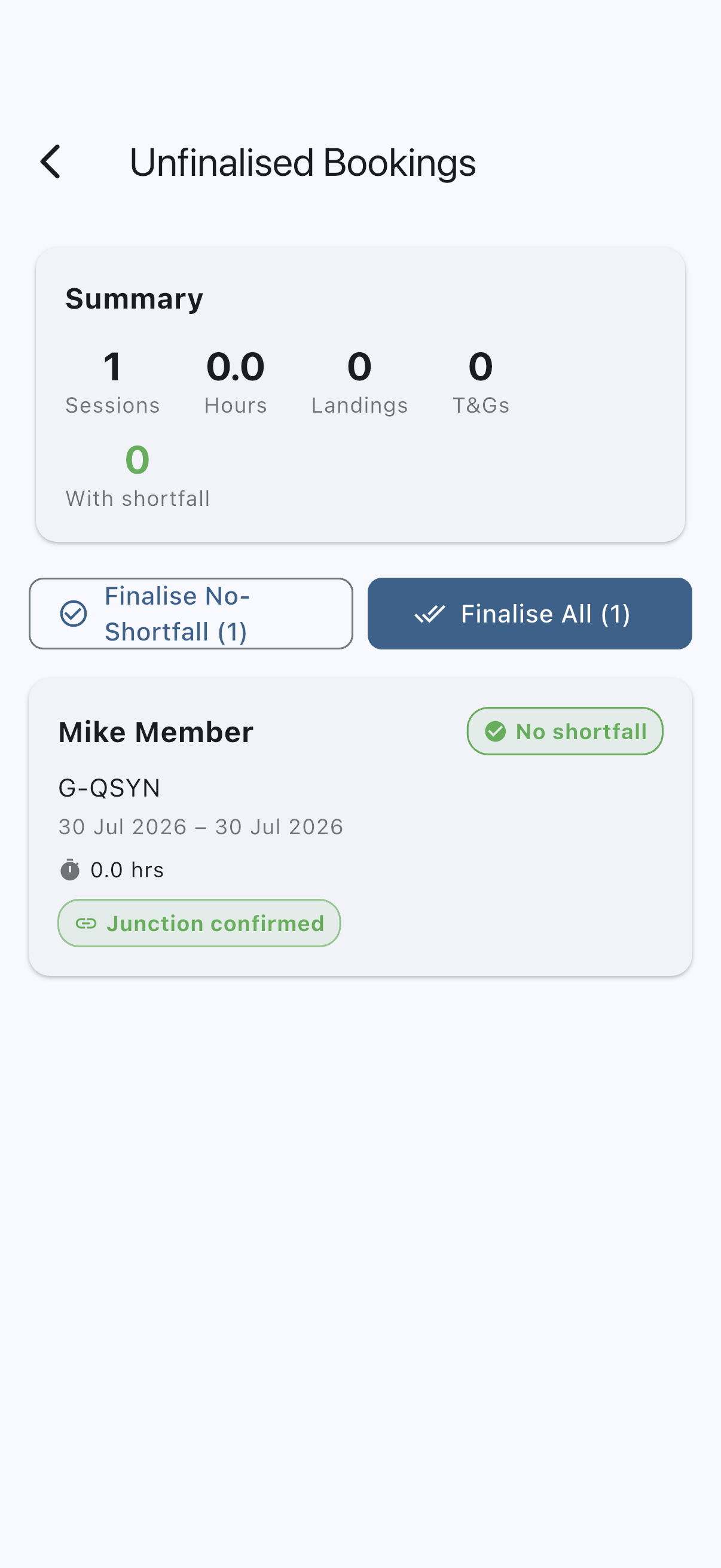
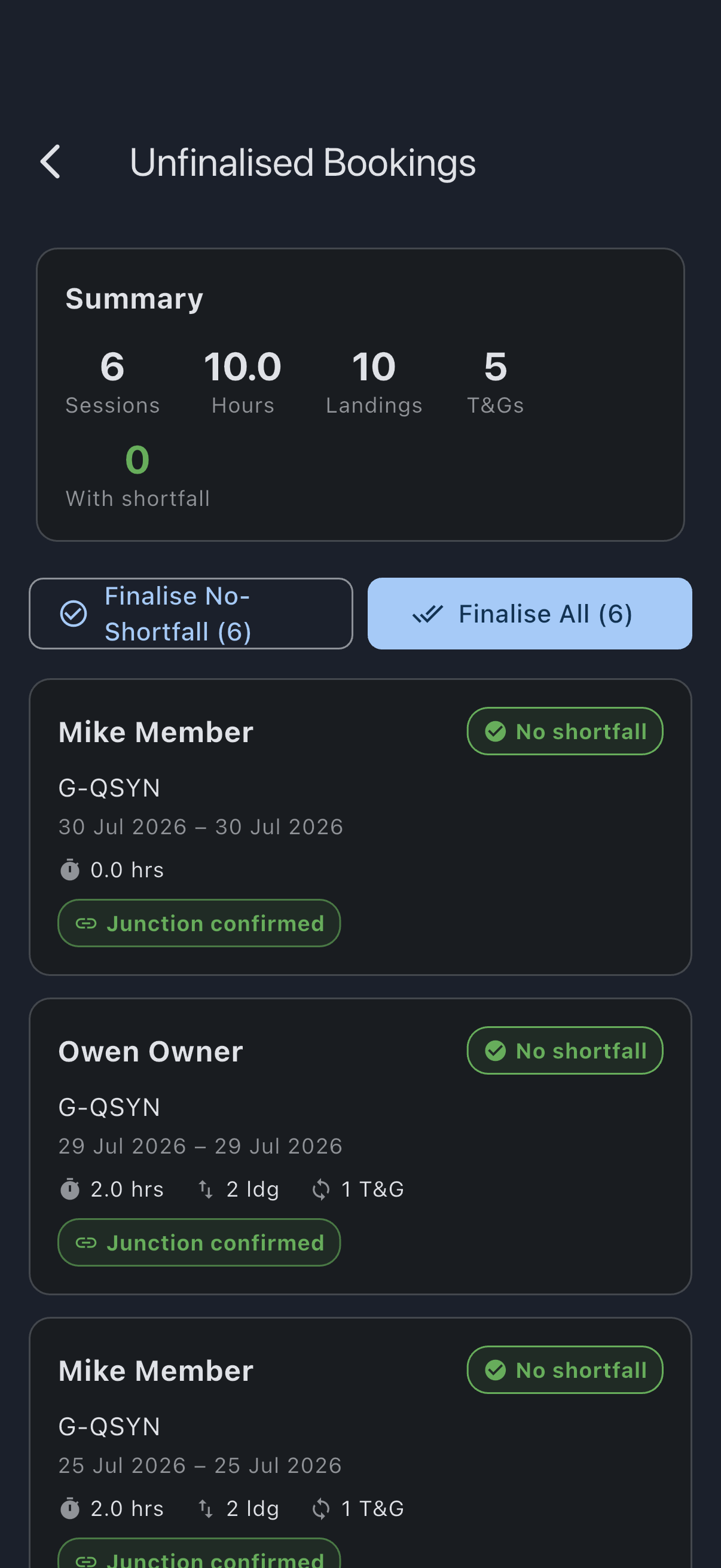
Scroll through the list. The summary chips are an early smell test. If Hours looks wildly higher or lower than you expected, a log is missing or a log was entered with a typo. Cheaper to find out now than after you finalise.
Step 2: Finalise one booking by hand
Section titled “Step 2: Finalise one booking by hand”Pick a booking you recognise (your own, or one from a member you’ve spoken to) and tap it to open its detail screen. Scroll to Finalise Booking.
The section shows the shortfall preview: how much it is, at what rate, and against which minimum. The shortfall is computed server-side and shown read-only. For most first months, the syndicate’s minimums will be zero and the shortfall will be zero too. If there is a shortfall and you want to waive it, tick Waive shortfall (charges the shortfall then credits it straight back, leaving the waiver on record). Leave Add charge or credit alone — the amount and description fields only exist once you expand it, and you have nothing extra to add. Tap Finalise Booking.
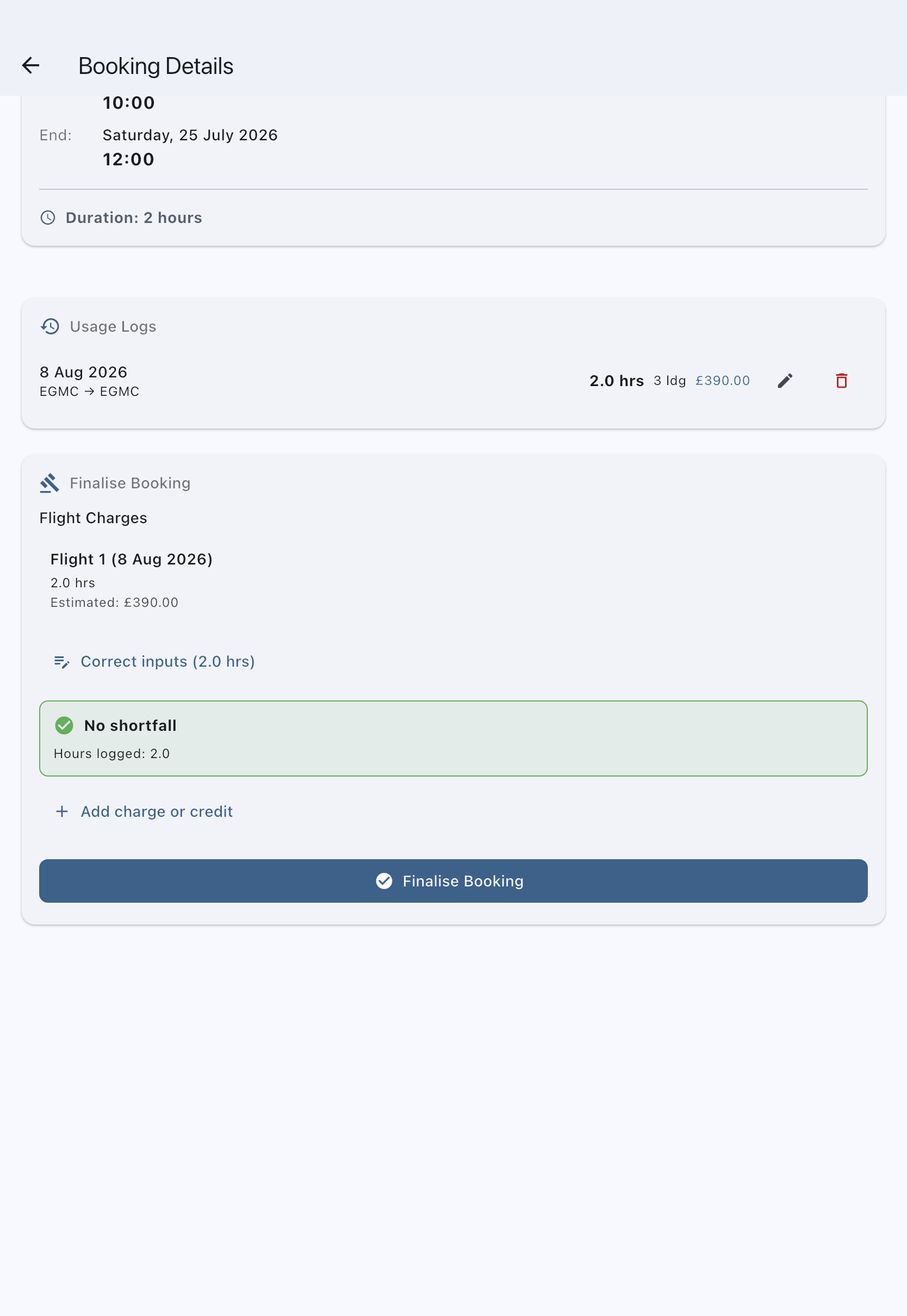
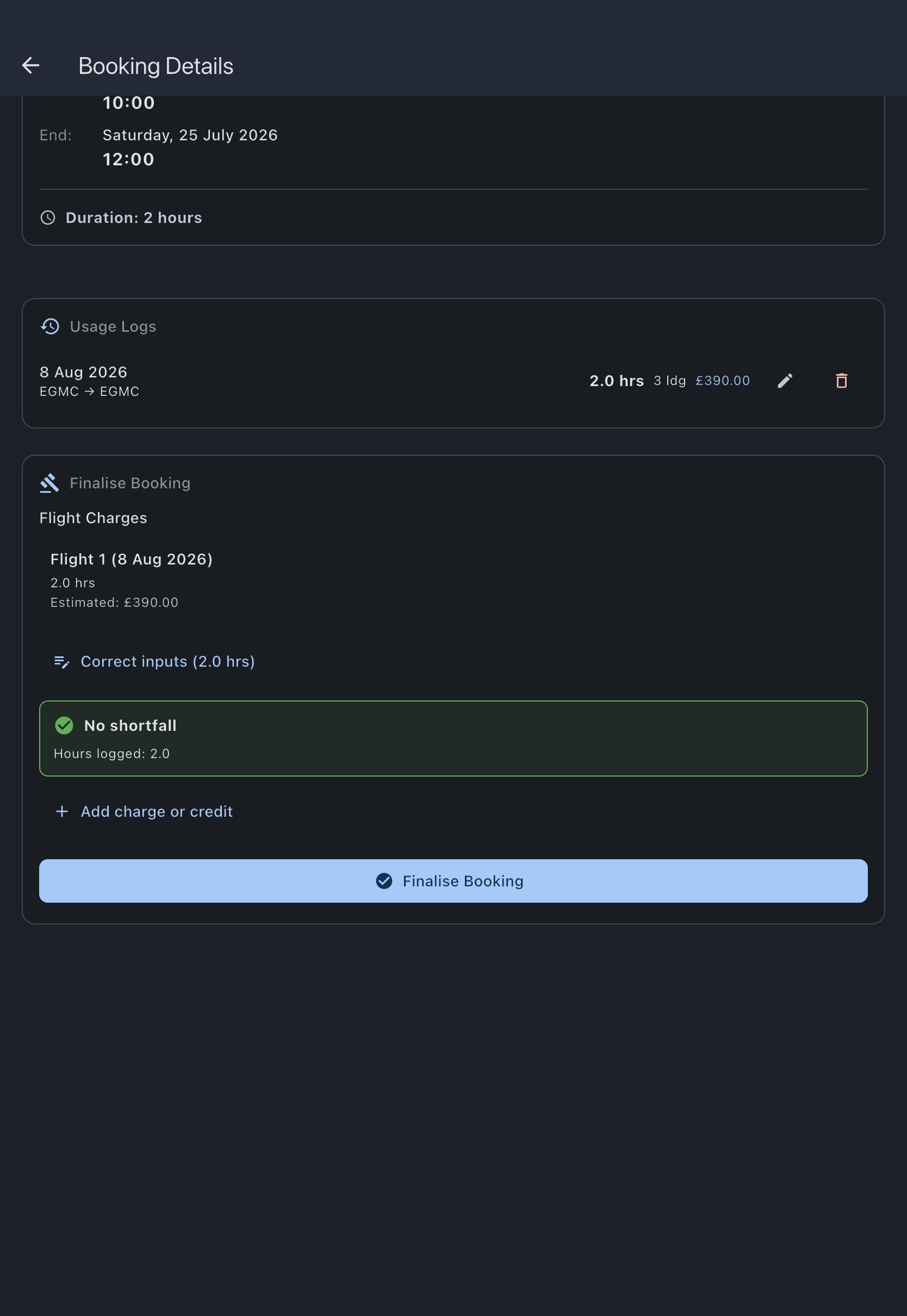
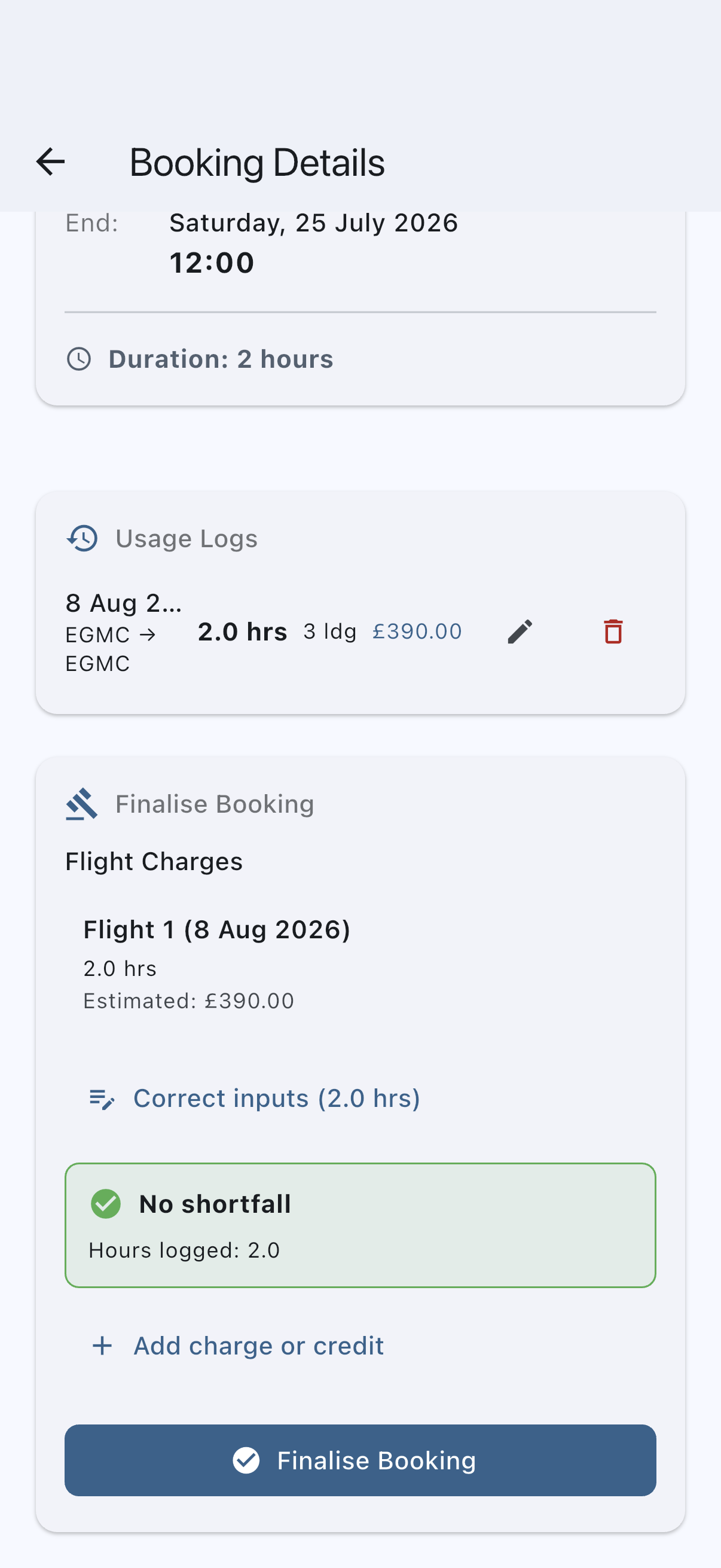
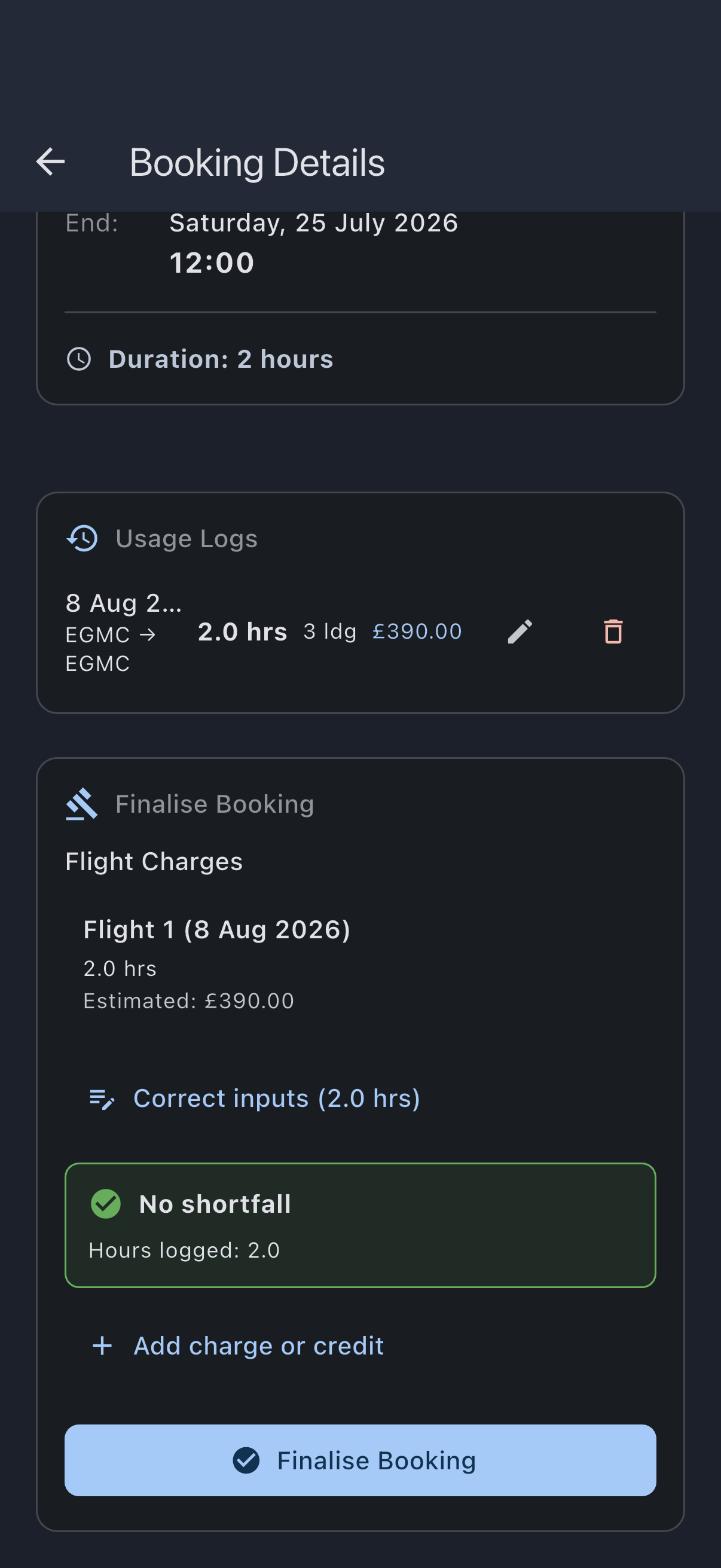
A confirm dialog (Confirm Finalisation) restates the numbers. Tap the confirm, and you see “Booking finalised successfully”. The section collapses; the booking now reads This booking has been finalised.
Doing one by hand gives you the shape of the transaction: usage charge on the ledger, shortfall (if any) on top, and a trail the member can look up later. See Finalisation rules for what exactly gets written.
Step 3: Bulk-finalise the rest
Section titled “Step 3: Bulk-finalise the rest”Back on Unfinalised Bookings, the queue is one shorter. Now do the rest in one go.
Two buttons sit at the bottom:
- Finalise No-Shortfall ({count}): finalises only the bookings with no shortfall. A good pick when the shortfall ones need individual attention.
- Finalise All ({count}): finalises every booking in the queue, applying shortfalls where the summary flagged them.
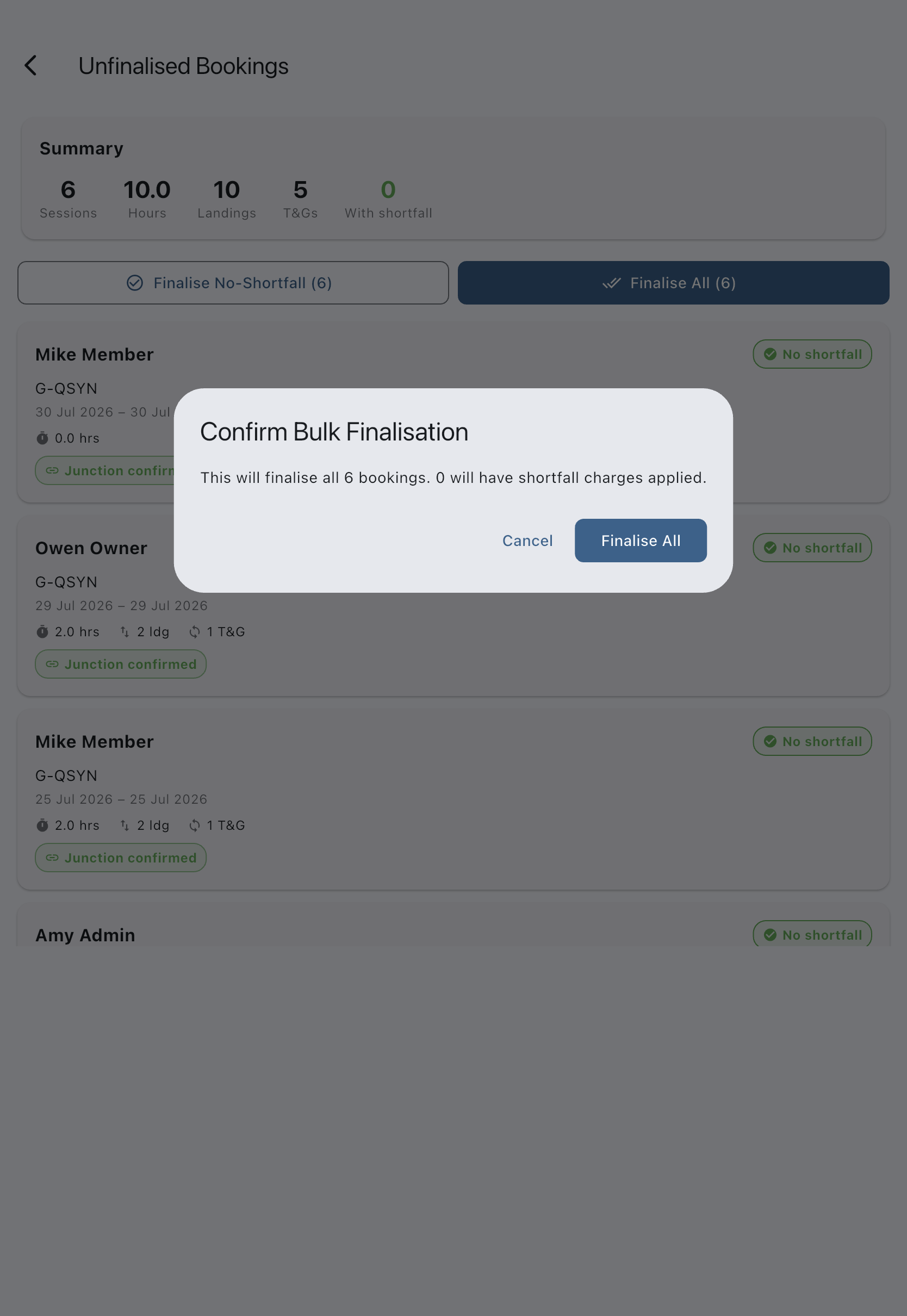
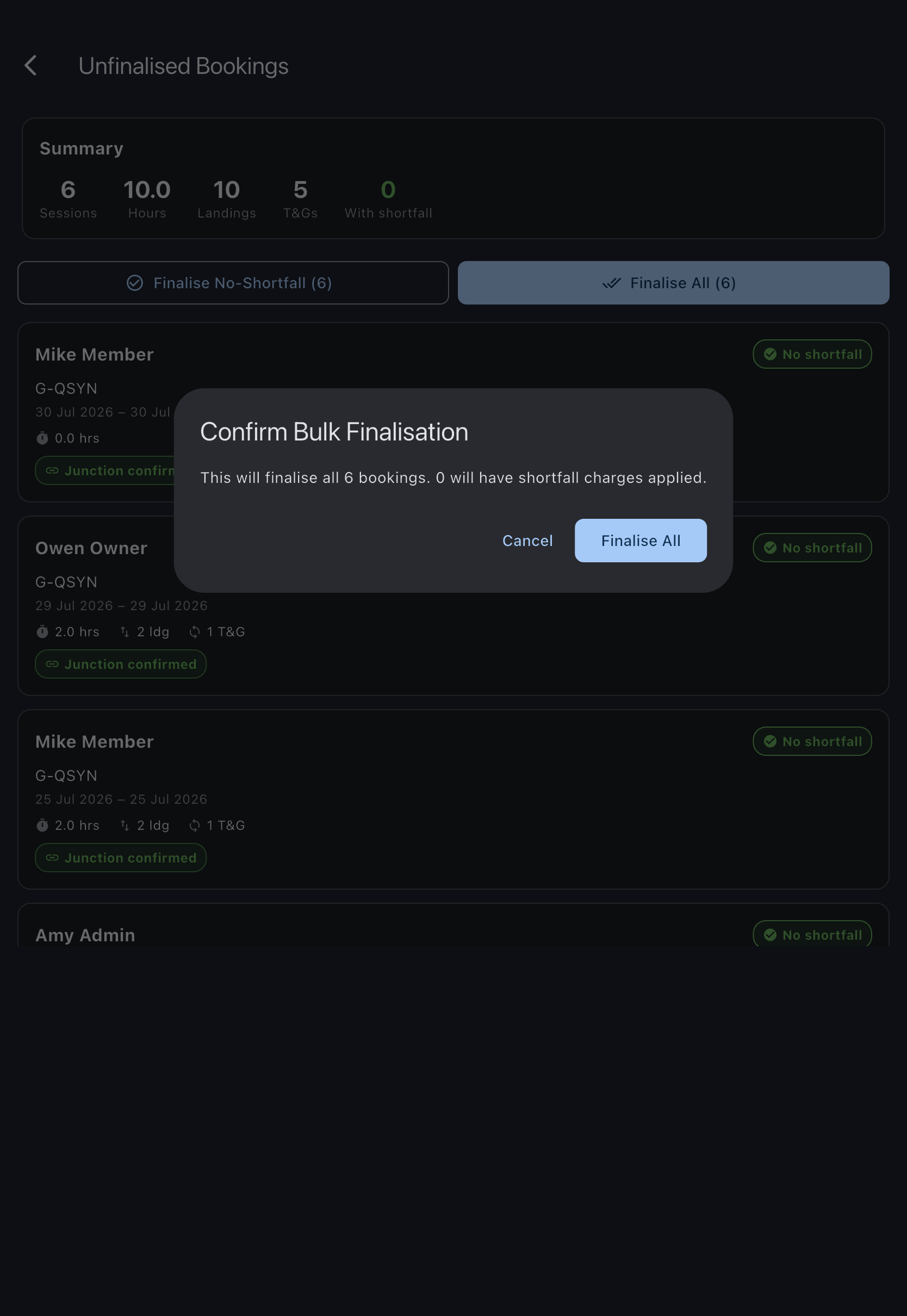
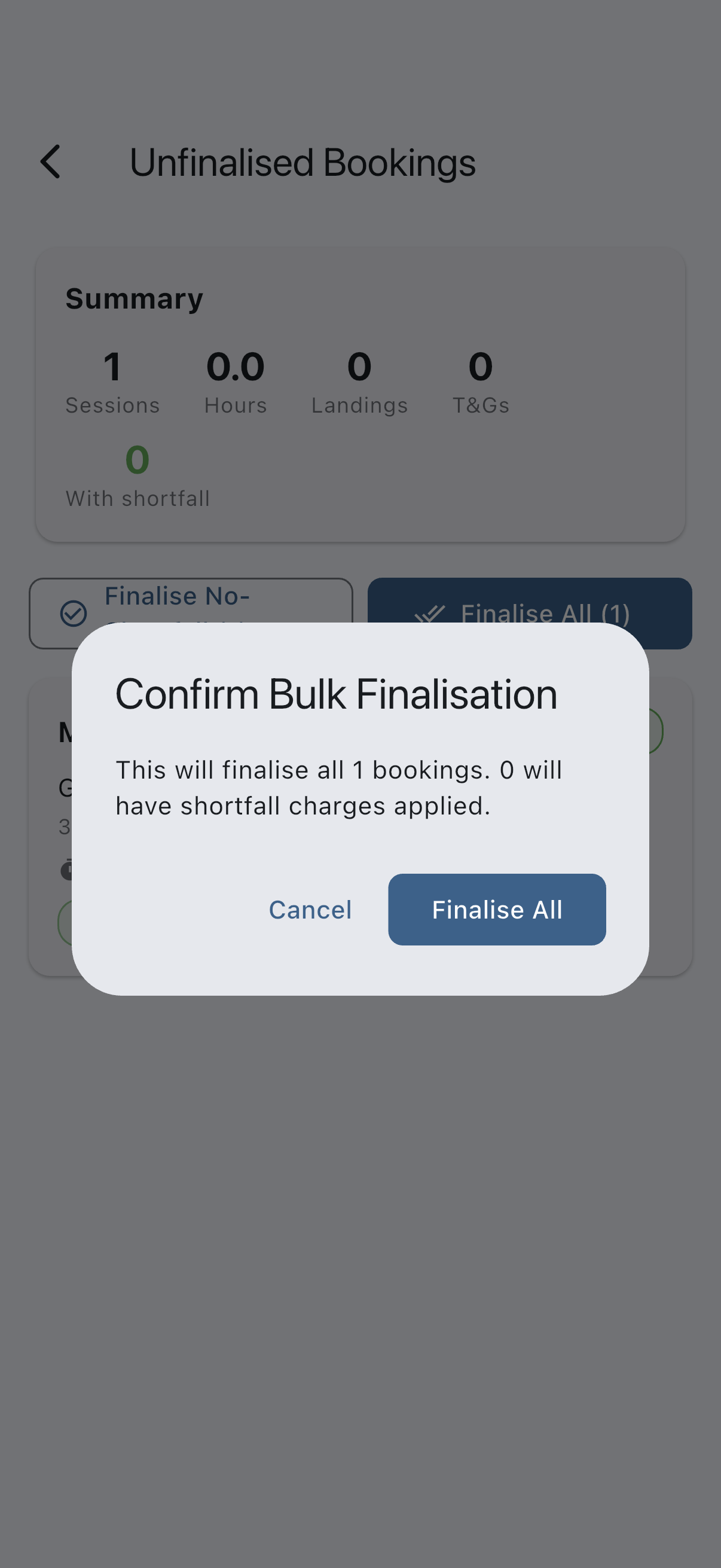
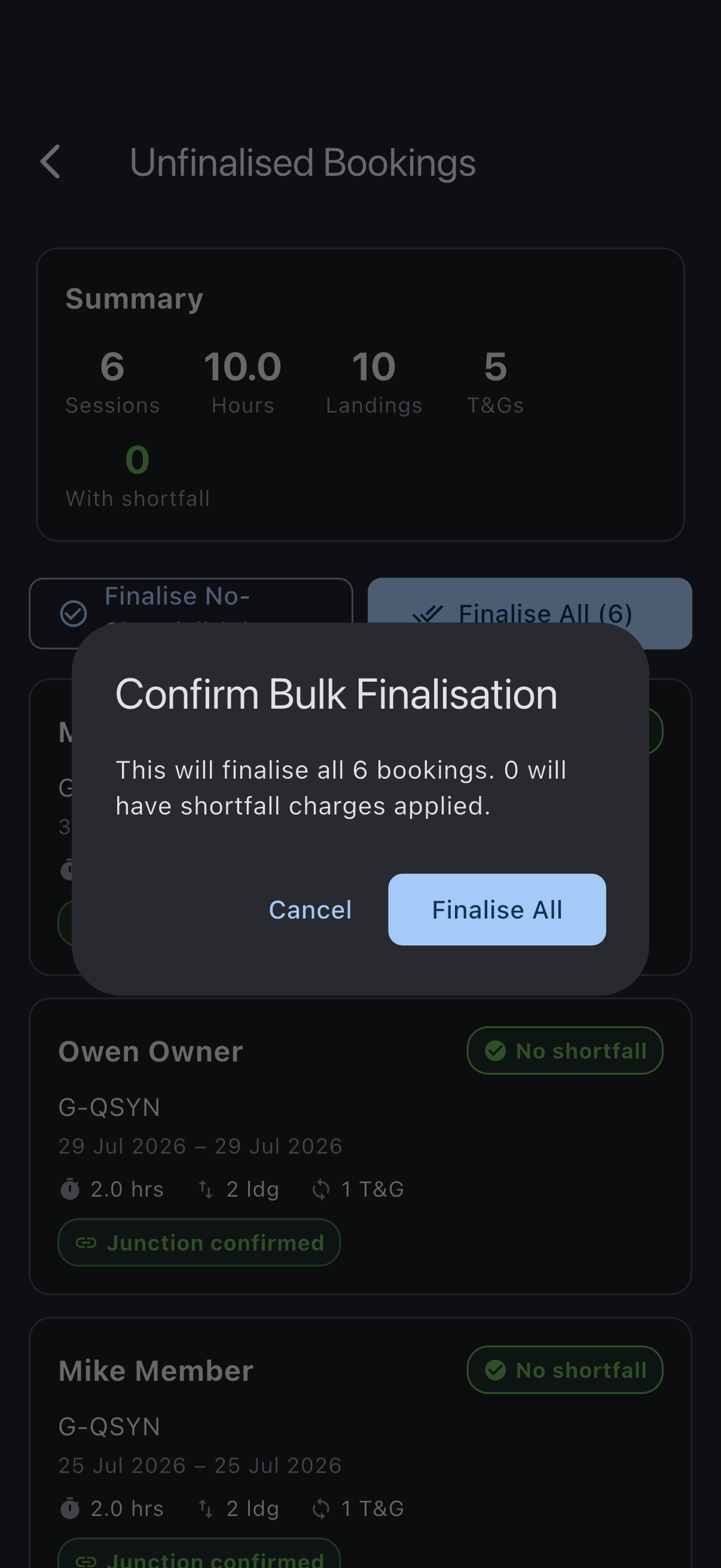
Tap Finalise All. The Confirm Bulk Finalisation dialog restates the totals: “This will finalise all N bookings. M will have shortfall charges applied.” Read the numbers, then tap Finalise All.
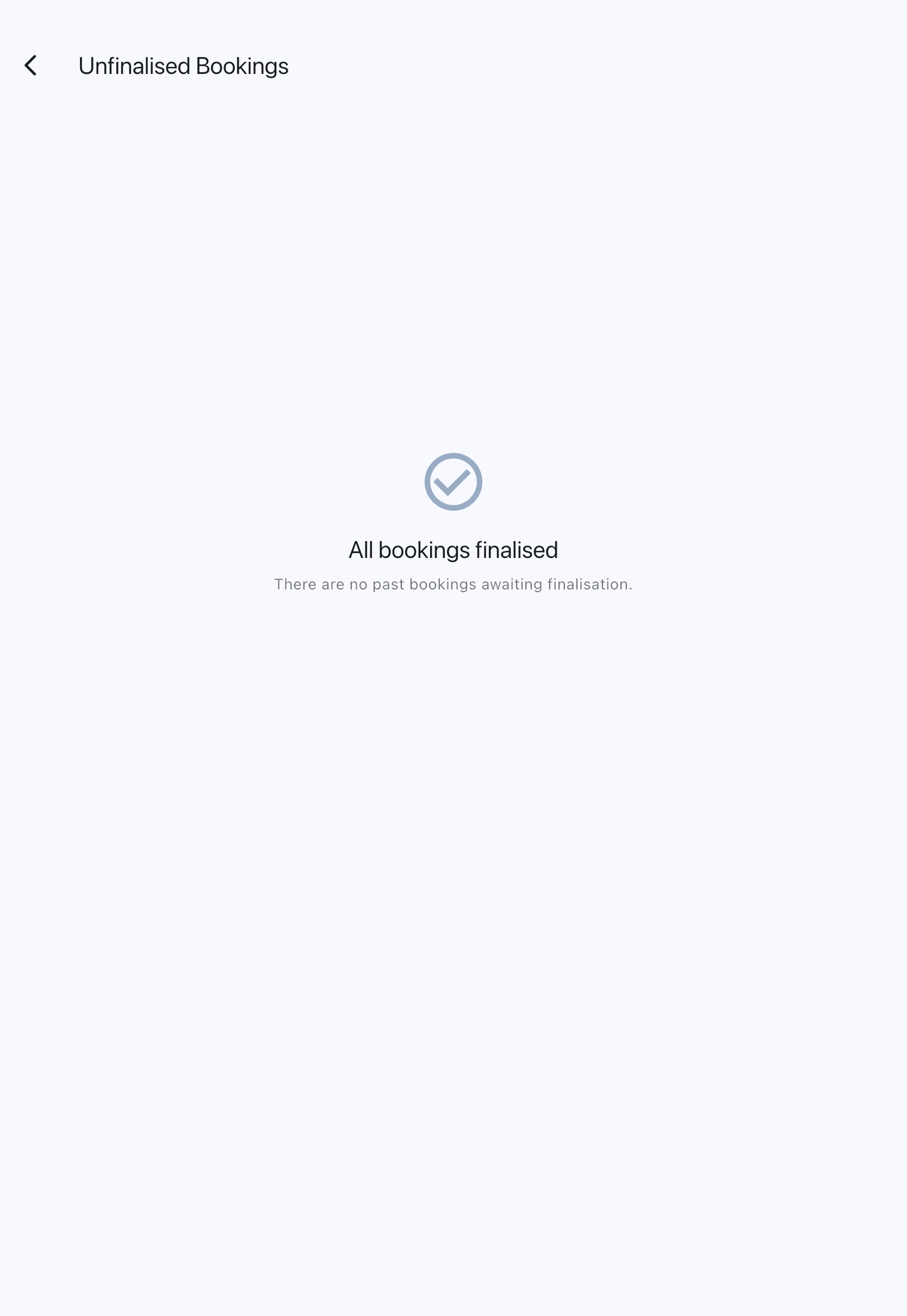
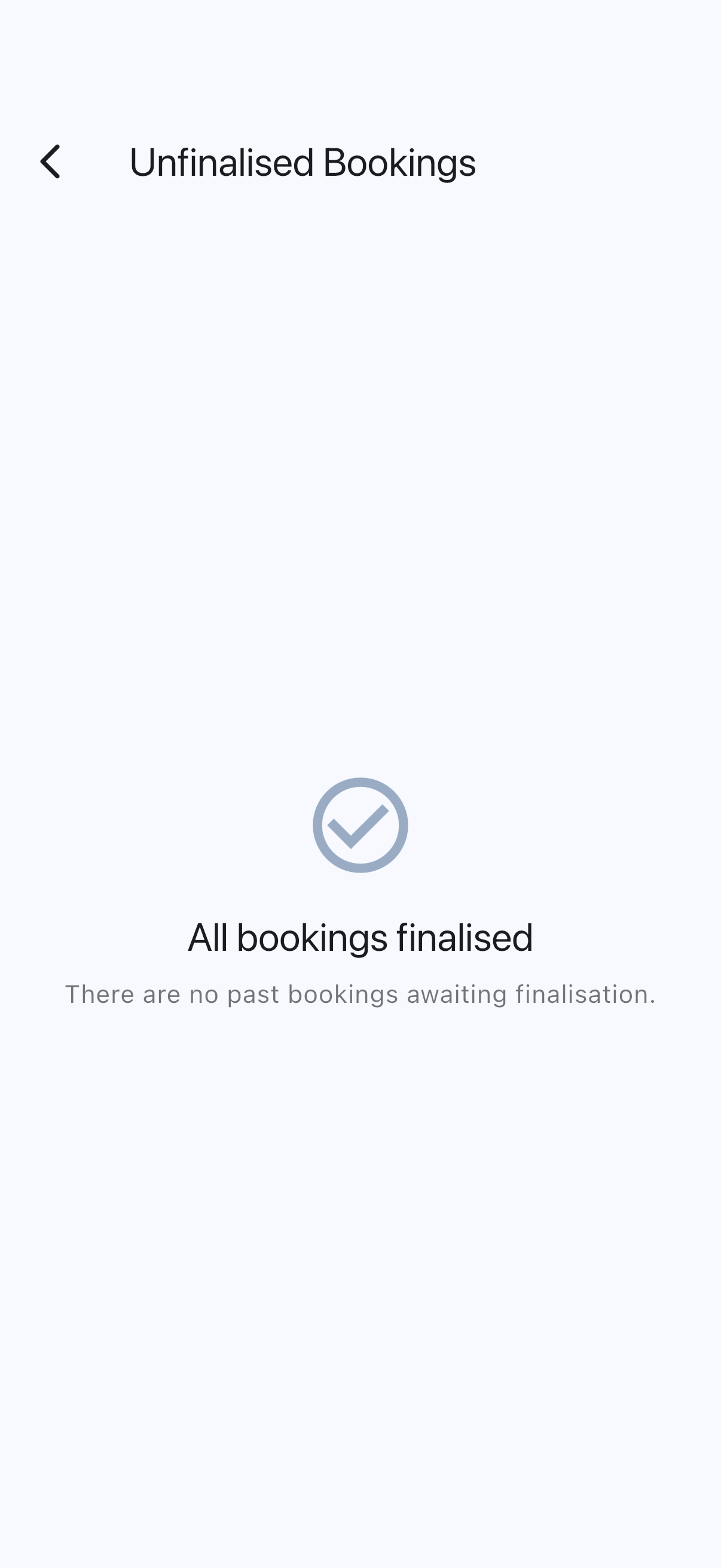
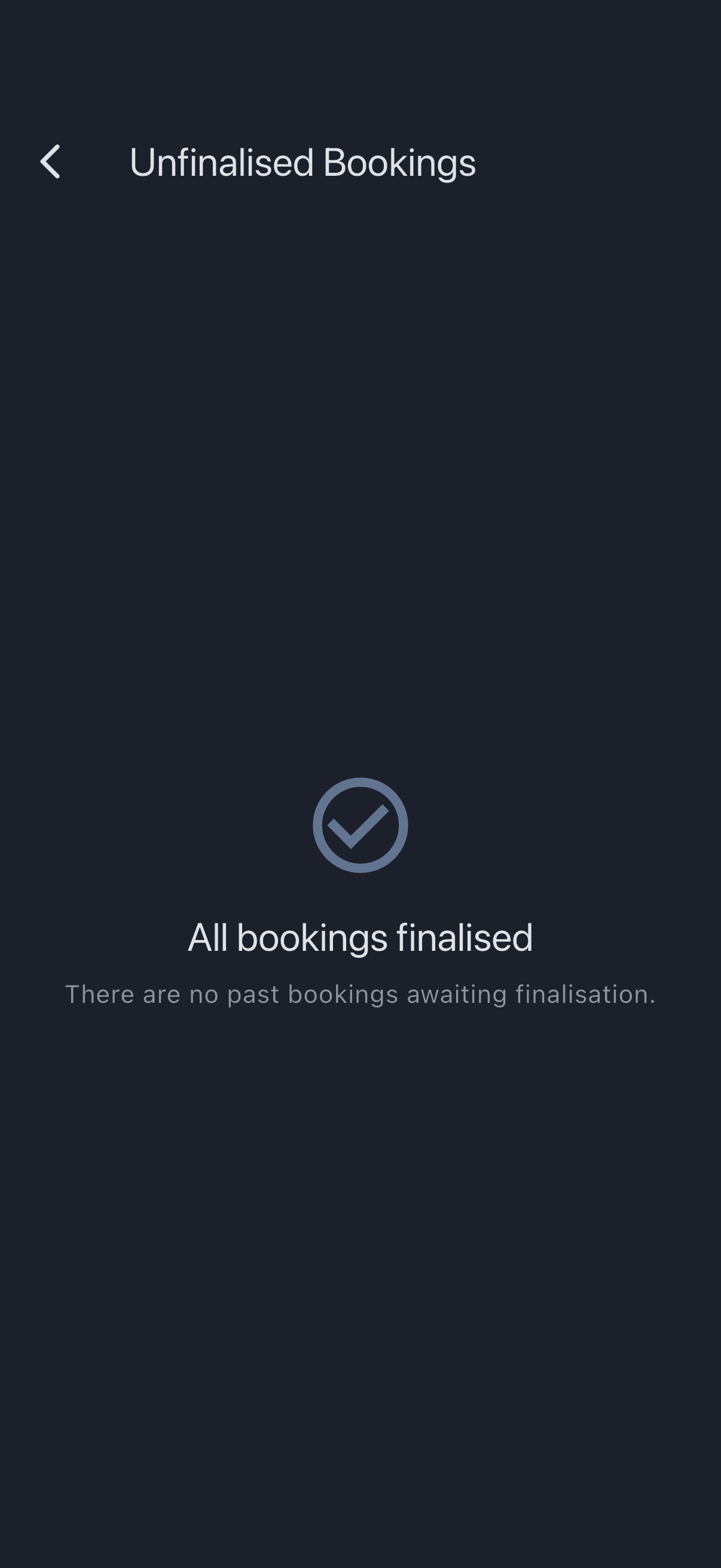
A snackbar confirms (“N bookings finalised”) and the queue empties to an All bookings finalised empty state. The month is now on the ledger.

Step 4: Check the asset utilisation dashboard
Section titled “Step 4: Check the asset utilisation dashboard”Finalisation moved money; asset utilisation is the “who flew how much” question, and it’s informational rather than judgmental. It’s worth a glance each month to see how the aircraft got used.
From the Dashboard tab, tap Asset Utilisation. The screen opens with the total hours the syndicate flew in the window and the per-member average, followed by a Usage by Member breakdown.
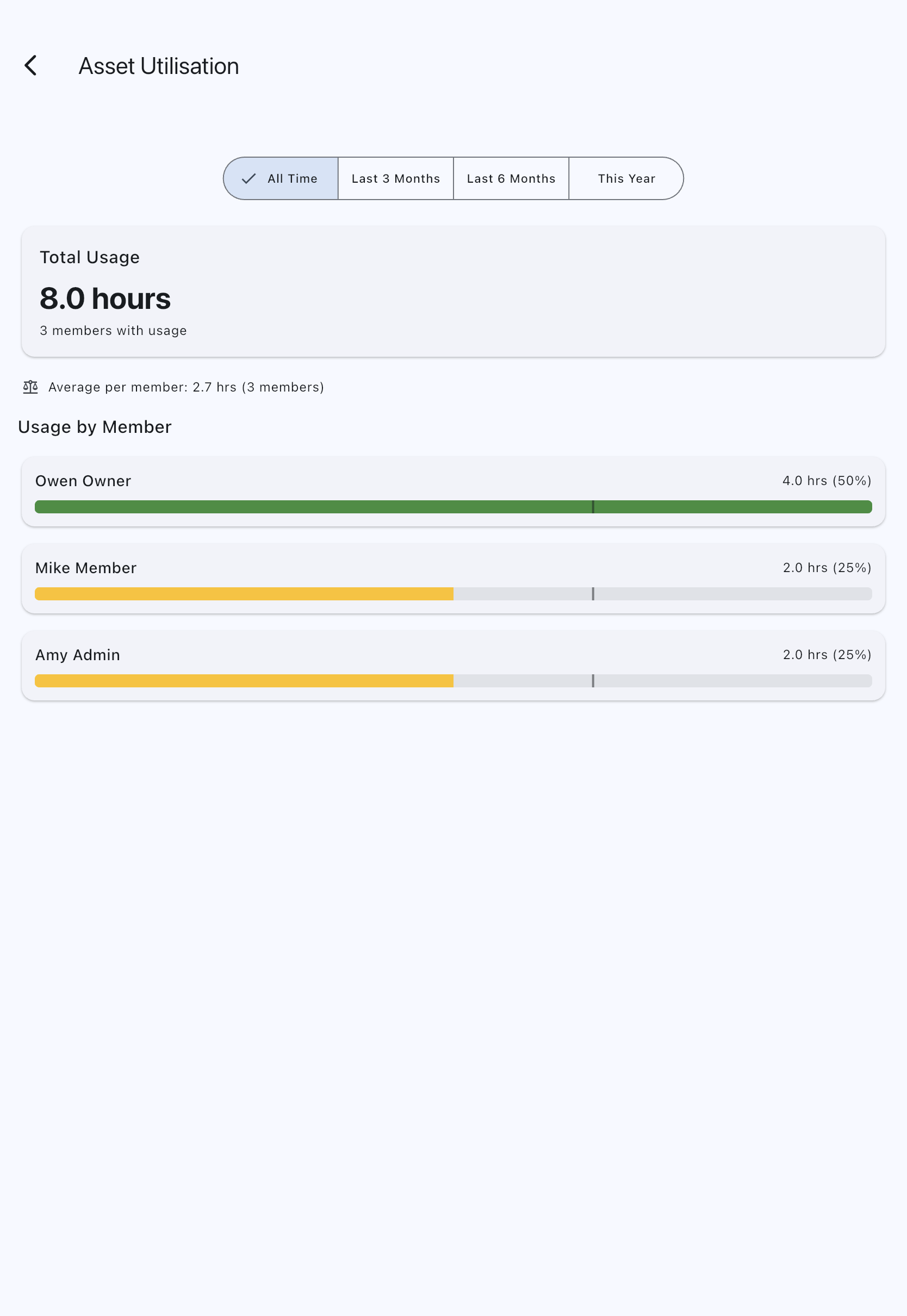
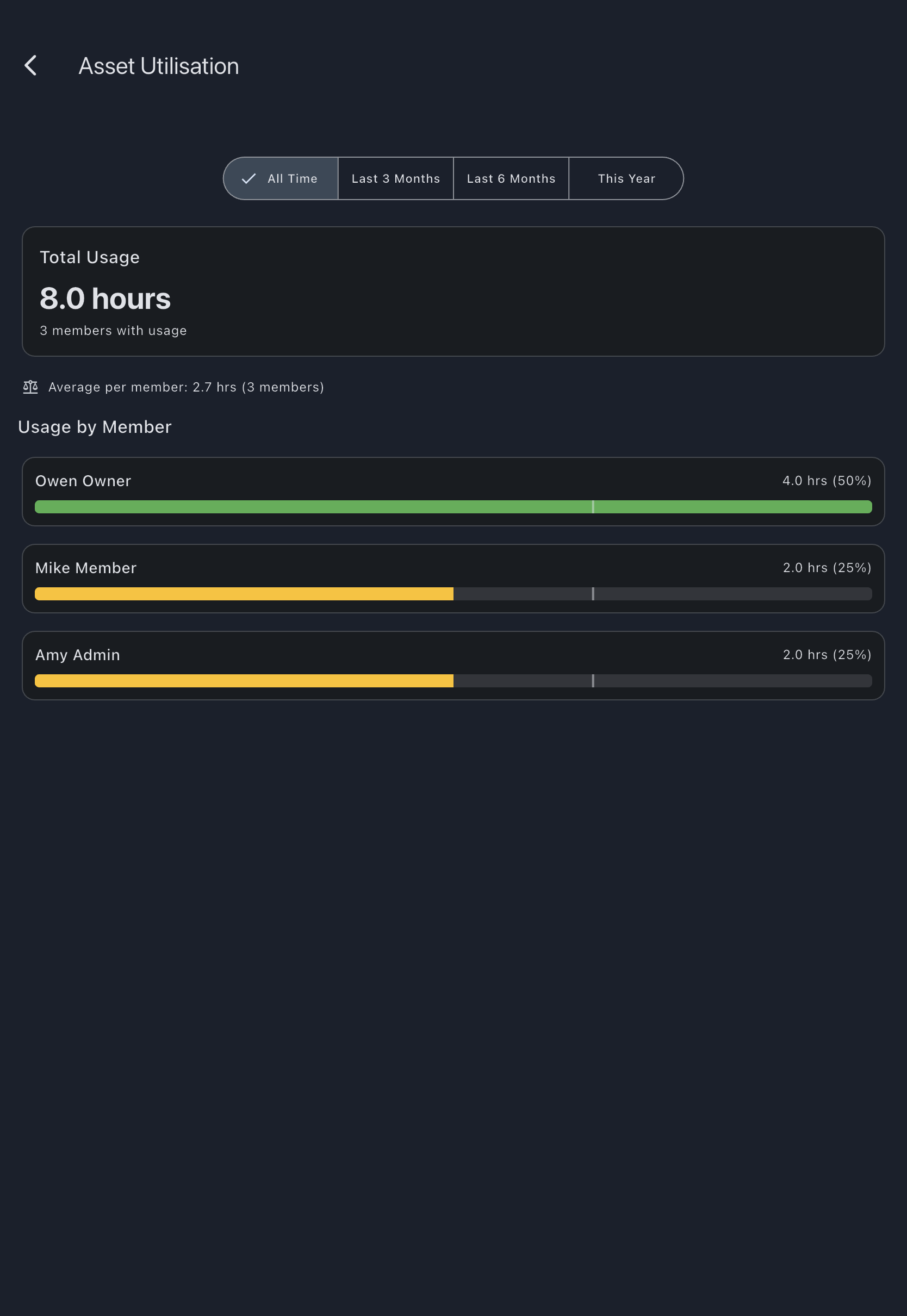
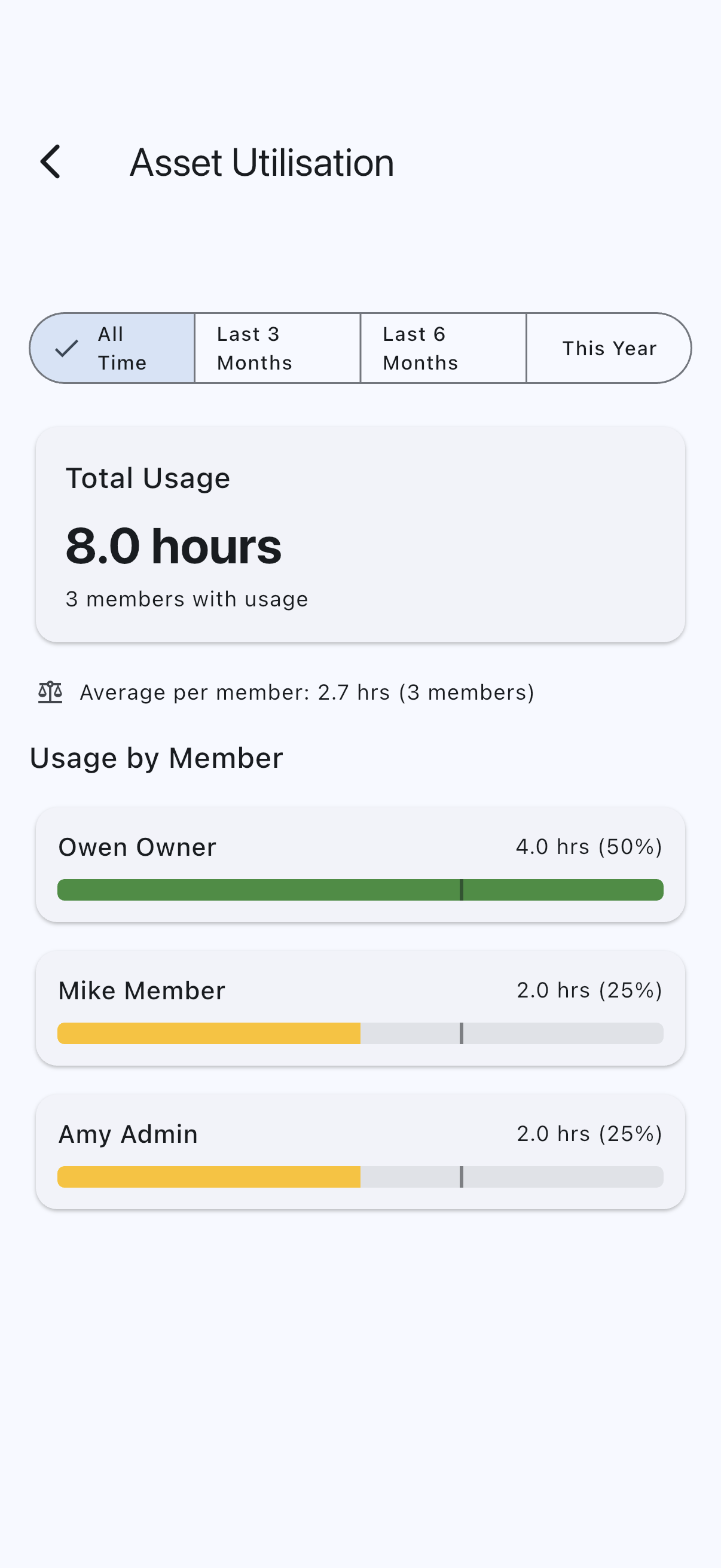
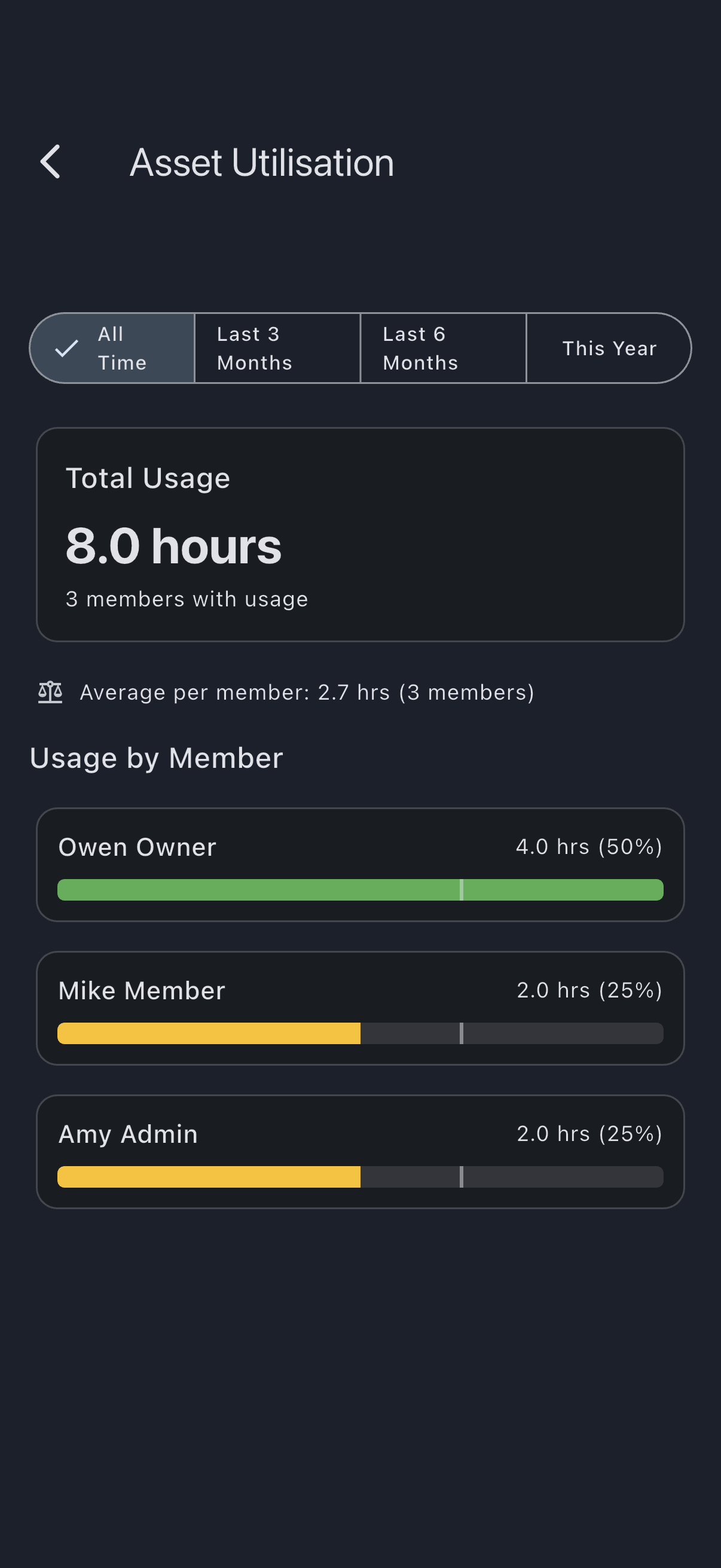
At a first month this will look uneven, and that’s fine: a new syndicate doesn’t have the cumulative history for fair-share to mean much yet. What you’re looking for is anything obviously wrong: a member with no usage who you know flew, a member with far more than you’d expect. Those usually indicate a missing log or a log attached to the wrong booking.
Switch the time-window selector — All Time, Last 3 Months, Last 6 Months, This Year — to get different slices. At the end of month one they will all be roughly the same, because there is only one month of flying in any of them; the windows start to separate once the syndicate has a few months of history.
Step 5: Send members to their balance screen
Section titled “Step 5: Send members to their balance screen”The members themselves see the result of what you just did on their own Balances tab. Each of them now has:
- An Outstanding list grouped by month, whose rows add up to the balance at the top of the screen. A flight appears as one row for the trip, not as a usage charge plus a row per landing fee.
- A Settled list below it, and Payment History from the toolbar.
You don’t need to do anything here as a treasurer; the automated notification (if emails are on) tells each member that their balance updated. If a member asks how to see their statement, point them at the Balances tab.
What you just did
Section titled “What you just did”- Opened the unfinalised-bookings queue and used the summary chips to sanity-check the month.
- Finalised one booking by hand to see the transaction shape.
- Bulk-finalised the remaining bookings from the same queue.
- Glanced at Asset Utilisation to see how the aircraft got used this month.
- Left members with up-to-date balances they can read on their own.
Where to go next
Section titled “Where to go next”- If most months are clean, flip on auto-finalisation: Enable auto-finalisation does the work when the queue is safe to clear without review.
- For one-off charges outside a usage log (extra landings, fuel adjustments), see Submit an expense and Approve an expense.
- The full shortfall behaviour: Finalisation rules.
- Members have their own view: View your monthly statement.
- The “why” behind the two-step model: Why finalisation is a separate step.