
View an asset's usage history
See the full chronological log of every session recorded against an asset, handy for tech-log review, maintenance planning, and spotting trends.
Before you start
Section titled “Before you start”- You must be a member or admin of the syndicate that owns the asset.
- Photo visibility in the history follows the same rules as on a booking. See Usage photo privacy.
- Open the Asset detail screen for the asset you want to look at (from the syndicate Assets tab, tap the asset).
- Tap Usage History.
The screen opens with every usage log ever recorded against the asset, newest first, in a scrollable list. Each row shows:
- Date of the log.
- Route (Departure to Arrival, when recorded).
- A summary column with the engine meter delta (the columns adapt to which measures the asset captures).
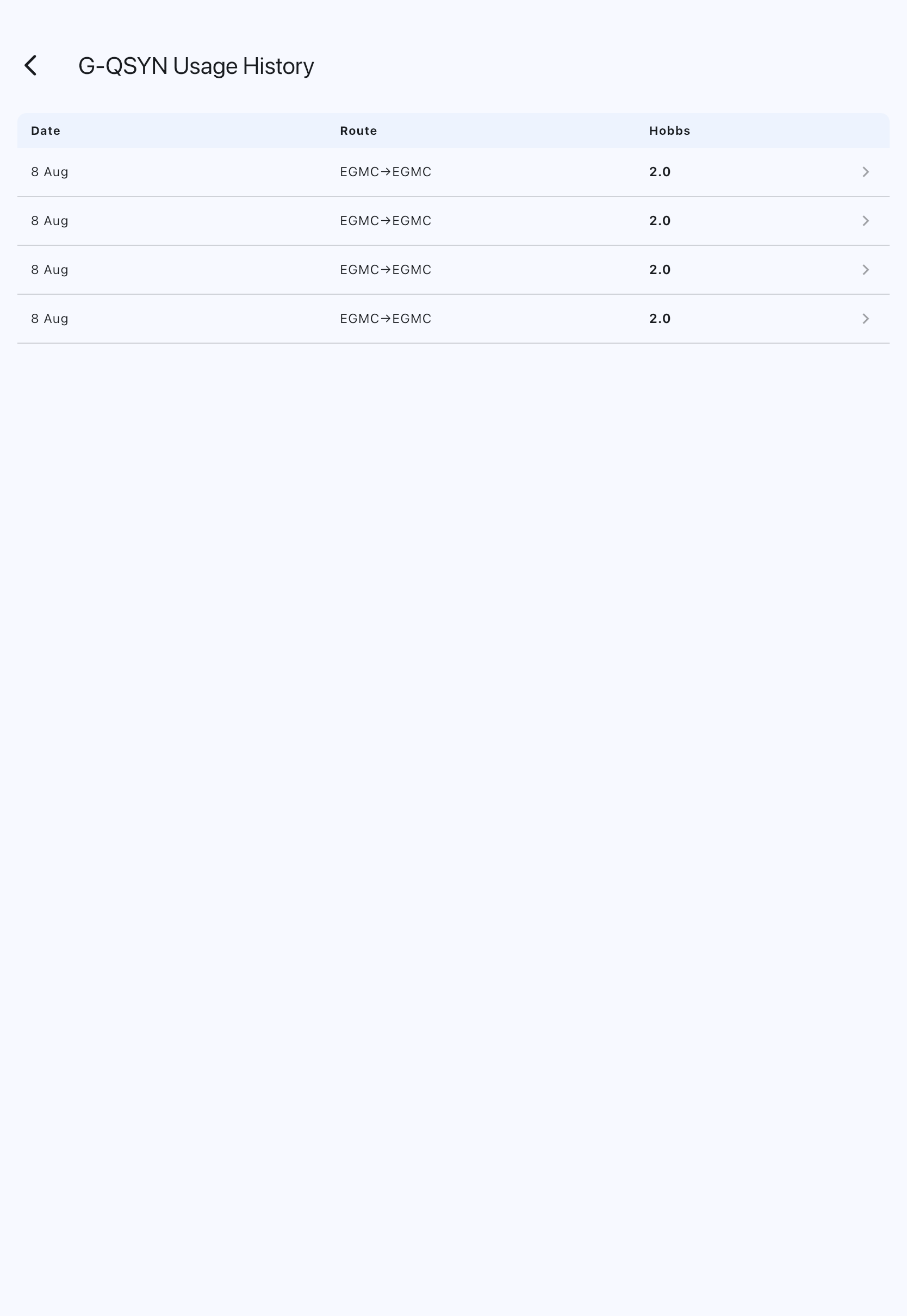

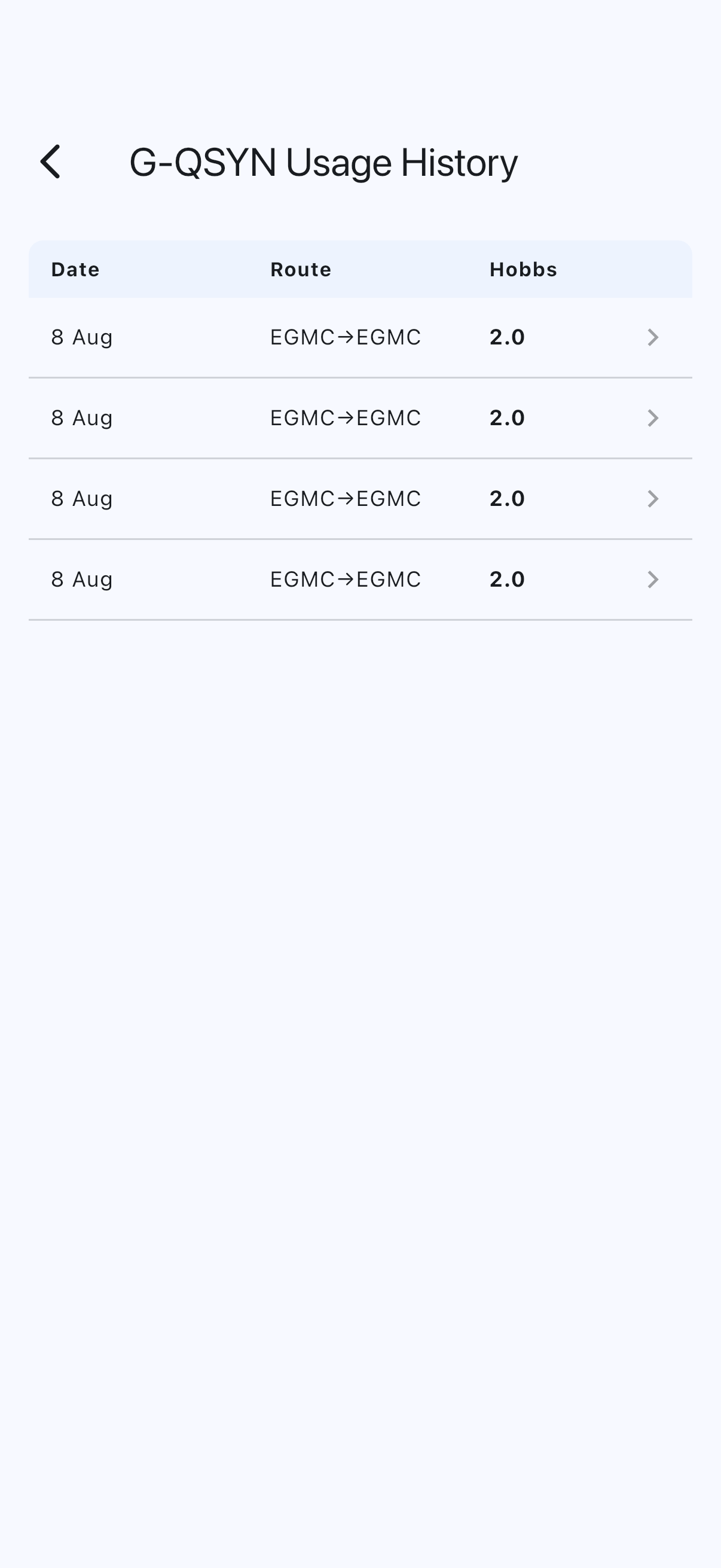
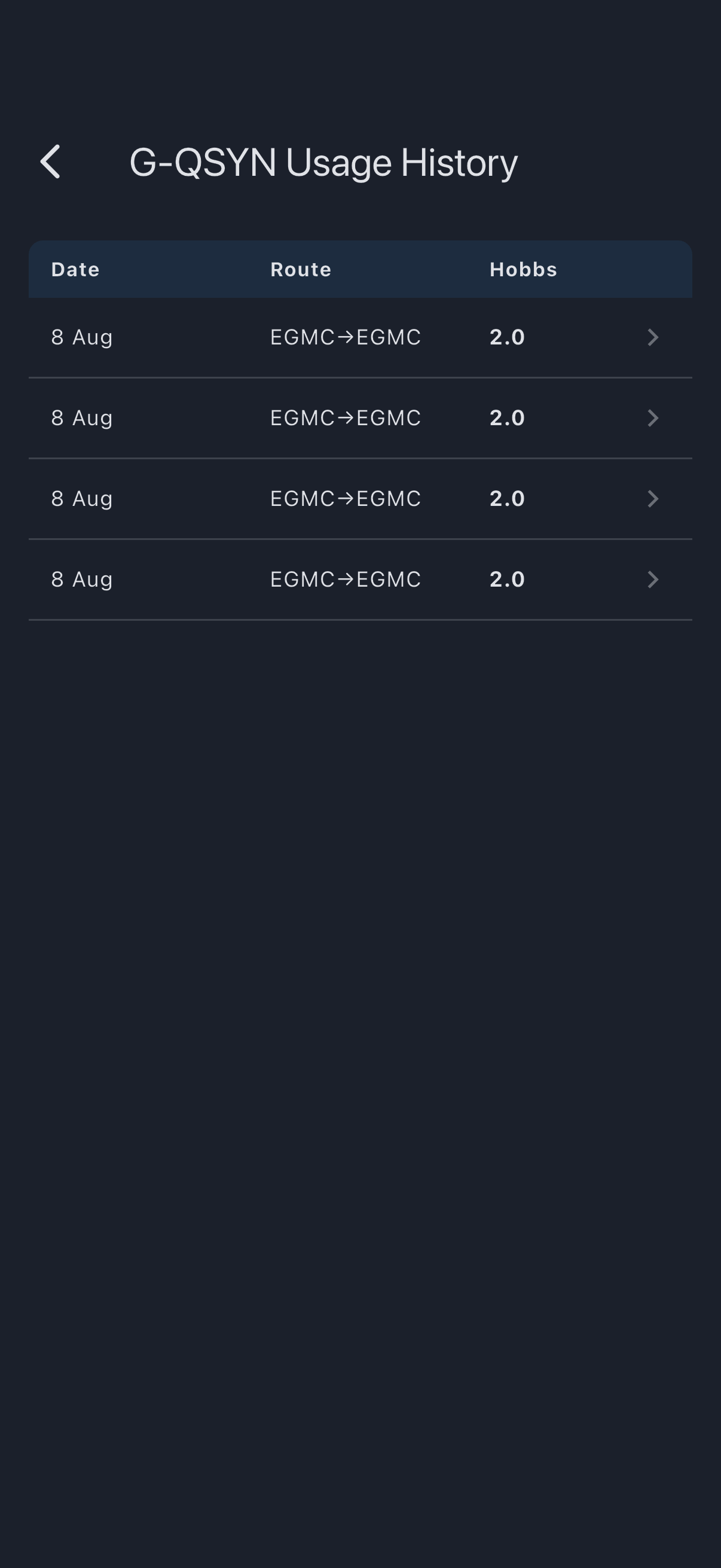
Tap a row to open the full log detail, which includes the individual meter Off and On readings, landings, the author, and any other fields recorded.
If the list is empty
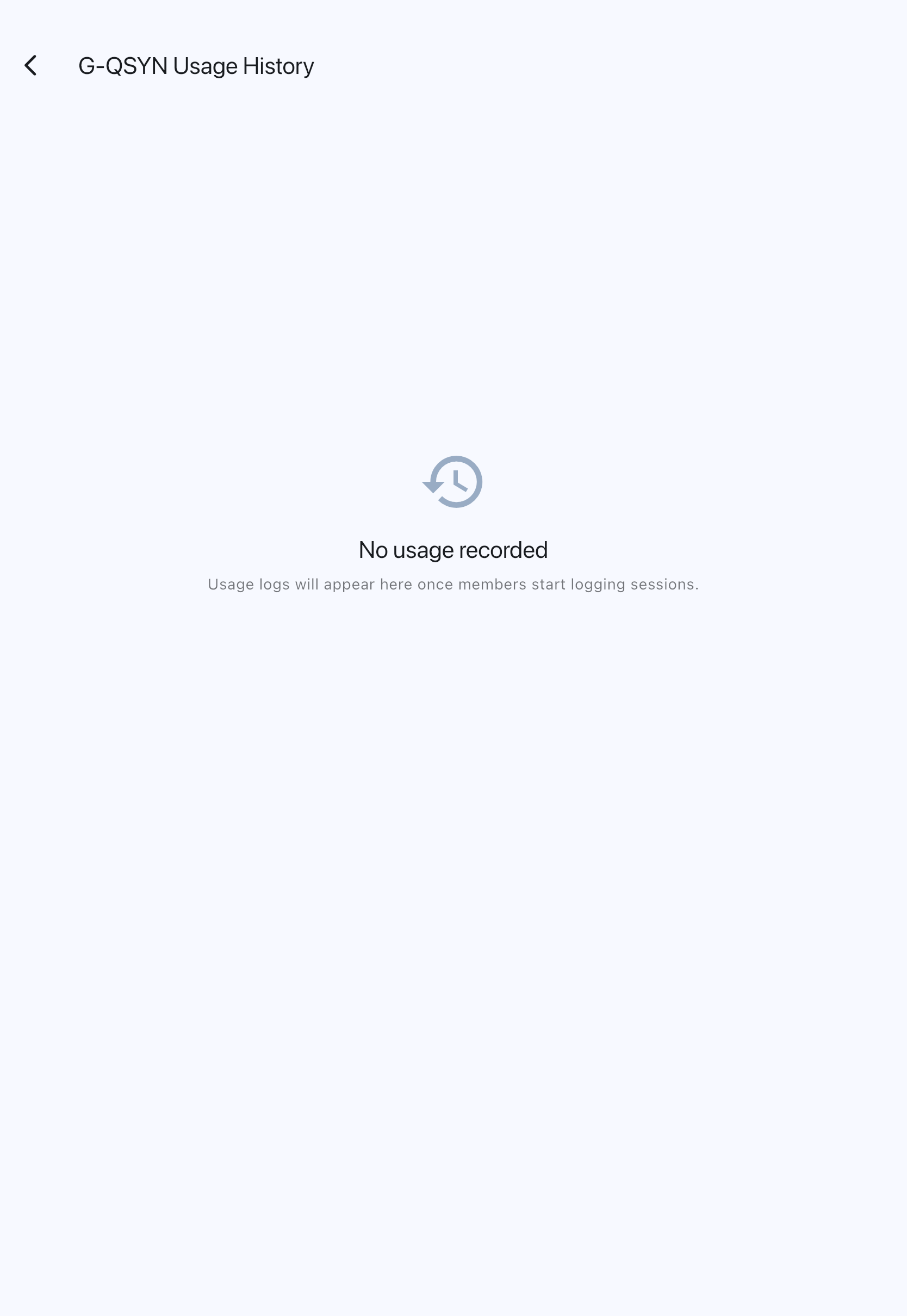
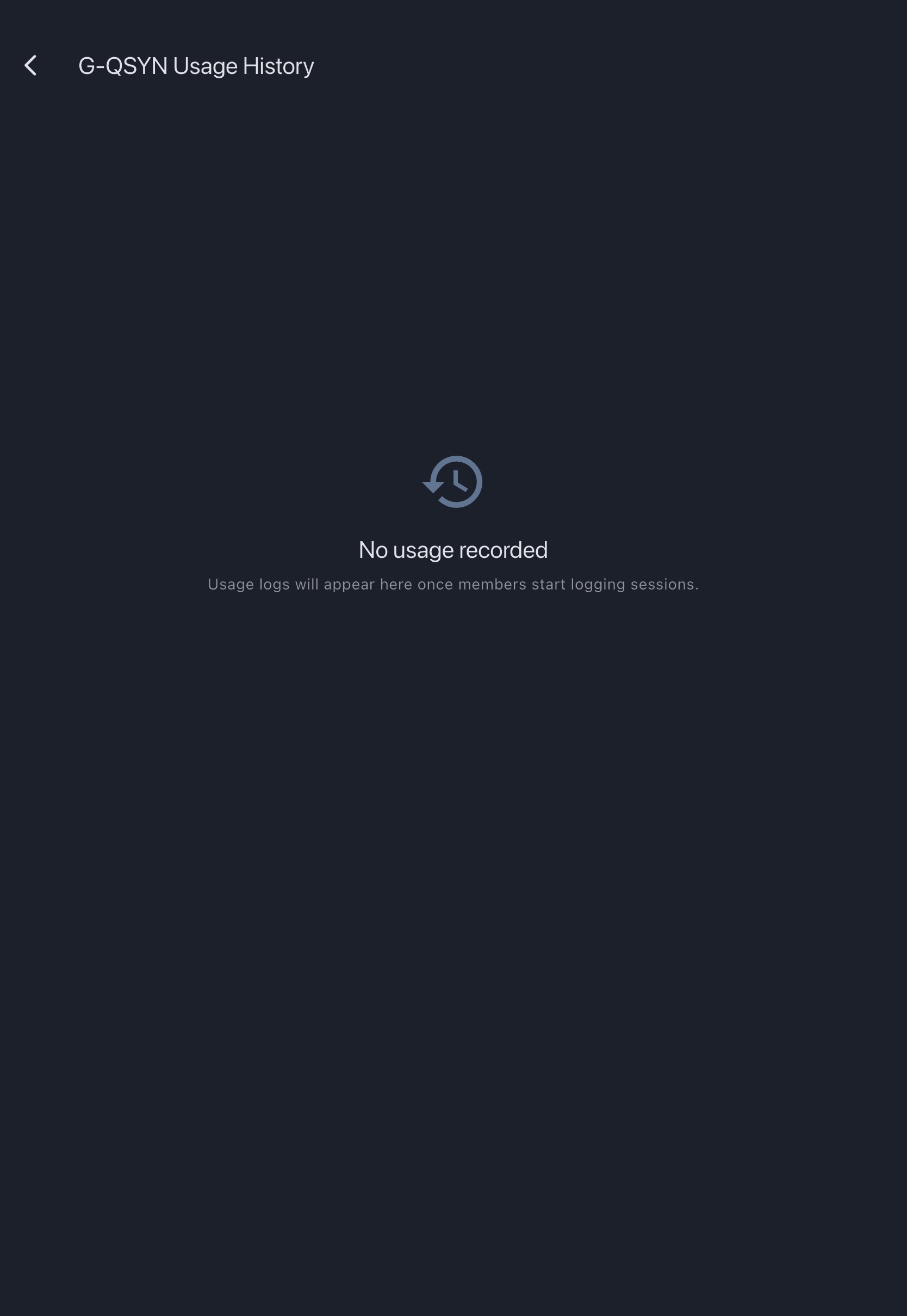
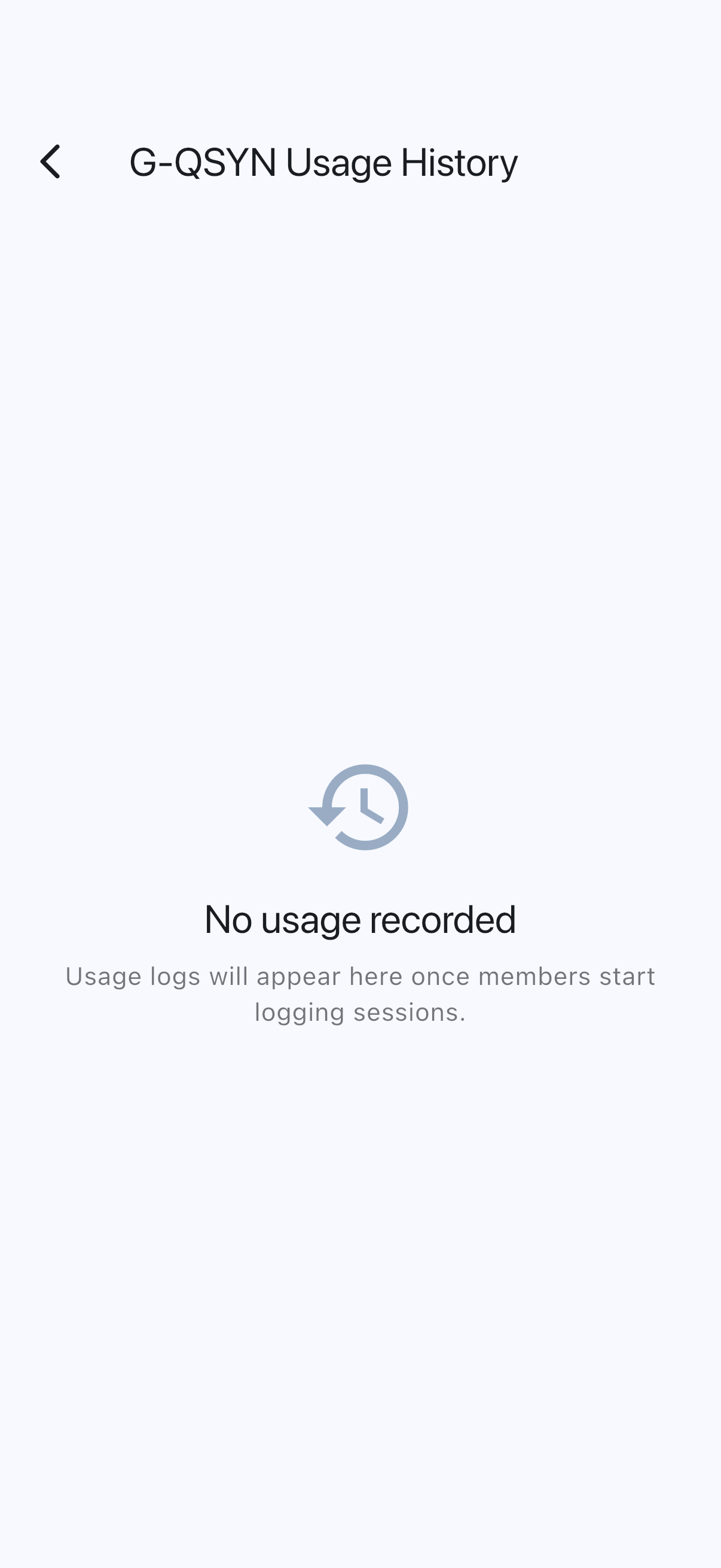
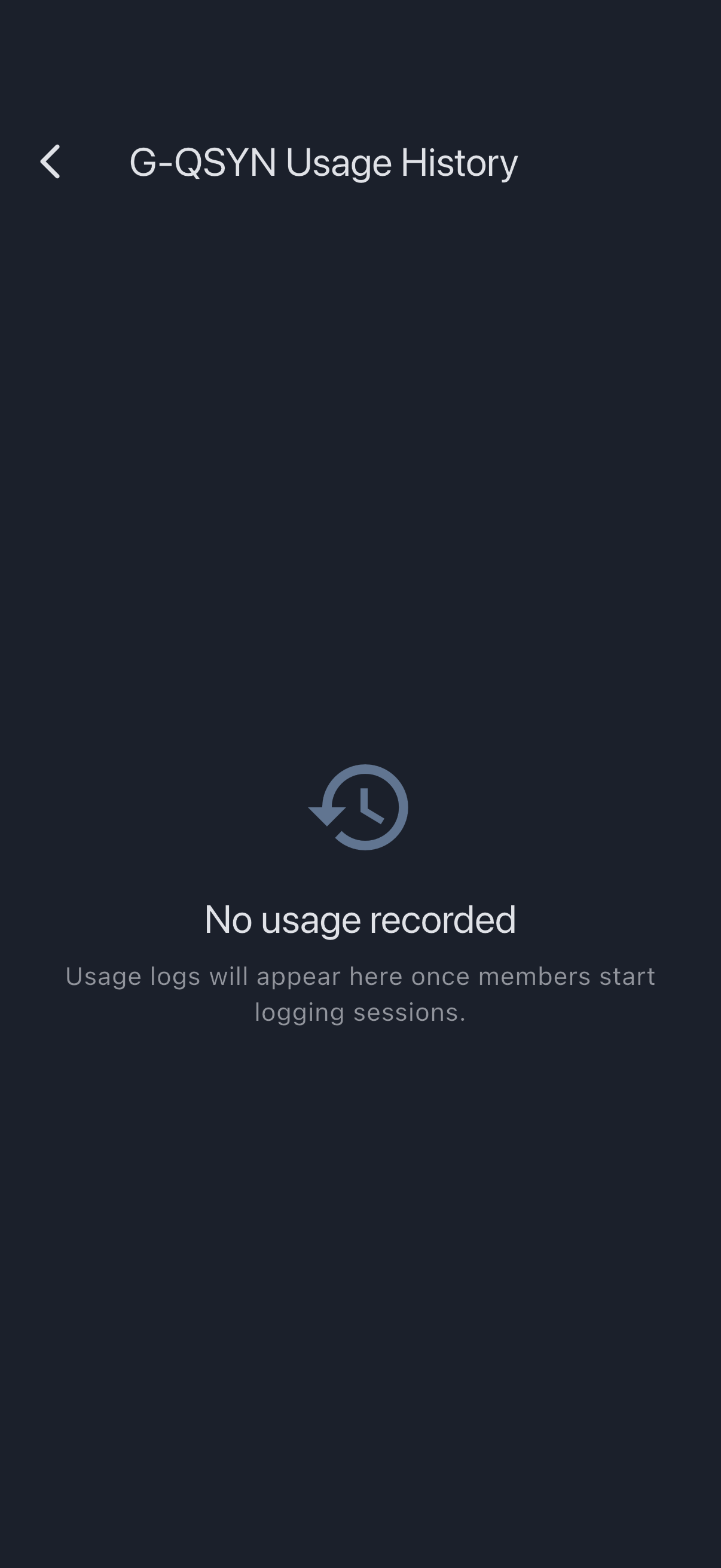
Section titled “If the list is empty”You’ll see a “No usage recorded” empty state with the message Usage logs will appear here once members start logging sessions. Either no one has logged usage yet, or you’re looking at a brand-new asset.
If it goes wrong
Section titled “If it goes wrong”- Photos do not appear next to logs: syndicate photo sharing is off, and you are neither the log’s uploader nor an admin. That’s expected. See Usage photo privacy.
- A log you remember saving is missing: check the booking directly. Logs recorded offline sync when the device reconnects.