
Import bookings from a CSV
Move bookings from any other booking system into Syndik8 by uploading a CSV and telling Syndik8 which columns hold the booking data.
Before you start
Section titled “Before you start”- You must be an admin of the syndicate.
- Export the bookings from your current system as a CSV. The parser accepts ISO 8601 dates,
dd/MM/yyyy HH:mm, and a handful of other common formats — see generic CSV format for the full list. - Start Date/Time and End Date/Time are the only required fields. Member name, member email, aircraft registration, notes, and flight time are optional.
- If your CSV happens to be a genuine Goboko export, the wizard will detect it and skip the column-mapping step — see import bookings from Goboko.
- Open the syndicate, go to the Admin tab, and tap Import data under the Syndicate heading.
- On step Upload CSV File, tap Choose File and pick your export. The wizard moves on as soon as the file is read.
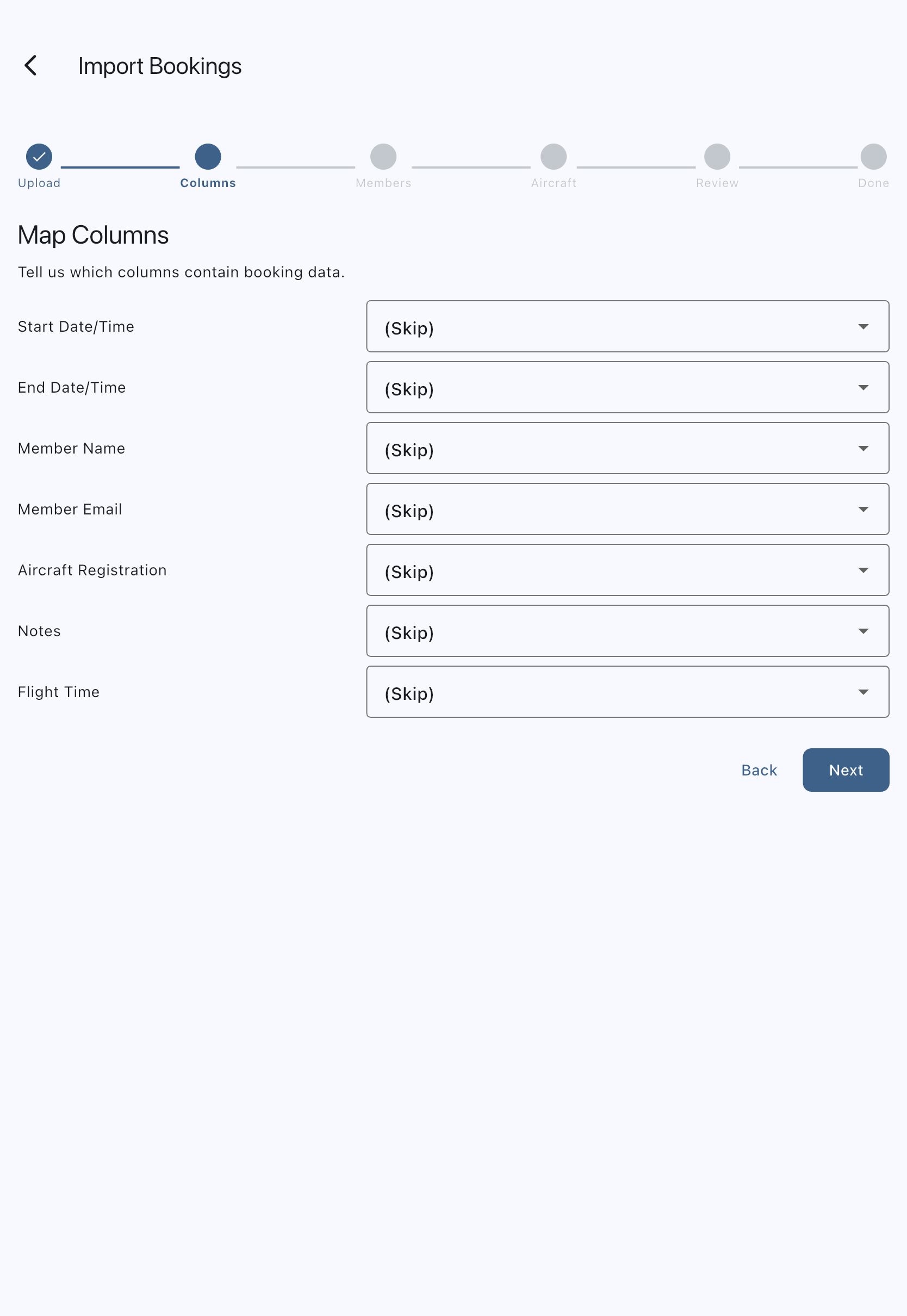
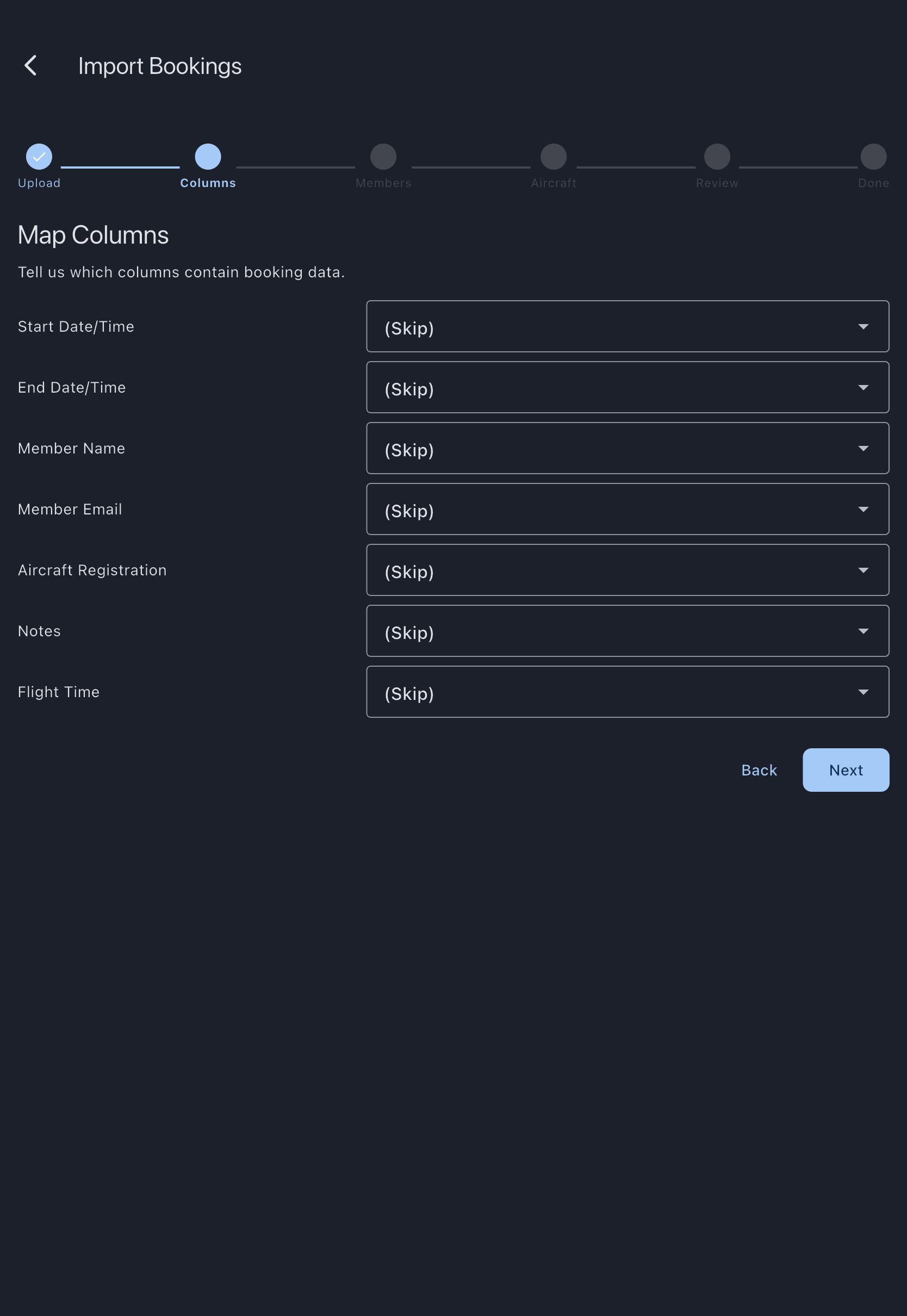
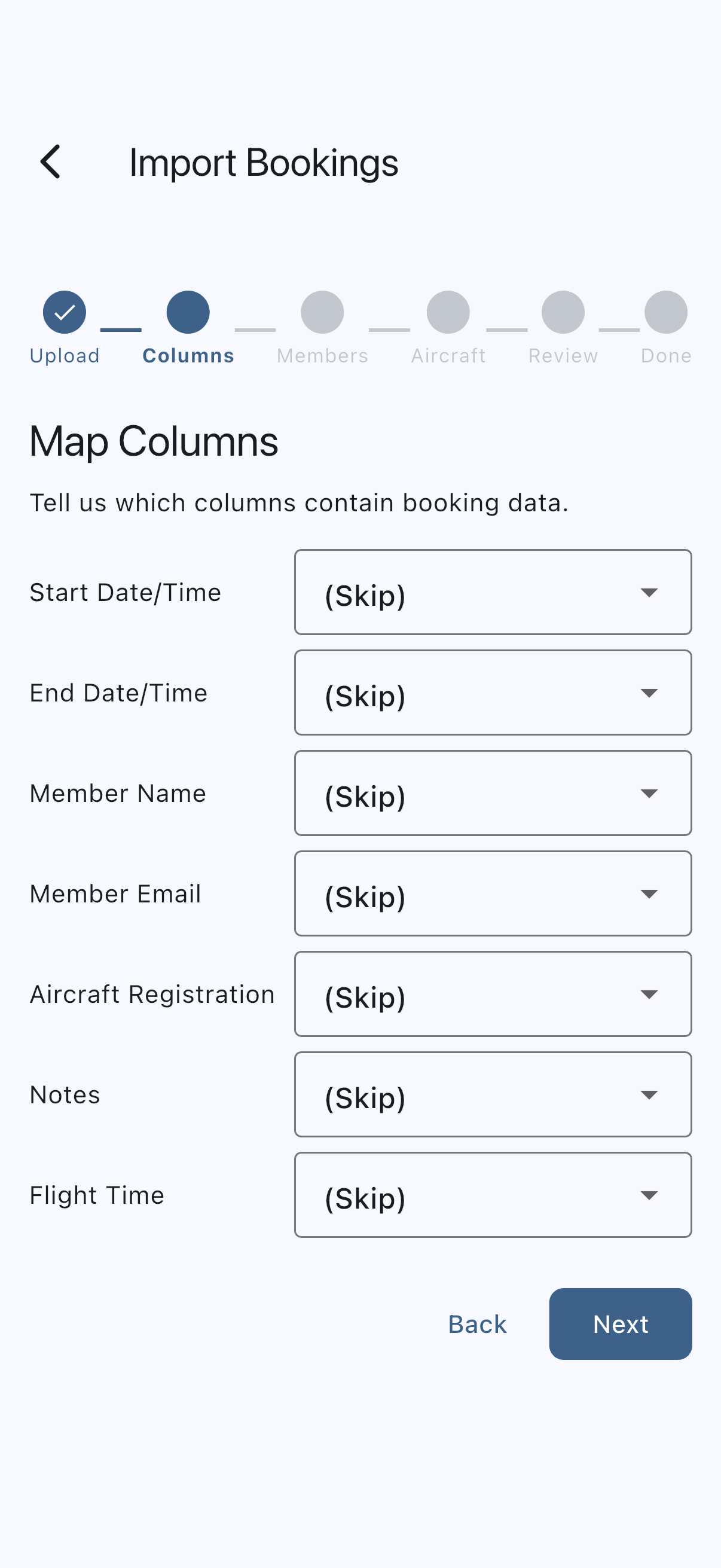
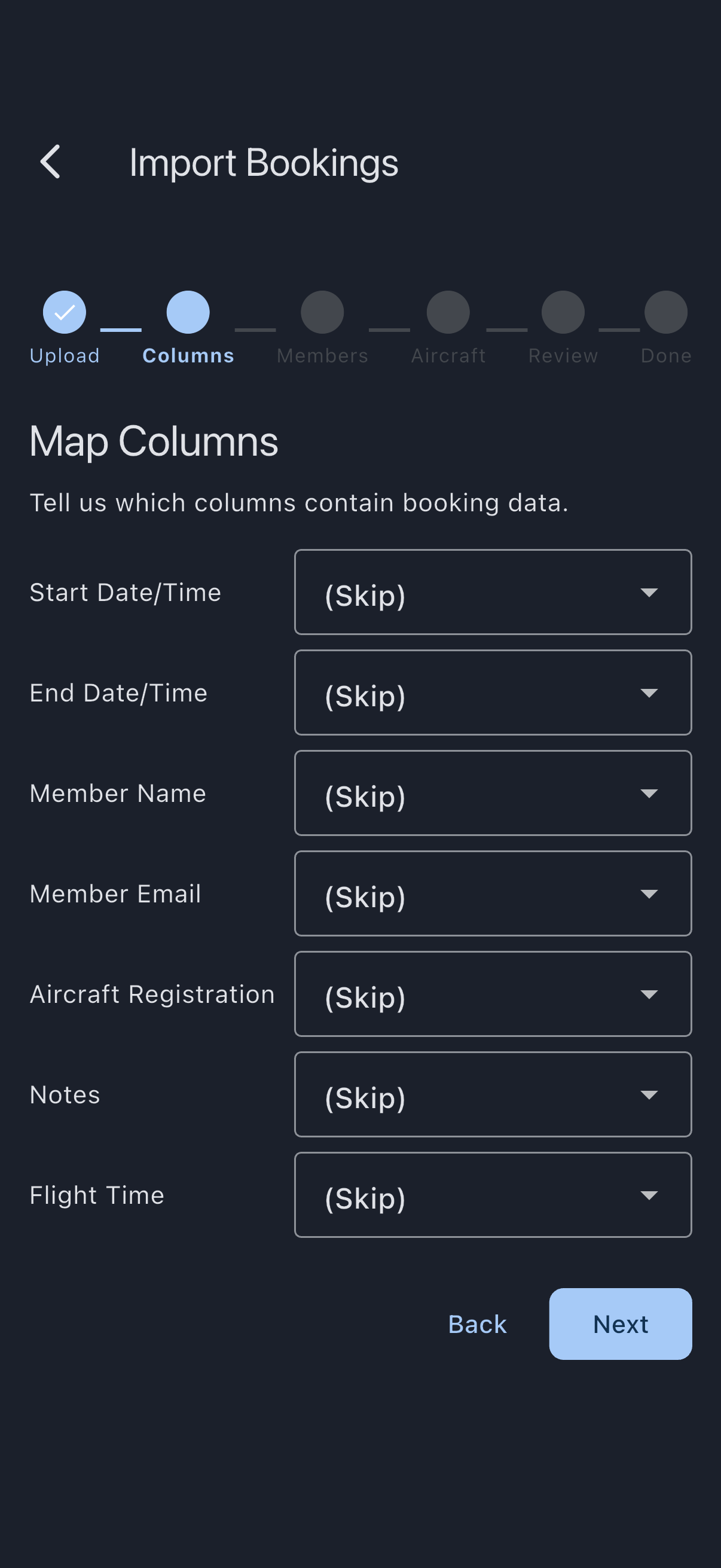
- On step Map Columns, pair each Syndik8 field with a column in your CSV using the dropdowns:
- Start Date/Time — required
- End Date/Time — required
- Member Name, Member Email, Aircraft Registration, Notes, Flight Time — optional Leave unwanted CSV columns unmapped; they are ignored.
- On step Match Import Entries, check each unique person the CSV names. Syndik8 resolves them for you first — on their email where your CSV carries one, otherwise on their name — and shows you what it found. Anything left over you resolve yourself: pick the right member from the dropdown, mark them with Invite (if the row has an email), or flag the entry as an aircraft-maintenance booking. Marking sends nothing on its own — everyone you mark is invited together when you tap Invite N people, and on a paid syndicate that is where Syndik8 tells you what the whole batch adds to your subscription and asks you to agree. Inviting somebody does not import their bookings — they are not a member until they accept — so import the file again once they have joined. There is no automatic maintenance detection on this path — mark rows as maintenance yourself if your source system used a sentinel name.
- On step Match Aircraft, confirm each unique registration maps to an existing asset. If the syndicate has only one asset, every row auto-matches that asset regardless of what your CSV’s registration column says.
- On step Review Import, read the summary — bookings to create, skipped rows, duplicates from a prior import. Tap Import N Bookings to commit.
- The wizard runs the import and lands on Done.
If it goes wrong
Section titled “If it goes wrong”- “The file could not be read. Pick it again, or export a fresh copy.” Syndik8 could not open the file you picked, so nothing has been uploaded and no matching has started. This is about the file on your device rather than your connection: the export may have finished incompletely, the file may have moved or been deleted since you picked it, or a cloud-storage placeholder may not have downloaded yet. Pick the file again, and if it still will not open, export a fresh copy from your old system and use that.
- The wizard will not move past Map Columns. Both Start Date/Time and End Date/Time must be mapped. Check that at least one column in your CSV holds each value and pick it from the dropdown.
- Bookings are an hour off during BST. CSV rows without a timezone offset are treated as UTC. If your source system stored local times without an offset, look for an ISO variant with
Zor+01:00in the export. Otherwise the times will land an hour off during British Summer Time. - Rows are being skipped at parse time. Dates that do not match any of the supported formats are silently dropped. Open the CSV in a spreadsheet, check the column types, and re-export if needed.
- Member matching keeps failing. Members are matched first on exact email (case-insensitive), then on their name exactly as Syndik8 shows it — their nickname if they set one, otherwise their first and last name. A middle initial or a shortened first name in your export is enough to miss. Pick the member from the dropdown on the matching step, mark them for an invitation, or adjust the source data to carry the email they registered with. A row Syndik8 cannot tie to a member is skipped and counted on the Review Import step.
- Somebody I invited has no bookings. A booking has to belong to a member, and an invitation is not a membership until it is accepted, so rows naming somebody who has not joined are skipped. Once they accept, import the same file again: deduplication skips everything already created, and their bookings are added.
- The matching step says it could not check email addresses. Nobody’s email is stored on anyone else’s phone, so Syndik8 asks the server for them while you are on that step, and only when your file actually carries an address to match against. If the request fails — you are offline, or you are not an admin of this syndicate — matching falls back to names alone and tells you so. Reconnect and reload the file to get the email matching back rather than inviting members who are already in the syndicate. You will not see this message for a file with no email column, because no request was needed.
- Two members with the same name are both left unmatched. Syndik8 will not guess between them. Pick the right one from the dropdown on the matching step.
- The file is being treated as Goboko. That is intentional — if your CSV is UTF-16 with the Goboko header, it routes through the Goboko path automatically. You do not need this guide; use import bookings from Goboko.
See also
Section titled “See also”- Generic CSV format — mappable fields, date formats, and matching rules
- Goboko CSV format — the auto-detected path
- Deduplication — how re-imports avoid creating duplicates