
Reset your password
Get back into your account when you’ve forgotten your password.
Before you start
Section titled “Before you start”- You need access to the email inbox linked to your Syndik8 account. The reset link is delivered by email.
- On the Sign In screen, tap Forgot password?.
- Enter the email address on your account and tap Send Reset Link. Syndik8 emails a reset link to that address.
- Check the inbox for that email. The message comes from Syndik8. If you can’t see it, check the spam folder.
- Open the email and tap Reset Password. If the button doesn’t work, copy the link printed underneath it into your browser instead.
- The link opens Syndik8 on the Set New Password screen. Enter the new password in New Password and again in Confirm New Password. The password must be at least 8 characters long.
- Tap Update Password. You are signed in with the new password and taken to the home screen.
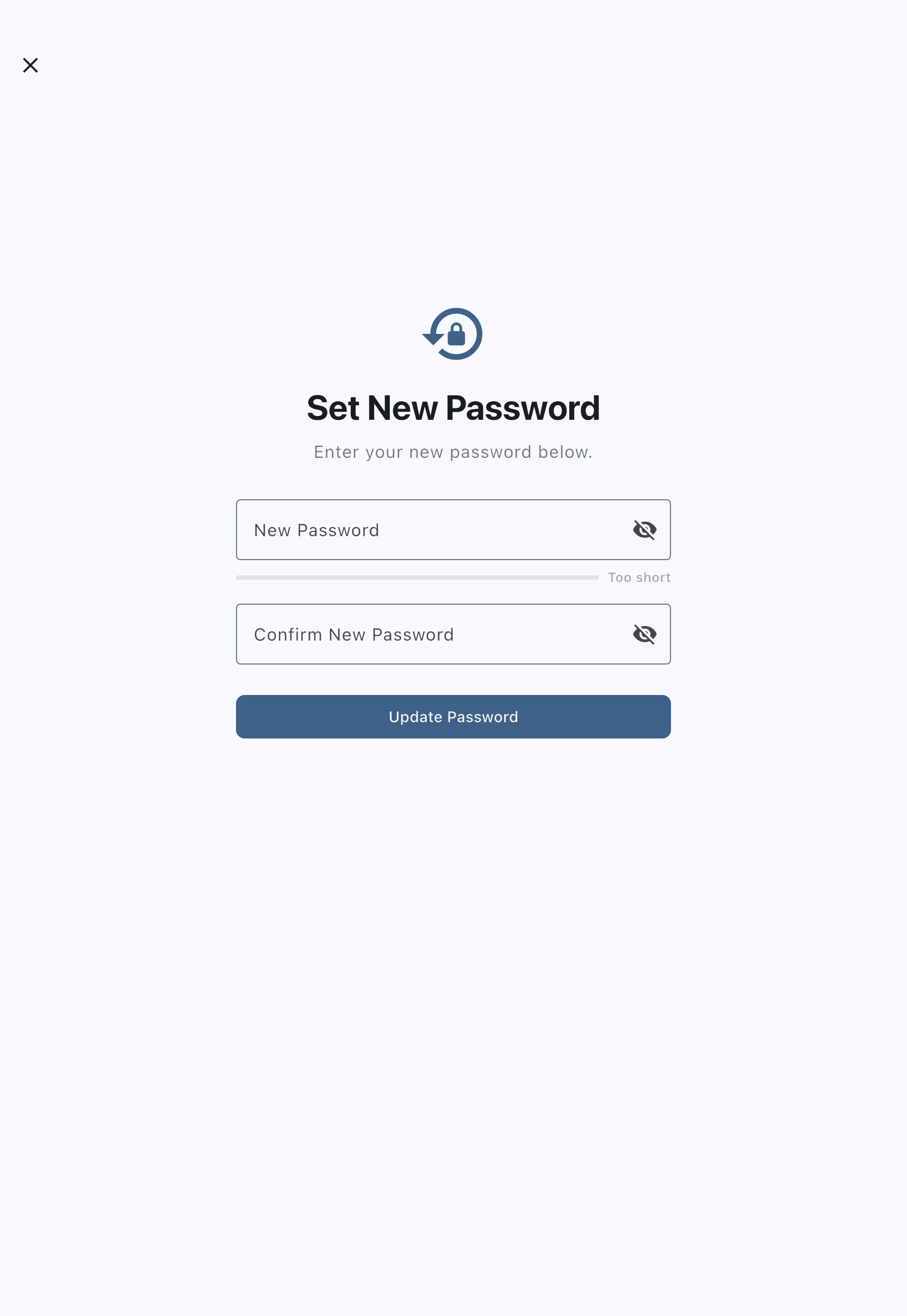
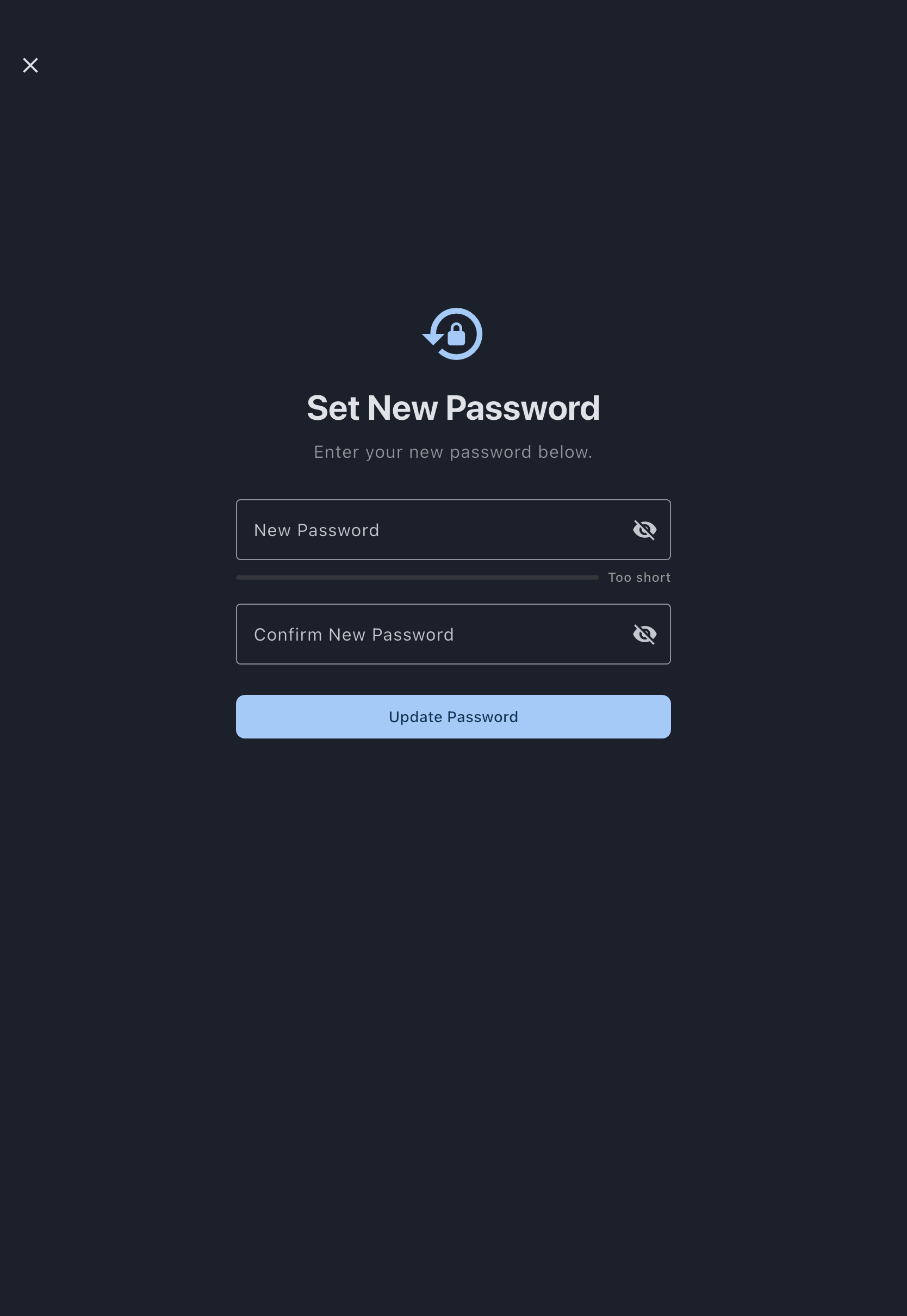
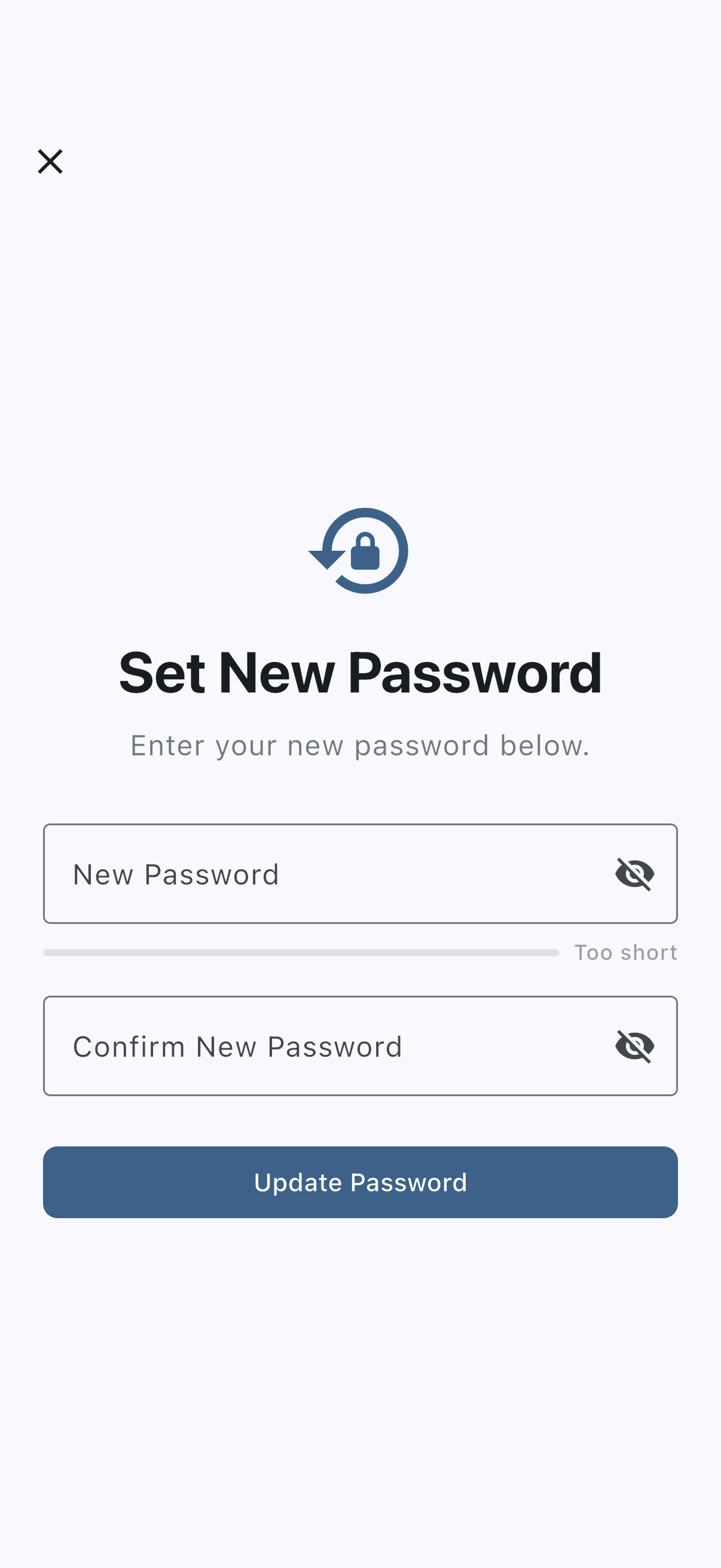
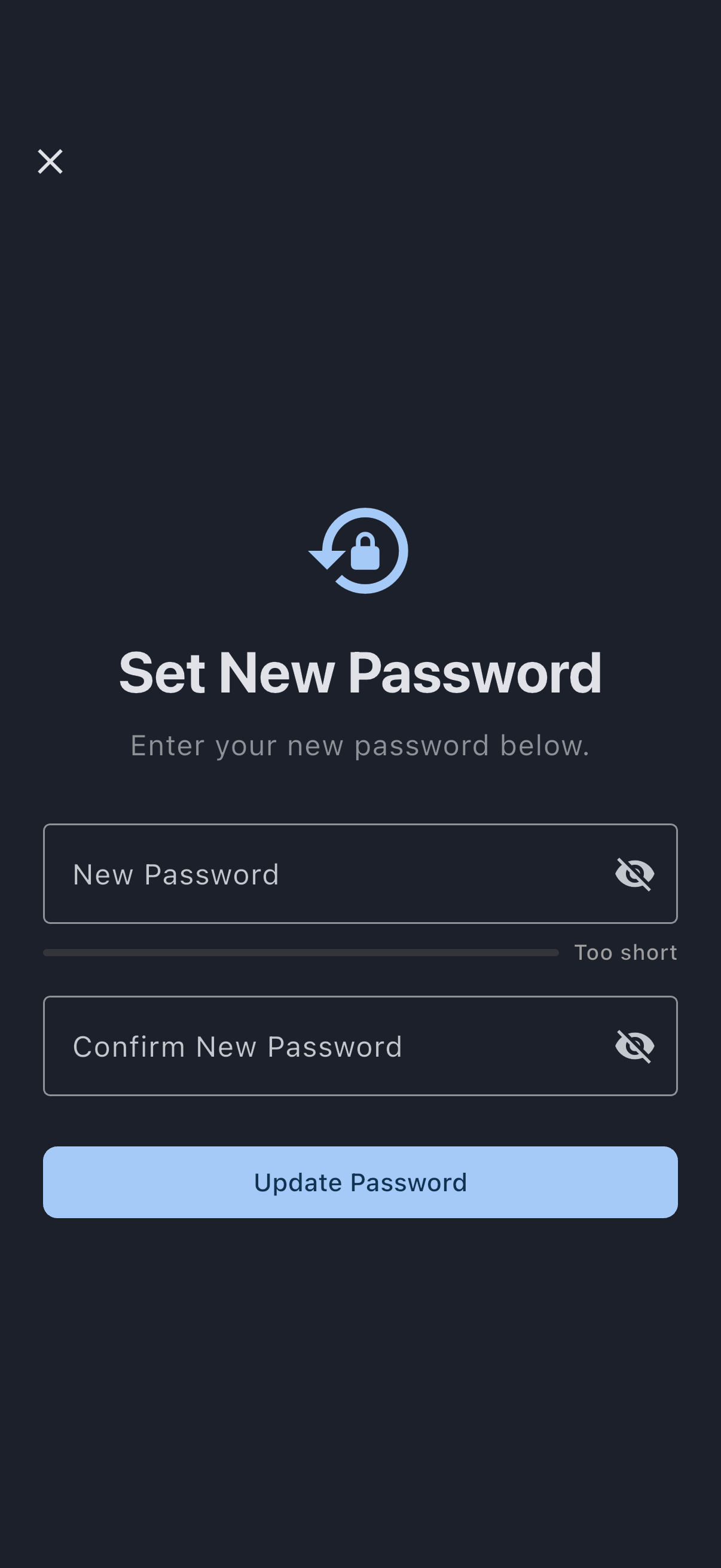
The strength meter under the first field fills in as you type; while the field is empty it reads Too short.
You don’t have to open the link on the device you requested it from. Opening it on your phone signs you in there; opening it on a computer signs you in on the computer.
If it goes wrong
Section titled “If it goes wrong”- No email arrives. Check spam. If it’s still missing, tap Try Different Email, re-enter the correct address, and send again.
- The link has expired. Reset links last one hour and work only once. Request a fresh one from Forgot password?.
- The link opens a page saying it’s invalid. The link has usually been used already, or your email app has broken it across two lines. Request a new one and use the Reset Password button rather than copying the text.
- You end up in the app but not on the password screen. Open the link again from the email. Set New Password only appears once the link has been opened.