
Approve a member's booking
Approve a member’s pending booking so it becomes confirmed and reserves the asset.
Before you start
Section titled “Before you start”- You must be an admin of the syndicate. Members cannot approve bookings.
- Only bookings in the
pendingstate can be approved. Tentative and cancelled bookings don’t appear in the approvals queue. - Your syndicate must have booking approval enabled; otherwise member bookings go straight to
confirmedand there is nothing to approve. See Booking policy.
- Open the Admin tab and tap Pending (or tap the approvals badge at the top of the syndicate screen). On the Pending screen, tap the Bookings row, then Review to open the Pending Approvals list.
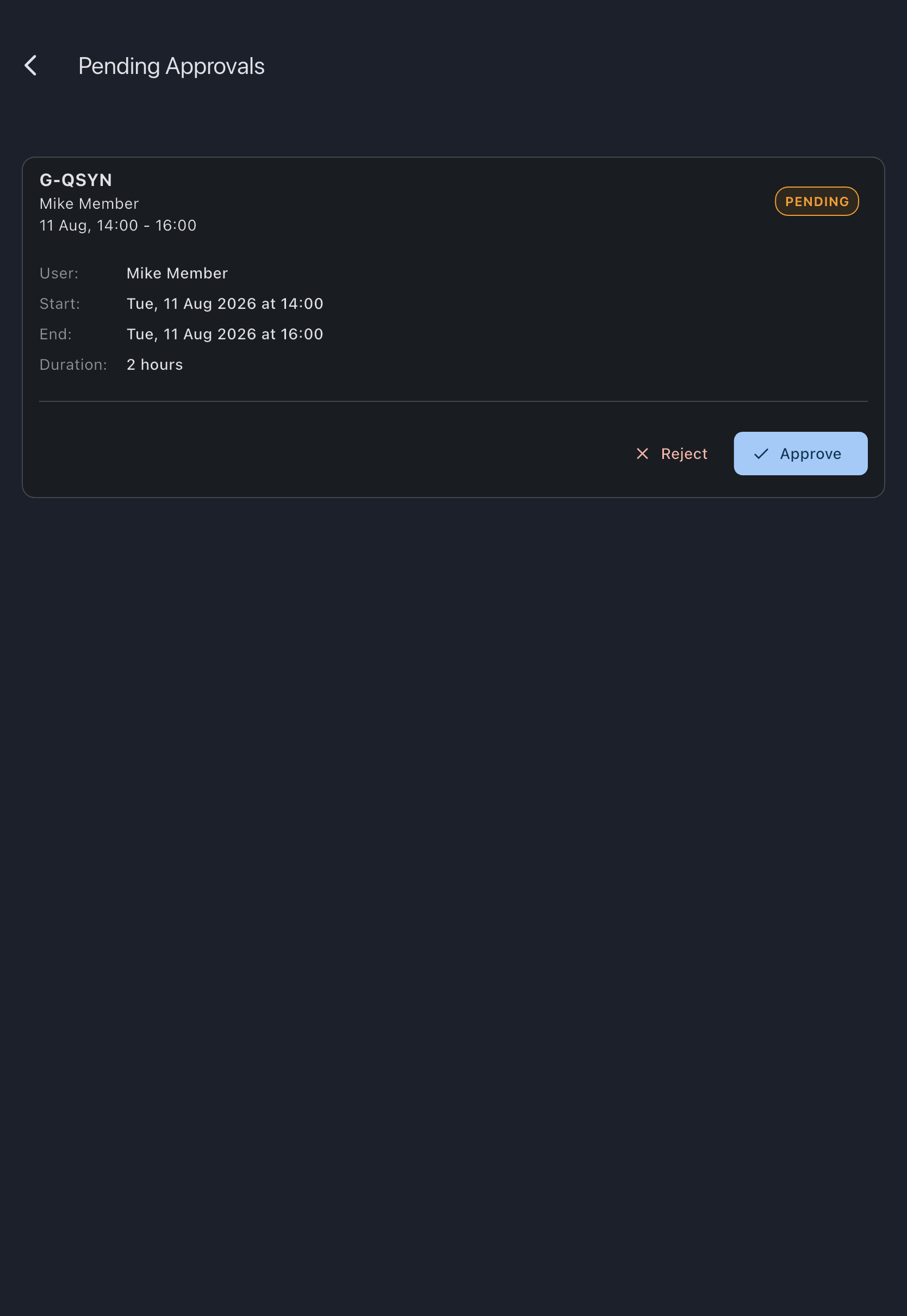
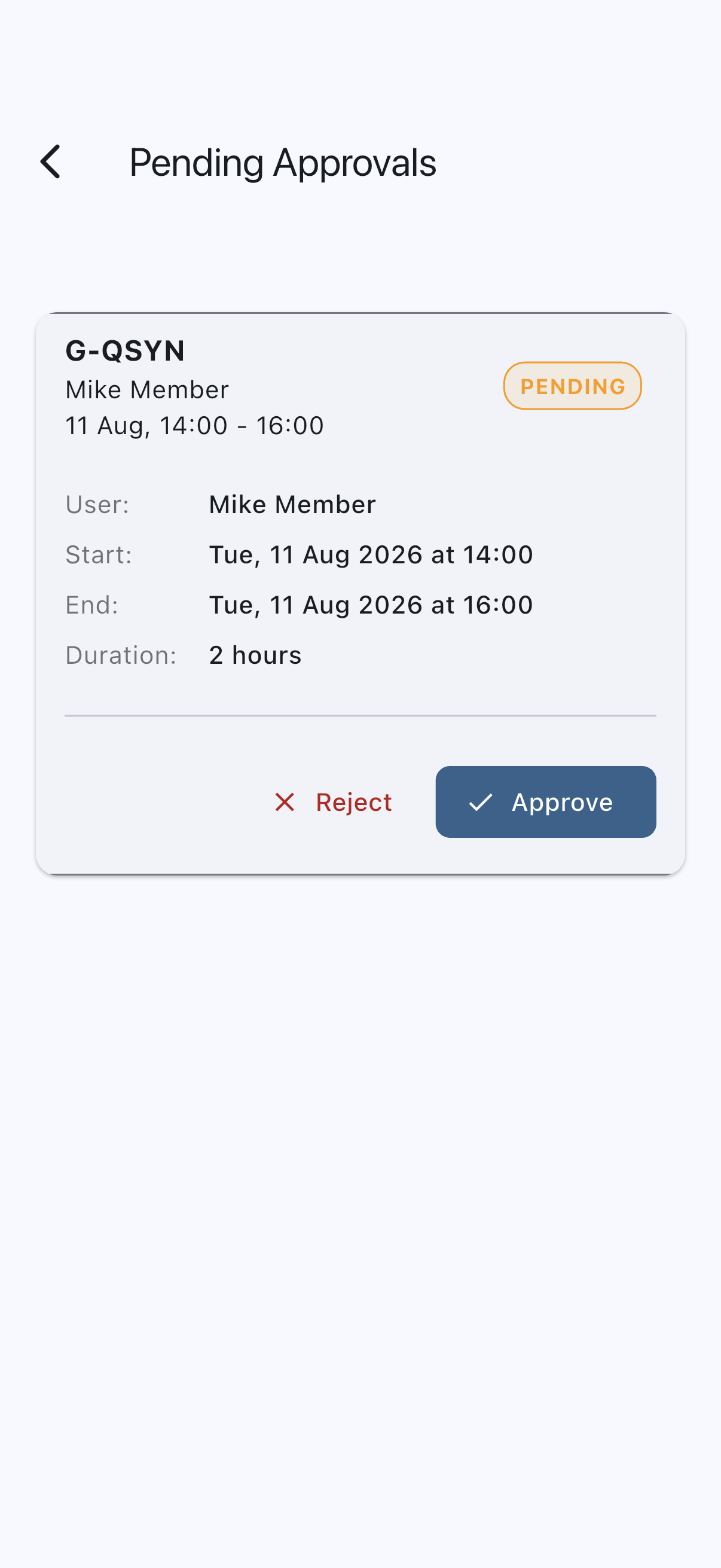
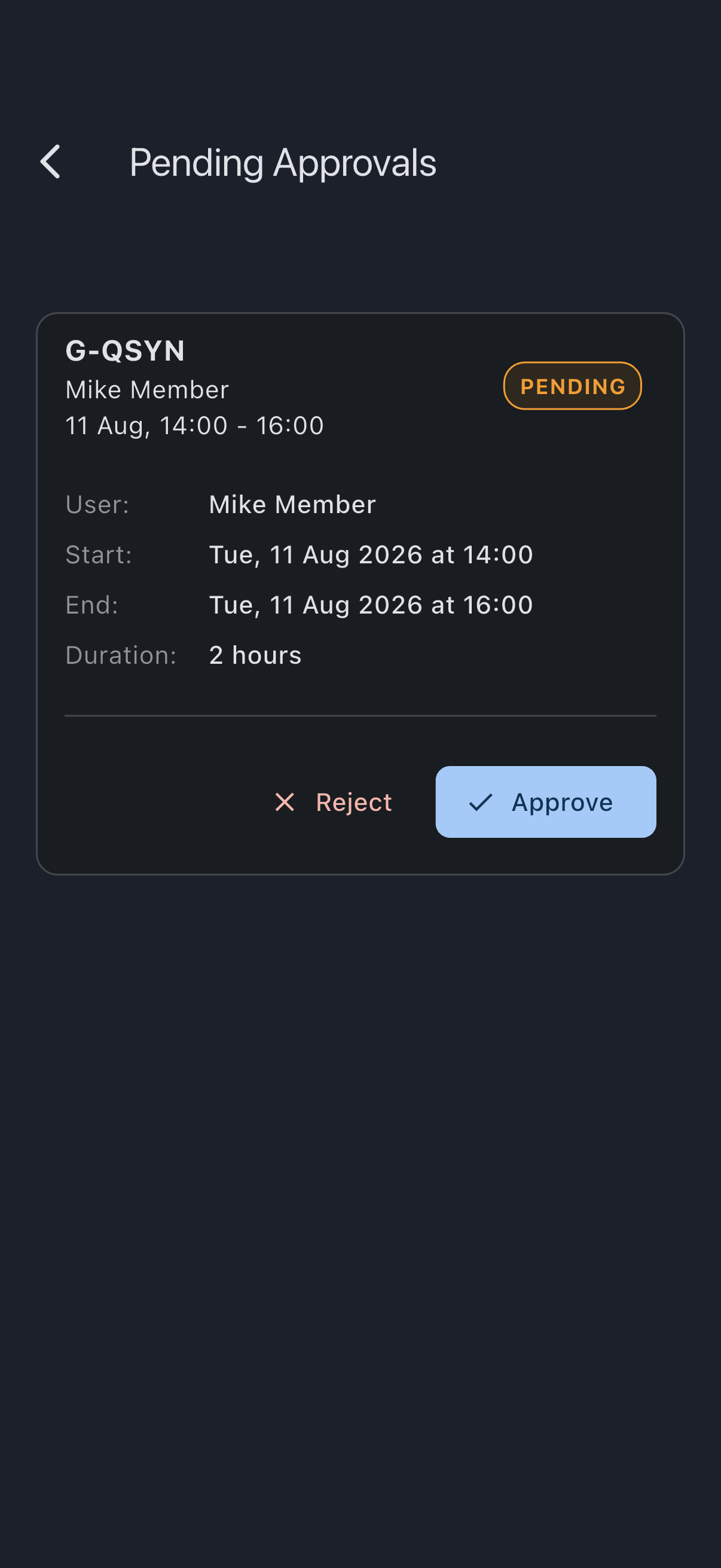
- You see a list of pending booking cards, each showing the member, the asset, and the time range. Tap a card to expand details.
- Tap Approve on the booking you want to approve.
- In the confirmation dialog (“Approve booking for <member name>?”), tap Approve again.
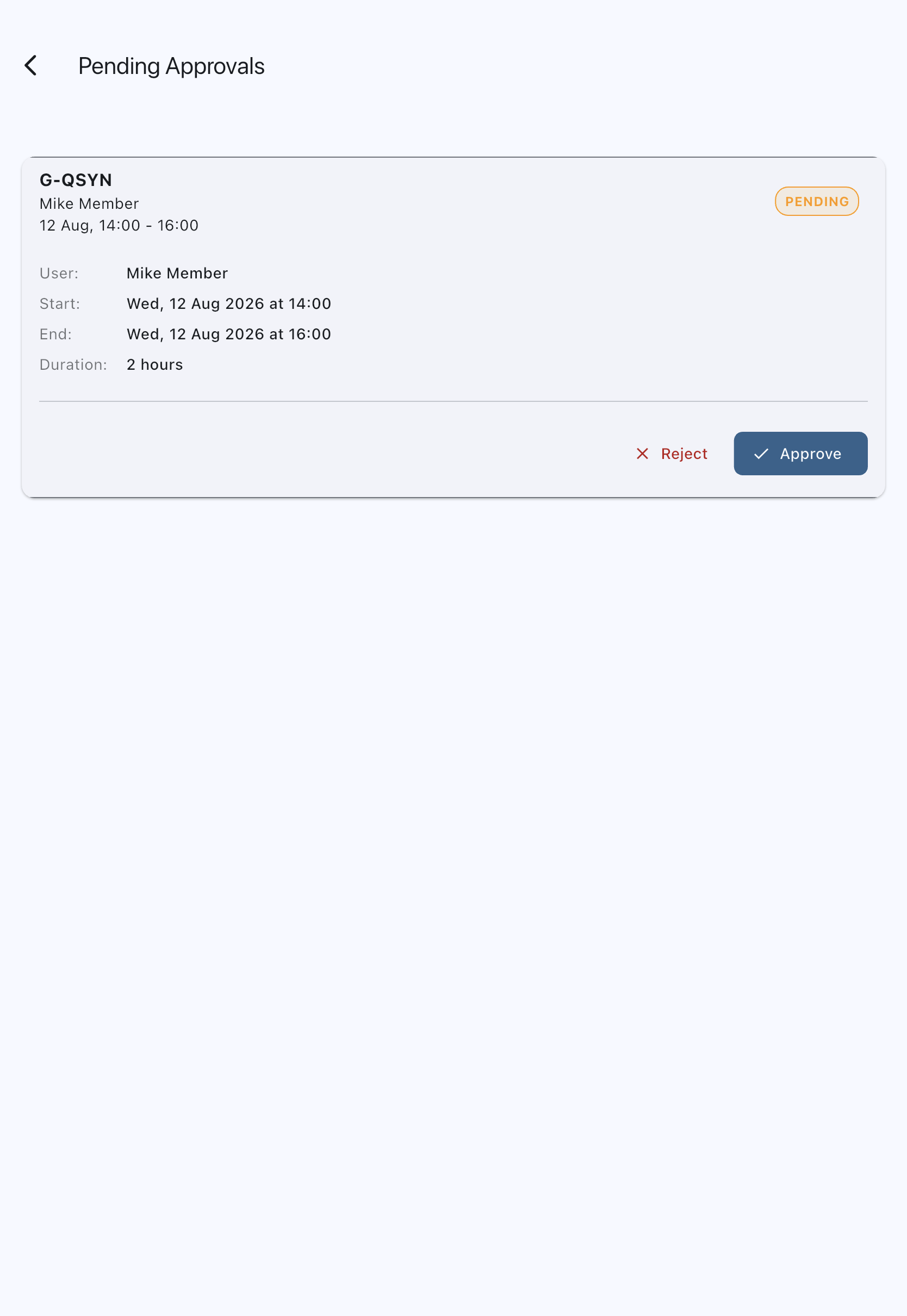
You’ll see a Booking approved snackbar. The booking’s status moves from pending to confirmed and the slot is now reserved on the calendar. If you are offline, the change is queued on your device and syncs to the server (and to the member’s notification feed) when your connection returns.
What approval does
Section titled “What approval does”- Changes the status to
confirmed. The booking now blocks other bookings on the same asset at the same time (see Conflict detection). - Sends the member a notification that their booking has been approved.
- Removes the booking from the Pending Approvals queue.
If it goes wrong
Section titled “If it goes wrong”- “Only pending bookings can be approved”: someone else has acted on the booking since the list loaded. The list updates on its own as bookings change.
- “Conflict with an existing booking”: between the time the member submitted and now, another confirmed booking has taken part of the slot. Approval is blocked. Either reject this one, or ask the member to pick a different time.
- The Approve button isn’t there: you are not an admin in this syndicate.